
Creating Purchase Order Distributions
This section discusses how to:
Enter distribution information.
View distribution SUT details.
Enter distribution VAT details.
Enter distribution information directly.
Pages Used to Create Purchase Order Distributions
|
Page Name |
Definition Name |
Navigation |
Usage |
|---|---|---|---|
|
Maintain Purchase Order - Distributions for Schedule |
PO_SCHED_DISTRIB |
Click the Schedules button on the Maintain Purchase Order - Purchase Order page. Click the Distributions/ChartFields button from the Maintain Purchase Order - Schedules page. |
Define multiple distributions for each purchase order schedule. |
|
Item Description |
PO_ITEM_DESCR2 |
Click the Item Description link on these pages: the Maintain Purchase Order - Distributions for Schedule page or the Distribution Sales/Use Tax Details page The item description link includes the first 30 characters of the item's description in the Transaction Item Description text box on the Item Description page. |
Enter and view descriptions for a specific item. |
|
Multiple SpeedCharts |
RUN_POSPCHARTS_OL |
Click the Multi-SpeedCharts link on the Distributions for Schedule page. |
Add, append, and override speed charts for the purchase order schedule. |
|
PO Currency Information |
PO_DIST_CURR_INFO |
Click the Currency link on the Maintain Purchase Order - Distributions for Schedule page. Select the Details/Tax tab. |
View the date, rate, and other currency information. |
|
Exchange Rate Detail |
EXCH_RT_DTL_INQ |
Click the Exchange Rate Detail link on the PO Currency Information page. |
Display the rules used to calculate exchange rates for the transaction. |
|
Requisition Details |
PO_DISTRIB_REQ |
Click the Requisition Details link on the Maintain Purchase Orders - Distributions for Schedule page. Select the Req Detail tab. |
View the details of the requisition from which this purchase order distribution originated and clear the requisition from the distribution. |
|
Sales/Use Tax Details for Distribution |
PO_DISTRIB_SUT |
Click the Sales/Use Tax Information button next to a distribution line on the Maintain Purchase Order - Distributions for Schedule page. Select the Details/Tax tab. |
View sales and use tax information pertaining to this purchase order distribution. |
|
VAT Details for Distribution |
PO_DISTRIB_VAT |
Click the Distrib VAT button next to a distribution line on the Maintain Purchase Order - Distributions for Schedule page. Select the Details/Tax tab. |
Review the VAT details for this distribution and change the VAT transaction type. |
|
Maintain Distributions |
PO_CF_DTLS |
|
Enter distribution information directly which enables you to maintain a purchase order distribution directly without accessing the Maintain Purchase Order - Schedules page first. |
Maintain Purchase Order - Distributions for Schedule Page
Use the Maintain Purchase Order - Distributions for Schedule page (PO_SCHED_DISTRIB) to define multiple distributions for each purchase order schedule.
Click the Schedules button on the Maintain Purchase Order - Purchase Order page.
Click the Distributions/ChartFields button from the Maintain Purchase Order - Schedules page.
Image: Maintain Purchase Order Distributions for Schedule page
This example illustrates the fields and controls on the Maintain Purchase Order Distributions for Schedule page. You can find definitions for the fields and controls later on this page.
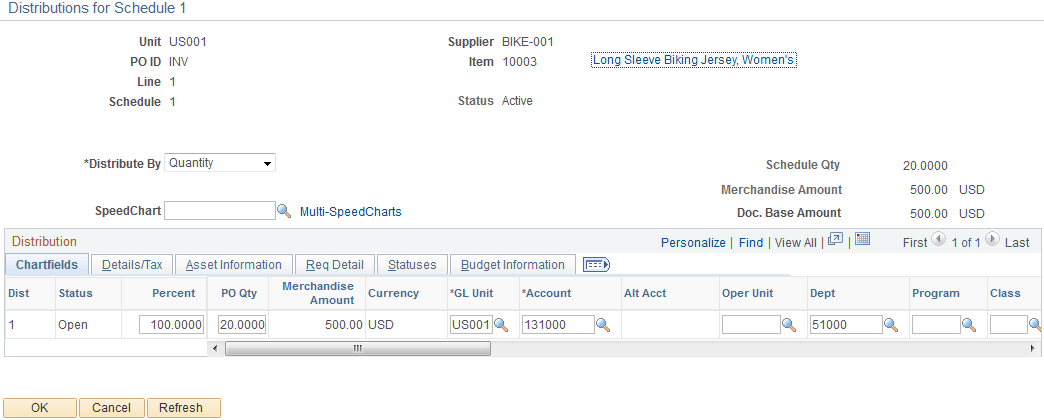
The settings of the Override and Default options on the PO Defaults page affect defaulting behavior on this page when you split distribution lines.
For example, suppose that you select the Override option, and you split 50 percent of distribution line 1 to distribution line 2, the system checks the purchase order defaults for a matching distribution line number (in this case, it is 2). If no match exists, it applies the value from distribution line 1. If no value exists on distribution line 1, the system looks to the next levels in the default hierarchy.
If you select the Default option and perform the same split, the system checks the default hierarchy first. If no values exist, the system checks the purchase order default values as described previously.
Chartfields
Details/Tax
Select the Details/Tax tab.
This table illustrates the rules that determine the setting of the Consigned check box on this page.
|
Item designated as consigned on BU_ITEMS_INV? |
supplier designated as consignment supplier? |
Consigned check box setting |
Effect |
|---|---|---|---|
|
Y |
Y |
Selected. Consigned check box is automatically selected by default, but this setting can be overridden. |
Item purchased from this specific supplier can be purchased as either a consigned item or an owned item. The item can never be purchased as solely a non-owned item. |
|
Y |
N |
Clear. Consigned check box is clear by default and the setting cannot be overridden. |
When purchased from this specific supplier, item cannot be purchased as a consigned item. |
|
N |
N |
Clear. Consigned check box is clear by default and this setting cannot be overridden. |
Item can never be purchased as a consigned item. |
Asset Information
Select the Asset Information tab.
Note: If the purchase order schedule is a non-inventory item and open description item and is associated with a PeopleSoft Maintenance Management work order you are unable to enter asset information for the distribution on this page.
| AM Unit (PeopleSoft Asset Management business unit) |
Select a PeopleSoft Asset Management business unit to associate with the asset item. If this field is populated by the system, the value appears by default from the PeopleSoft Purchasing business unit or the Purchase Order Defaults page. Note: If you consider an item to be an asset and plan to pass it to PeopleSoft Asset Management through the PeopleSoft Receiving business process, you must populate both the PeopleSoft Asset Management business unit and Profile ID fields. If both fields contain values, data is written to the PeopleSoft Asset Management staging tables. If only one of the fields is populated, the system will not consider the item an asset. All of the information that you enter on this page is passed to PeopleSoft Asset Management. |
| Profile ID |
Select an asset profile ID. |
| CAP# (capital acquisition plan number) |
Select a CAP number defined for this item in PeopleSoft Asset Management. This is required only if the item is capitalized. |
| Sequence |
Select a sequence number for the capital acquisition plan. |
| Tag Number |
Enter an asset tag number. The quantity on the distribution must be 1 to enter a tag number. This information becomes available on the Asset Information page once the asset data has passed on to PeopleSoft Asset Management. In addition, the system checks the tag number you enter on the purchase order to make sure it is not already assigned to an asset, when the Allow Dup Tags option is not set for the PeopleSoft Asset Management business unit. If the tag number has already been assigned to another asset the system will give you a warning message. The system only looks at the Assets table it does not look at the interface tables, previously entered receipts, purchase orders, or requisitions to see if the tag number has been assigned to another pending transaction. |
| EmplID |
Select an employee ID of the custodian for this item. This information corresponds to the employee ID number on the Asset Custodian/License/Manufacturer page. |
| Capitalize |
Designates a capitalized item. A PeopleSoft Asset Management business unit must be selected in order for this check box to be enabled. If the item is capitalized, it can be depreciated before being paid. |
| Cost Type |
Select the cost type associated with the item purchase, if applicable. Cost types represent components of the cost of an asset, such as materials, labor, and overhead. For example, you can differentiate between the cost of building an asset and its market value by allocating production cost to one cost type and the profit margin to another. Cost type, in combination with asset category and transaction code, determines which accounts the costs are entered into in the general ledger. See Understanding the Manufacturing Standard Cost Foundation. |
Req Detail
Select the Req Detail (requisition details) tab.
Use this tab to view the details of the requisition from which this purchase order distribution originated. You can view the requisition business unit, line, schedule, distribution, as well as other requisition related purchase order distribution information.

Note: If the purchase order is sourced form a requisition, click the related requisition links to access the requisition component.
Budget Information
Select the Budget Information tab.

Sales/Use Tax Details for Distribution Page
Use the Sales/Use Tax Details for Distribution page (PO_DISTRIB_SUT) to view sales and use tax information pertaining to this purchase order distribution.
Click the Sales/Use Tax Information button next to a distribution line on the Maintain Purchase Order - Distributions for Schedule page.
Select the Details/Tax tab.
VAT Details for Distribution Page
Use the VAT Details for Distribution page (PO_DISTRIB_VAT) to review the VAT details for this distribution and change the VAT transaction type.
Click the Distrib VAT button next to a distribution line on the Maintain Purchase Order - Distributions for Schedule page.
Select the Details/Tax tab.
VAT Controls
Note: The Recovery Source and Rebate Source fields are only available when you select the Allow Override Recovery/Rebate option on the Purchasing Options VAT driver in the VAT defaults table.
VAT Treatments
Use this group box to review the VAT treatment for the distribution line.
| Treatment |
Displays the VAT treatment. The value is copied from the schedule line. |
VAT Details
Use this group box to review and change the VAT transaction type for the distribution line.
| Transaction Type |
Displays the code that categorizes and classifies this transaction for VAT reporting and accounting. The value is copied from the schedule line, but you can override the default. |
VAT Calculations
Use this group box to review the VAT calculations for the distribution line.
Maintain Distributions Page
Use the Maintain Distributions page (PO_CF_DTLS) to enter distribution information directly which enables you to maintain a purchase order distribution directly without accessing the Maintain Purchase Order - Schedules page first.
Note: If you identify a distribution line as final for less, you must run budget checking afterwards.