Configuring columns for a Results Table

From the Column Selection tab of the Results Table edit view, you can configure the width, formatting, and other options for all of the table columns.

Note that for a record list table, if you are using the default column configuration, then you cannot configure the columns. Only default settings are used.

To configure the display of a column:

  1. From the Column Selection tab, to display the Edit column dialog, click the edit icon for the column.
  2. For aggregated tables, you can select the aggregation method for each metric.
  3. For a date/time attribute, from the Date/time subset to enable drop-down list, select the date/time subset to display.

    The selected date/time subset is included in the column heading on the end user view.
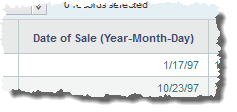

    Results Table column heading for a date/time attribute showing the selected date/time subset
  4. For persistent columns and dimensions, you can lock the column, so that it is always visible at the left of the table.

    To lock the column, check the Lock column checkbox.
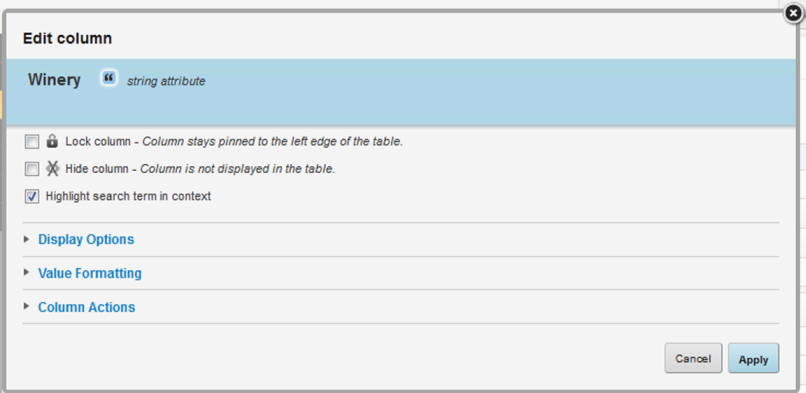

    Edit column dialog for a persistent column

    To unlock the column, uncheck the checkbox. If the column is not locked, it is still at the left of the table, but can scroll horizontally.

  5. By default, all of the columns are visible. However, you can configure a column to be hidden when the table is first displayed.

    To hide the column by default, check the Hide column checkbox.

    On the Column Selection tab, hidden columns are flagged with an icon.

  6. For record list tables, you can indicate whether to highlight search terms that appear in the attribute value. To highlight search terms, check the Highlight search term in context checkbox.
  7. For dimension columns in an aggregated table, there are additional settings to control attribute hierarchies and cascading:
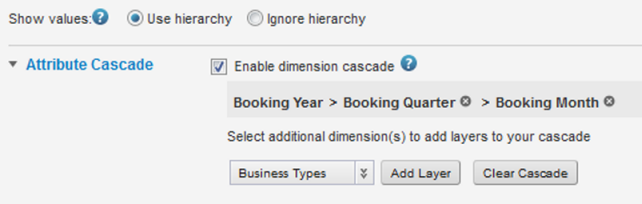
    Dimension-specific settings for Results Table column configuration
    1. Under Show values, select how to display the dimension values if the dimension has a hierarchy of values.

      The default option is Use hierarchy, which indicates to only display one level of the hierarchy at a time. When the table is first displayed, it only shows the top level of the hierarchy. When end users refine by a value, the next level of values is then displayed.

      To display the specific values assigned to records, regardless of the hierarchy level, select Ignore hierarchy.

    2. If you are allowing users to refine by the dimension value, then you use the Attribute Cascade section to configure the dimension cascade.

      For information on configuring a dimension cascade, see Configuring cascading for dimension refinement.

  8. In the Display Options section:
    1. Under Column alignment, to select the horizontal alignment to use for the column value, click its radio button.
    2. Under Column width, by default the Use default radio button is selected.

      To override the default width, click the other radio button, then in the field, type the width in pixels of the column.

  9. The Value Formatting section is used to set the format for displaying the column values.

    When the dialog is first displayed, the section is collapsed. To expand or collapse the section, click the section heading.

    For details on formatting displayed values, see Configuring the format of values displayed on a component.

  10. The Column Actions section allows you to configure the action that occurs when users click the value.

    When the dialog is first displayed, the section is collapsed. To expand or collapse the section, click the section heading.

    For general information on configuring column actions, see Configuring actions for displayed values.

    In addition to the basic action configuration, for Results Table columns, you can also set a condition to determine whether to enable the action based on the value of an attribute in the table. For example, you can configure the Winery column to only be used for a hyperlink if the Date Reviewed column has a non-null value.
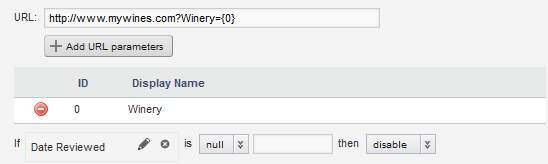

    Condition set for a Results Table column action

    For details on configuring action conditions, see Configuring conditions for enabling Results Table actions.