| Oracle® Health Sciences Network Installation Guide Release 2.0.0.0 E65879-01 |
|


|
PDF · Mobi · ePub |
| Oracle® Health Sciences Network Installation Guide Release 2.0.0.0 E65879-01 |
|
|
PDF · Mobi · ePub |
Through the registry configuration feature, you can perform the following:
Create companies (hospitals, pharmaceutical companies, research institutes, and so on) that participate on the HSN network.
Provision service to companies in offer or consumer mode.
Create relationship between companies for a service.
Define restriction for a relationship.
SQL scripts are used to configure registry.
You can define the following restrictions for a relationship:
Data restriction
Protocol limit
Note:
Restrictions are set of policies through which a provider company (Provider) can restrict a consumer company (Sponsor) on a provisioned service usage. For example, a provider company can restrict number of protocols a consumer company can use.This chapter contains the following topics:
Note:
Log in to the database as a HSN user before executing the scripts provided in the following sections.To create static seed data required for registry configuration, execute the App_Service_Capability.sql seed script.
Note:
You need to execute this script under the user created in Section 2.1.2.This script first deletes the existing entries and creates preconfigured entries in the following tables:
APP: Creates single entry for application as PVPR_APP and Application ID (appId) as 1.
Service: The application offers the following services:
QUERYCOUNT (Validation service)
RECRUITMENT (Recruitment service)
CRITERIAANALYSIS (Criteria Analysis service)
OMICS (Omics service)
APP_CAPABILITY: This table contains mode for each that the application supports.
To create a company and provision an existing application to the company, execute the Company_AppProvision.sql script. Enter the following details:
Name of the company.
For example, Company1.
URL of the PVPR application instance.
For example, if the PVPR application for the company is deployed at http://<server name>:<port number>, the URL should be http://<server name>:<port number>.
Note:
If you specify wrong URL, the HSNP.SERVICE.001 is displayed.The Company_AppProvision.sql script creates entries in the following tables:
Company
APP_PROVISIONED
You can update the company name or URL using the Update_Company_AppProvision.sql script.
To provision a service to a company in consume or offer mode, execute the Provision_Service.sql script. By default, t his script creates the activation policy for the company.
Enter the following details:
Company Name: Name of the company to which you want to provision a service.
Service Name: Name of the service that you want to provision.
Consume Mode: Set to Y for service to be provisioned in the consume mode, else set to N.
Offer Mode: Set to Y for service to be provisioned in offer mode, else set to N.
Is relationship required for consuming the service, if offered (Y/N) -
Y - Service is accessible only if there is a relationship created between sponsor and provider.
N - Service is accessible by all sponsors participating in the network without any restrictions.
Currently, service that can be provisioned for offer or consume mode can be any one of the services mentioned in the Creating Seed Data section.
The Provision_Service.sql script creates entries in the following tables:
USE_POLICY
POLICY
You can create a relationship between two companies to share protocols or for querying patient counts for a protocol.
Companies can offer or consume a service. Services offered to a company can be managed from the company admin screen. A user with the pr_admin role can restrict access to number of protocols and diagnosis codes.
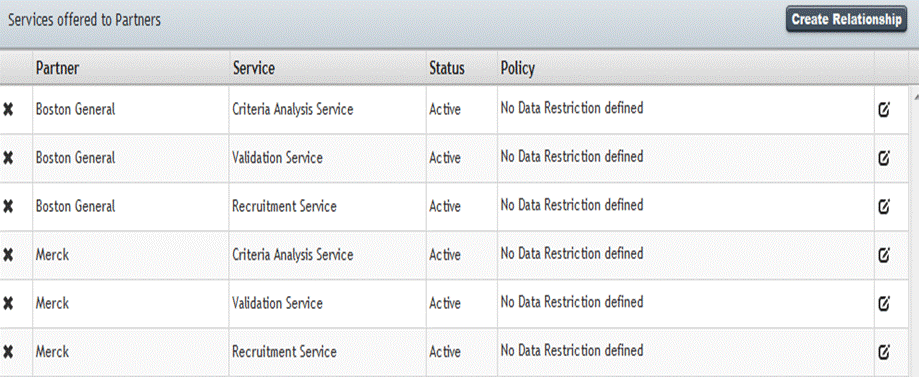
The PVPR Company Admin screen displays the details of services offered to a company along with the status of the service and policies applied on the service.
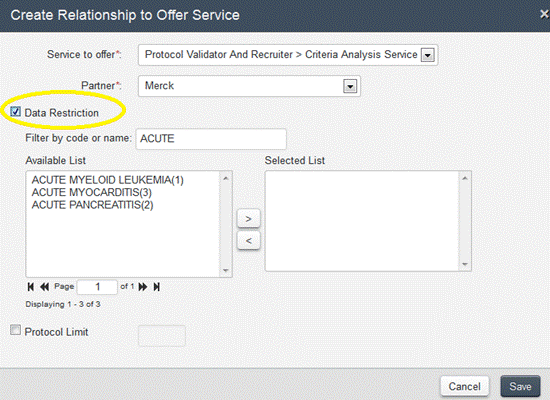
The admin can use the Create Relationship option to:
Configure the available services to sponsors.
Apply restrictions on a relationship with sponsor for the selected service.
Update the existing restrictions defined for the relationship for the services to a sponsor.
Data Restriction: to restrict the sponsor to query only for the selected diagnostic codes.
Protocol Limit: to restrict the sponsor to consume the service for the specified number of protocols.
You can update a company name, or URL, or both. To update, execute the Update_Company_AppProvision.sql script.
Note:
The URL would be the PVPR application instance URL for the company.You have to enter the existing company name while updating the company name or URL.
To delete a de-provision service to a company, execute the Delete_Provision_Service.sql script. Enter the following details:
Company Name: Name of the company from which you want to delete the service.
Service Name: Name of the service that you want to delete.
Consume Mode: Set to Y for service to be removed for consume mode, else set to N.
Offer Mode: Set to Y for service to be removed for offer mode, else set to N.
The script deletes entries in the following tables:
USE_POLICY
POLICY
|
 Copyright © 2014, 2015, Oracle and/or its affiliates. All rights reserved. Legal Notices |
|