| Oracle® Health Sciences Network Installation Guide Release 2.0.0.0 E65879-01 |
|


|
PDF · Mobi · ePub |
| Oracle® Health Sciences Network Installation Guide Release 2.0.0.0 E65879-01 |
|
|
PDF · Mobi · ePub |
This chapter contains the following sections:
This section describes how to create schema for PVPR.
This section contains the following topics:
The CDM installation for PVPR is completed.
The ODB (if required) installation for PVPR is completed.
Registry is configured with a new company and required services are provisioned to it.
The CDM installation scripts are part of installable bundle and are to be used for CDM installation. For a summary of steps involved in installing CDM, see Section 3.1.1.1.
If Omics Lite features are supported or used by a company, then Omics Data Bank (ODB) installation is also completed. For sponsor environment, ODB is to be installed if it has to query or perform recruitment on any partner on an Omics criterion. For provider environment, ODB is to be installed if the company supports Omics.
The ODB installation scripts are part of the installable bundle and are to be used for ODB installation. For a summary of steps involved in installing ODB, see Section 3.1.1.2.
To install CDM, perform the following:
Create CDM data tablespace.
Create CDM Index tablespace.
Create CDM user.
Provide maximum quota for the CDM user on the data tablespace.
Create the following Datamart roles:
CohortDatamartUser;
CohortDatamartAdmin;
Provide grants to the CDM user by executing the grant_schema_priv.sql file in the cdm-odb folder.
Execute the CDM installation script by running the install_cdm.sql script, giving the runtime parameters as specified in the TRC installation guidelines.
For more information on how to install CDM, see Oracle Health Sciences Translational Research Center Installation Guide (release 3.0.1).
To install ODB, perform the following:
Create ODB data tablespace.
Create ODB Index tablespace.
Create ODB LOB tablespace.
Create ODB user.
Provide maximum quota for the ODB user on the Data tablespace.
Provide grants to the ODB user by executing the grant_schema_priv.sql file in the cdm-odb folder.
Execute the ODB installation script by running the install_ODB.sh script in the odb_install folder, giving the runtime parameters as specified in the ODB installation guidelines.
For more information on how to install ODB, see Oracle Health Sciences Omics Data Bank Installation Guide (release 3.0.1).
To create tablespace for the PVRR database, perform the following:
Log in to the database as a user with privilege to create tablespace.
Execute the pvpr_create_tablespace.sql script.
Edit the pvpr_create_tablespace.sql script.
Enter the following details:
Appropriate path for the datafile (line starting with datafile)
Size and autoextend size (line starting with SIZE)
Log in to the database as system user and execute the script. When prompted, enter the name of the tablespace you want to create.
To create PVPR database user, perform the following:
Log in to the database as a user with privilege to create user.
In the SQLPlus prompt, execute the @pvpr_create_user.sql script.
Enter the corresponding values as prompted.
Note:
Ensure that you specify the tablespace name created in Section 3.1.2 when prompted.PVPR need to access the tables and views of CDM and ODB, and so you must grant privileges and create synonyms.
To grant privileges and create synonyms, perform the following:
CDM Installation
If only CDM is installed, then:
Go to the PVPR/SQL folder and run the following scripts:
grant_cdm_select.sql
create_synonyms.sql
Enter the values when prompted.
CDM-ODB Installation
If both CDM and are installed, then:
Go to the CDM-ODB-Install folder and edit the install_final.sql script.
Run the install_final.sql script.
Enter the values when prompted.
The dimension data from the Provider side should be exported and then imported on to the Sponsor side. From the Provider side, the dimension data is exported as files to the Sponser side. The data from these files is loaded to the dimension tables at Sponser side.
To configure dimension data export and import, perform the following:
In the SQLPlus prompt, log in as sys user and execute the following:
CREATE OR REPLACE DIRECTORY PVPR_EXT_TAB_DIR AS '&&pvpr_external_dir';
GRANT read, write on directory PVPR_EXT_TAB_DIR to &&pvpr_user;
GRANT read, write on directory PVPR_EXT_TAB_DIR to &&cdm_user;
Notes:
Replace &&pvpr_external_dir with the actual directory path in the database machine where you want to save the files.
Replace &&pvpr_user with the schema name of the PVPR user.
Replace &&cdm_user with the schema name of the CDM user.
If the installation is done for a Sponsor, then from the SQLPlus promt, execute the @PV_install_dim_ddl.sql script in the PVPR/SQL folder and enter the values as prompted.
This section describes how to create database objects such as tables and procedures for PVPR, and to initialize the database with seed data.
In the SQL prompt, execute @install_pvpr_env.sql by providing the values as prompted.
Connect to the database as PVPR user.
In the SQL prompt, execute @config_pvpr_env.sql. This script prompts for the following inputs:
SOA Server URL: URL of the server where SOA services are deployed.
SOA Server PORT: Port of the SOA server.
HSn-ManApp Server URL: URL of the server where Hsn-ManApp is deployed.
HSn-ManApp Server PORT: Port of the Hsn-ManApp server.
PVPR Server URL: URL of the server where PVPR is deployed.
PVPR Server PORT: Port of the PVPR server.
My Company Id: You need to configure the company ID during registry configuration of Hsn-ManApp.
My Company Name: You need to configure the company name during registry configuration of Hsn-ManApp.
Is Omics Supported (Y/N): Enter Y if Omics features are supported or used. Otherwise, enter N.
This configures the company ID, company name, and service URLs of the platform services in the PVPR application.
Seed Data
The initial seed data required for PVPR is populated as part of the preceeding PVPR database installation. This includes the default roles and privileges, among other basic data.
The default dimension codes for Gender and Marital Status codes are also included as a part of the preceeding installation.
Running Post-Installation Scripts
During schema creation, access rights are granted to the schema user, which are required only for database configuration. Post database schema creation, the access rights need to be revoked. The access rights are revoked using post-installation scripts.
Connect to the database as a user with sysdba privilege.
Run the @pvpr_post_install.sql script.
After the database is installed, the data is loaded to ODB and CDM.
At the Sponsor side, only the ODB reference data is required. Since this release supports only the searches by gene and mutation, only the EMBL and GVF reference loaders are required. However, the Providers require both reference loaders and result loaders. For more information on how to load data to ODB, see Oracle Health Sciences Omics Data Bank Programmer's Guide (release 3.0.1).
At the Sponsor side, only the CDM reference data is required. However, the reference (dimension) data has to be loaded from each Provider.
At the Provider side, perform the following steps to export data:
In the SQLPlus prompt, execute the @PR_run_exp_data_dim.sql script in the PVPR/SQL/ref-data folder.
Enter the values as prompted.
The required dimension data is exported into files present in the configured external directory. For more details, see Section 3.1.5.
At the Sponsor side, perform the following steps to load the data from the data files into the actual Sponsor dimension tables.
In the SQLPlus prompt, execute the @PV_merge_dim.sql script in the PVPR/SQL/ref-data folder.
Enter the values as prompted.
This section explains how to install the PVPR Middle-Tier.
To create data source in the Oracle WebLogic server, perform the following:
Log in to the Oracle WebLogic server console.
Create a new data source by providing the following details:
Data Source Name: Specify a name that represents the underlying database schema and environment. For example, JDBC-DS-Provider1
JNDI Name: jdbc/PVPR.
Specify the PVPR database user and password on the Connection Pool details screen.
Specify database connection details for the PVPR database.
Apply the data source to the server in the Targets section.
To set transaction timeout for the WebLogic application server, perform the following:
Go to Services > JTA in the WebLogic console.
Update timeout seconds to 600 and save.
To enable JPA 2.0 and Jackson, perform the following:
Edit the <MIDDLEWARE_HOME>/wlserver_10.3/common/bin/commEnv.sh file to add the PRE_CLASSPATH variable at the end of the file.
Verify JAR version number in the <MIDDLEWARE_HOME>/modules folder and update the following statement accordingly:
PRE_CLASSPATH=${MODULES_DIR}/javax.persistence_1.1.0.0_2-
0.jar:${MODULES_DIR}/com.oracle.jpa2support_1.0.0.0_2-
1.jar:${MODULES_DIR}/org.codehaus.jackson.mapper.asl_1.0.0.0_1-8-
3.jar:${MODULES_DIR}/org.codehaus.jackson.core.asl_1.0.0.0_1-8-3.jar
export PRE_CLASSPATH
To refer shared jersey libraries from PVPR, perform the following:
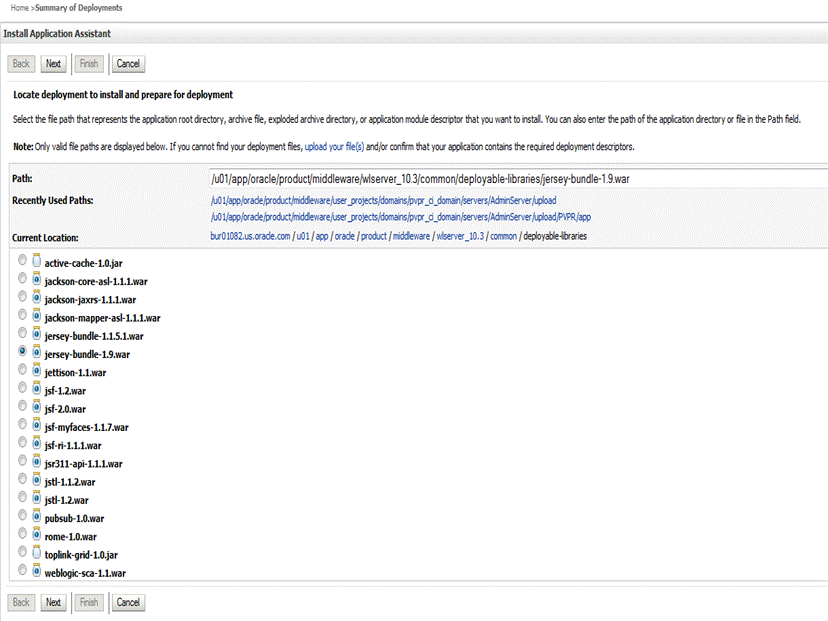
From the Administration Console, click Summary of Deployment.
Click Install.
The Install Application Assistant screen is displayed.
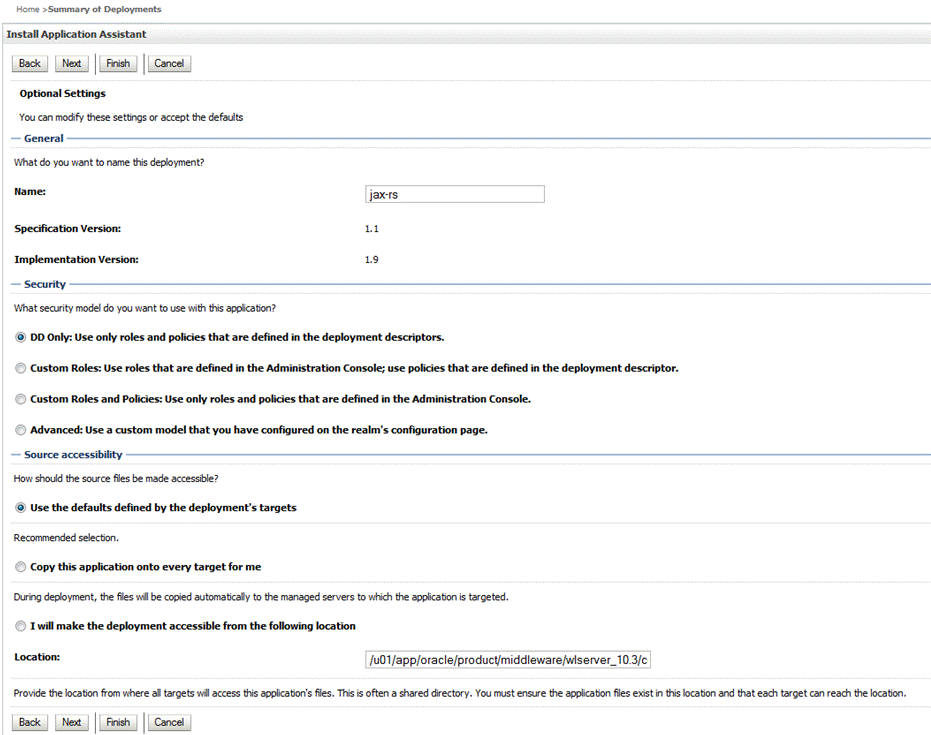
Navigate to the required path and select the required JAR file as shown in the figures 3-1, 3-2, and 3-3:
Figure 3-2 Install Application Assistant - Choose Targeting Style
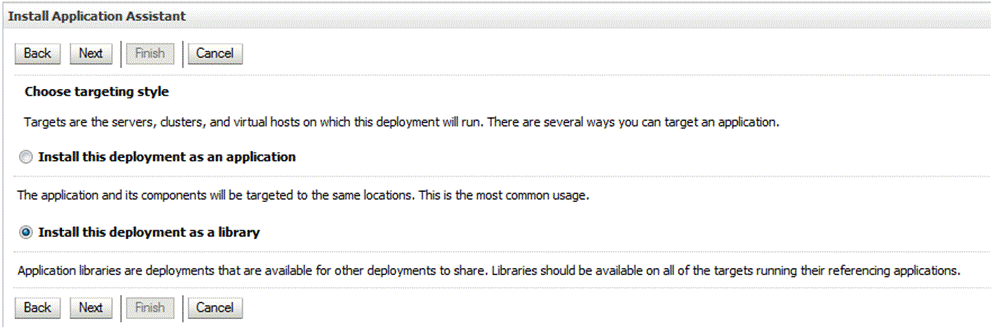
Figure 3-3 Install Application Assistant - Optional Settings
To configure logging, perform the following:
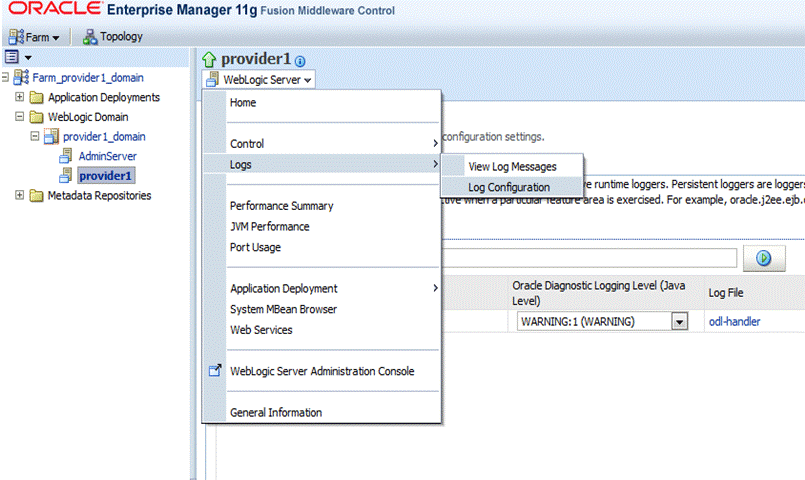
Log in to the Enterprise Manager.
In the pane on the left side of the window, click pvpr domain in the WebLogic Domain folder and select the target pvpr server.
From the WebLogic Server drop-down list, select Logs and then select Log Configuration.
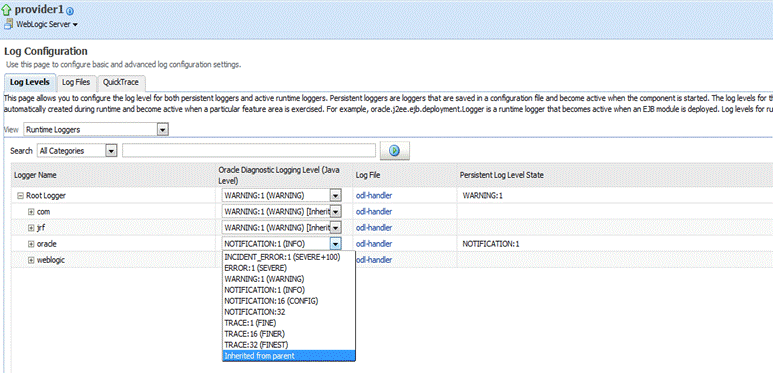
Expand Root Logger.
For Oracle, change the log level and select Inherited from Parent.
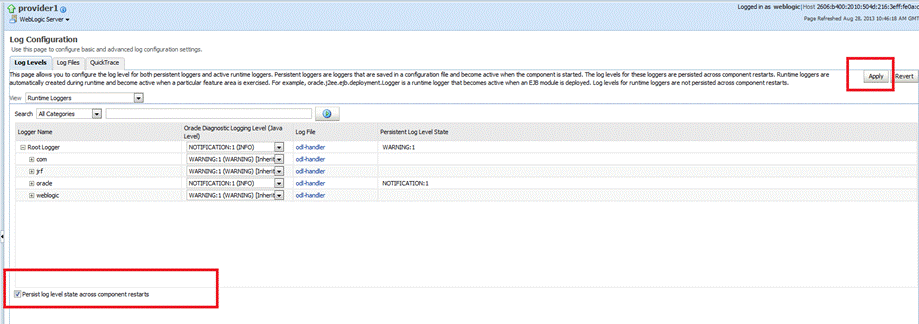
Select Persist log level state across component restarts and click Apply Changes.
This section contains the following topics:
Section 3.4.1, "Generating Keystore and Configuring Trusted Certificate"
Section 3.4.2, "Configuring Keystore on HSnP and SOA Server"
Note:
: You need to perfrom the following steps only once. Share the generated and updated keystore file for all the PVPR instances.To execute the following commands, you need to set the JAVA_HOME environment variable to point to JDK (version 1.6 and later) referred in the PVPR domain.
export JAVA_HOME=<Path to JDK referred with pvpr domain>
export PATH=$JAVA_HOME/bin:$PATH
Generate the private key to be used in the PVPR servers using the keytool utility available in JDK.
In the following command, replace <KEY_LOCATION> as required:
keytool -genkey -alias hsn-pvpr-key -keyalg "RSA" -sigalg "SHA1withRSA" -dname "cn=HSN-PVPR,ou=HSGBU,o=ORACLE,c=US" -keystore <KEY_LOCATION>/pvprkey.jks -validity 3650
Enter the keystore password and the key password when prompted.
Export the certificate of pvprkey using the following command:
Note:
Replace <PVPR_KEY_LOCATION>, <PVPR_CERTIFICATE_LOCATION>, <HSNP_KEY_LOCATION>, and <HSNP_CERTIFICATE_LOCATION as required in the following steps.keytool -export -alias hsn-pvpr-key -keystore <PVPR_KEY_LOCATION >/pvprkey.jks -file <PVPR_CERTIFICATE_LOCATION>/hsn-pvpr.cer
Enter the keystore password when prompted.
Copy hsnpkey.jks from the HSNP ManApp server.
For more information on <HSNP_KEY_LOCATION>/hsnpkey.jks, see Section 2.2.6.
Export the certificate of hsnp-key using the following command:
keytool -exportcert -alias hsnp-key -keystore <HSNP_KEY_LOCATION>/hsnpkey.jks -file <HSNP_CERTIFICATE_LOCATION>/hsnp.cer
Enter the keystore password when prompted.
Use the following commands to import the keys in other keystore files for the trust:
Command to import hsnp-key certificate to pvprkey:
keytool -import -alias hsnp-key -file <HSNP_CERTIFICATE_LOCATION>/hsnp.cer -keystore <PVPR_KEY_LOCATION>/pvprkey.jks
Commands to import hsn-pvpr-key and orakey certificates to hsnpkey:
Note:
Enter the keystore password when prompted.keytool -import -alias hsn-pvpr-key -file <PVPR_CERTIFICATE_LOCATION>/hsn-pvpr.cer -keystore <HSNP_KEY_LOCATION>/hsnpkey.jks
keytool -import -alias orakey -file <PVPR_CERTIFICATE_LOCATION>/hsn-pvpr.cer -keystore <HSNP_KEY_LOCATION>/hsnpkey.jks
Note:
You need to perform the following steps only once.Copy the updated keystore hsnpkey.jks to the <HSNP_DOMAIN_HOME>/config/fmwconfig folder. You must perform this step on the HSnP SOA server also.
Restart the WebLogic server instances for HSnP and the SOA domain.
To configure keystore on the PVPR server, perform the following:
Copy the generated keystore pvprkey.jks to the <PVPR_DOMAIN_HOME>/config/fmwconfig folder.
Open the <PVPR_DOMAIN_HOME>/config/fmwconfig/jps-config.xml file.
Search for default-keystore.jks in the file.
It should be similar to the following:
<serviceinstance name="keystore" provider="keystore.provider" location="./default-keystore.jks">
Replace ./default-keystore.jks with ./pvprkey.jks and save the file.
Restart the WebLogic server instances for the PVPR domain.
Copy the PVPR_OWSM_Config.py file from the media pack to a location to which the operating system user has read and execute permissions.
Execute the following commands on the command prompt:
cd <MIDDLEWARE_HOME>/oracle_common/common/bin
./wlst.sh <ABSOLUTE FILE_PATH to PVPR_OWSM_Config.py>
Enter corresponding values as prompted by the script.
The PVPR_OWSM_Config.py file adds credentials for the pvprkey.jks file.
Login to the Enterprise Manager of the PVPR domain.
In the left pane, click pvpr domain in the WebLogic domain folder.
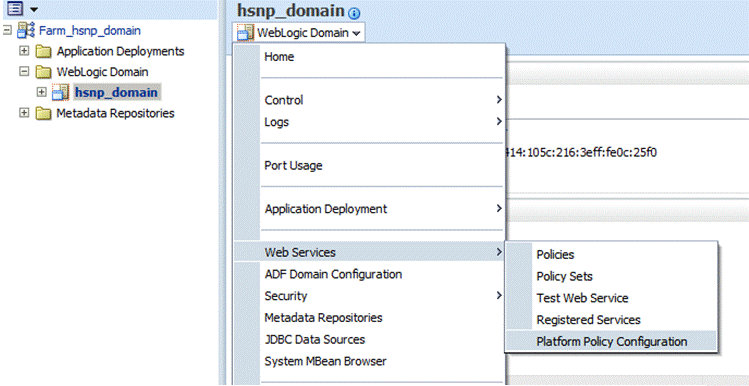
From the WebLogic Domain drop-down list, select Web Services and then select Platform Policy Configuration.
Figure 3-7 WebLogic Domain Drop-down List
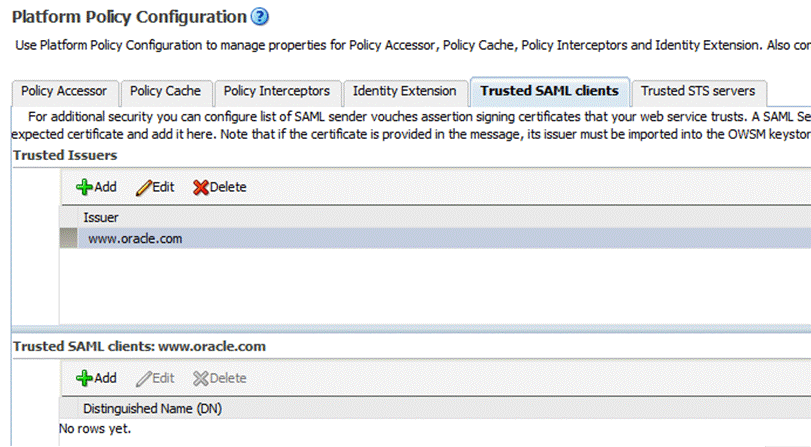
Click the Trusted SAML clients tab in the Platform Policy Configuration page.
Select www.oracle.com issuer in the Trusted Issuers pane.
Click Add in the Trusted SAML clients: www.oracle.com pane.
The Add New Distinguished Name (DN) window is displayed.
Figure 3-9 Add New Distinguished Name (DN) Window
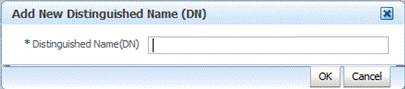
Add text cn=HSNP, ou=HSGBU, o=ORACLE, c=US and click OK.
Click Apply.
Log out of the Enterprise Manager.
Create the WebLogic user hsn_system, to be used for the PVPR domain.
Restart the WebLogic server instances for the PVPR domain.
|
 Copyright © 2014, 2015, Oracle and/or its affiliates. All rights reserved. Legal Notices |
|