After you have completed the procedures in Downloading and Running the Smart View Installer and Creating Data Source Connections to Enterprise Performance Reporting, you can connect to Oracle Enterprise Performance Reporting Cloud Service anytime you start Microsoft Excel or Word.
 To connect to Oracle Enterprise Performance Reporting Cloud Service:
If you're working with Oracle Enterprise Performance Reporting Cloud Service report packages, launch Word.
If you're working with Oracle Enterprise Performance Reporting Cloud Service models and reports, launch Excel.
In the Smart View Panel, select Private Connections.
Alternatively, from the Smart View Panel, click the arrow next to the Switch to button,
 , and then select Private Connections from the drop-down list.
In the text box shown in Figure 70, Quick Connection Arrow for Drop-down List, click the arrow to display the drop-down menu and select your connection.
If you created your data source connection using the procedure in Creating Data Source Connections to Enterprise Performance Reporting, then it should be listed under Quick Connect URLs in the drop-down list.
In the Login window, enter your User Name and Password, and then click Sign In.
To work with report packages in Word:
Expand the EPRCS node, then the Library node, then expand the Report Packages folder, and then select a report package.
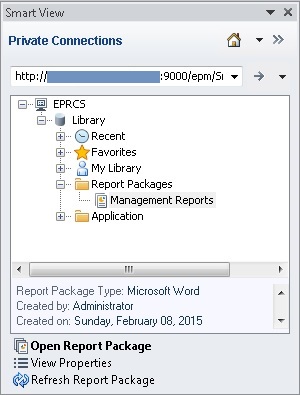
You can also locate the report package by navigating to:
The Recent folder, if you have recently accessed the report package in the Oracle Enterprise Performance Reporting Cloud Service web interface
The Favorites folder, if you have designated the report package as a favorite in the Oracle Enterprise Performance Reporting Cloud Service web interface.
A user-defined folder, if the report package was saved in a folder created in the Oracle Enterprise Performance Reporting Cloud Service web interface.
In the Action Panel, select Open Report Package.
Alternatively, you can right-click the report package name and select Open Report Package, or double-click the report package name to open it.
To work with report packages, continue with these topics in this chapter:
To work with Oracle Enterprise Performance Reporting Cloud Service models in Excel:
Expand the Reporting Applications folder, and then expand an application, then select a model.
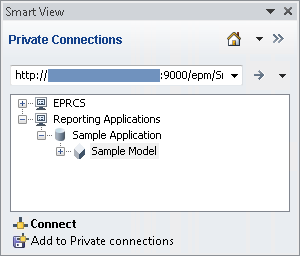
In the Action Panel, click Connect.
Alternatively, you can right-click the model name and select Connect, or double-click the model name to connect.
Refer to Ad Hoc Analysis chapter in this guide for information on working with the Oracle Enterprise Performance Reporting Cloud Service reporting application or applications from other Oracle providers.
Note:
In Excel, you can also navigate in the Smart View Panel to EPRCS, then Library, and select a report package. Smart View will launch the report package in Word.
Optional: For a brief look at using Oracle Enterprise Performance Reporting Cloud Service with Smart View, see Example: Working with Enterprise Performance Reporting Cloud Service Data in Smart View.
