You can select a local file from your computer to attach to your comment. For example, you might want to associate a supporting document with one of your comments. Or, you may want to customize the text of a comment using the rich text editor. For example, you may want to make text bold or apply a different font color. You can also add a URL to a comment.
 To attach files to a comment, customize comment text, or add a link to a web page:
In the Smart View Panel, in the comment list, double-click a comment that you started to launch the EPRCS Comments text box.
The comment you select must be the only or last comment in a thread.
To attach a file to your comment:
In Manage Attachments, click
 , then navigate to the file to attach and select it, and then click Open.
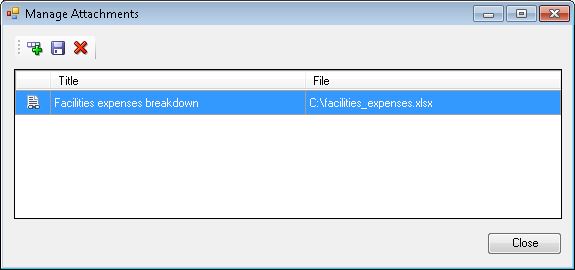
In the Title column, add a descriptive title for the file, and then press Enter; for example:
Click Save,
 , to save the attachment and title text.
The statement “Comment has attachments” is added to the EPRCS Comments text box.
Note:
The Manage Attachments button,
 is enabled in all comments in a thread so that all users included in the review instance may view attachments associated with all comments.
Repeat step 1 through step 2.d for all the files that you want to attach to the comment.
To apply custom formatting to comment text:
In the EPRCS Comments text box, select the last comment in the thread, then click the drop-down list arrow shown in Figure 106, Comment Text Box with Drop-Down List Circled, and then select Modify.
Click the Show Formatting Bar button,
 , to add text formatting to the comment.
Formatting options:
Font style, size, and color
Bold, italics, and underlining
Align text to the left or right, or center it
In the EPRCS Comments text box, , enter the URL; for example, enter:
http://www.oracle.com
For URLs to be recognized, you must precede them with a valid URL protocol identifier, such as:
http://
https://
For example:
http://www.oracle.com
Oracle recommends testing URLs in a browser to ensure that they work before adding them to comments.
 , to retain your changes.
 , to exit the