
After you download the installer kit, you can begin the installation, or deployment of the images and containers in the kubernetes environment. Perform the following steps to complete the installation:
· Place Files in the Installation Directories
· Generate an Encrypted Password
· Generate the Public and Private Keys
· Generate the Key Store File for Secure Batch Service
· Configure the Preferred Services
· Configure the studio-env.yml File
· Configure the Extract Transfer and Load _ETL _Process
· Verifying the Resource Allocation for FCC Studio Services
· Deploying FCC Studio on the K8s Cluster
After downloading the .zip folder, follow these steps to extract the folder contents:
1. Extract the contents of the installer archive file in the download directory using the following commands:
<FCC_Studio_Installer_Archive_File>_1of2.zip
<FCC_Studio_Installer_Archive_File>_2of2.zip
Both FCC Studio installer files are extracted to the same directory and the OFS_FCCM_STUDIO directory is obtained and is referred to as <Studio_Installation_Path>.
WARNING |
Do not rename the application installer directory name after extraction from the archive. |
2. Navigate to the download directory where the installer archive is extracted and assign execute permission to the installer directory using the following command:
chmod 0755 OFS_FCCM_STUDIO -R
To place the required jars and Kerberos files in the required locations, follow these steps:
1. To place the additional jar files, follow these steps:
a. Navigate to the <Studio_Installation_Path>/batchservice/user/lib directory.
b. Place the following additional jar files:
§ hive-exec-*.jar. For example, hive-exec-1.1.0.jar.
§ HiveJDBC4.jar
§ hive-metastore-*.jar. For example, hive-metastore-1.1.0.jar.
§ hive-service-*.jar. For example, hive-service-1.1.0.jar.
NOTE |
· The version of the jars is client or user-specific. These jars can be obtained from the existing jars of the Cloudera installation. · The HiveJDBC4.jar file is not available in the Cloudera setup. You must download the same from the Cloudera website. |
2. To place the Kerberos files, follow these steps:
a. Navigate to the <Studio_Installation_Path>/batchservice/user/conf directory.
b. Place the following Kerberos files:
§ krb5.conf
§ keytab file name as mentioned in the config.sh file.
To generate an encrypted password, follow these steps:
1. Set the export FIC_DB_HOME path in the <Studio Installed Directory>/ficdb directory.
2. Run the echo $FIC_DB_HOME command.
3. Go to the <Studio_Installation_Path>/ficdb/bin directory and run the ./FCCM_Studio_Base64Encoder.sh <password to be encrypted> command.
The Public and Private keys are JSON Web Tokens (JWT) that are generated for PGX Authentication from FCC Studio.
To generate the keys, follow these steps:
NOTE |
The following steps are mandatory for the first time FCC Studio installation. |
1. Navigate to the <Studio_Installation_Path>/ficdb/bin directory.
2. Run the Shell Script FCCM_Studio_JWT_Keygen.sh from the directory.
The Public and Private Keys are generated and available in the <Studio_Installation_Path>/secrets/keys directory.
3. Copy the private.key and public.key files to the <Studio_Installation_Path>/ficdb/conf directory.
After generating the key store file and adding the batch service to the PGX trust store, configure the user mapping for GDPR and Redaction changes in the database.
The General Data Protection Regulation (GDPR) is a regulation in EU law on data protection and privacy in the European Union and the European Economic Area. You can apply the GDPR changes that is required for FCC Studio.
To apply GDPR and Redaction, you must configure the following:
· Generate the Key Store File for Secure Batch Service
· Add the Batch Service (SSL) to PGX Trust Store
Generating the Key Store file for Secure Batch Service is a process of generating the key store parameters and changing the key store parameters from HTTP to HTTPS protocol.
To configure the Key Store file for Secure Batch Service, follow these steps:
1. Run the keytool -genkey -alias batchservice -keyalg RSA -keysize 2048 -keystore <Studio_Installation_Path>/OFS_FCCM_STUDIO/batchservice/conf/<Keystore file name>.jks command in the Studio Server.
When generating the keytool ensure to provide the hostname in first name. For example:
Question: What is your first and last name?
Answer: Provide the batch service name.
2. Specify the keystore password. The <Keystore file name>.jks file is created in the path <Studio_Installation_Path>/OFS_FCCM_STUDIO/batchservice/conf directory.
3. Specify the following parameters in the config.sh file.
§ export KYESTORE_FILE_NAME=<Keystore file name>.jks
§ export KYESTORE_PASS=password
Adding the Batch Service (SSL) to PGX Trust Store facilitates you to apply redaction on the graph batch service and connect with PGX.
To add the Batch Service to PGX Trust Store, follow these steps:
1. Copy the <Keystore file name>.jks file to the <PGX Server path>/server/conf directory.
2. Navigate to the <PGX Server path>/server/bin directory.
3. Open the start-server file in <PGX Server path>/server/bin directory and add the following lines in export JAVA_OPTS:
§ Djavax.net.ssl.trustStore=<PGX Server path>/conf/<Keystore file name>.jks
§ Djavax.net.ssl.trustStorePassword=<Keystore file password>
The code snippet shows an example of the file when the code is added:
#!/bin/bash
export HADOOP_EXTRA_CLASSPATH="$APP_HOME/hdfs-libs/*:$APP_HOME/conf/hadoop_cluster"
export CLASSPATH="$APP_HOME/shared-lib/common/*:$APP_HOME/shared-lib/server/*:$APP_HOME/shared-lib/embedded/*:$APP_HOME/shared-lib/third-party/*:$APP_HOME/conf:$APP_HOME/shared-memory/server/*:$APP_HOME/shared-memory/common/*:$APP_HOME/shared-memory/third-party/*:$HADOOP_EXTRA_CLASSPATH"
export JAVA_OPTS="-Dpgx.max_off_heap_size=$PGX_SERVER_OFF_HEAP_MB -Xmx${PGX_SERVER_ON_HEAP_MB}m -Xms${PGX_SERVER_ON_HEAP_MB}m -XX:MaxNewSize=${PGX_SERVER_YOUNG_SPACE_MB}m -XX:NewSize=${PGX_SERVER_YOUNG_SPACE_MB}m -Dsun.security.krb5.debug=false -Djavax.security.auth.useSubjectCredsOnly=false -Djava.security.krb5.conf=$APP_HOME/conf/kerberos/krb5.conf -Dpgx_conf=$APP_HOME/conf/pgx.conf -Djavax.net.ssl.trustStore=/scratch/fccstudio/OFS_FCCM_STUDIO/pgx/server /conf/keystore.jks -Djavax.net.ssl.trustStorePassword=password"
java -cp "$CLASSPATH" -Dfile.encoding=UTF-8 $JAVA_OPTS oracle.pgx.server.Main $APP_HOME/shared-memory/server/pgx-webapp-*.war $APP_HOME/conf/server.conf
After generating the key store file and adding the batch service to PGX trust store, in the database you must configure the user mapping for the changes made. For more information about how to configure user mapping, see the FCC Studio Administration Guide.
To configure the preferred services to be deployed during deployment of FCC Studio, follow these steps:
1. Navigate to the <Studio_Installation_Path>/bin/ directory.
2. Set the deployment parameter depending on the services you want to deploy in the serviceMapping.sh file. Set the deployment parameter to All if you want to deploy all services, or set the deployment parameter to Custom if you want to choose specific services to deploy.
If the deployment parameter is set to Custom, then set the values of the desired services to true and the values of undesired services to false.
A sample serviceMapping.sh file is as follows.
Figure 4: Sample serviceMapping.sh File
NOTE |
Do not set false for the server service. |
To configure the studio-env.yml file for installing FCC Studio, follow these steps:
1. Login to the server as a non-root user.
2. Navigate to the <Studio_Installation_Path>/secrets/ directory.
3. Configure the studio-env.yml file as shown in the following table.
A sample studio-env.yml file is as follows.
Figure 4: Sample studio-env.yml file
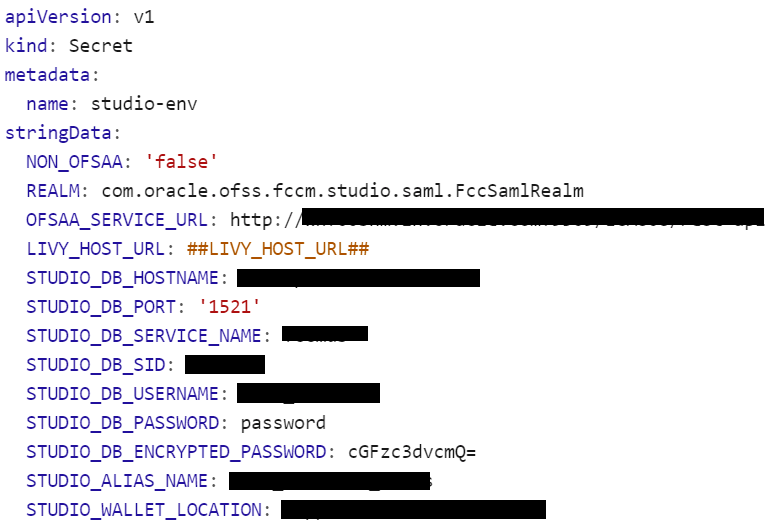
NOTE |
· Do not alter the parameter values that are already set in the studio-env.yml file · Retain the existing placeholder values for the parameters which are not shown as mandatory in the following table. · You must manually set the parameter value in the studio-env.yml file. If a value is not applicable, enter NA and ensure that the value is not entered as NULL. · Depending on the installation architecture, ensure to provide the correct hostname for URL of PGX service in the studio-env.yml file. · When upgrading FCC Studio with OFSAA, ensure to provide the same BD database, Studio schema, Hive schema, wallet related information that you used during the installation of the existing instance of FCC Studio. · When upgrading FCC Studio with non-OFSAA, ensure to provide the same Studio schema and wallet related information that you used during the installation of the existing instance of FCC Studio. |
Table 12: studio-env.yml Parameters
Parameter |
Significance |
Installing with OFSAA (Mandatory) |
Upgrading with OFSAA (Mandatory) |
Installing without OFSAA (Mandatory) |
|---|---|---|---|---|
apiVersion |
Indicates the current API version. For example: v1 |
Yes |
Yes |
Yes |
kind |
Indicates the object in which the file information is stored. For example: Secret |
Yes |
Yes |
Yes |
metadata |
|
|
|
|
name |
Indicates the file name. For example: studio-env |
Yes |
Yes |
Yes |
stringData |
|
|
|
|
NON_OFSAA |
Indicates the type of installation. · To install FCC Studio with OFSAA on the Kubernetes cluster, enter false. · To install FCC Studio without OFSAA on the Kubernetes cluster, enter true. |
Enter false |
Enter false |
Enter true |
REALM |
Realm indicates functional grouping of database schemas and roles that must be secured for an application. Realms protect data from access through system privileges; realms do not give additional privileges to its owner or participants. FCC Studio uses realm based authorization and authentication for its users. For more information, see the Realm Based Authorization for FCC Studio section in the OFS Crime and Compliance Studio Administration Guide. The FCC Studio application can be accessed using the following realms: · FCCMRealm Value=com.oracle.ofss.fccm.studio.datastudio.auth.FCCMRealm · IdcsRealm Value=oracle.datastudio.realm.idcs.IdcsRealm · DemoRealm Value=com.oracle.ofss.fccm.studio.datastudio.auth.DemoRealm
NOTE: The DemoRealm is used only for demo purpose and is not recommended for usage. |
Yes |
Yes |
Yes |
OFSAA_SERVICE_URL |
Indicates the URL of the main database being used for installation. For example: https://<HostName>:<PortNo>/<ContextName>/rest-api |
Yes |
Yes |
No |
LIVY_HOST_URL |
Indicates the URL of the Livy application. Example: http://<HostName>:<PortNo> NOTE: This parameter is applicable only if fcc-spark-sql, fcc-spark-scala, and (or) fcc-pyspark interpreters are to be used. |
No |
No |
No |
DB Details for Studio Schema |
|
|
|
|
STUDIO_DB_HOSTNAME |
Indicates the hostname of the database where Studio schema is created. |
Yes |
Yes |
Yes |
STUDIO_DB_PORT |
Indicates the port number where Studio schema is created. |
Yes |
Yes |
Yes |
STUDIO_DB_SERVICE_NAME |
Indicates the service name of the database where Studio schema is created. |
Yes |
Yes |
Yes |
STUDIO_DB_SID |
Indicates the SID of the database where Studio schema is created. |
Yes |
Yes |
Yes |
STUDIO_DB_USERNAME |
Indicates the username of the Studio Schema (newly created Oracle Schema). |
Yes |
Yes |
Yes |
STUDIO_DB_PASSWORD |
Indicates the password for the newly created schema. This value must not be blank. |
Yes |
Yes |
Yes |
STUDIO_DB_ENCRYPTED_PASSWORD |
Indicates the encrypted password that is provided for the Studio schema. For example, cGFzc3dvcmQ. |
Yes |
Yes |
Yes |
Studio DB Wallet Details For more information on creating wallet, see Appendix - Setting Up Password Stores with Oracle Wallet . |
|
|
|
|
STUDIO_ALIAS_NAME |
Indicates the Studio alias name. NOTE: Enter the alias name that was created during wallet creation. |
Yes |
Yes |
Yes |
STUDIO_WALLET_LOCATION |
Indicates the Studio wallet location. |
Yes |
Yes |
Yes |
STUDIO_TNS_ADMIN_PATH |
Indicates the path of the tnsnames.ora file where an entry for the STUDIO_ALIAS_NAME is present. |
Yes |
Yes |
Yes |
Hadoop Connection Details |
|
|
|
|
STUDIO_HADOOP_CREDENTIAL_ALIAS |
Indicated the alias password saved in Hadoop. For example, studio.password.alias |
Yes |
Yes |
Yes |
STUDIO_HADOOP_CREDENTIAL_PATH |
Indicates the credentials path. For example, <Studio Installed Path>oracle.password.jceks |
Yes |
Yes |
Yes |
DB Details for BD Config Schema |
|
|
|
|
BD_CONFIG_HOSTNAME |
Indicates the hostname of the database where BD or ECM config schema is installed. |
Yes |
Yes |
Enter NA |
BD_CONFIG_PORT |
Indicates the port of the database where BD or ECM config schema is installed. |
Yes |
Yes |
Enter NA |
BD_CONFIG_SERVICE_NAME |
Indicates the service name of the database where BD or ECM config schema is installed. |
Yes |
Yes |
Enter NA |
BD_CONFIG_SID |
Indicates the SID of the database where BD or ECM config schema is installed. |
Yes |
Yes |
Enter NA |
BD_CONFIG_USERNAME |
Indicates the username for the BD or ECM config schema. |
Yes |
Yes |
Enter NA |
BD_CONFIG_PASSWORD |
Indicates the password for the BD or ECM config schema. This value must not be blank. |
Yes |
Yes |
Enter NA |
BD Config Wallet Details For more information on creating wallet, see Appendix - Setting Up Password Stores with Oracle Wallet . |
|
|
|
|
BD_CONFIG_ALIAS_NAME |
Indicates the BD or ECM config alias name. NOTE: Enter the alias name that was created during wallet creation. |
Yes |
Yes |
Enter NA |
BD_CONFIG_WALLET_LOCATION |
Indicates the BD or ECM config wallet location. |
Yes |
Yes |
Enter NA |
BD_CONFIG_TNS_ADMIN_PATH |
Indicates the path of the tnsnames.ora file where an entry for the BD_CONFIG_ALIAS_NAME is present. |
Yes |
Yes |
Enter NA |
DB Details for BD Atomic Schema |
|
|
|
|
BD_ATOMIC_HOSTNAME |
Indicates the BD or ECM atomic schema hostname. |
Yes |
Yes |
Enter NA |
BD_ATOMIC_PORT |
Indicates the BD or ECM atomic schema port number. |
Yes |
Yes |
Enter NA |
BD_ATOMIC_SERVICE_NAME |
Indicates the BD or ECM atomic schema service name. |
Yes |
Yes |
Enter NA |
BD_ATOMIC_SID |
Indicates the BD or ECM atomic schema SID. |
Yes |
Yes |
Enter NA |
BD_ATOMIC_USERNAME |
Indicates the username of the BD or ECM atomic schema. |
Yes |
Yes |
Enter NA |
BD_ATOMIC_PASSWORD |
Indicates the password of the BD or ECM atomic schema. This value must not be blank. |
Yes |
Yes |
Enter NA |
BD Atomic Wallet Details. For more information on creating wallet, see Appendix - Setting Up Password Stores with Oracle Wallet . |
|
|
|
|
BD_ATOMIC_ALIAS_NAME |
Indicates the BD or ECM atomic alias name. NOTE: Enter the alias name that was created during wallet creation. |
Yes |
Yes |
Enter NA |
BD_ATOMIC_WALLET_LOCATION |
Indicates the BD or ECM atomic wallet location. |
Yes |
Yes |
Enter NA |
BD_ATOMIC_TNS_ADMIN_PATH |
Indicates the path of the tnsnames.ora file where an entry for the BD_ATOMIC_ALIAS_NAME is present. |
Yes |
Yes |
Enter NA |
SQL Scripts |
|
|
|
|
FSINFODOM |
Indicates the name of the BD or ECM Infodom. |
Yes |
Yes |
Enter NA |
FSSEGMENT |
Indicates the name of the BD or ECM segment. |
Yes |
Yes |
Enter NA |
DATAMOVEMENT_LINK_NAME |
· If the newly created schema is in a different database host, you must create a DB link and provide the same link in this parameter. Alternatively, you can provide the source schema name. If no DB link is present, provide the <SCHEMA_NAME> in this parameter. · If the newly created schema is in the same database host, the value for this parameter is the user name of the BD or ECM atomic schema. |
Yes |
Yes |
Enter NA |
DATAMOVEMENT_LINK_TYPE |
If the DB link is used, enter DBLINK in this field. If the DB link is not used, enter SCHEMA in this field. |
Yes |
Yes |
Enter NA |
Cloudera Setup Details Contact System Administrator to obtain the required details for these parameters. |
|
|
|
|
HADOOP_CREDENTIAL_PROVIDER_PATH |
Indicates the path where Hadoop credential is stored. |
Yes |
Yes |
Enter NA |
HADOOP_PASSWORD_ALIAS |
Indicates the Hadoop alias given when creating the Hadoop credentials. NOTE: Enter the alias name that was created during wallet creation. For information on how to create a credential keystore, see Creating the Credential Keystore |
Yes |
Yes |
Enter NA |
Hive_Host_Name |
Indicates the Hive hostname. |
Yes |
Yes |
Enter NA |
Hive_Port_number |
Indicates the Hive port number. Contact your System Administrator to obtain the port number. |
Yes |
Yes |
Enter NA |
HIVE_PRINCIPAL |
Indicates the Hive Principal. Contact your System Administrator to obtain this value. |
Yes |
Yes |
Enter NA |
HIVE_SCHEMA |
Indicates the new Hive schema name. |
Yes |
Yes |
Enter NA |
JAAS_CONF_FILE_PATH |
Created for future use. |
No |
No |
No |
Krb_Host_FQDN_Name |
Indicates the Kerberos host FQDN name. |
Yes |
Yes |
Enter NA |
Krb_Realm_Name |
Indicates the Kerberos realm name. |
Yes |
Yes |
Enter NA |
Krb_Service_Name |
Indicates the Kerberos service name. Example: Hive |
Yes |
Yes |
Enter NA |
KRB5_CONF_FILE_PATH |
Created for future use. |
No |
No |
No |
security_krb5_kdc_server |
Created for future use. |
No |
No |
No |
security_krb5_realm |
Created for future use. |
No |
No |
No |
server_kerberos_keytab_file |
Created for future use. |
Yes |
Yes |
Enter NA |
server_kerberos_krb5_conf_file |
Created for future use. |
Yes |
Yes |
Enter NA |
server_kerberos_principal |
Created for future use. |
Yes |
Yes |
Enter NA |
SQOOP_HOSTMACHINE_USER_NAME |
Indicates the user name of the Big Data server where SQOOP will run. |
Yes |
Yes |
Enter NA |
SQOOP_PARAMFILE_PATH |
1. Create a file with the name sqoop.properties in the Big Data server and add the following entry to the same: oracle.jdbc.mapDateToTimestamp=false 2. Enter the location of the sqoop.properties file as the value for this parameter. Example: /scratch/ofsaa/ NOTE: Ensure that the location name ends with a ’/’. |
Yes |
Yes |
Enter NA |
SQOOP_PARTITION_COL |
Indicates the column in which the HIVE table is partitioned. The value must be SNAPSHOT_DT |
Yes |
Yes |
Enter NA |
SQOOP_TRG_HOSTNAME |
Indicates the hostname of the Big Data server where SQOOP will run.
|
Yes |
Yes |
Enter NA |
SQOOP_TRG_PASSWORD |
Indicates the password of the user of the Big Data server where SQOOP will run. This value must not be blank. |
Yes |
Yes |
Enter NA |
SQOOP_WORKDIR_HDFS |
Indicates the SQOOP working directory in HDFS. Example: /user/ofsaa |
Yes |
Yes |
Enter NA |
Internal Services |
|
|
|
|
AUTH_SERVICE_URL |
Indicates the AUTH service URL that gets activated after the fcc-studio.sh file runs. Example: http://<HostName>:7041/authservice |
Yes |
Yes |
No |
BATCH_SERVICE_URL |
Indicates the Batch service URL that gets activated after the fcc-studio.sh file runs. Example: http://<HostName>:7043/batchservice |
Yes |
Yes |
Yes |
META_SERVICE_URL |
Indicates the META service URL that gets activated after the fcc-studio.sh file runs. Example: http://<HostName>:7045/metaservice |
Yes |
Yes |
Yes |
SESSION_SERVICE_URL |
Indicates the Session service URL that gets activated after the fcc-studio.sh file runs. Example: http://<HostName>:7047/sessionservice |
Yes |
Yes |
Yes |
PGX_SERVER_URL |
Indicates the URL of the PGX server. Example: http://<HostName>:<PortNo> The value for PortNo must be 7007. |
Yes |
Yes |
Yes |
ORE Interpreter Settings NOTE: This section is applicable only if ORE interpreter is used. |
|
|
|
|
RSERVE_USERNAME |
Indicates the RServe username. Contact your System Administrator for the username. |
No |
No |
No |
RSERVE_PASSWORD |
Indicates the RServe password. Contact your System Administrator for the username. |
No |
No |
No |
HTTP_PROXY |
Indicates the proxy for the host where FCC Studio is deployed. |
No |
No |
No |
HTTPS_PROXY |
Indicates the proxy for the host where FCC Studio is deployed. |
No |
No |
No |
REPO_CRAN_URL |
Indicates the URL from where the R packages are obtained. The format for the REPO_CRAN_URL is as follows: |
No |
No |
No |
USERS_LIB_PATH |
Indicates the path where the R packages are installed. Default value: /usr/lib64/R/library |
No |
No |
No |
RSERVE_CONF_PATH |
Indicates the path where the Rserve.conf file is present. Default value: /var/ore-interpreter/rserve |
No |
No |
No |
ElasticSearch Cluster details |
|
|
|
|
ELASTIC_SEARCH_HOSTNAME |
Indicates the hostname of the database where the elastic search service is installed. |
Yes |
Yes |
Yes |
ELASTIC_SEARCH_PORT |
Indicates the port number where the elastic search service is installed. |
Yes |
Yes |
Yes |
Matching Service |
|
|
|
|
EXECUTOR_THREADS |
Indicates the number of threads to run in parallel during one scroll. For example: 10 |
Yes |
Yes |
Yes |
SCROLL_TIME |
Indicates the duration for which the scroll_size output is active. For example: 5 |
Yes |
Yes |
Yes |
SCROLL_SIZE |
Indicates the amount of data that must be obtained in one attempt when a query is fired on an index in the elastic search service. For example: 1000 |
Yes |
Yes |
Yes |
ELASTICRESPONSE_BUFFERLIMIT_BYTE |
Indicates the buffer size of the response obtained from the elastic search service. For example: 200 |
Yes |
Yes |
Yes |
MATCHING_SERVICE_HOSTNAME |
Indicates the hostname of the database where matching service is installed. |
Yes |
Yes |
Yes |
MATCHING_SERVICE_PORT |
Indicates the port number where matching service is installed. |
Yes |
Yes |
Yes |
ER_SERVICE_URL |
Indicates the URL of the entity resolution service. |
Yes |
Yes |
Yes |
ER_SERVICE_PORT |
Indicates the port number where the entity resolution service is installed. Default value: 7051 |
Yes |
Yes |
Yes |
Graphs |
|
|
|
|
HDFS_GRAPH_FILES_PATH |
Indicates the file path in the HDFS where the graph.json file is formed. |
Yes |
Yes |
Yes |
GRAPH_FILES_PATH |
Indicates the directory in the Big Data server for graph files. |
Yes |
Yes |
Yes |
GRAPH_NAME |
Indicates the name you want to assign to the global graph at the end of ETL. |
Yes |
Yes |
Yes |
ETL |
|
|
|
|
HDFS_GRAPH_FILES_PATH |
Indicates the filepath in the HDFS where the graph.json is formed. |
Yes |
Yes |
No |
GRAPH_FILES_PATH |
Indicates the directory in the Big Data server for graph files. |
Yes |
Yes |
No |
GRAPH_NAME |
Indicates the name you want to assign to the global graph at the end of ETL. |
Yes |
Yes |
No |
ETL_PROCESSING_RANGE |
Indicates the duration for which the data would be moved from Oracle to Hive. For example: If the ETL_PROCESSING_RANGE = 2Y, 3M, 10D, that is, 2 years, 3 months, and 10 days, and the present date is 20200814, then the data movement occurs for the range 20180504 to 20200814. |
Yes |
Yes |
No |
OLD_GRAPH_SESSION_DURATION |
Indicates the session older than this specified duration will be removed from the PGX server. If unsure, you can set this value for a week (7D). |
Yes |
Yes |
No |
REMOVE_TRNXS_EDGE_AFTER_DURATION |
Indicates the date range for which transaction edges will be maintained in graph. For example: 6Y, 3M, 10D, which means 6 years, 3 months and 15 days. |
Yes |
Yes |
No |
CONNECTOR_CHANGESET_SIZE |
Indicates the number of nodes or edges you want to process during an update of graph. If unsure, you can set it to 10000. |
Yes |
Yes |
No |
PGX_SERVER_URLS |
Indicates the comma ‘,’ separated values of PGX URLs. If you have only one PGX URL, then the value is http://<k8s master hostname FQDN>:7007. |
Yes |
Yes |
No |
Quantifind Details For Quantifind, the generated Quantifind token must be encoded. Use the <Fic_DB_path>/FCCM_Studio_Base64Encoder.sh file for encoding Quantifind token. |
|
|
|
|
QUANTIFIND_URL |
Indicates the URL of the Quantifind. For example, https://api-test.quantifind.com |
Yes |
Yes |
Yes |
ENCRYPTED_QUANTIFIND_TOKEN |
Indicates the token that is generated when integrating with Quantifind. For example, c2FtcGxlX2VuY3J5cHRlZF9xdWFudGlmaW5kX3Rva2Vu. |
Yes |
Yes |
Yes |
QUANTIFIND_APPNAME |
Indicates the Quantifind App Name. For example, OracleIntegrationTest |
Yes |
Yes |
Yes |
QUANTIFIND_ENABLED |
Indicates that Quantifind is enabled. Options are True or False. |
Yes |
Yes |
Yes |
HTTPS_PROXY_HOST |
Indicates the proxy host that is used. For example, www-proxy-idc.in.oracle.com |
Yes |
Yes |
Yes |
HTTPS_PROXY_PORT |
Indicates the proxy port that is used. For example, 80 |
Yes |
Yes |
Yes |
HTTPS_PROXY_USERNAME |
Indicates the proxy username used if there is any. For example, ##HTTP_PROXY_USERNAME## |
Yes |
Yes |
Yes |
HTTPS_PROXY_PASSWORD |
Indicates the proxy password used if there is any. For example, ##HTTP_PROXY_PASSWORD## |
Yes |
Yes |
Yes |
SAML The SAML related parameters are applicable only if SAMLRealm is used in the Realm parameter. |
1. For SAML Realm, the certificate from IDP (key.cert file) is required. 2. The certificate that is obtained from the IDP must be renamed to key.cert and placed in the <Studio_Installation_Path>/OFS_FCCM_STUDIO/datastudio/server/conf directory. 3. This certificate is used to identify the trust of the SAML response from the Identity Provider. 4. Specify the Role Attribute name from IDP, in which the User Roles are present in the SAML response. |
|
|
|
SAML_ISSUER |
Indicates the SAML entity ID (Studio URL) configured in the IDP. |
Yes |
Yes |
Yes |
SAML_DESTINATION |
Indicates the SAML IDP URL that is provided by the Identity Provider after creating the SAML Application. |
Yes |
Yes |
Yes |
SAML_ASSERTION |
Indicates the SAML consume URL (Studio/URL/saml/consume) that is configured in IDP. |
Yes |
Yes |
Yes |
SAML_ROLE_ATTRIBUTE |
Indicates the SAML client identifier provided by the SAML Administrator for the Role and Attributes information, while creating the SAML application for FCC Studio. |
Yes |
Yes |
Yes |
SAML_LOGOUT_URL |
Indicates the SAML client identifier provided by the SAML Administrator for the Logout URL information when creating the SAML application for FCC Studio. |
Yes |
Yes |
Yes |
SAML_COOKIE_DOMAIN |
Indicates the SAML client identifier provided by the SAML Administrator for the Logout URL information when creating the SAML application for FCC Studio. |
Yes |
Yes |
Yes |
API_USER |
Indicates the API users. |
Yes |
Yes |
Yes |
IDCS NOTE: The IDCS related parameters are applicable only if IdcsRealm is used in the Realm parameter. |
|
|
|
|
IDCS_HOST |
Indicates the server of the Oracle Identity Cloud Service (IDCS) instance. |
Yes |
Yes |
Yes |
IDCS_PORT |
Indicates the port number of the IDCS instance. |
Yes |
Yes |
Yes |
IDCS_SSL_ENABLED |
Indicates if SSL is enabled for the IDCS application. Default value: true |
Yes |
Yes |
Yes |
LOGOUT_URL |
Indicates the URL to redirect after logout from FCC Studio. |
Yes |
Yes |
Yes |
IDCS_TENANT |
Indicates the IDCS tenant provided by the IDCS Administrator while creating the IDCS application for FCC Studio. |
Yes |
Yes |
Yes |
IDCS_CLIENT_ID |
Indicates the IDCS client identifier provided by the IDCS Administrator while creating the IDCS application for FCC Studio. |
Yes |
Yes |
Yes |
IDCS_CLIENT_SECRET |
Indicates the IDCS client secret provided by the IDCS Administrator while creating the IDCS application for FCC Studio. |
Yes |
Yes |
Yes |
FCDM_SOURCE |
Indicates the source database for FCC Studio. The available options are ECM and BD. NOTE: · FCC Studio can use either the BD or ECM schema as the source of FCDM data for the graph. · Ensure to enter the value as ECM whenever ECM integration is required with Investigation Hub. Here, ECM schema is used as the source of the FCDM data to load the case information into the graph. |
Enter BD or ECM |
Enter BD or ECM |
Enter NA |
Graph Settings |
|
|
|
|
CB_CONFIGURED |
Indicates the setting of the graph edges. When the corresponding edges of the graph is required, set the value to true. |
Enter true or false | Enter true or false | Enter NA |
Keystore file and pass details for batch service |
|
|
|
|
KEYSTORE_FILE_NAME |
Indicates the keystore file name used for secure batch service. For example: keystore.jks |
Yes |
Yes |
Yes |
KEYSTORE_PASS |
Indicates the keystore password used for the secure batch service. |
Yes |
Yes |
Yes |
KEYSTORE_ALIAS |
Indicates the keystore alias name used for the secure batch service. For example: batchservice |
Yes |
Yes |
Yes |
Extract Transfer and Load (ETL) is the procedure of copying data from one or more sources into a destination system which represents the data differently from the source or in a different context than the source. Data movement and graph loading is performed using ETL.
NOTE |
In case you have 8.0.7.4.0 installed and the spark cluster has both batchservice-8.0.7.*.0.jar and elasticsearch-spark-20_2.11-7.* jar files installed, you must remove them from the spark class path. |
To configure the Data Movement and Graph Load, copy the FCCM_Studio_SqoopJob.sh,FCCM_Studio_ETL_Graph.sh, FCCM_Studio_ETL_Connector.sh, and FCCM_Studio_ETL_BulkSimilarityEdgeGeneration.sh files from the <Studio_Installed_Path>/out/ficdb/bin directory and add in the <FIC_HOME of OFSAA_Installed_Path>/ficdb/bin directory. For information on performing Data Movement and Graph Load, see the Data Movement and Graph Loading for Big Data Environment section in the OFS Crime and Compliance Studio Administration Guide.
NOTE |
Before you run the sqoop job, ensure that the serverconfig.properties file from the <Studio_Installed_Path>/ batchservice/conf directory has the correct values. |
To configure the ETL services, follow these steps:
1. Place the Hadoop Cluster files in the <Studio_Installation_Path>/configmaps/spark directory. For more information on the file structure, see Required File Structure.
2. Place the Kerberos files in the <Studio_Installation_Path>/configmaps/batchservice/user/conf/ directory. For more information on the file structure, see Required File Structure.
3. Place the following jars in the <Studio_Installation_Path>/docker/user/batchservice/lib/ directory:
• hive-exec-1.1.0.jar
• HiveJDBC4.jar
• hive-metastore-1.1.0.jar
• hive-service-1.1.0.jar
NOTE |
· The version of the jars are client/user-specific. These jars can be obtained from existing jars of Cloudera installation. · The HiveJDBC4.jar file is not available in the Cloudera setup. You must download the same from the Cloudera website. |
4. Configure the config.sh file in <Studio_Installation_Path>/bin directory to replace the placeholder values in the applicable files in the configmaps directory as described in the following table:
NOTE |
Do not alter the parameter values that are already set in the config.sh file |
Parameter |
Description |
|---|---|
Deployment Configuration |
|
NAMESPACE |
Enter a value to create a namespace with the specified value. For example: fccs |
PGX Service |
|
PGX_SERVER_NUM_REPLICAS |
Indicates the number of replicas of the PGX server. For example: 1 |
PGX_GLOBAL_GRAPH_NAME |
Indicates the name that the pre-loaded global graph is published with and the FCC Studio users can use to reference the global graph. For example: GlobalGraphIH |
URL_GLOBAL_GRAPH_CONFIG_JSON |
Indicates the HDFS URL where the PGX graph configuration .json file is stored at the end of the ETL. The location can be either local or hdfs path. For example: hdfs:///user/fccstudio/graph.json |
HDFS_GRAPH_FILES_PATH |
Indicates the filepath in the HDFS where the graph.json is formed. |
Quantifind Details |
|
QUANTIFIND_URL |
Indicates the URL of the Quantifind. For example, https://api-test.quantifind.com |
ENCRYPTED_QUANTIFIND_TOKEN |
Indicates the token that is generated when integrating with Quantifind. For example, c2FtcGxlX2VuY3J5cHRlZF9xdWFudGlmaW5kX3Rva2Vu. |
QUANTIFIND_APPNAME |
Indicates the Quantifind App Name. For example, OracleIntegrationTest. |
QUANTIFIND_ENABLED |
Indicates that Quantifind is enabled. Options are True or False. |
5. Grant Execute permission to the <Studio_Installation_Path>/bin directory using the following command:
chmod 755 install.sh config.sh
6. Run the following command:
./install.sh
NOTE |
· Execution of the install.sh command does not generate any log file. · The values for the <URL_GLOBAL_GRAPH_CONFIG_JSON> and <PGX_GLOBAL_GRAPH_NAME> parameters in the <Studio_Installation_Path>/configmaps/pgx-server/pgx.conf file are auto-populated with the values that are configured in the <Studio_Installation_Path>/bin/config.sh file. |
7. Navigate to the <Studio_Installation_Path>/configmaps/pgx-server/ directory and modify the pgx.conf file as follows:
Comment the following preload graph section:
<!--
"preload_graphs": [
{
"path": "<URL_GLOBAL_GRAPH_CONFIG_JSON>",
"name": "<PGX_GLOBAL_GRAPH_NAME>"
}
]
-->
The required resources must be allocated to the FCC Studio services as per the architecture.
Topics:
· Resource Parameters in FCC Studio
For FCC Studio to run reliably, the available resources of the Kubernetes cluster must be allocated accordingly. The components are memory-intensive and therefore it is recommended to set memory constraints for each component.
Each container requires a memory request and memory limit size as defined by the Kubernetes API. In short, containers specify a request, which is the amount of that resource that the system will guarantee to the container and a limit which is the maximum amount that the system will allow the container to use. For more information on troubleshooting tips, see Managing Compute Resources for Containers.
Some components require additional resource limits which are set as environment variables.
After extracting the FCC Studio application installer software, the resource limits must be adjusted for each component. The configuration files can be found in the <Studio_Installation_Path> directory.
NOTE |
· The sizing recommendations are preliminary. In the case of deployment failures, a manual configuration of the sizing parameters is required. · Depending on the use case, the recommended value changes. · The default value in the following table is the value that is already set in the file. |
Table 14: Resource Parameters in FCC Studio
Configuration File/Container |
Parameter type |
Parameter Name |
Description |
Recommendation |
|---|---|---|---|---|
server.yml / server |
k8 |
spec.containers[].resources.requests.memory |
Memory request size for the FCC server (web application) component. |
default |
|
k8 |
spec.containers[].resources.requests.memory |
Memory limit size for the FCC server (web application) component. |
default |
agent.yml / agent |
k8 |
spec.containers[].resources.requests.memory |
Memory request size for the Agent (manages all interpreters) component. |
default |
|
k8 |
spec.containers[].resources.limits.memory |
Memory limit size for the Agent (manages all interpreters) component. |
default |
pgx-server.yml / pgx-server |
k8 |
spec.containers[].resources.requests.memory |
Memory request size for the PGX server (manages graph processing) component. |
Slightly less than the memory of the PGX server as calculated in the sizing guide. |
|
k8 |
spec.containers[].resources.requests.memory |
Memory limit size for the PGX server (manages graph processing) component. |
The same as the request size above. |
|
ENV VAR (JAVA_OPTS) |
-Xmx -Xms |
The maximum and minimum heap memory size (mainly used for storing graphs' string properties) for the Java process of PGX. |
58% of the container's memory limit size above.
For a better understanding of this sizing parameter, see the PGX 20.0.2 Memory Consumption documentation. |
|
ENV VAR (JAVA_OPTS) |
-Dpgx.max_off_heap_size |
The maximum off-heap memory size in megabytes (mainly used for storing graphs except for their string properties) that PGX tries to respect. |
42% of the container's memory limit size above.
For a better understanding of this sizing parameter, see the PGX 20.0.2 Memory Consumption documentation. |
fcc-pgx.yml / pgx-interpreter |
k8 |
spec.containers[].resources.requests.memory |
Memory request size for the PGX interpreter. |
4Gi |
|
k8 |
spec.containers[].resources.limits.memory |
Memory limit size for the PGX interpreter. |
16Gi
Sizing should depend on the number and behavior (memory requirements of sessions) of concurrent users |
authservice.yml / authservice |
k8 |
spec.containers[].resources.requests.memory |
Memory request size for the authservice (used for getting roles of a user from DB) component. |
default |
|
k8 |
spec.containers[].resources.limits.memory |
Memory limit size for the authservice (used for getting roles of a user from DB) component. |
default |
metaservice.yml / metaservice |
k8 |
spec.containers[].resources.requests.memory |
Memory request size for the metaservice (used for custom interpreter api's like loaddataset, listdataset in scala interpreter etc.) component. |
default |
|
k8 |
spec.containers[].resources.limits.memory |
Memory limit size for the metaservice (used for custom interpreter APIs such as loaddataset, listdataset in Scala interpreter and so on) component. |
default |
sessionservice.yml / sessionservice |
k8 |
spec.containers[].resources.requests.memory |
Memory request size for the sessionservice (used for managing session between PGX and Scala interpreter) component. |
default |
|
k8 |
spec.containers[].resources.limits.memory |
Memory limit size for the sessionservice (used for managing session between PGX and Scala interpreter) component. |
default |
batchservice.yml / batchservice |
k8 |
spec.containers[].resources.requests.memory |
Memory request size for the batchservice (used for managing batches like sqoopjob, graph load, notebook execution and so on) component. |
default Depends on volume of data processed in ETL. |
|
k8 |
spec.containers[].resources.limits.memory |
Memory limit size for the batchservice (used for managing batches like sqoopjob, graph load, notebook execution and so on) component. |
default Depends on volume of data processed in ETL. |
entity-resolution.yml/entity resolution |
k8 |
spec.containers[].resources.requests.memory |
Memory request size for the Entity Resolution component. |
default |
|
k8 |
spec.containers[].resources.limits.memory |
Memory limit size for the Entity Resolution component. |
default |
matching-service.yml/ matching service |
k8 |
spec.containers[].resources.requests.memory |
Memory request size for the Matching Service component. |
default |
|
k8 |
spec.containers[].resources.limits.memory |
Memory limit size for the Matching Service component. |
default |
spark.yml/spark and pyspark Interpreter |
k8 |
spec.containers[].resources.requests.memory |
Memory request size for the Spark interpreter. |
default |
|
k8 |
spec.containers[].resources.limits.memory |
Memory limit size for the Spark interpreter. |
default |
fcc-jdbc.yml / fcc-jdbc |
k8 |
spec.containers[].resources.requests.memory |
Memory request size for the JDBC connection. |
default |
|
k8 |
spec.containers[].resources.limits.memory |
Memory limit size for the JDBC connection. |
default |
fcc-livy.yml / fcc-spark-scala, fcc-spark-sql, and fcc-pyspark interpreters |
k8 |
spec.containers[].resources.requests.memory |
Memory request size for the livy connection to big data Spark cluster. |
default |
|
k8 |
spec.containers[].resources.limits.memory |
Memory limit size for the livy connection to Big data Spark cluster. |
default |
fcc-markdown.yml / markdown-interpreter |
k8 |
spec.containers[].resources.requests.memory |
Memory request size for the Markdown interpreter. |
default |
|
k8 |
spec.containers[].resources.limits.memory |
Memory limit size for the Markdown interpreter. |
default |
fcc-ore.yml / ore-interpreter |
k8 |
spec.containers[].resources.requests.memory |
Memory request size for the ORE connection. |
default |
|
k8 |
spec.containers[].resources.limits.memory |
Memory limit size for the ORE connection. |
default |
fcc-python.yml / python-interpreter |
k8 |
spec.containers[].resources.requests.memory |
Memory request size for the Python interpreter. |
depending on use case |
|
k8 |
spec.containers[].resources.limits.memory |
Memory limit size for the Python interpreter. |
depending on use case |
To deploy FCC Studio on the K8s cluster, follow these steps:
1. Navigate to the <Studio_Installation_Path> directory.
2. Execute the following command:
./fcc-studio.sh --registry <registry URL>:<registry port>
NOTE |
Execute the ./fcc-studio.sh -h command for usage instructions. |
Congratulations! Your installation is complete.
After successful completion, the script displays a URL that can be used to access the FCC Studio Application. For more information, see Access the FCC Studio Application.