On successful installation of FCC Studio, you must perform the following post-installation configurations.
Topics:
1. To verify the FCC Studio deployment, wait for a minimum of 10 minutes after completing the execution of the ./fcc-studio.sh command, and run the kubectl get pods -n <Namespace> command.
The pod details are displayed to indicate the status of the services. You can also check the logs of the FCC Studio services from the Kubernetes Dashboard.
NOTE |
· For FCC Studio deployed with OFSAA, ensure all the pods are ready before accessing the FCC Studio application. · For FCC Studio deployed with non-OFSAA, ensure the metaservice is up and running before accessing the FCC Studio application.. |
The Kubernetes UI enables you to view the logs of the services installed as part of FCC Studio. To check the logs of the FCC Studio services from the Kubernetes dashboard, follow these steps:
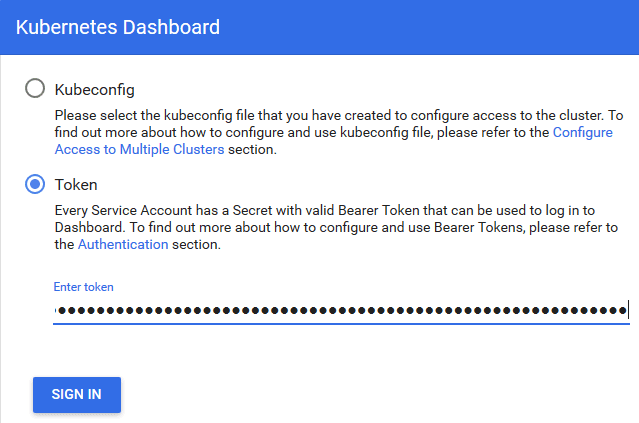
1. Access the Kubernetes Dashboard. The Kubernetes Dashboard login page is displayed.
Figure 5: Kubernetes Dashboard
2. Select Token and enter the Admin user secret token in the Enter Token field.
3. Click SIGN IN. The Kubernetes Dashboard page is displayed.
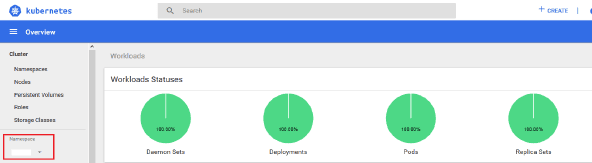
4. Select <Namespace> from the Namespace drop-down list on the menu items displayed on the LHS.
Figure 6: Kubernetes Dashboard Overview
5. Navigate to Workloads > Pods from the menu items displayed on the LHS. The Pods page is displayed with the details of all the services installed as part of the FCC Studio installation.
Figure 7: Kubernetes Dashboard Pods
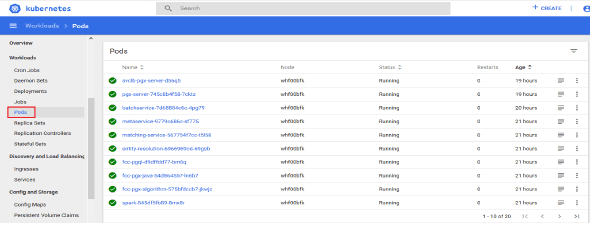
6. Click the service name from the Name column. The service details are displayed.
7. Click the Logs tab.
Figure 8: Kubernetes Dashboard Logs
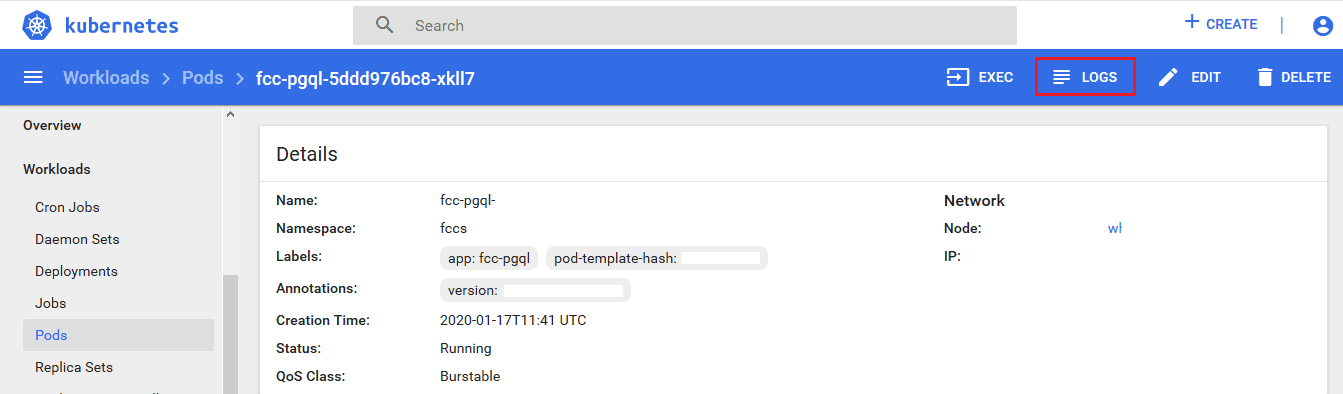
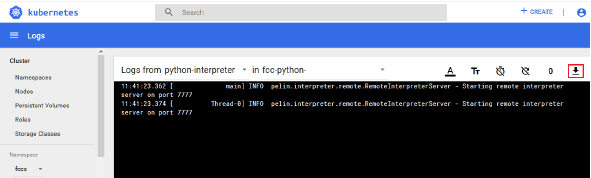
The service logs are displayed and you can download the logs by clicking Download Logs icon.
Figure 9: Sample Log
WARNING |
If you notice any errors in the log files, do not proceed further. Contact My Oracle Support (MOS) and provide the applicable error code and log files. |
If the installation of FCC Studio is unsuccessful, you must reinstall the application after performing the cleanup tasks. For more information, see Reinstall FCC Studio.
Schema creation is a one- time activity that replicates the table structure from the Financial Crime Data Model (FCDM) Atomic schema to the Hive Atomic schema.
Topics:
· Configure the Schema Creation from the FCC Studio Server
· Configure the Schema Creation from the OFSAA Server
To configure Schema Creation from FCC Studio server, follow these steps:
1. Set FIC_DB_HOME path to <Studio_Installation_Path>/ficdb.
NOTE |
The $FIC_DB_HOME path can be set from the .profile file. |
2. Create a Hive Schema with the name mentioned in the HIVE_SCHEMA parameter in the config.sh file.
For information on the config.sh file, see Configure the config.sh File.
3. Execute the following shell script in the <Studio_Installation_Path>/ficdb/bin/ directory to create tables in Hive Schema:
FCCM_Studio_SchemaCreation.sh HIVE
4. Check the <Studio_Installaton_Path>/logs/batchservice.logs for more information.
To configure Schema Creation from OFSAA server, follow these steps:
1. Copy all the jar files from the <Studio_Installation_Path>/ficdb/lib directory and paste into the <OFSAA_FIC_HOME_PATH>/ficdb/lib directory .
2. Copy all the .sh files from the <Studio_Installation_Path>/ficdb/bin directory and paste into the <OFSAA_FIC_HOME_PATH>/ficdb/bin directory .
3. Create a Hive Schema with the name mentioned in the HIVE_SCHEMA parameter in the config.sh file.
For information on the config.sh file, see Configure the config.sh File.
4. Execute the following shell script in the <OFSAA_FIC_HOME_PATH>/ficdb/bin directory to create tables in Hive Schema:
FCCM_Studio_SchemaCreation.sh HIVE
5. Check the <Studio_Installaton_Path>/logs/batchservice.logs for more information.
If the atomic schema creation fails, login to the atmoic schema of BD/ECM and run the following query:
select * from fcc_orahive_datatypemapping;
The fcc_orahive_datatypemapping table must have only 5 rows. If there are more than 5 rows, run the following query to delete the additional rows:
select * from fcc_orahive_datatypemapping for update
If the studio schema creation fails, login as a studio user and run the following query:
select * from fcc_datastudio_schemaobjects
Run the following query to replace all Y values with '':
update fcc_datastudio_schemaobjects set SCHEMA_OBJ_GENERATED=''
After the schema creation is successful, the value of the SCHEMA_OBJ_GENERATED attribute changes to Y.
To configure the International Consortium of Investigative Journalists (ICIJ) data, you must configure the file path. To configure the file path, follow these steps:
NOTE |
The FCC Studio graph model is configured to include ICIJ watchlist files. |
1. Place the watchlist files in HDFS, that is accessible by the user.
2. Update the FILEPATH of the watch list files in the fcc_studio_etl_files table. The FILEPATH refers to the complete hdfs filepath of the csv file. For mapping between DF_NAME and FILEPATH, see the following image:
Figure 10: fcc_studio_etl_files Table

The following table provides the file path for the csv files:
Table 15: Path of CSV Files
DF_NAME |
File Path |
Panama_External_Ad dress |
panama_papers.nodes.address.csv |
Panama_External_Entity |
panama_papers.nodes.entity.csv |
Panama_External_Entity |
panama_papers.nodes.intermediary.csv |
Panama_External_Entity |
panama_papers.nodes.officer.csv |
Panama_edges_address_of |
panama_papers.edges.csv |
Panama_edges_is_related_to |
panama_papers.edges.csv |
Offshore_External_Address |
offshore_leaks.nodes.address.csv |
Offshore_External_Entity |
offshore_leaks.nodes.entity.csv |
Offshore_External_Entity |
offshore_leaks.nodes.intermediary.csv |
Offshore_External_Entity |
offshore_leaks.nodes.officer.csv |
Offshore_edges_address_of |
offshore_leaks.edges.csv |
Offshore_edges_is_related_to |
offshore_leaks.edges.csv |
Bahama_External_Address |
bahamas_leaks.nodes.address.csv |
Bahama_External_Entity |
bahamas_leaks.nodes.entity.csv |
Bahama_External_Entity |
bahamas_leaks.nodes.intermediary.csv |
Bahama_External_Entity |
bahamas_leaks.nodes.officer.csv |
Bahama_edges_address_of |
bahamas_leaks.edges.csv |
Bahama_edges_is_related_to |
bahamas_leaks.edges.csv |
Paradise_External_Address |
paradise_papers.nodes.address.csv |
Paradise_External_Entity |
paradise_papers.nodes.entity.csv |
Paradise_External_Entity |
paradise_papers.nodes.intermediary.csv |
Paradise_External_Entity |
paradise_papers.nodes.officer.csv |
Paradise_External_Entity |
paradise_papers.nodes.other.csv |
Paradise_edges_is_related_to |
paradise_papers.edges.csv |
Paradise_edges_address_of |
paradise_papers.edges.csv |
Paradise_edges_is_linked_to |
paradise_papers.edges.csv |
You must restart the PGX service to ensure that graphs are created. To restart the PGX service, follow these steps:
NOTE |
Restart the PGX service only after the ./FCCM_Studio_ETL_Graph.sh sqoop job is run. |
a. Navigate to the <Studio_Installed_Path>/out directory.
b. Start a new putty session and run the following commands:
kubectl -n fccs delete -f deployments/pgx-server.yml
kubectl -n fccs apply -f deployments/pgx-server.yml
To access FCC Studio, follow these steps:
1. Enter the URL in the following format in the web browser:
https://<Host_Name>:<Port_Number>
Here <Port_Number> is 30078 for the FCC Studio application installed on-premise.
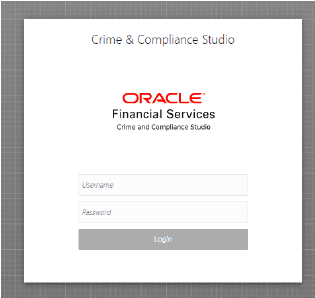
The FCC Studio application login page is displayed.
Figure 11: FCC Studio Application Login Page
2. Enter the Username and Password.
3. Click Login.
After you access the application, you can view the ready-to-use notebooks. To check if you have been assigned any roles, create a notebook. If you cannot create a notebook, contact My Oracle Support (MOS).
NOTE |
This configuration is not applicable for FCC Studio installed without OFSAA. |
To perform OFSAA configuration for batch execution, follow these steps:
1. Copy the files in the <Studio_Installation_Path>/ficdb/bin directory to the server where the BD or ECM pack is installed and to the $FIC_DB_HOME/bin directory of the OFSAA setup.
2. Execute the following command to grant Execute permission to the files:
chmod +x <filenames>
3. Copy all the files from the <Studio_Installation_Path>/ficdb/lib directory into the $FIC_DB_HOME/lib directory.
For information on running FCC Studio Batches, see Managing Studio Batches chapter in the Oracle Financial Services Crime and Compliance Studio Administration Guide.
NOTE |
This configuration is not applicable for FCC Studio installed without OFSAA. |
To perform the configuration required to run published notebooks, copy the required FCCM_Studio_NotebookExecution.sh file from the <Studio_Installation_Path>/out/ficdb/bin directory into the <FIC_HOME of OFSAA_Installed_Path>/ficdb/bin directory.
For information on running published notebooks, see the Executing Published Notebook section in the OFS Crime and Compliance Studio Administration Guide.