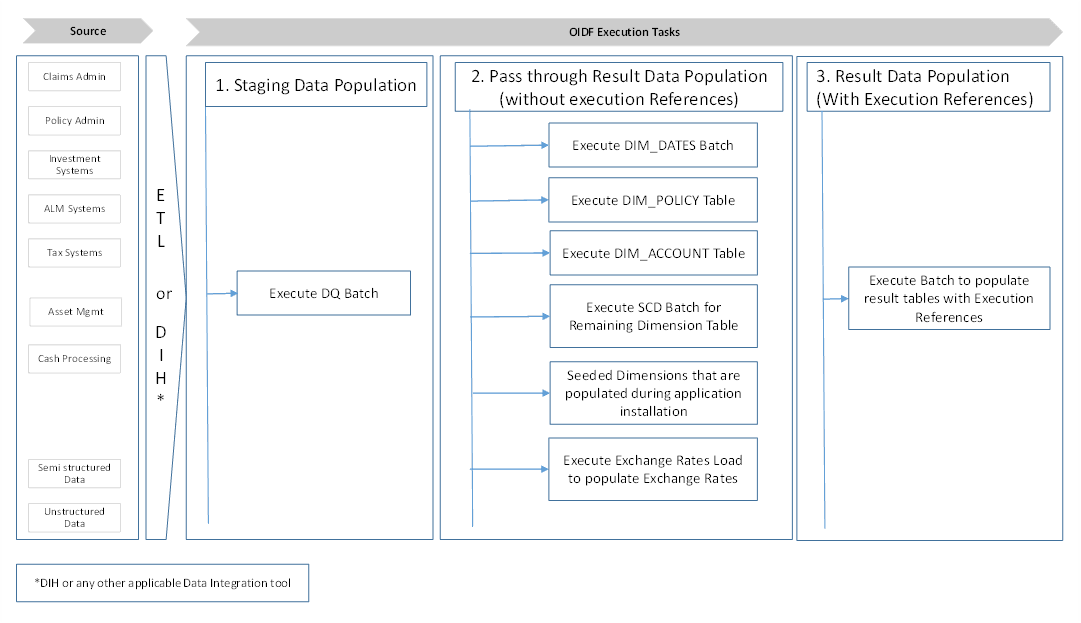
This section provides information about the data flow process for the Data Foundation application to populate the Result tables.
Topics:
· Technical Flow to Populate the Result Tables
This representative data flow diagram of the Data Foundation application illustrates its data flow stages, input and output types, output usage, and the processes that populate results.
Figure 8: Representative data flow diagram of the Data Foundation application
The data flow process can be categorized into two main categories. They are:
1. Populating Stage Tables
In this process, data is populated into the Data Foundation Stage master tables and Stage tables using these sub-processes:
a. Run Custom ETL or DIH.
b. Execute Data Quality batches.
2. For more information about loading Stage tables, see the section Loading OFSAA Staging Tables.
3. Populating Result Tables
4. In this process, data is populated in Dimension and Result tables using Stage tables. The sequence of sub-processes is:
a. Dimension Loading Process:
i. Populate the DIM_DATES table.
ii. Seeded Dimensions that are populated during the installation process.
iii. Populate DIM_ACCOUNT and DIM_POLICY tables.
iv. Execute other SCD batches to populate corresponding Dimensions.
v. Load key Dimensions using AMHM.
b. Loading data into the Result tables using the T2T batch execution process.
These Result tables are used by other Analytical Applications to create reports. Some of the applications are listed here:
· IFRS17
· Solvency II
· Customer Insight
This section provides the loading or execution process details of the Seeded Data, SCD, and T2T.
Topics:
· Prerequisites for the Execution Processes
· Slowly Changing Dimension (SCD) Process
· Load Key Dimensions using AMHM
· Table to Table (T2T) Loading Process
After OIDF application installation is successfully complete, as a prerequisite to initiate the SCD process or T2T process, follow these steps:
NOTE |
This procedure must be performed once only after a fresh installation of the application and also after installing an upgrade. In this section, ensure that you execute the batch corresponding to the required Data Quality. To access the Run Name or Batch Name, and the order of execution, see the latest version of Oracle Insurance Data Foundation Application Pack Run Chart. |
1. Complete the OIDF application installation and post-installation configuration procedures successfully. For detail procedures, see Oracle Insurance Data Foundation Application Pack Installation and Configuration Guide Release 8.1.0.0.0.
2. Populate Data into the Stage Master Tables.
Populate data into all the Stage Master tables with all the required records by loading custom ETL or DIH.
NOTE |
Data is already loaded into the OIDF Stage Master tables (see the step with Populating Stage Tables in the section Technical Flow to Populate the Result Tables). |
3. Populate the DIM_DATES table.
To populate the DIM_DATES table, see the section Time Dimension Transformation.
4. Execute the Data Quality (DQ) batches.
Data that is required to execute a DQ is already loaded into the OIDF Stage tables (see the section Technical Flow to Populate the Result Tables).
To execute the DQ batches, see the DQ Group Execution section.
Use one of the following processes to load the data into the Dimension tables:
· Slowly Changing Dimension (SCD) Process
· Load Key Dimensions using AMHM
This is an automatic process wherein the Seeded data for Dimensions, which are packaged within the installer, are populated during the installation.
NOTE |
To access the Seeded Data for Dimensions, see the latest version of the Oracle Insurance Data Foundation Application Pack Run Chart. |
A Slowly Changing Dimension (SCD) is a dimension that stores and manages both current and historical data over a period in a data warehouse. SCDs are dimensions that contain data, which changes slowly rather than changing on a time-based regular schedule.
In the SCD process, the SCD batch execution is used to populate data in the Dimension tables.
NOTE |
· If you are executing the Dimension SCD Process after a fresh installation or after installing an upgrade, or when there are changes made in the Stage table data, first perform steps given in the section Prerequisites for the Execution Processes. · Ensure you execute the batch corresponding to the required Dimension table. To access the Run Name or Batch Name, and the order of execution, see the latest version of Oracle Insurance Data Foundation Application Pack Run Chart. · The SKeys of the Dimension tables are used to structure the Result tables (Fact tables) for populating the data. Therefore, this process serves as the prerequisite to the T2T Loading process. · For functional information about Dimension loading, see the section About Dimension Loading Process. |
To populate data in a Dimension table, follow these procedures:
1. Execute the SCD Batch of the DIM_ACCOUNT table.
2. Execute the SCD Batch of the DIM_POLICY table.
3. Execute the DIM_INSURANCE_SCD Batch.
4. Execute the <INFODOM>_DATA_FOUNDATION_SCD batch for the required Dimension table.
5. Verify Log Files and Check Error Messages.
To execute the SCD batch of the DIM_ACCOUNT table, perform the steps in the following section.
Topic:
To execute the SCD batch, follow these steps:
1. Navigate to the Batch Execution page.
From OFSAA Home, select Oracle Insurance Data Foundation, select Operations, and then select Batch Execution.
2. Select the Batch ID.
The Batch Execution page is displayed.
Figure 9: Navigate to the Batch Execution page
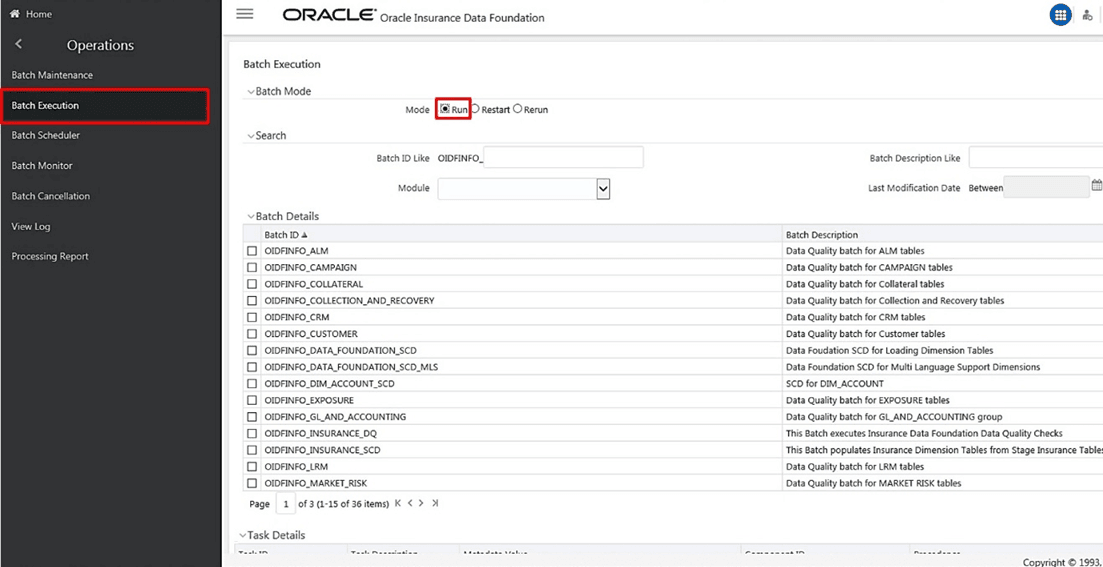
a. In the Batch Mode section, select the Run option.
b. In the Batch Details section, search and select the required Batch ID.
Figure 10: Select the Batch ID
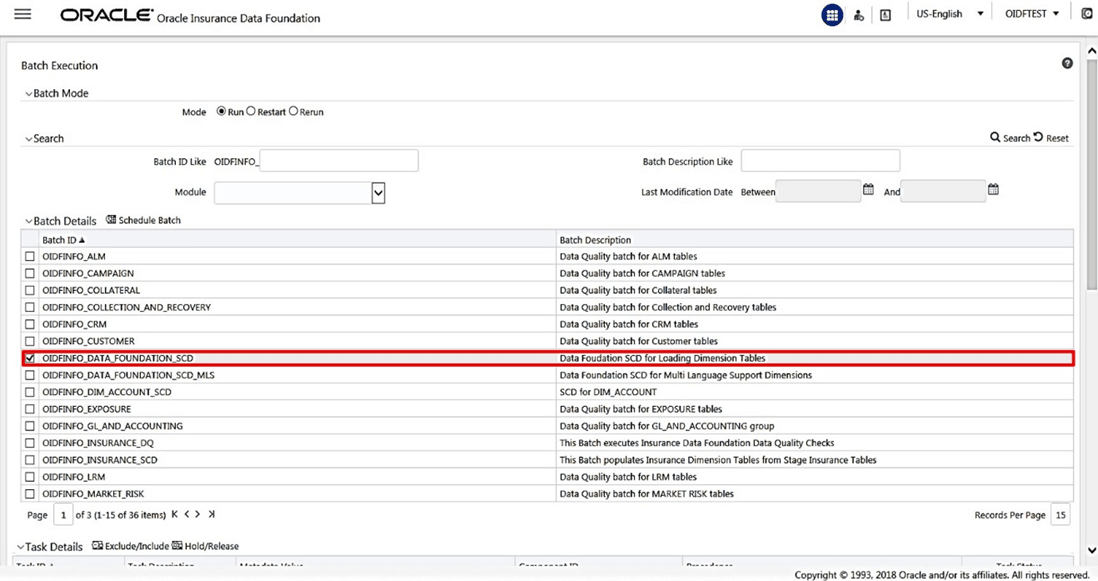
— For the DIM_ACCOUNT table, select the Batch ID <INFODOM>_DIM_ACCOUNT_SCD.
— For the DIM_POLICY table, select the Batch ID <INFODOM>_INSURANCE_SCD and include only DIM_POLICY related Stage table tasks.
— For all other Dimension tables, select the Batch ID <INFODOM>_DATA_FOUNDATION_SCD.
The Task Details section lists the tasks corresponding to the selected Batch ID. The list consists of all the Stage tables that are mapped to Dimension tables.
3. Exclude or include tasks from or into the SCD batch.
Figure 11: Select the task Exclude/Include option

a. Make a note of the Metadata Value (SCD map reference number) and the Task ID for the required Dimension table.
NOTE |
To populate the Dimension table from its corresponding Stage Master table, use SCD packaged in OIDF with the respective Map Reference Number. |
b. To exclude or include a task from or into the required SCD batch, in the Task Details section, click the Exclude/Include icon.
c. The Task Mapping – Exclude/Include page is displayed.
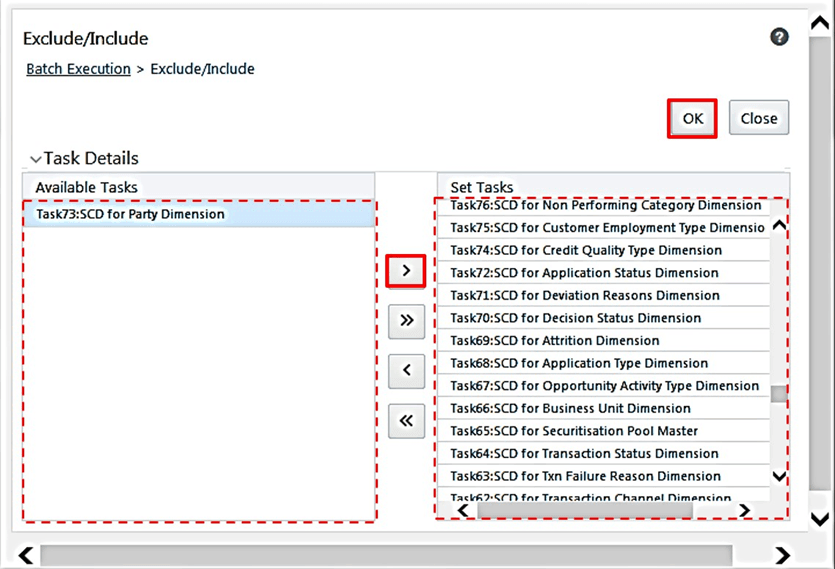
Figure 12: The task Exclude/Include page
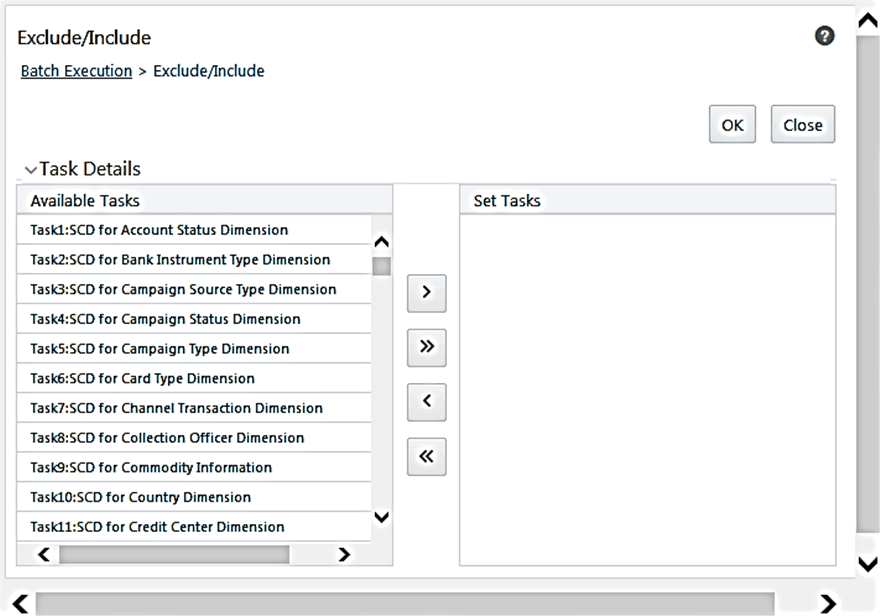
d. Include or exclude the tasks.
In the Task Details section, select the tasks that must be excluded from the batch execution procedure, and click > to move those tasks from the Available Tasks section to the Set Tasks section. The Available Tasks list consists of tasks that are available for the execution of Dimension table.
Figure 13: Exclude the Tasks
e. Confirm the task inclusion or exclusion.
Figure 14: The selected task is listed in the Task Details section
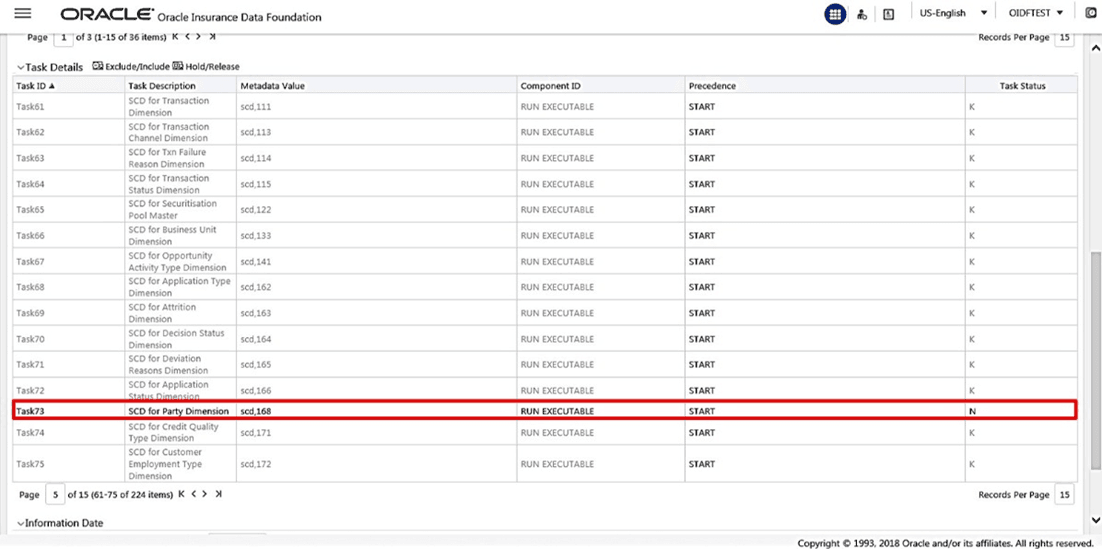
i. To save the changes, click OK. The following warning message is displayed: If you exclude a task, it will be skipped when executing the batch but, the precedence will not be altered. Do you want to exclude the selected task(s)?
ii. To proceed, click OK. The Task Details list consists only of the tasks present in the Available Tasks list. For example, in the following screenshot, the included (highlighted) task, of which the Task Status is N, and this task is executed during the batch execution. The excluded task(s) are displayed in the Grey color with Task Status as K.
4. Select the FIC_MIS date.
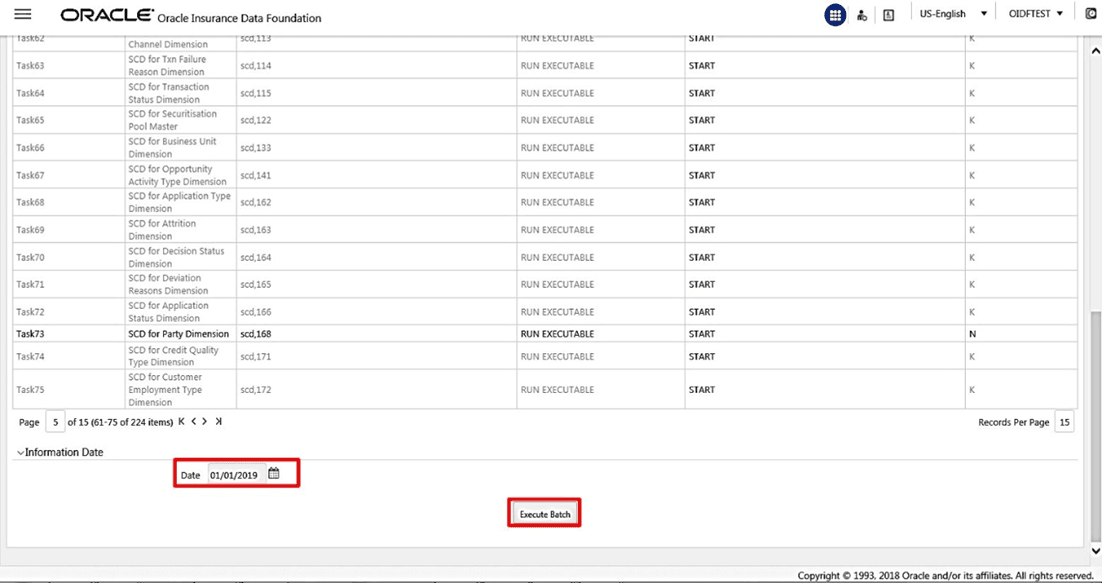
In the Information Date section, click the calendar icon and select the required date. This date is the FIC_MIS date populated in the DIM_DATES table.
Figure 15: Select the FIC_MIS date and click Execute Batch
5. Execute the SCD batch.
Click Execute Batch to run the selected SCD batch with one of the following selected task:
§ For the DIM_ACCOUNT table, execute the Batch ID <INFODOM>_DIM_ACCOUNT_SCD.
§ For the DIM_POLICY table, execute the Batch ID <INFODOM>_INSURANCE_SCD and include only DIM_POLICY related Stage table tasks.
§ For all other Dimension tables, execute the Batch ID <INFODOM>_DATA_FOUNDATION_SCD.
6. Confirm the SCD batch execution.
a. The following pop-up message is displayed: Do you want to execute the batch for MIS Date <MIS_Date>. To execute the batch, click OK.
b. The following acknowledgment message is displayed: Batch triggered successfully. The Batch Run Identification is: <Batch Run ID>. Click OK to continue. The SCD batch is executed. As a result, data is populated in the target Dimension table.
NOTE |
To load data into the DIM_POLICY table, execute the SCD batch for all the corresponding stage tables. |
To execute the SCD batch of the DIM_POLICY table, see the Execute the SCD Batch section.
To execute the DIM_INSURANCE_SCD batch, see the Execute the SCD Batch section.
NOTE |
If you are executing this Dimension SCD Process after a fresh installation or after installing an upgrade, or when there are changes made in the Stage table data, first perform steps given in the following procedures: 1. Prerequisites for the Execution Processes. |
To execute the <INFODOM>_DATA_FOUNDATION_SCD batch, follow these steps:
1. Verify the presence of data in the Stage Master table.
3. Check the execution status of the SCD batch.
Verify if data is present in the Stage master table corresponding to the required Dimension table with all the required records.
NOTE |
Data is already loaded into the OIDF Stage Master tables (see the section Technical Flow to Populate the Result Tables). |
To execute the SCD batch, see the Execute the SCD Batch section.
To check the execution status of the SCD batch, follow these steps:
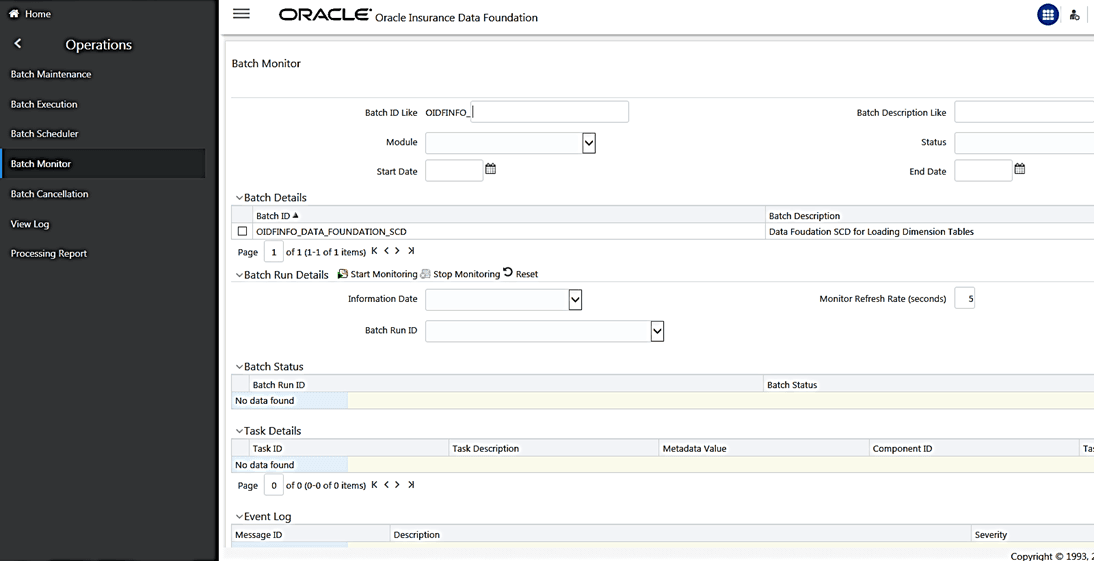
1. Navigate to the Batch Monitor page.
From OFSAA Home, select Oracle Insurance Data Foundation, select Operations, and then select Batch Monitor.
Figure 16: Navigate to the Batch Monitor page
2. Select the Batch ID <INFODOM>_DATA_FOUNDATION_SCD.
The Batch Monitor page appears on the right-hand side. In the Batch Details section, select the Batch ID that was executed during the Execute the SCD Batch step, that is, select the <INFODOM>_DATA_FOUNDATION_SCD Batch ID.
3. Select the FIC_MIS Date and Batch Run ID.
Figure 17: Select the Batch ID, FIC_MIS Date, and Batch Run ID
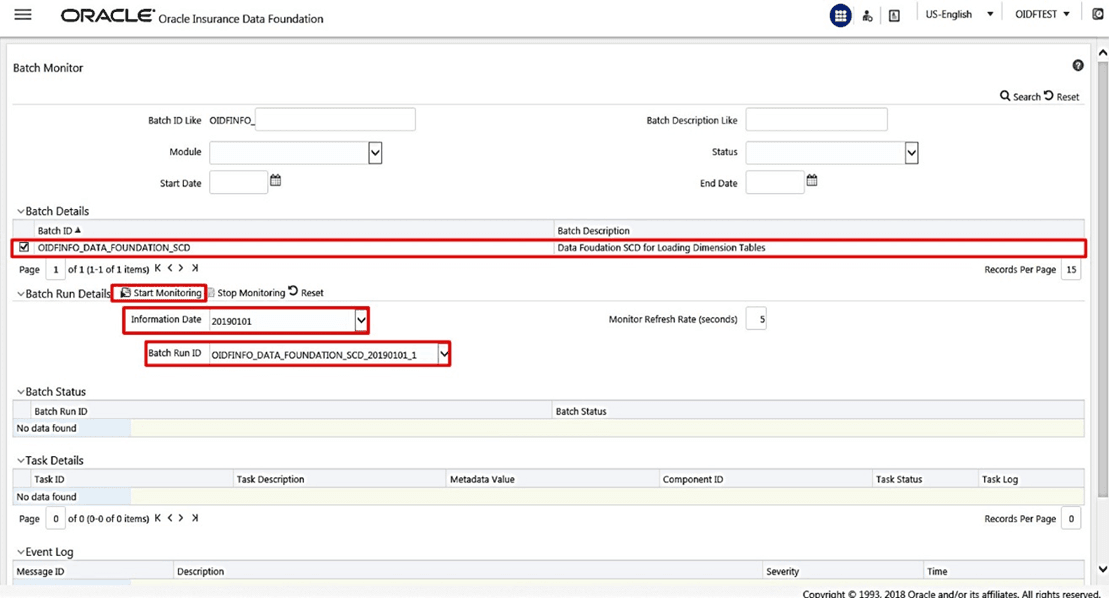
a. In the Batch, Run Details section, click the Information Date box and select the required FIC_MIS Date. The SCD batch was executed on this date.
b. Then click the Batch Run ID box and select the required value.
c. Click the Start Monitoring icon.
4. Check the Batch status.
Figure 18: Batch execution status
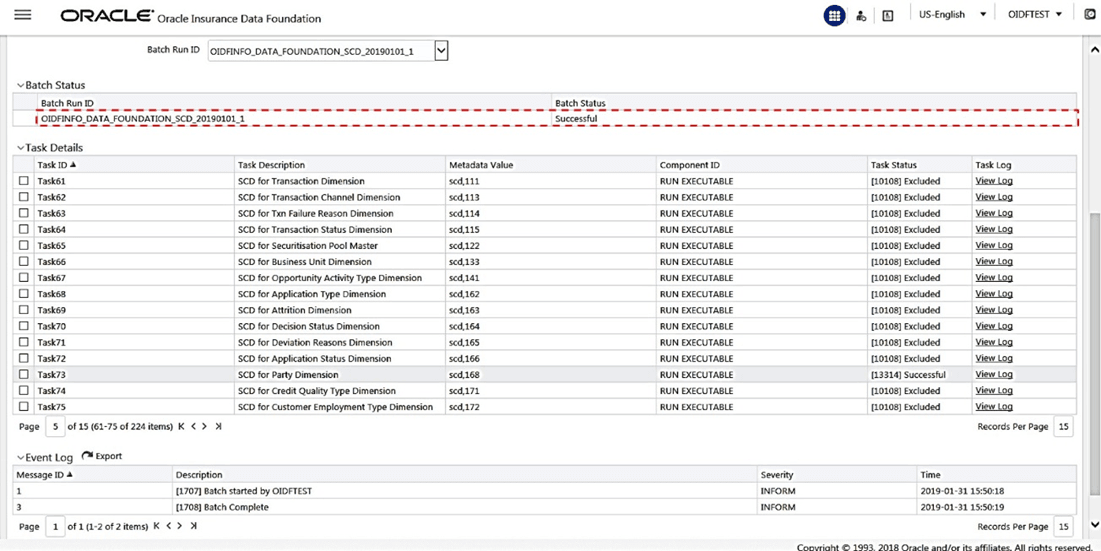
In the Batch Monitor page, the Batch Status, Task Details, and Event Log sections are displayed in addition to the existing details.
The following are the types of Status messages:
§ Not Started
§ Ongoing
§ Failure
§ Successful
When a Batch Status is indicated as Successful, valid data is populated in the Dimension table.
Use one of these two methods to access the SCD batch execution log files to view the complete log generated during the SCD batch execution:
· View and download the log files from the application UI.
· View log files in the application server.
To view and download the log files from the application UI, follow these steps:
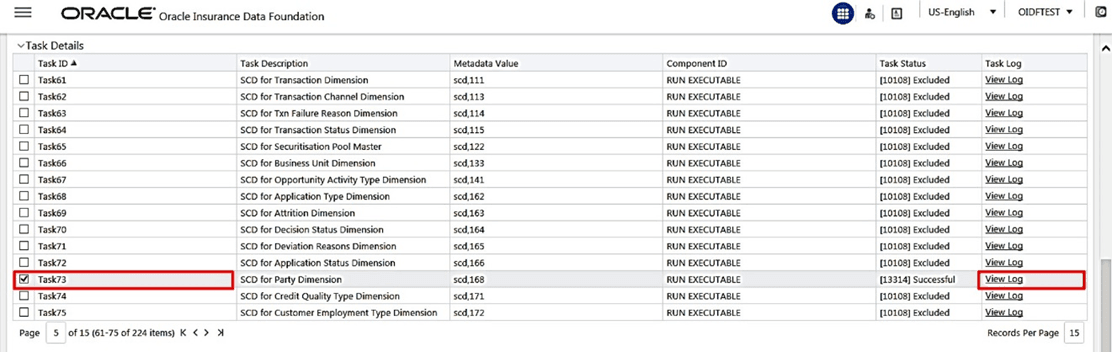
1. In the Task Details section, select the task that was executed and click View Log.
Figure 19: Select View Log for the Task that was included in the Batch execution
2. Select and view the log file.
The View Logger page is displayed.
Figure 20: Verify the log file content in the View Logger page
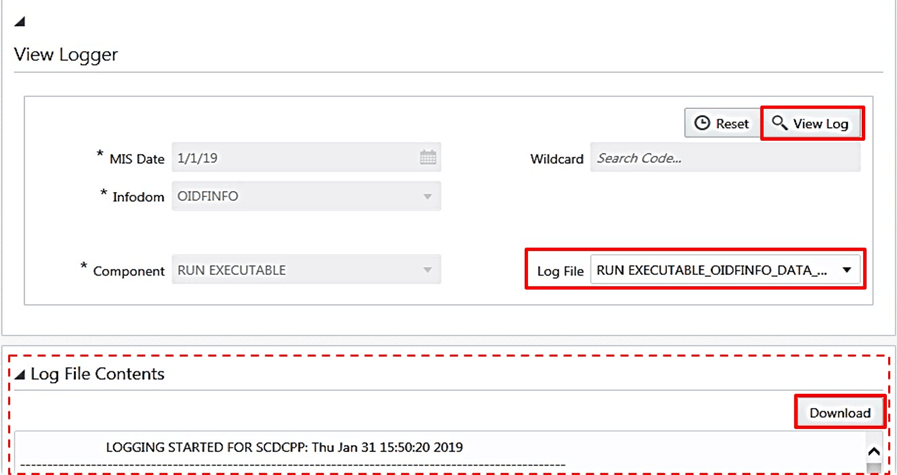
In the Log File box, select the required file, and then click View Log. The complete log information is displayed in the Log File Contents section.
Two types of log files are generated:
§ SCDCPP.log
§ FICGEN.log
3. To download a copy of the log file content to the system, click Download.
To view the execution log file on the application server, verify the files in the following directory:
ftpshare/logs/<Run_Date>/<infodom>/RUN_EXECUTABLE
NOTE |
For comprehensive information on the configuration and execution of a batch, see the Oracle Financial Services Advanced Analytical Applications Infrastructure User Guide Release 8.1.0.0.0. |
To check the error messages, open the log file present in the ftpshare/logs/<Run_Date>/<infodom>/RUN_EXECUTABLE directory for the Dimension tables.
When the SCD process is complete, individual numeric Surrogate Keys are generated for each identifier associated with that Dimension table. This SKey is unique within each Dimension table. The SKeys of the Dimension table is used to structure the resulting tables (Fact tables) for populating the data.
The Dimension table is joined with the Reporting or Processing tables.
NOTE |
To access the list of all Stage Master tables, see the SYS_TBL_MASTER table. To check the mapping from a Stage table column to the Dimension table column, see the SYS_STG_JOIN_MASTER table using Map Reference Number. For more information about the Dimension table loading process, see the chapter About Dimension Loading Process. |
For more information about loading the Dimensions using AMHM, see the Dimension Management section in the Oracle Financial Services Advanced Analytical Applications Infrastructure User Guide Release 8.1.0.0.0 and Dimension Load Procedure section in the Oracle Financial Services Analytical Applications Data Model Utilities User Guide.
After OIDF is installed successfully, the following standard Run pipelines (PMF processes) are available out-of-the-box in the PMF:
· Oracle Insurance Data Foundation Sourced Run: This Run pipeline (Process) loads all non-Run enabled tables in OIDF. For data movement from Stage tables to Result tables, this Run can be executed once per day, where the Result tables do not consist of Run SKey.
· Oracle Insurance Data Foundation Execution Run: This Run pipeline (Process) loads all Run enabled tables in OIDF. For data movement from Stage tables to Result tables, this Run can be executed any number of times per day with each unique Run SKey.
NOTE |
If you are following this T2T Process after the first-ever application installation or after the upgrade installation, then perform steps in these procedures: 1. Prerequisites for the Execution Processes. 2. Execute the SCD Batch of the DIM_ACCOUNT table. 3. Execute the SCD Batch of the DIM_POLICY table. 4. Execute the DIM_INSURANCE_SCD Batch. 5. Execute the <INFODOM>_DATA_FOUNDATION_SCD batch for the required Dimension table. To access the Run Name and their order of execution, see the latest version of the Oracle Insurance Data Foundation Application Pack Run Chart. For information about loading multiple load runs, see the chapter Loading Multiple Load Runs in OFSAA. To create a custom Run process in PMF, see the Configure and Manage Custom Pipelines for OIDF Functions section. To create a T2T, see the Data Management Framework section in the Oracle Financial Services Advanced Analytical Applications Infrastructure User Guide Release 8.1.0.0.0. For illustration, the Oracle Insurance Data Foundation Sourced Run process is primarily used. |
To load all non-Run enabled tables in OIDF using the out-of-the-box Oracle Insurance Data Foundation Sourced Run process, or to load all Run enabled tables in OIDF using the out-of-the-box Oracle Insurance Data Foundation Execution Run process, perform the steps in the following section:
1. Prerequisites for loading T2T
2. Select the Run Parameters and Execute the Run
To resave the hierarchies, follow these steps:
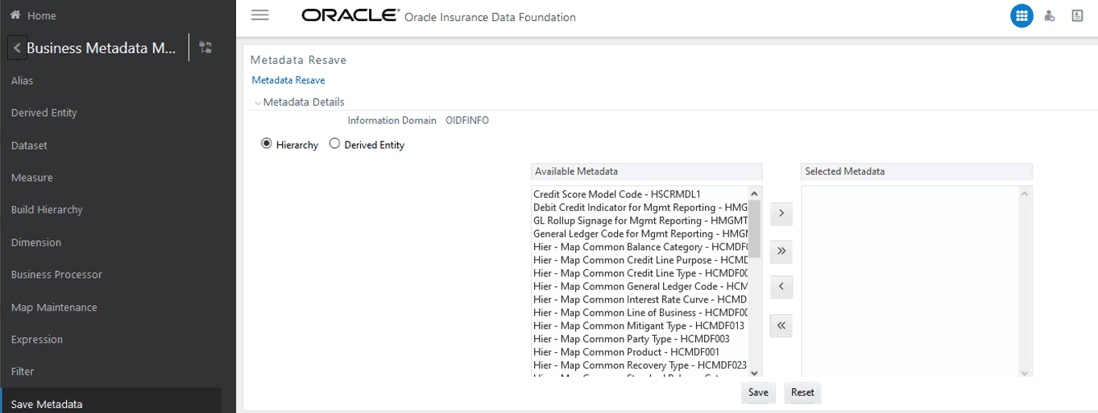
1. From OFSAA Home, select Oracle Insurance Data Foundation, select Unified Analytical Metadata, select Business Metadata Management, and then select Save Metadata. The Metadata Resave page is displayed.
Figure 21: Navigate to the Metadata Resave page
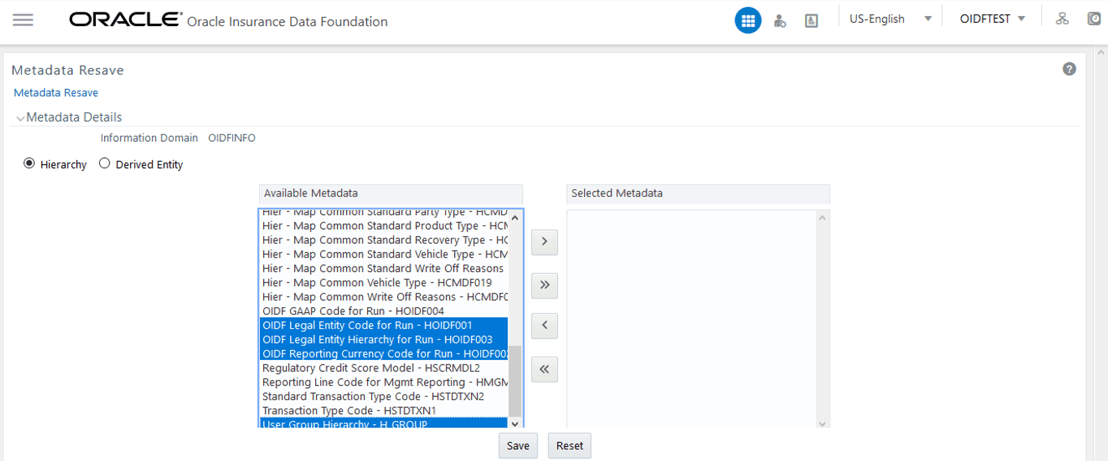
2. In the Metadata Resave page, to load values for the Reporting Currency parameter and the Legal Entity parameter, select the following hierarchies:
§ Legal Entity Code for Run (HOIDF001)
§ Reporting Currency Code for Run (HOIDF002)
§ Legal Entity Hierarchy for Run (HOIDF003)
§ User Group Hierarchy (H_GROUP)
Move the selected hierarchies from Available Metadata to Selected Metadata.
Figure 22: Select the Legal Entity and Reporting Currency hierarchies
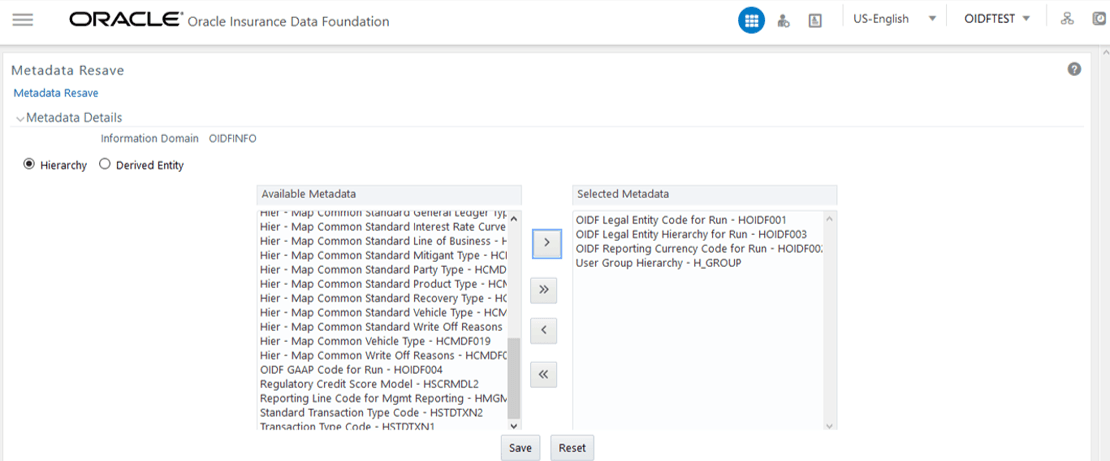
3. To save the selection, click Save. Or to reset the details and start-over, click Reset.
Figure 23: Save the selected hierarchies
After saving the hierarchies, select the Run parameters and execute the Run.
To select the Run parameters and execute the Run, follow these steps:
1. From OFSAA Home, select Oracle Insurance Data Foundation, click Administration  .
In the Information Domain list, select the information
domain required for OIDF, and then click the Process
Modelling Framework tile.
.
In the Information Domain list, select the information
domain required for OIDF, and then click the Process
Modelling Framework tile.
A submenu is displayed. Click Process Modeller to access the Process Modeler page.
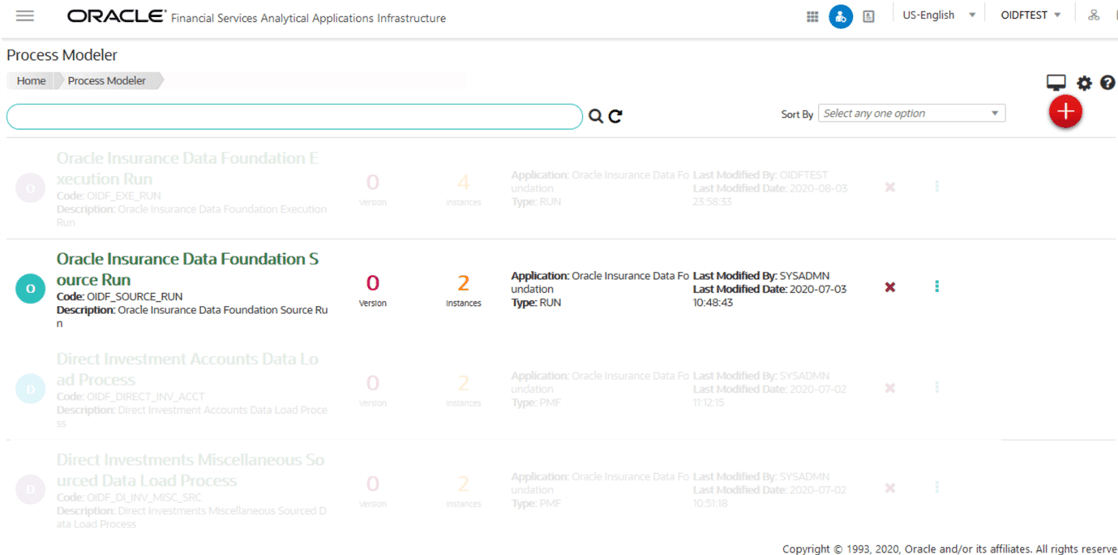
§ In the following illustration, the Oracle Insurance Data Foundation Sourced Run process is shown.
Figure 24: Process Modeler page with Oracle Insurance Data Foundation Sourced Run Process
§ In the following illustration, the Oracle Insurance Data Foundation Execution Run process is shown.
Figure 25: Process Modeler page with Oracle Insurance Data Foundation Execution Run Process
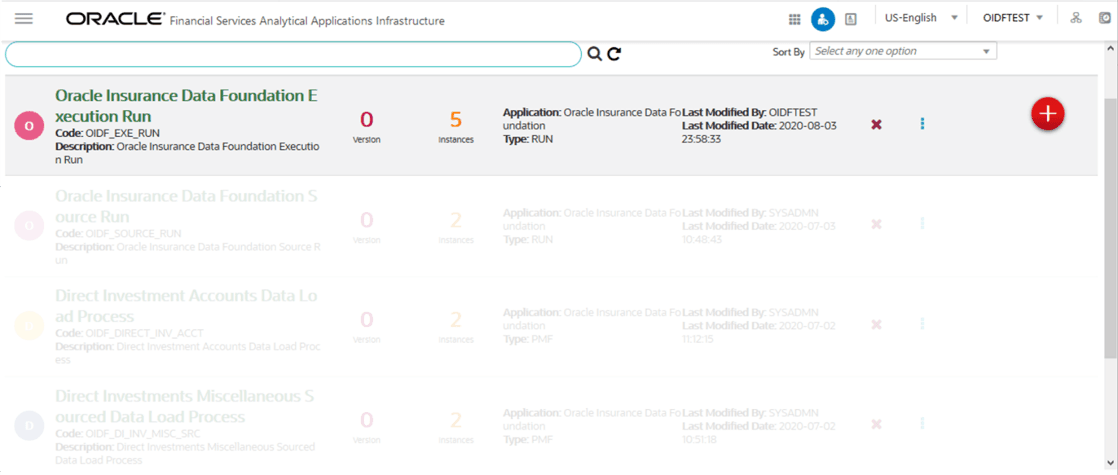
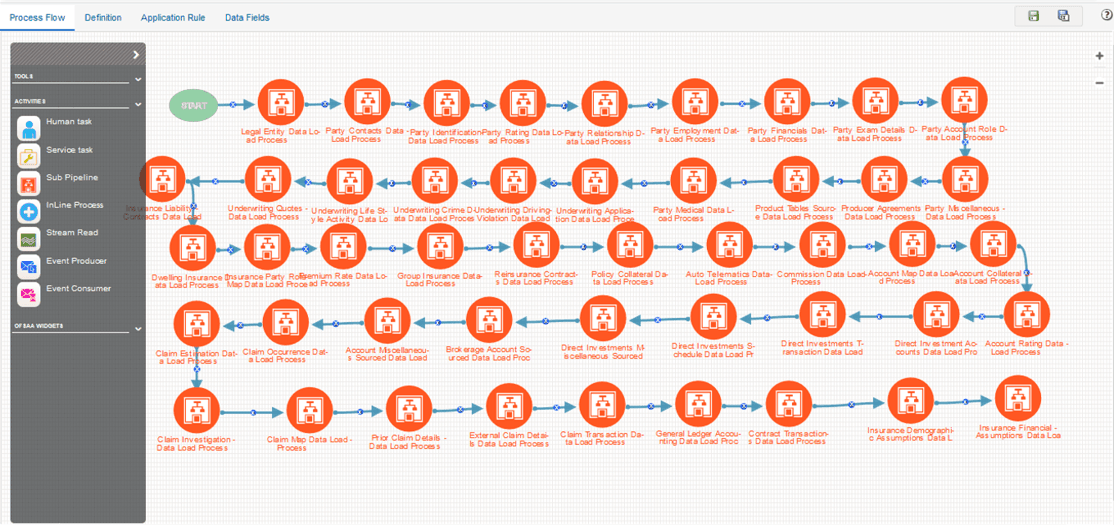
2. Select the Oracle Insurance Data Foundation Sourced Run process. The corresponding process flow is displayed in a page. This process flow is designed using the drawing canvas with the Tools, Activities, and OFSAA Widgets components available in the floating toolbar and with Sub Pipeline (subprocess) activity as the base. Each Sub Pipeline activity represents each of the Data Load process in the OIDF Sourced Run, and Average Balances process. The Sub Pipeline activities are executed in a series.
§ The following illustration is for the Oracle Insurance Data Foundation Sourced Run process.
Figure 26: Oracle Insurance Data Foundation Sourced Run Process Flow
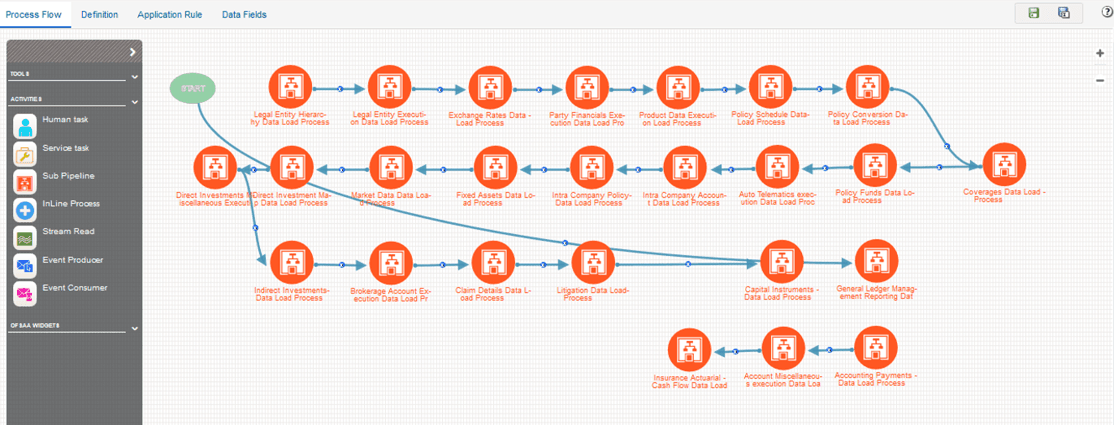
§ The following illustration is for the Oracle Insurance Data Foundation Execution Run process.
Figure 27: Oracle Insurance Data Foundation Execution Run Process Flow
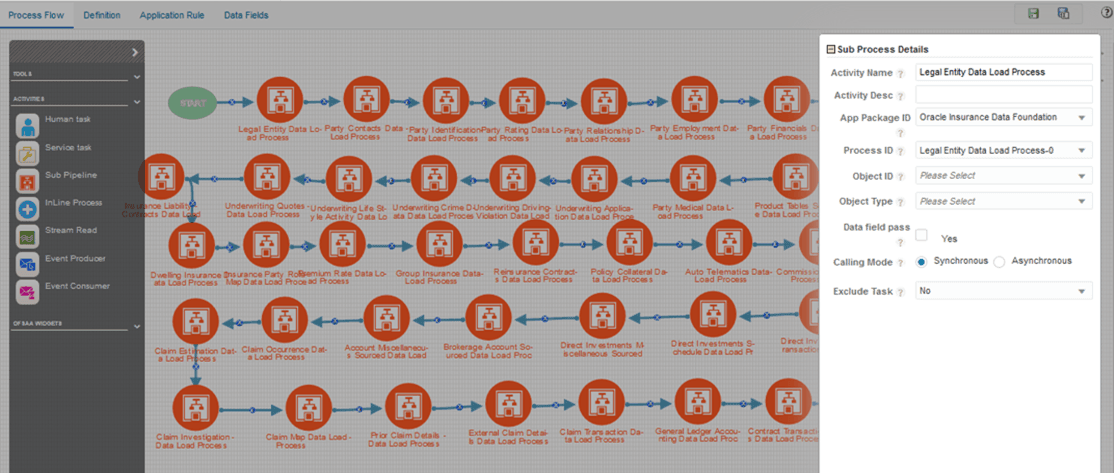
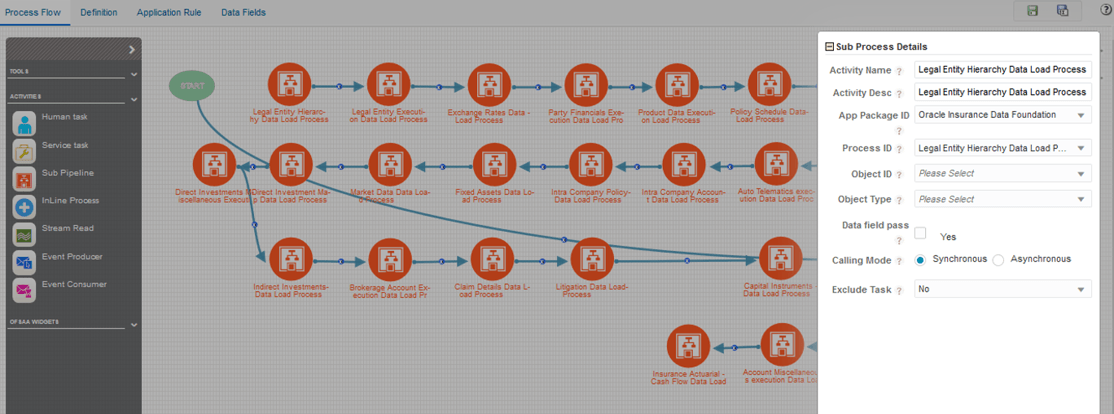
3. Double-click a Sub Pipeline activity to see the details related to its Sub Process Details.
§ The following illustration is for the Oracle Insurance Data Foundation Sourced Run process.
Figure 28: Oracle Insurance Data Foundation Sourced Run Process with Sub Process Details
§ The following illustration is for the Oracle Insurance Data Foundation Execution Run process.
Figure 29: Oracle Insurance Data Foundation Execution Run Process with Sub Process Details
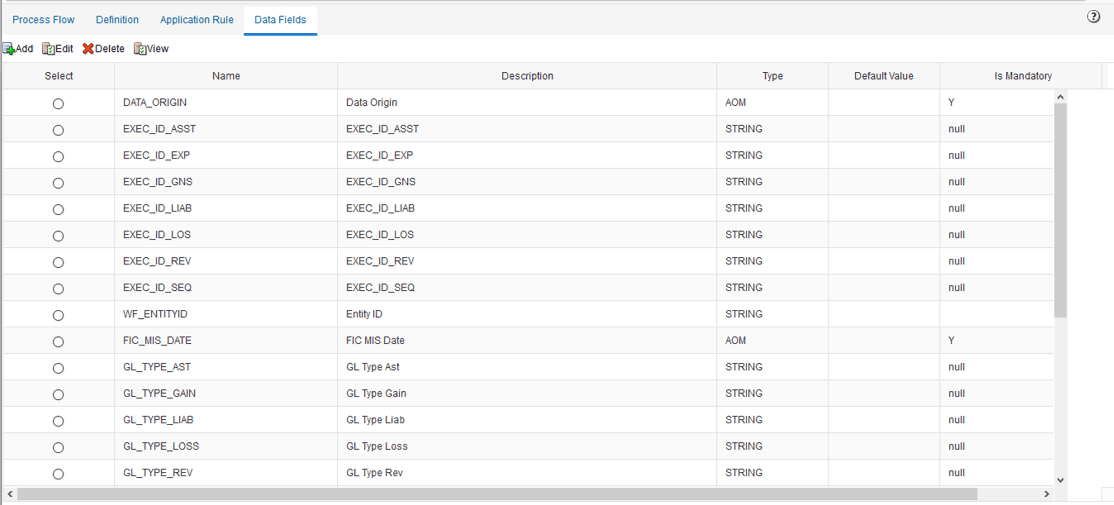
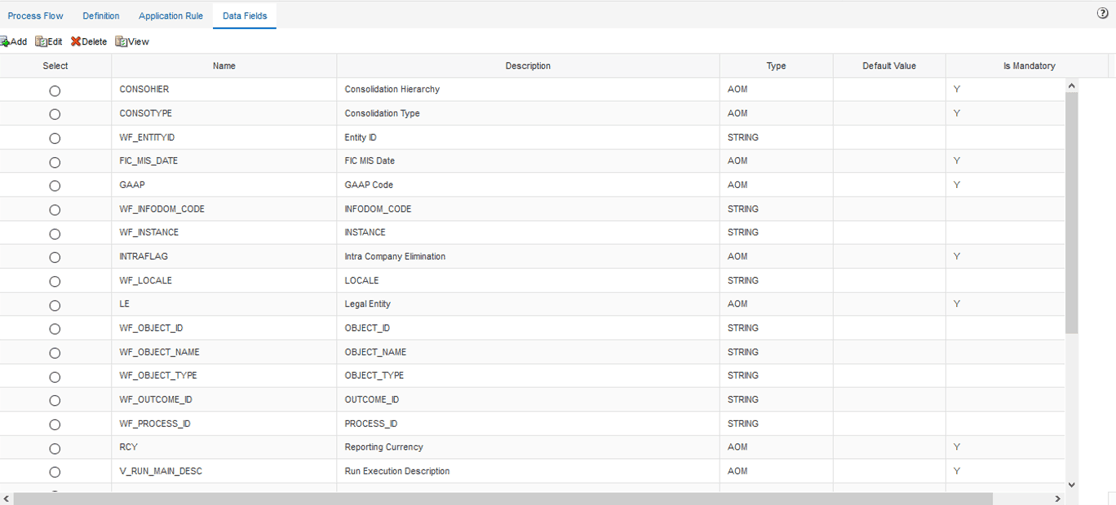
4. On the drawing canvas, select the Definition, Application Rule, and Data Fields tabs to see the respective details.
§ The following illustrations are for the Oracle Insurance Data Foundation Sourced Run process.
Figure 30: Oracle Insurance Data Foundation Sourced Run Process with Definition Tab Details
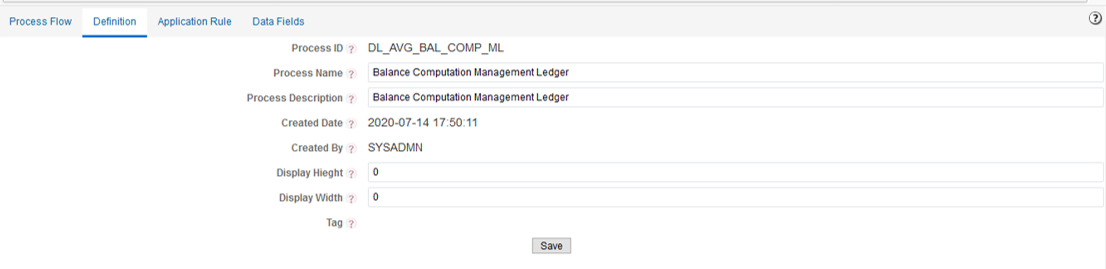
Figure 31: Oracle Insurance Data Foundation Sourced Run Process with Application Rule Tab Details
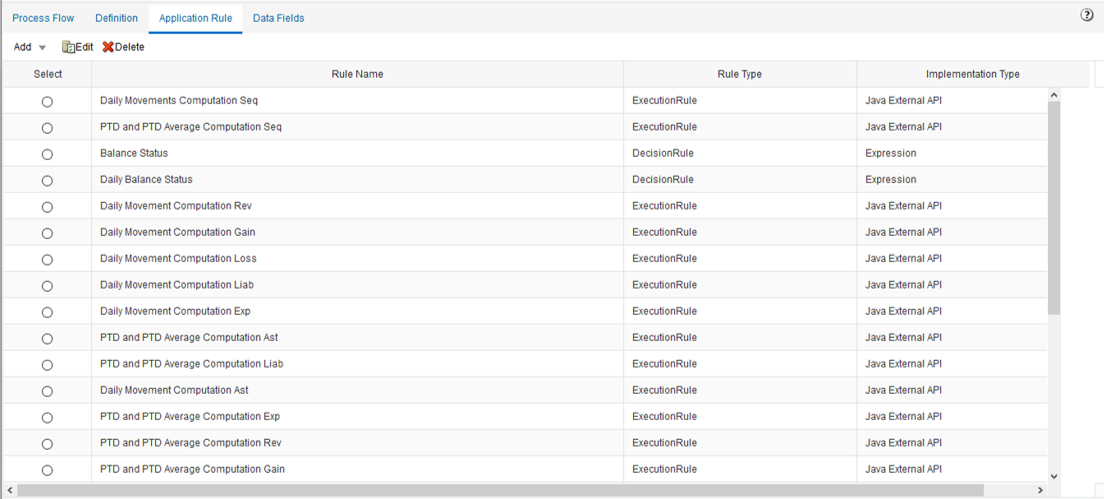
Figure 32: Oracle Insurance Data Foundation Sourced Run Process with Data Fields Tab Details
§ The following illustrations are for the Oracle Insurance Data Foundation Execution Run process.
Figure 33: Oracle Insurance Data Foundation Execution Run Process with Definition Tab Details
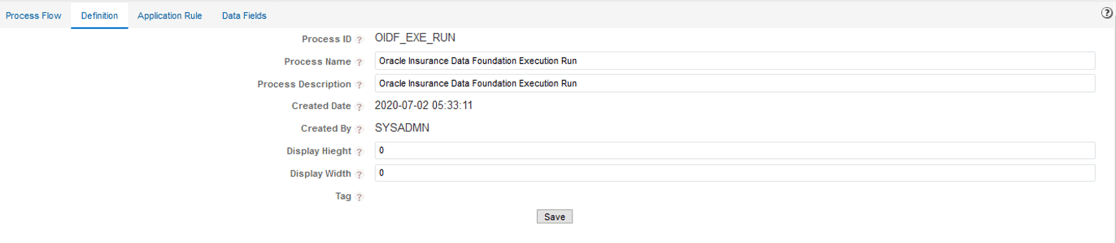
Figure 34: Oracle Insurance Data Foundation Execution Run Process with Application Rule Tab Details

Figure 35: Oracle Insurance Data Foundation Execution Run Process with Data Fields Tab Details
5. In the Process Modeler page, click  corresponding
to the Balance Computation Management Ledger Run process that must be
executed. Click Execute Run. A Job ID is created
in the Process Monitor page for each Sub Pipeline (subprocess) and every
time a process is executed.
corresponding
to the Balance Computation Management Ledger Run process that must be
executed. Click Execute Run. A Job ID is created
in the Process Monitor page for each Sub Pipeline (subprocess) and every
time a process is executed.
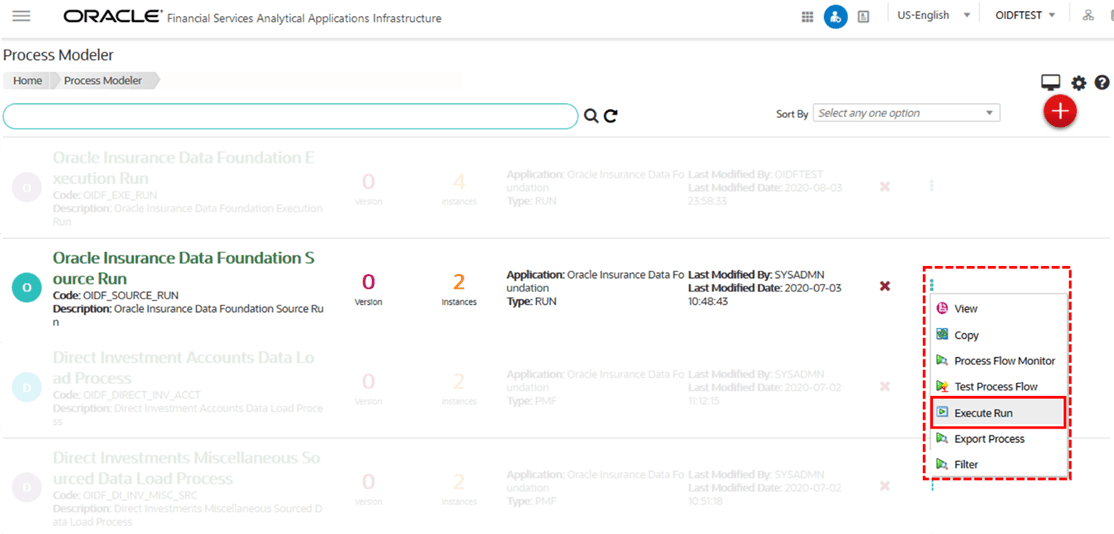
§ The following illustration is for the Oracle Insurance Data Foundation Sourced Run process.
Figure 36: OIDF Sourced Run Process - Select Execute Run
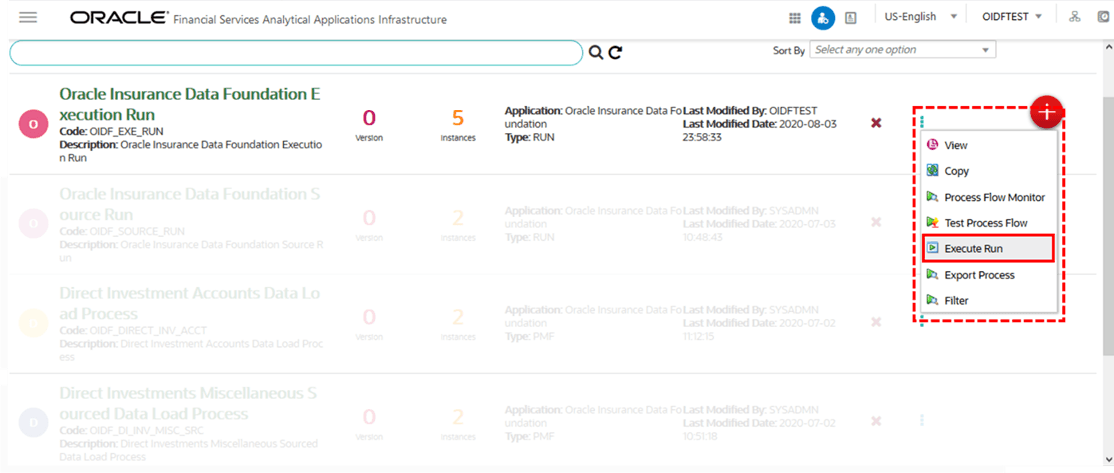
§ The following illustration is for the Oracle Insurance Data Foundation Execution Run process.
Figure 37: OIDF Execution Run Process - Select Execute Run
6. The Select Run Params page is displayed with the Run parameters for the Oracle Insurance Data Foundation Sourced Run process (or for the Oracle Insurance Data Foundation Execution Run process).
Figure 38: OIDF Sourced Run Process - Select Run Params Page
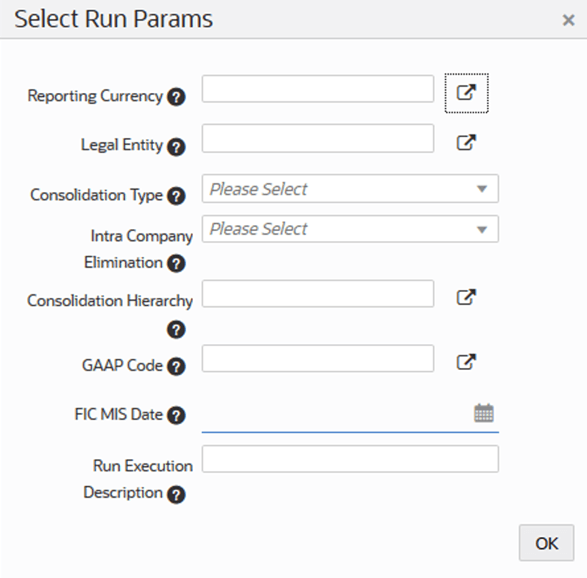
Select or enter the required values for each field as follows.
Table 7: Oracle Insurance Data Foundation Sourced (or Execution) Run Process - Select Run Params page field names and description
Field Name |
Description or Instruction |
Reporting Currency |
Use the icon
|
Legal Entity |
Use the icon
|
Consolidation Type |
Select the Consolidation Type of legal entities on a solo or consolidation basis. In a Solo Run, only the selected legal entity is used. In a Consolidated Run, along with the selected legal entity, all its child legal entities are also used. |
Intra Company Elimination |
Select the Intra Company Elimination type to eliminate (YES) or skip the elimination (NO) of Intra Company Accounts during a Consolidated Run. |
Consolidation Hierarchy |
Use the icon |
GAAP Code |
Use the icon |
FIC MIS Date |
Use the calendar icon |
Run Execution Description |
Enter a longer description of the Run. |
7. When you click OK, the Run execution begins. The Select Run Params page closes.
NOTE |
The execution of the Oracle Insurance Data Foundation Sourced Run process is triggered using the selected FIC MIS DATE. The Run SKey is generated and inserted into the DIM_RUN table. For the Run SKey generated, the corresponding user-selected Run parameters are inserted into the RUN_EXE_PARAMETERS table. |
8. To verify the Run execution status of the Oracle Insurance Data Foundation Sourced Run process (or the Oracle Insurance Data Foundation Execution Run process), see the Verify the Run Execution section.
NOTE |
To abort, resume, or rerun the Run Pipeline process in the Process Monitor page, see the Abort, Resume, or Rerun the Process section. |
To verify the Run execution status of the Oracle Insurance Data Foundation Sourced Run process (or the Oracle Insurance Data Foundation Execution Run process), follow these steps:
1. To open the
Process Monitor page, in the Process
Modeler page, click  or select
Process Flow Monitor on .
or select
Process Flow Monitor on .
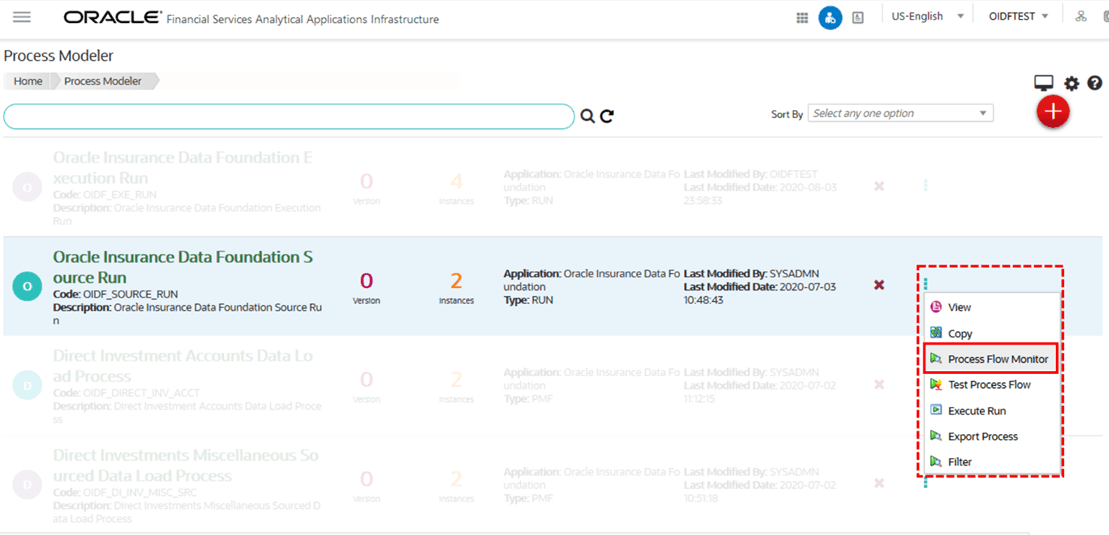
§ The following illustration is for the Oracle Insurance Data Foundation Sourced Run process.
Figure 39: OIDF Sourced Run Process – Select Process Flow Monitor
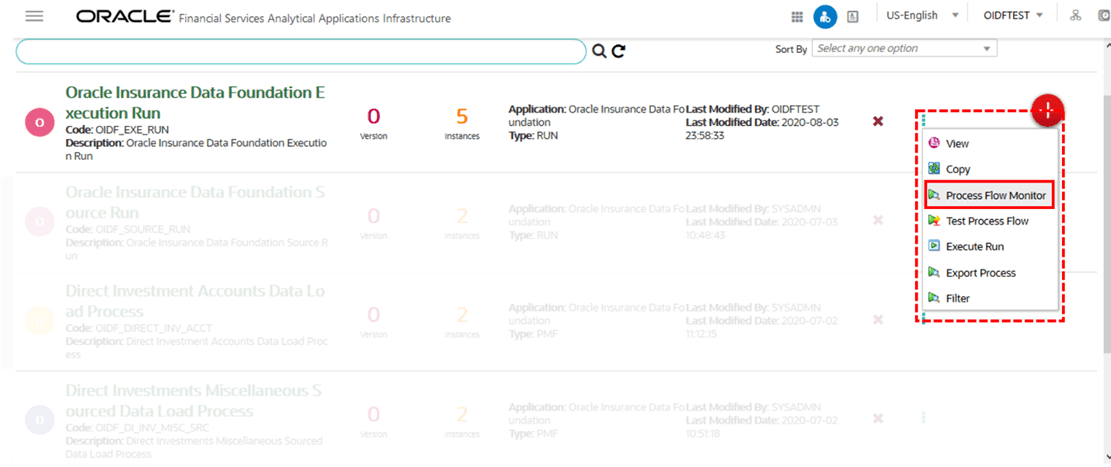
§ The following illustration is for the Oracle Insurance Data Foundation Execution Run process.
Figure 40: OIDF Execution Run Process – Select Process Flow Monitor
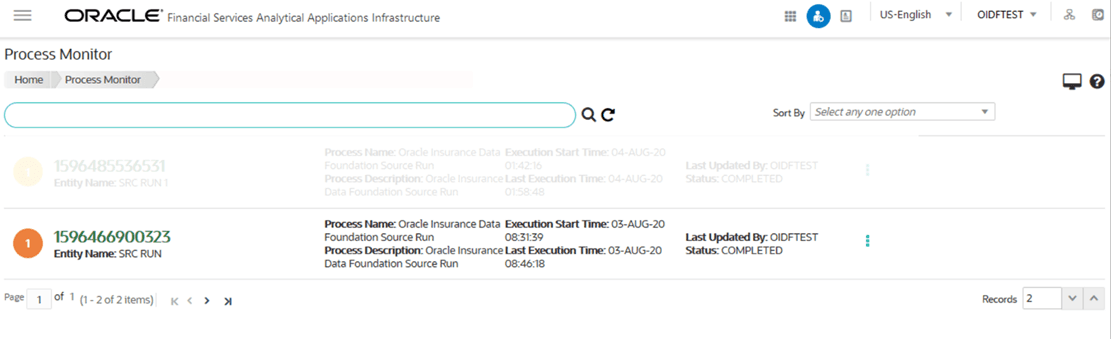
2. The Process Monitor page opens displaying all the Run instances corresponding to the Balance Computation Management Ledger process. In the Process Monitor page, for the required Run pipeline (process) that was executed, search the Run instance by Job ID, or by the Process Name Oracle Insurance Data Foundation Sourced Run (or Oracle Insurance Data Foundation Execution Run), and select the Run process instance.
§ The following illustration is for the Oracle Insurance Data Foundation Sourced Run process.
Figure 41: OIDF Sourced Run Process – Process Monitor Page – Select Job ID
§ The following illustration is for the Oracle Insurance Data Foundation Execution Run process.
Figure 42: OIDF Execution Run Process – Process Monitor Page – Select Job ID
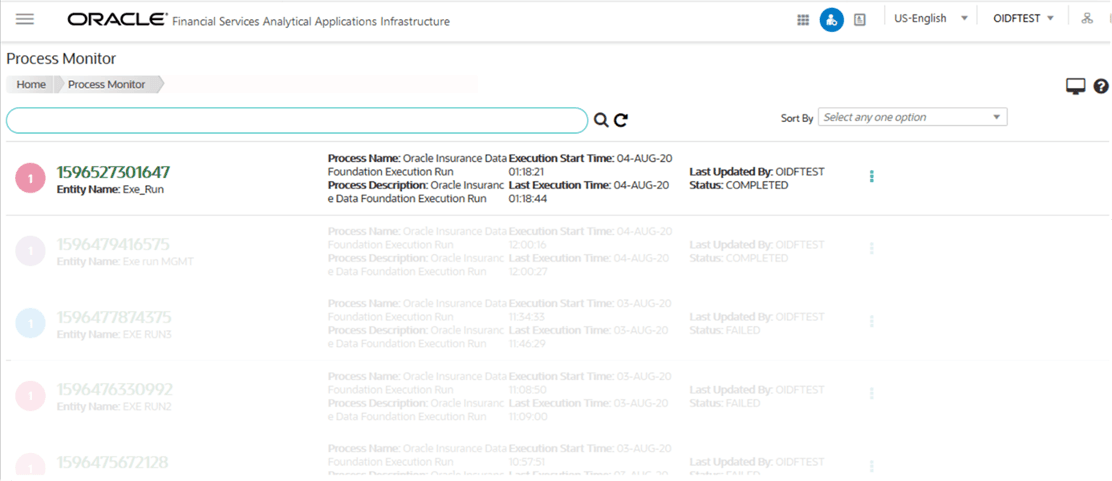
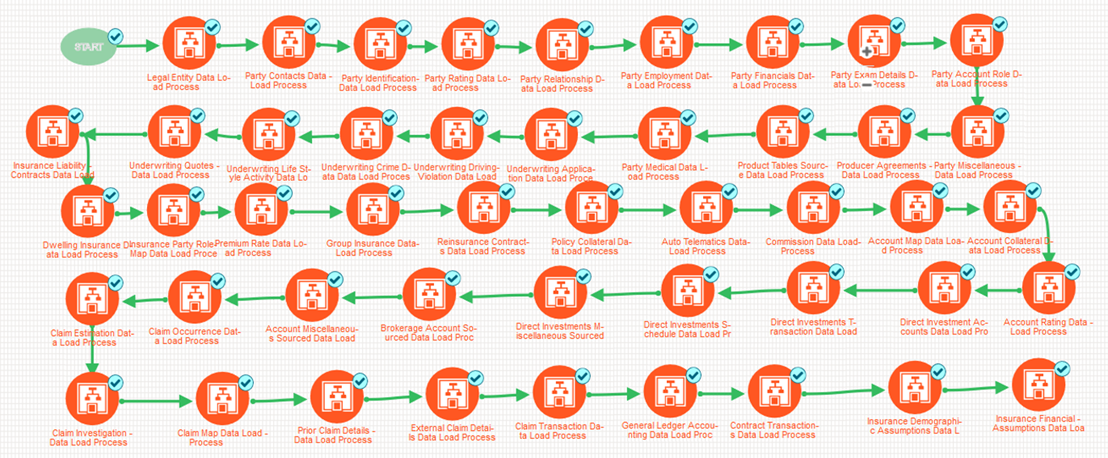
3. A status page opens, which displays the execution status of the executed Run instance.
§ The following illustration is for the Oracle Insurance Data Foundation Sourced Run process.
Figure 43: OIDF Sourced Run Process – Run Execution Status
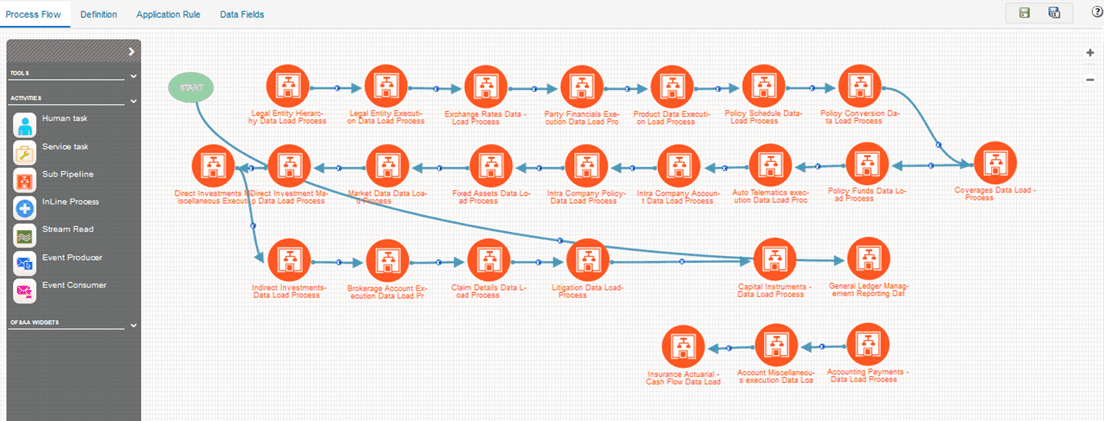
§ The following illustration is for the Oracle Insurance Data Foundation Execution Run process.
Figure 44: OIDF Execution Run Process – Run Execution Status
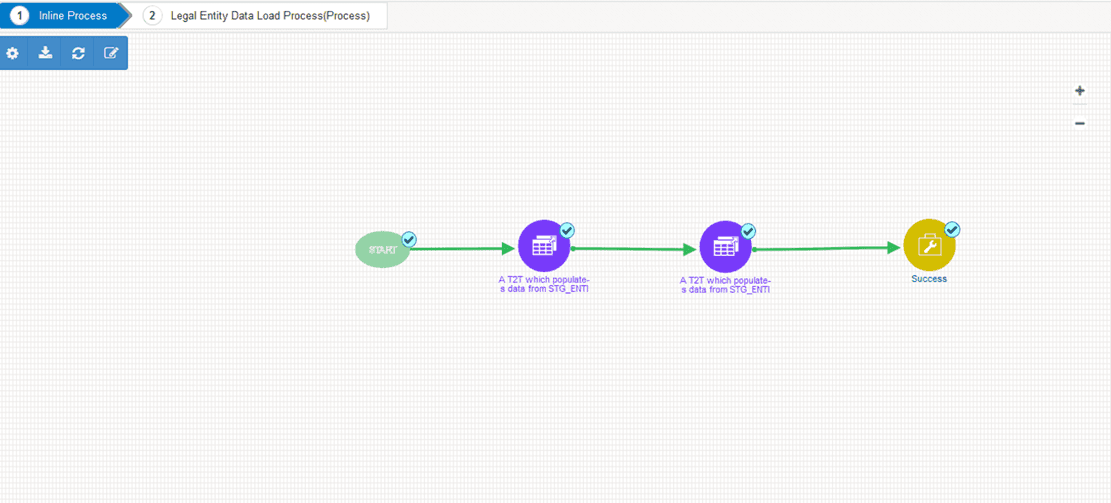
d. To verify the execution status for a Sub Pipeline, double-click the Sub Pipeline. The execution status related to the Sub Pipeline is displayed. In this illustration, the Legal Entity Data Load Process sub pipeline is used.
Figure 45: OIDF Sourced (Execution) Run Process – Run Execution Status of the Sub Pipeline
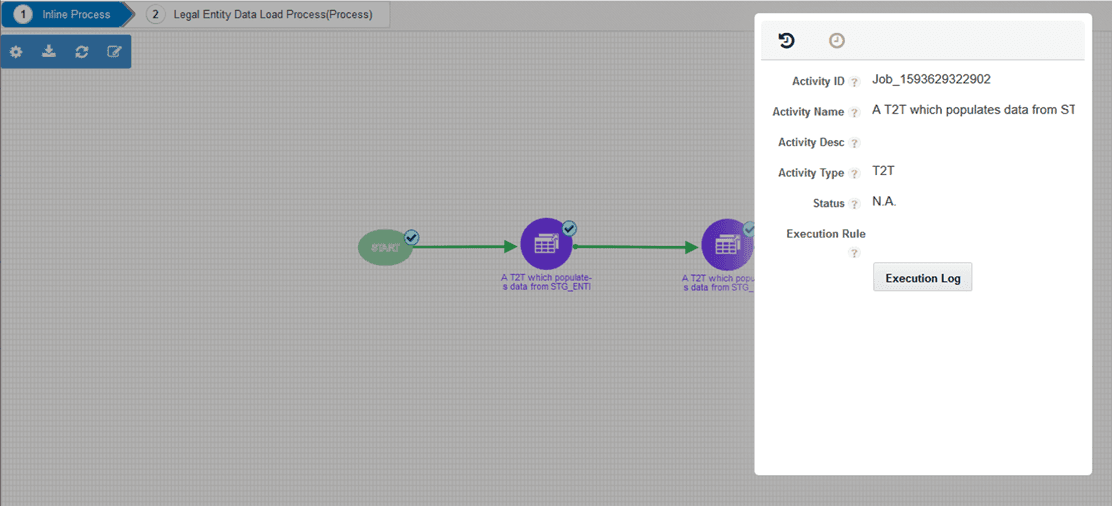
i. To verify the execution log of a T2T in the Sub Pipeline, double-click the required T2T widget. A page is displayed containing the Activity Definition and Activity Logs details. In the Activity Definition tab, click the Execution Log.
Figure 46: Activity Definition and Activity Logs details for T2T Run Execution in the OIDF Sourced (or Execution) Run Process
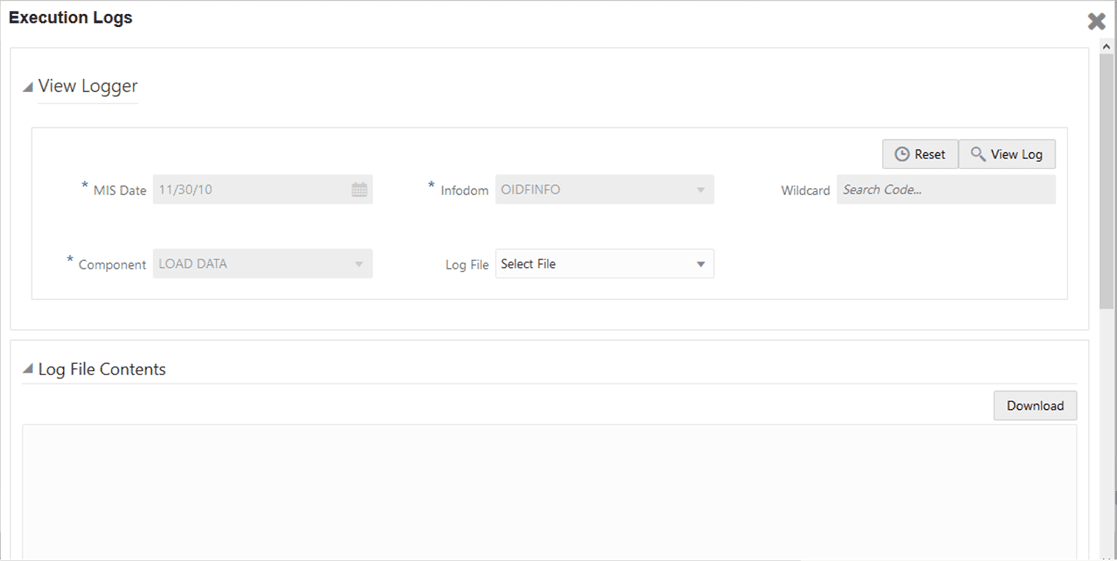
ii. The Execution Logs page is displayed. Select the required Log File in the list and click View Log.
Figure 47: Execution Logs page c in the OIDF Sourced (Execution) Run Process
iii. The log details are displayed in the Log File Contents section. To download a copy of the log details, click Download.
Figure 48: Execution Logs page of a T2T with information in the OIDF Sourced (Execution) Run Process
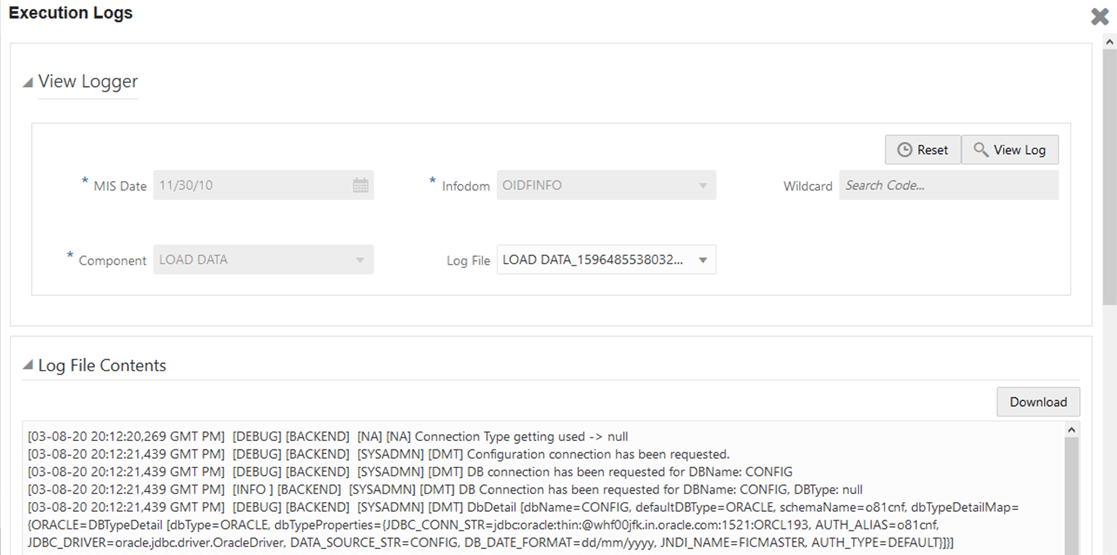
The following two types of log files are generated:
— T2T.log
— T2TCPP.log
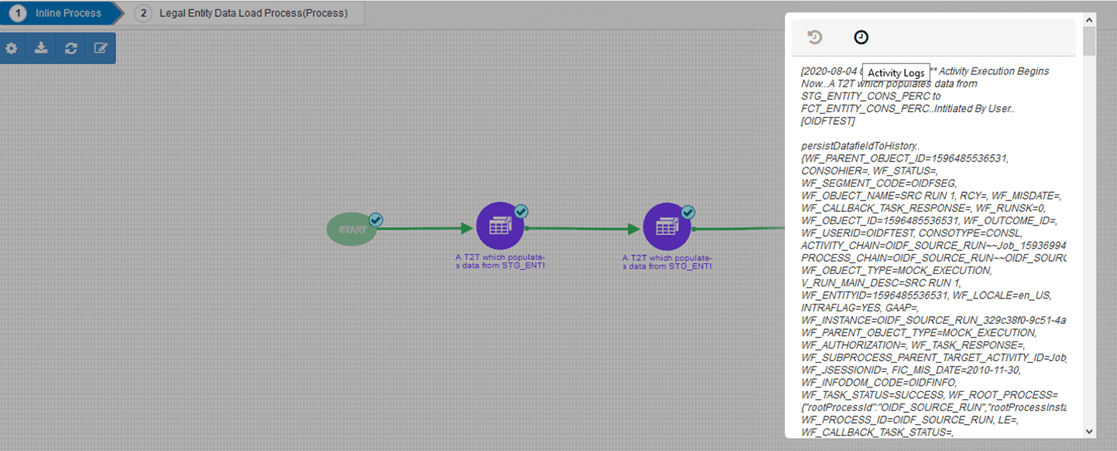
e. In the Sub
Pipeline Run Execution Status page, to see the activity log corresponding
to the executed T2T, click .
.
Figure 49: Activity Logs of a T2T in OIDF Sourced (Execution) Run Process
For information about the complete functioning of the PMF, see the Oracle Financial Services Analytical Applications Infrastructure Process Modelling Framework Orchestration Guide Release 8.1.0.0.0.
To design and execute a custom Oracle Insurance Data Foundation Sourced Run process, see the Configure and Manage Custom Pipelines for OIDF Functions section.
To check the error messages, see the log file present in the ftpshare/logs/<Run_Date>/<infodom>/LOAD DATA directory for any T2T.
When the T2T process is complete, data is populated in the Result tables.
NOTE |
AAI_DMT_MAPPING_DETAILS table contains all the Stage, Dimension, and Fact tables. This table contains details about what source table-column level mapping must be done to the Result <TABLE>.<COLUMN>. AAI_DMT_DEF_SOURCE_ENTITY table contains all the Expressions. AAI_DMT_DEFINITION table contains all the Join conditions. Each Join query must contain SKey. The join between a Dimension table and Fact table is based on the SKey. |
 to
select the Reporting Currency Code used to calculate the amount
during the data population in the target table.
to
select the Reporting Currency Code used to calculate the amount
during the data population in the target table. to
select the extraction date.
to
select the extraction date.