Topics:
· Upgrade the OIDF Application Pack from v8.1.0.0.0 or a Later Version to v8.1.2.0.0
NOTE:
· The user profile executing the installation must have the permission on /tmp before installation.
· Sufficient space must be available in /tmp before installation, else the installation will terminate, and logs are not generated.
ATTENTION:
Ensure you run the upgrade installer only on the cloned environment.
Scenario |
Installation and Upgrade Instructions |
|---|---|
Upgrade the OIDF Application Pack from v8.1.0.0.0 or a Later Version to v8.1.2.0.0 In this scenario, you are upgrading the OIDF Application Pack from Release v8.1.0.0.0 or a later version to Release v8.1.2.0.0.
|
1. Clone your existing environment to the OFSAA Technology Matrix v8.1.2.0.0. 2. Run the Environment Check Utility tool and ensure that the hardware and software requirements are installed as per the OFSAA Technology Matrix v8.1.2.0.0. 3. Update the OFS_OIDF_PACK.xml file to enable ONLY the existing installed applications. 4. Update the Silent.props file present in the OIDF v8.1.2.0.0 installer pack. 5. Trigger the installation. |
|
In this scenario, an Application Pack of v8.1.2.0.0 is already installed and now you need to upgrade the OIDF Application Pack from v8.1.0.0.0 or a later version to Release v8.1.2.0.0. Example: OFS CAP v8.1.2.0.0 Application Pack is already installed and now you need to install the OIDF Application Pack. |
1. Update the OFS_OIDF_PACK.xml file of the OIDF Application Pack. 2. Update the Silent.props file of the OIDF Application Pack. 3. Run the schema creator utility ONLY for the OIDF Application Pack. 4. Trigger the installation. |
This section provides information about the preparations that need to be done before proceeding with the upgrade installation.
Topics:
· Download the OIDF Application Pack Installer and Data Model
· Prepare the Environment for Upgrade
This section provides the details of the download that you need to complete before triggering the application installation.
Topics:
· Download the OIDF Application Pack Installer
To download the OIDF Application Pack installer Release v8.1.2.0.0, follow these steps:
1. Log in to the My Oracle Support (MOS) with a valid Oracle account.
2. In the Patches & Updates tab, search for the OIDF Application Pack installer patch 33024795 and download the patch. Copy the patch to your OFSAA server in the Binary mode in the setup identified for OIDF installation.
NOTE:
The archive files are different for every operating system like AIX, Solaris, and RHEL/Oracle Linux.
To download the OIDF OOB v8.1.2.0.0 Data Model, follow these steps:
NOTE:
This is an optional section that is applicable if you are performing the customized model upload.
1. Log in to the My Oracle Support (MOS) with a valid Oracle account.
2. In the Patches & Updates tab, search for the OIDF Data Model installer patch 33143379 and download the patch. See the Readme available with the patch for further instructions on downloading the patch and extracting the erwin files.
Before you plan to upgrade any of your application packs to Release 8.1.2.0.0, ensure that all the application packs in your current OFSAA instance are available in the Release 8.1.2.0.0 version. Contact My Oracle Support (MOS) for more information about the release version details.
1. Backup the following environment file from the OFS_OIDF_PACK/conf/ directory:
§ OFS_OIDF_PACK.xml
2. Backup the following environment files from the OFS_OIDF_PACK/schema_creator/conf/ directory:
§ DBMASTER_SC.xml
§ OFS_OIDF_SCHEMA_IN.xml
§ OFS_OIDF_SCHEMA_BIGDATA_IN.xml
3. Backup the following environment file from the OFS_OIDF_PACK/OFS_AAI/conf/ directory:
§ OFSAAI_InstallConfig.xml
4. Ensure that the following property files are present in the OFS_OIDF_PACK/appsLibConfig/conf/ directory and make a backup:
§ Silent_upgrade_to_812.template
5. See OFSAA Technology Matrix for the hardware and software required to upgrade to the OIDF Application Pack Release 8.1.2.0.0.
6. Enable unlimited cryptographic policy for Java. For more information, see the Enabling Unlimited Cryptographic Policy section in the Oracle Financial Services Advanced Analytical Applications Infrastructure Administration and Configuration Guide Release 8.1.x.
7. Clone your environment. For more information, see the Oracle Financial Services Analytical Applications Infrastructure Cloning Reference Guide Release 8.1.x.
8. Execute the following SQL query in the Atomic Schema:
update rev_tables_b set version=0 where version is null;
commit;
In this scenario, you are upgrading the OIDF Application Pack from v8.1.0.0.0 or a later version to v8.1.2.0.0.
NOTE:
If you are upgrading the OFSAA Application Pack to the release v8.1.2.0.0, to ensure successful deployment, you must upgrade the other packs installed in the same environment to the release v8.1.2.0.0.
Topics:
· Clone Your Existing Environment
· Update the OFS_OIDF_PACK.xml File
· Update the Silent.props File
· Execute the Schema Creator Utility
· Verify the Log File Information
Clone your existing environment to the v8.1.2.0.0 of OFSAA Technology Matrix. For more information, see the Oracle Financial Services Analytical Applications Infrastructure Cloning Reference Guide Release 8.1.x.
ATTENTION:
· This step is required if you need to move from the Linux 7 to Linux 8 version.
· Always ensure you run the upgrade installer only on the cloned environment.
You need to be logged in to the UNIX Operating System as a non-root user to perform the following steps. To extract the OIDF Application Pack software, follow these steps:
1. Download the unzip utility (OS-specific) unzip_<os>.Z and copy it in the Binary mode to the directory that is included in your PATH variable.
If there is already an unzip utility to extract the contents of the downloaded archive, skip this step. Uncompress the unzip installer file using the following command:
uncompress unzip_<os>.Z
NOTE:
If an error message "uncompress: not found [No such file or directory]" is displayed, contact your UNIX Administrator.
2. Assign the 751 permission to the file using the following command:
chmod 751 unzip_<os>
For example, chmod 751 unzip_sparc
3. Extract the contents of the OIDF Application Pack Release v8.1.2.0.0 installer archive file in the download directory using the following command:
unzip OFS_OIDF_8.1.2.0.0_<Operating_System>.zip
NOTE:
Do not rename the Application Pack installer folder name on extraction from the archive.
4. Log in to OFSAA Infrastructure Config Schema and execute the following SQL query:
ALTER TABLE CONFIGURATION MODIFY PARAMNAME VARCHAR2 (100 CHAR);
5. Navigate to the Download Directory and assign the 750 permission to the Installer Directory using the following command:
chmod –R 750 OFS_OIDF_PACK
Update the OFS_OIDF_PACK.xml file to enable the existing installed Application Packs.
To configure the OFS_OIDF_PACK.xml file, follow these steps:
1. Navigate to the OFS_OIDF_PACK/conf/ directory.
2. Rename the file OFS_OIDF_PACK.xml to OFS_OIDF_PACK.xml.template.
3. Open the OFS_OIDF_PACK.xml file in a text editor.
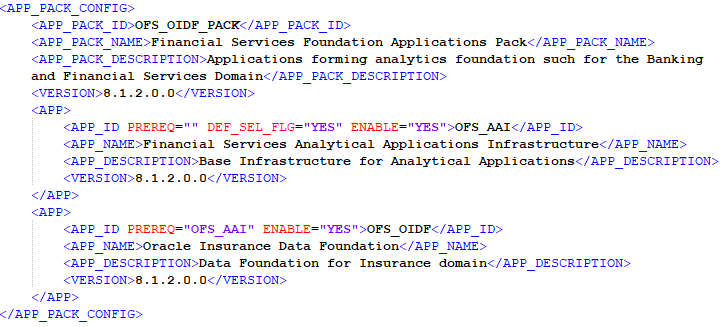
4. Update the OFS_OIDF_PACK.xml file in the text editor as mentioned in the following table only for the specified parameter.
Figure 36: Sample OFS_OIDF_PACK.xml File with the Update for Upgrade
Tag Name |
Attribute Name |
Description |
Mandatory (Y/N) |
Comments |
|---|---|---|---|---|
APP_ID |
ENABLE |
Enable the Application or Product |
YES if installing in the SILENT mode. |
The default value is YES for Infrastructure. The default value is NO for Others. Permissible values are YES and NO. Set this attribute value to YES against every APP_ID, which is licensed and should be enabled for the upgrade. NOTE: You cannot disable the Application or Product after you enable it. However, the Application or Product not enabled during installation can be enabled later through the Administration UI. |
5. Save the file.
Topics:
· Silent Upgrade to OIDF v8.1.2.0.0 for RDBMS
This section is applicable only for the RDBMS mode of OIDF Application Pack v8.1.2.0.0 upgrade installation.
NOTE:
In an integrated environment, Oracle recommends the customers use the same Staging source in the Silent.props file for the T2Ts that load data from the Stage tables into the Result tables.
To configure the Silent.props file to upgrade to the OIDF Application Pack Release 8.1.2.0.0, follow these steps:
1. Navigate to the installer kit OFS_OIDF_PACK/appsLibConfig/conf/ directory.
2. Rename the file Silent_upgrade_to_812.template to Silent.props.
3. Open the Silent.props file in a text editor.
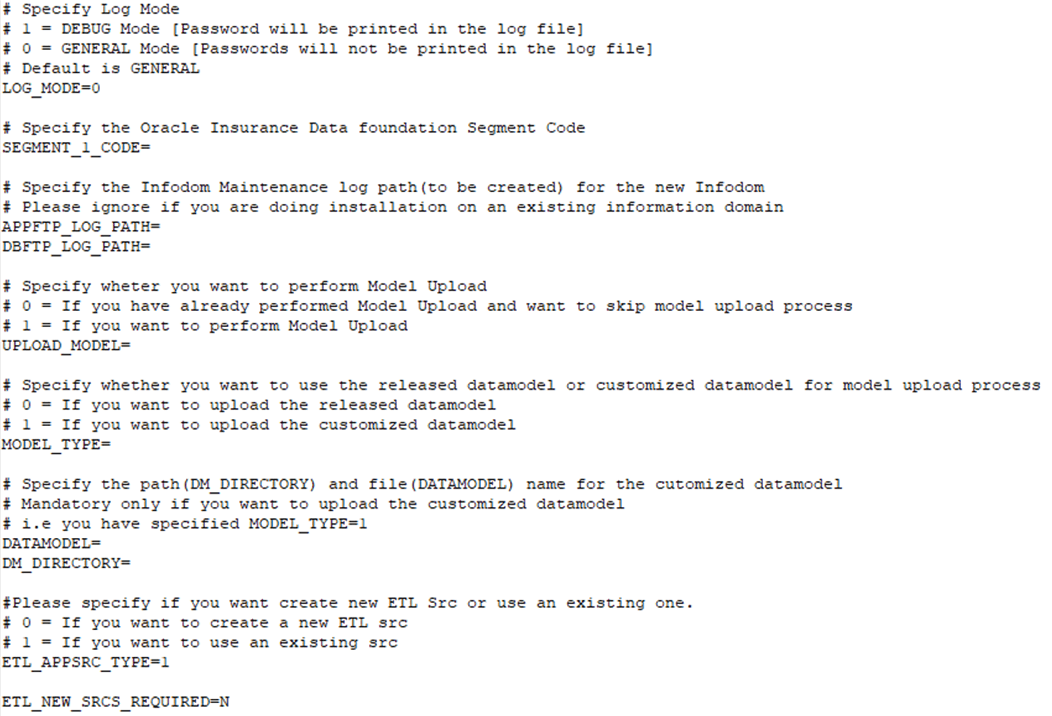
4. Update the Silent.props file and mention the following parameters:
Figure 37: Sample of the Silent.props file (Silent_upgrade_to_812.template for RDBMS) for upgrade installation
Property Name |
Description of Property |
Permissible values |
Comments |
|---|---|---|---|
LOG_MODE |
Mode for logging |
1 = Debug 0= General |
# Optional; Default: 0 |
SEGMENT_1_CODE |
Segment Code |
Example: OIDFSEG |
# Mandatory Segment Code must be the same as the code that is used during the first OIDF installation (Base Pack) |
APPFTP_LOG_PATH |
Information Domain Maintenance log path (to be created) for the new Information Domain for App Layer |
Example: /ftpshare/<INFODOM_NAME>/logs |
# Mandatory Information Domain Maintenance log path must be the same as the log path that is used during the first OIDF installation (Base Pack) |
DBFTP_LOG_PATH |
Information Domain Maintenance log path (to be created) for the new Information Domain for DB Layer |
Example: /ftpshare/<INFODOM_NAME>/logs |
# Mandatory Information Domain Maintenance log path must be the same as the log path that is used during the first OIDF installation (Base Pack) |
UPLOAD_MODEL |
Whether you need to perform Model Upload |
0 = No 1 = Yes |
# Mandatory |
MODEL_TYPE |
Released Data Model or Customized Data Model |
0 = released Data Model 1 = customized Data Model |
# Mandatory only in the case of UPLOAD_MODEL=1 |
DATAMODEL |
The file name for the customized Data Model |
Not Applicable |
# Mandatory only in the case of uploading the customized Data Model # Option selected for MODEL_TYPE=1 |
DM_DIRECTORY |
The path for the customized Data Model |
Not Applicable |
# Mandatory only in the case of uploading the customized Data Model # Option selected for MODEL_TYPE=1 |
ETL_APPSRC_TYPE |
The ETL application name |
0=New Pair 1=Existing |
# Mandatory |
ETL_NEW_SRCS_REQUIRED |
Whether ETL new sources are required |
N |
# Mandatory |
ENABLE_CONCURRENCY |
#Support for Parallelism |
0 = No 1 = Yes |
#Optional |
CONCURRENCY_LEVEL |
#Support for Parallelism |
Example: CONCURRENCY_LEVEL=10, which means 10 threads are triggered to handle the processing of fsapps. |
#Optional |
5. Save the file.
To execute the Schema Creator Utility, follow these steps:
NOTE:
While defining the schema details for the Application Packs, provide the same schema details given in the previous installation. The output file OFS_OIDF_SCHEMA_OUTPUT.xml is generated as a result of the schema creation process.
1. Configure the Schema Creator Utility:
§ For the RDBMS installation, edit the OFS_OIDF_PACK/schema_creator/conf/OFS_OIDF_SCHEMA_IN.xml file in a text editor. See the Configure the OFS_OIDF_SCHEMA_IN.xml File section to modify the values in the XML file.
2. Execute the utility with the -s option.
For Example: ./osc.sh –s
For more information, see the Execute the Schema Creator Utility section.
In this upgrade installation process, an Application Pack of v8.1.2.0.0 is already installed and now you need to upgrade OIDF Application Pack from v8.1.0.0.0 or a later version to v8.1.2.0.0.
To upgrade the OIDF Application Pack to Release 8.1.2.0.0 on an existing v8.1.2.0.0 OFSAA instance, follow these steps:
1. Ensure that you completed the following procedures:
a. Download the installer.
b. Perform the prerequisites for installation.
c. Prepare for Upgrade.
d. Extract the software.
e. Update the OFS_OIDF_PACK.xml file.
f. Update the Silent.props file.
g. Execute the Schema Creator Utility.
2. Execute the following command in the console to initiate the OIDF Application Pack installation in the Silent mode:
./setup.sh SILENT
3. The installer proceeds with the Pre-installation Checks.
4. Enter the OFSAA Processing Tier FTP or SFTP password value and proceed, when prompted in the command prompt.
Figure 38: OFSAA Processing Tier FTP or SFTP Password Prompt

NOTE:
Enter the password to access the Product Staging or Metadata repository directory FTPSHARE in the application server.
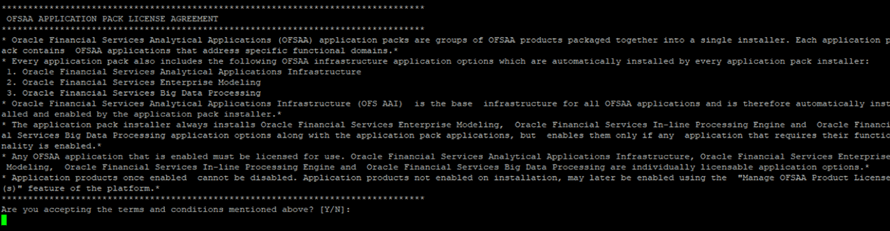
5. The process displays the OFSAA License. Enter Y and proceed.
Figure 39: Accept the OFSAA License Agreement
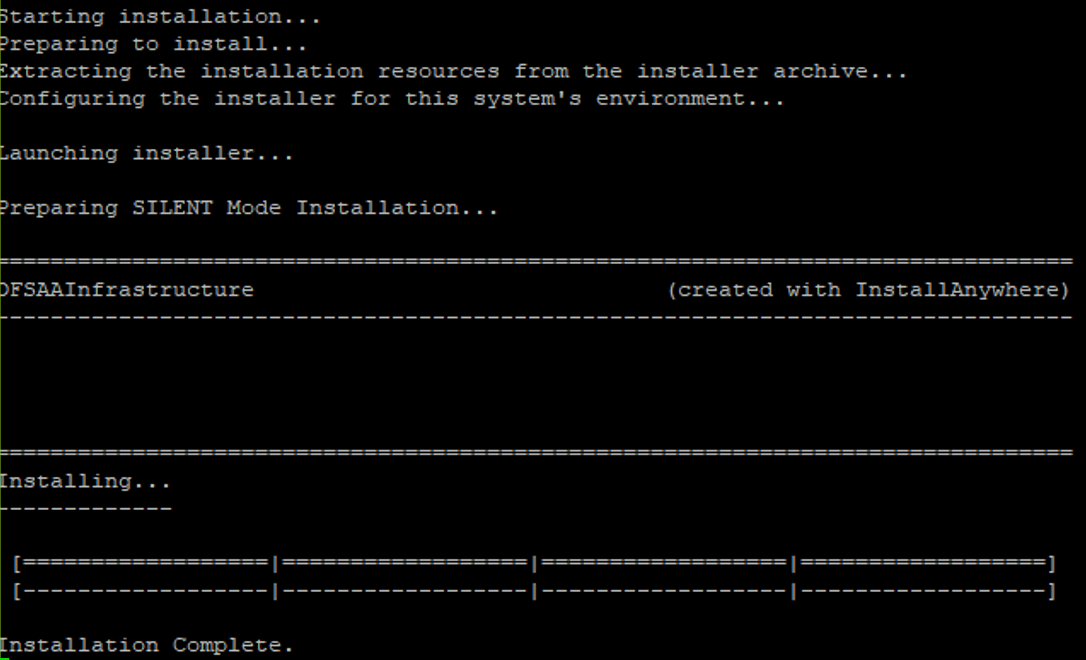
6. The installer installs the OFSAAI application.
Figure 40: OFSAAI Silent Mode Installation
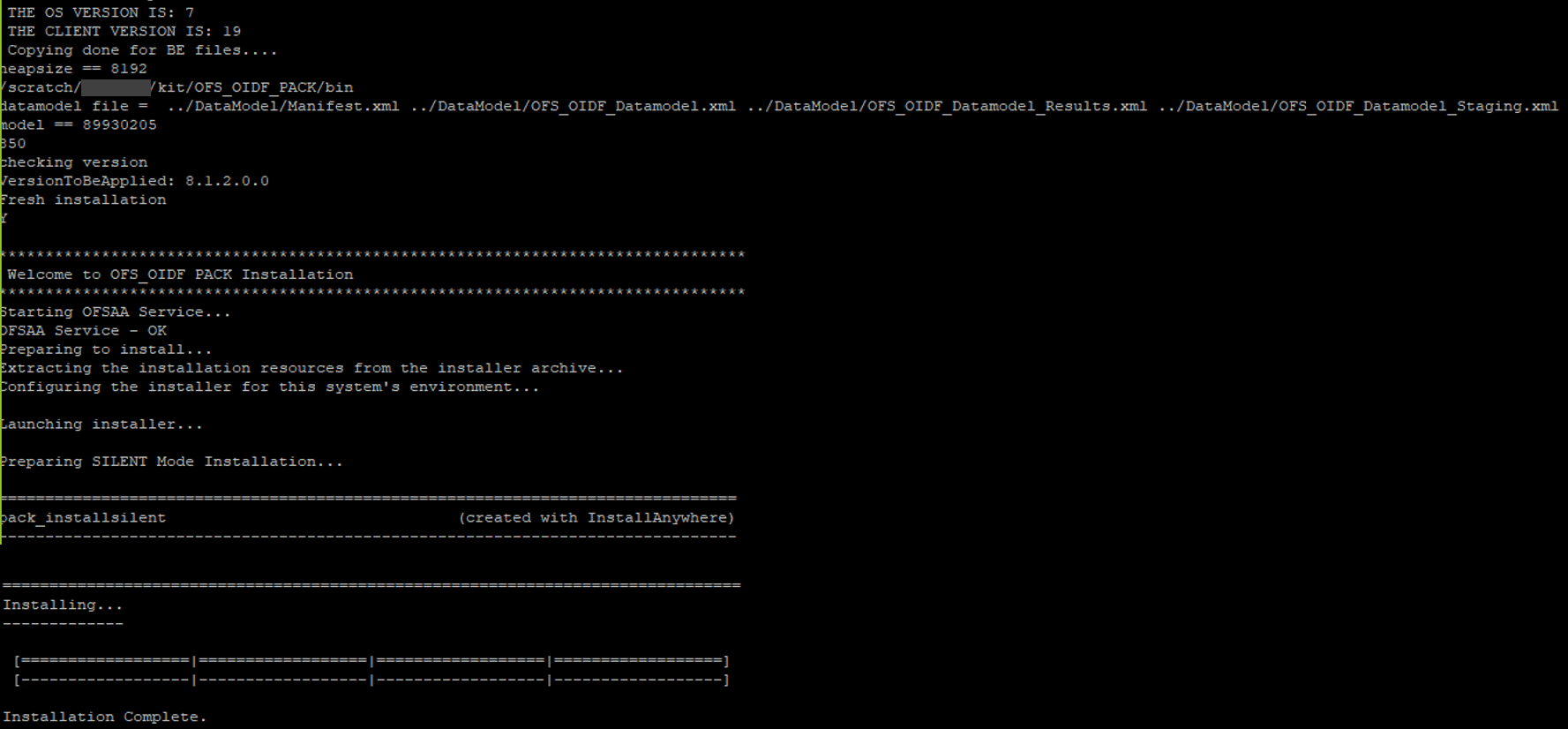
7. After OFSAAI is installed, the OIDF Application Pack installation begins.
Figure 41: OIDF Application Pack Installation
NOTE:
· The Data Model upload may take several hours to complete. You can check the installation logs in the /OFS_OIDF_PACK/OFS_OIDF/logs/ directory.
· For the existing customers, with the DB XML, the time taken for the Data Model upload will be significantly reduced. You can upload the warehouse data from the operational systems to the database schema using the erwin XML or Database XML file. Using the stand-alone command-line utility for the TransformErwin.sh file, you can transform erwin XML into Database XML, and use the DB XML instead of erwin XML to speed up the model upload process. For more information, see the Command Line Utility for Transforming erwin XML to Database XML section in the Oracle Financial Services Advanced Analytical Applications Infrastructure User Guide Release 8.1.2.0.0.
Figure 42: OIDF Application Pack Installation Complete
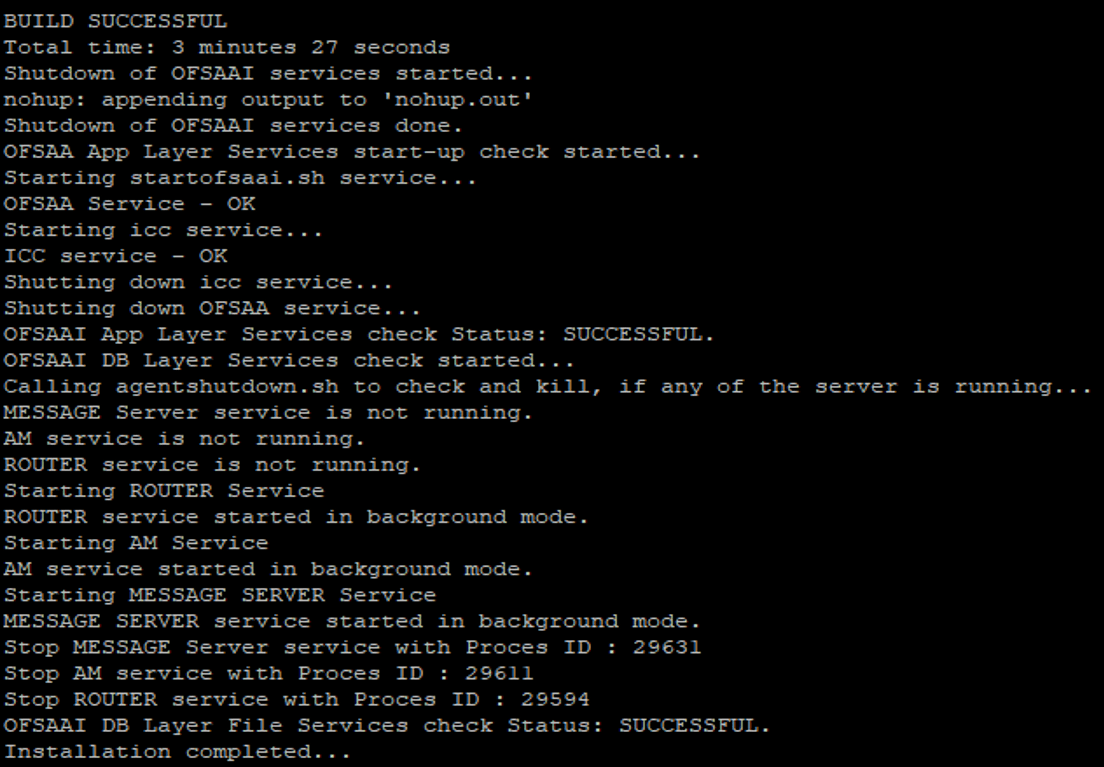
8. When the installation is complete, the following message is displayed in the console:
Installation completed…
9. The OFSAA Infrastructure installation performs a post-install health check automatically on the successful installation of the product.
10. To verify if the release is applied successfully, check the log files mentioned in the section Verify the Log File Information.
NOTE:
If any applications are installed on top of the OFS AAAI Application Pack 8.1.2.0.0 version, execute the script update_dq_batches_optional_params.sql, which is available in the folder $FIC_HOME/Post_AAI_Migration, after the installation of the applications.
11. For more information on securing your OFSAA Infrastructure, refer to the Oracle Financial Services Analytical Applications Infrastructure Security Guide Release 8.1.x.
12. After successful installation, perform the Post-installation procedures. For detailed information, see the Post-installation section.
13. Perform the necessary Additional Configuration.
See the following logs files for more information:
· The Pack_Install.log file in the OFS_OIDF_PACK/logs/ directory.
· The OFS_OIDF_installation.log file and the OFS_OIDF_installation.err file in the OFS_OIDF_PACK/OFS_OIDF/logs directory.
· The Infrastructure installation log files in the OFS_OIDF_PACK/OFS_AAI/logs/ directory.
· The OFSAAInfrastucture_Install.log file in the $FIC_HOME directory.
ATTENTION:
You can ignore the "ORA-00001: unique constraint" error, and Object already exists and Table has a primary key warnings for the OFSA_CATALOG_OF_LEAVES table in the log file.
In case of any other errors, contact My Oracle Support (MOS).
Follow the steps mentioned in the Post-installation section.
For additional configuration information, see the Additional Configuration section.
In this upgrade installation scenario, an Application Pack of v8.1.2.0.0 is already installed and now you need to upgrade OIDF Application Pack from v8.1.0.0.0 or a Later Version to v8.1.2.0.0. For example, OFS CAP v8.1.2.0.0 Application Pack is already installed and now you need to install the OIDF Application Pack.
NOTE:
If you are upgrading the OFSAA Application Pack to the release v8.1.2.0.0, to ensure successful deployment, you must upgrade the other packs installed in the same environment to the release v8.1.2.0.0.
Topics:
· Update the OFS_OIDF_PACK.xml File
· Update the Silent.props File
· Execute the Schema Creator Utility Only for the OIDF Application Pack
· Verify the Log File Information
You must be logged in to the UNIX operating system as a non-root user to perform the following steps. To extract the OIDF Application Pack software, follow these steps:
1. Download the unzip utility (OS-specific) unzip_<os>.Z and copy it in Binary mode to the directory that is included in your PATH variable.
If you already have an unzip utility to extract the contents of the downloaded archive, skip this step. Uncompress the unzip installer file with the command:
uncompress unzip_<os>.Z
NOTE:
If an error message "uncompress: not found [No such file or directory]" is displayed, contact your UNIX administrator.
2. Assign 751 permission to the file with the following command:
chmod 751 unzip_<os>
For example, chmod 751 unzip_sparc
3. Extract the contents of the OIDF Application Pack Release v8.1.2.0.0 installer archive file in the download directory with the following command:
unzip OFS_OIDF_8.1.2.0.0_<Operating_System>.zip
NOTE:
Do not rename the Application Pack installer folder name on extraction from the archive.
4. Log in to OFSAA Infrastructure Config Schema and execute the following SQL query:
ALTER TABLE CONFIGURATION MODIFY PARAMNAME VARCHAR2 (100 CHAR);
5. Navigate to the Download Directory and assign 750 permission to the installer directory with the following command:
chmod –R 750 OFS_OIDF_PACK
Update the OFS_OIDF_PACK.xml file to enable only the existing installed Application Packs.
To configure the OFS_OIDF_PACK.xml file, follow these steps:
1. Navigate to the OFS_OIDF_PACK/conf/ directory.
2. Rename the file OFS_OIDF_PACK.xml to OFS_OIDF_PACK.xml.template
3. Open the OFS_OIDF_PACK.xml file in a text editor.
4. Update the OFS_OIDF_PACK.xml file as mentioned in the following table only for the specified parameter.
Figure 43: Sample OFS_OIDF_PACK.xml File with the Update for Upgrade
Tag Name |
Attribute Name |
Description |
Mandatory (Y/N) |
Comments |
|---|---|---|---|---|
APP_ID |
ENABLE |
Enable the Application or Product |
YES if installing in the SILENT mode. |
The default value is YES for Infrastructure. The default value is NO for Others. Permissible values are YES and NO. Set this attribute value to YES against every APP_ID, which is licensed and should be enabled for the upgrade. NOTE: You cannot disable the Application or Product after you enable it. However, the Application or Product not enabled during installation can be enabled later through the Administration UI. |
5. Save the file.
Topics:
· Silent Upgrade to OIDF v8.1.2.0.0 for RDBMS
ATTENTION:
Do not install the new applications in the same segment if the preinstalled applications use Run Management.
This section is applicable only for the RDBMS mode of OIDF v8.1.2.0.0 upgrade installation.
NOTE:
In an integrated environment, Oracle recommends the customers use the same Staging source in the Silent.props file for the T2Ts that load data from the Stage tables into the Result tables.
To configure the Silent.props file to upgrade to the OIDF Application Pack Release 8.1.2.0.0, follow these steps:
1. Navigate to the installer kit OFS_OIDF_PACK/appsLibConfig/conf/ directory.
2. Rename the Silent_upgrade_to_812.template file to Silent.props.
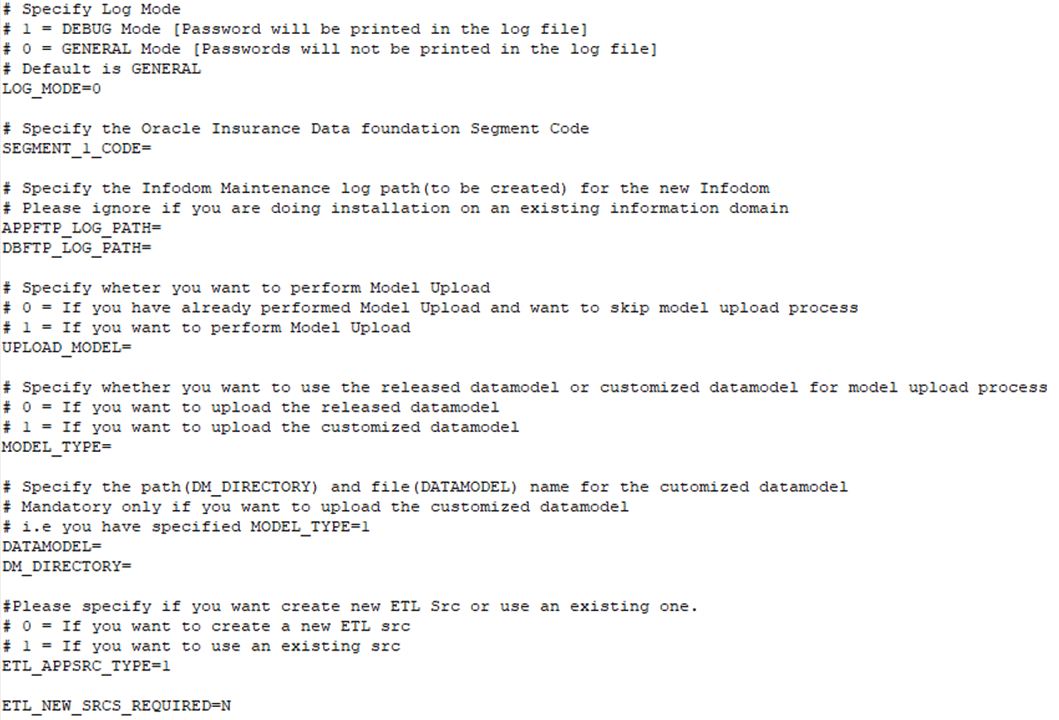
3. Update the Silent.props file and mention the following parameters:
Figure 44: Sample of the Silent.props file (Silent_upgrade_to_812.template for RDBMS) for upgrade installation
Property Name |
Description of Property |
Permissible values |
Comments |
|---|---|---|---|
LOG_MODE |
Mode for logging |
1 = Debug 0= General |
# Optional; Default: 0 |
SEGMENT_1_CODE |
Segment Code |
Example: OIDFSEG |
# Mandatory Segment Code must be the same as the code that is used during the first OIDF installation (Base Pack) |
APPFTP_LOG_PATH |
Information Domain Maintenance log path (to be created) for the new Information Domain for App Layer |
Example: /ftpshare/<INFODOM_NAME>/logs |
# Mandatory Information Domain Maintenance log path must be the same as the log path that is used during the first OIDF installation (Base Pack) |
DBFTP_LOG_PATH |
Information Domain Maintenance log path (to be created) for the new Information Domain for DB Layer |
Example: /ftpshare/<INFODOM_NAME>/logs |
# Mandatory Information Domain Maintenance log path must be the same as the log path that is used during the first OIDF installation (Base Pack) |
UPLOAD_MODEL |
Whether you need to perform Model Upload |
0 = No 1 = Yes |
# Mandatory |
MODEL_TYPE |
Released Data Model or Customized Data Model |
0 = released Data Model 1 = customized Data Model |
# Mandatory only in the case of UPLOAD_MODEL=1 |
DATAMODEL |
The file name for the customized Data Model |
Not Applicable |
# Mandatory only in the case of uploading the customized Data Model # Option selected for MODEL_TYPE=1 |
DM_DIRECTORY |
The path for the customized Data Model |
Not Applicable |
# Mandatory only in the case of uploading the customized Data Model # Option selected for MODEL_TYPE=1 |
ETL_APPSRC_TYPE |
The ETL application name |
0=New Pair 1=Existing |
# Mandatory |
ETL_NEW_SRCS_REQUIRED |
Whether ETL new sources are required |
N |
# Mandatory |
ENABLE_CONCURRENCY |
#Support for Parallelism |
0 = No 1 = Yes |
#Optional |
CONCURRENCY_LEVEL |
#Support for Parallelism |
Example: CONCURRENCY_LEVEL=10, which means 10 threads are triggered to handle the processing of fsapps. |
#Optional |
4. Save the file.
To execute the schema creator utility, follow these steps:
NOTE:
While defining the schema details for the application packs, provide the same schema details given in the previous installation. The output file OFS_OIDF_SCHEMA_OUTPUT.xml is generated as a result of the schema creation process.
1. Configure the Schema Creator Utility:
§ For the RDBMS installation, edit the OFS_OIDF_PACK/schema_creator/conf/OFS_OIDF_SCHEMA_IN.xml file in a text editor. See the Configure the OFS_OIDF_SCHEMA_IN.xml File section to modify the values in the XML file.
2. Execute the utility with the -s option.
For Example: ./osc.sh –s
For more information, see the Execute the Schema Creator Utility section.
In this upgrade installation process, an Application Pack of v8.1.2.0.0 is already installed and now you need to upgrade OIDF Application Pack from v8.1.0.0.0 or a Later Version to v8.1.2.0.0.
To upgrade the OIDF Application Pack to Release 8.1.2.0.0 on an existing v8.1.2.0.0 OFSAA instance, follow these steps:
1. Ensure that you completed the following procedures:
a. Download the installer.
b. Perform the prerequisites for installation.
c. Prepare for Upgrade.
d. Extract the software.
e. Update the OFS_OIDF_PACK.xml file.
f. Update the Silent.props file.
g. Execute the Schema Creator Utility.
2. Enter the following command in the console to execute the OIDF Application Pack installer with the Silent option:
./setup.sh SILENT
3. The installer proceeds with the Pre-installation Checks.
4. Enter the OFSAA Processing Tier FTP/SFTP password value and proceed, when prompted in the command prompt.
Figure 45: OFSAA Processing Tier FTP/SFTP Password Prompt
NOTE:
Enter the password to access the Product Staging or Metadata repository directory FTPSHARE in the application server.
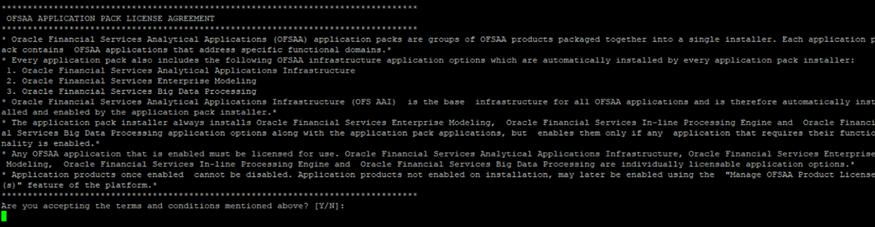
5. The process displays the OFSAA License. Enter Y and proceed.
Figure 46: Accept the OFSAA License Agreement
6. The installer installs the OFSAAI application.
Figure 47: OFSAAI Silent Mode Installation
7. After OFSAAI is installed, the OIDF Application Pack installation begins.
Figure 48: OIDF Application Pack Installation
NOTE:
· The Data Model upload may take several hours to complete. You can check the installation logs in the /OFS_OIDF_PACK/OFS_OIDF/logs/ directory.
· For the existing customers, with the DB XML, the time taken for the Data Model upload will be significantly reduced. You can upload the warehouse data from the operational systems to the database schema using the erwin XML or Database XML file. Using the stand-alone command-line utility for the TransformErwin.sh file, you can transform erwin XML into Database XML, and use the DB XML instead of erwin XML to speed up the model upload process. For more information, see the Command Line Utility for Transforming erwin XML to Database XML section in the Oracle Financial Services Advanced Analytical Applications Infrastructure User Guide Release 8.1.2.0.0.
Figure 49: OIDF Application Pack Installation Complete
8. When the installation is complete, the following message is displayed in the console:
Installation completed…
9. The OFSAA Infrastructure installation performs a post-install health check automatically on the successful installation of the product.
10. To verify if the release is applied successfully, check the log files mentioned in the section Verify the Log File Information.
NOTE:
If any applications are installed on top of the OFS AAAI Application Pack 8.1.2.0.0 version, execute the script update_dq_batches_optional_params.sql, which is available in the folder $FIC_HOME/Post_AAI_Migration, after the installation of the applications.
11. For more information on securing your OFSAA Infrastructure, refer to the Oracle Financial Services Analytical Applications Infrastructure Security Guide Release 8.1.x.
12. After successful installation, perform the Post-installation procedures. For detailed information, see the Post-installation section.
13. Perform the necessary Additional Configuration.
See the following logs files for more information:
· The Pack_Install.log file in the OFS_OIDF_PACK/logs/ directory.
· The OFS_OIDF_installation.log file and the OFS_OIDF_installation.err file in the OFS_OIDF_PACK/OFS_OIDF/logs directory.
· The Infrastructure installation log files in the OFS_OIDF_PACK/OFS_AAI/logs/ directory.
· The OFSAAInfrastucture_Install.log file in the $FIC_HOME directory.
ATTENTION:
When upgrading the OIDF Application Pack to v8.1.2.0.0 in an integrated environment, you can ignore the Object already exists and the Table has a primary key warnings for the OFSA_CATALOG_OF_LEAVES table in the log file.
You can ignore the "ORA-00001: unique constraint" error.
In case of any other errors, contact My Oracle Support (MOS).
Follow the steps mentioned in the Post-installation section.
For additional configuration information, see the Additional Configuration section.