Working with the Payment Authorizations Page
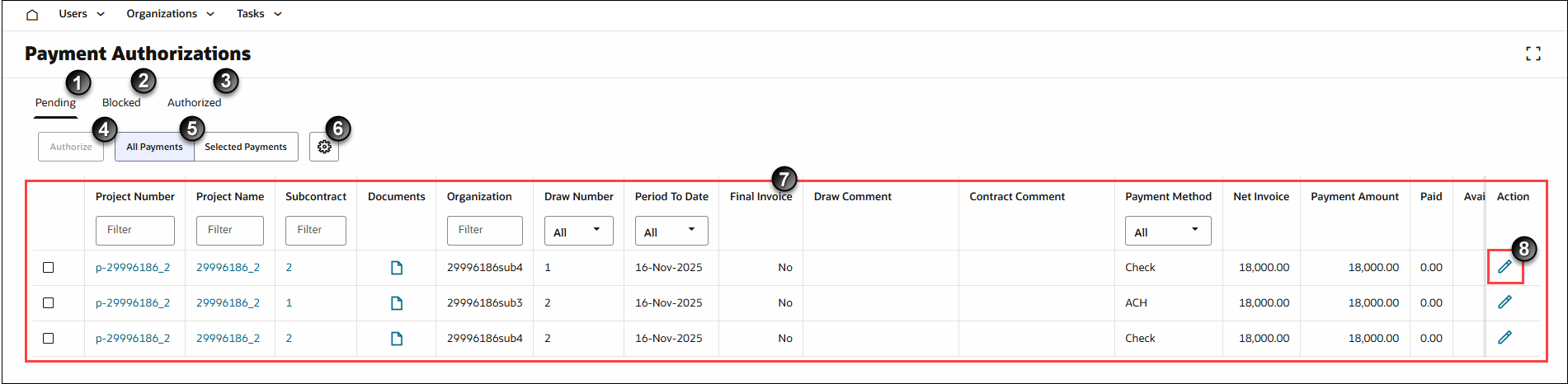
- Pending Tab: Filter the table to view all invoices currently eligible for payment authorization.
- Blocked Tab: Filter the table to view approved invoices currently blocked from payment authorization. Blocks are caused by outstanding payment holds.
Invoices only display on the Blocked tab if a project uses the Allow authorization of invoices eligible for disbursement only project setting.
- Authorized Tab: Filter the table to view all invoices your organization already authorized for disbursement.
- Authorize Button: Only active after you select one or more invoice from the Pending Tab of the Payment Authorization Table. Authorize invoices for disbursement.
- All Payments | Selected Payments Filter: Choose to view either all available invoices or only invoices you selected for authorization in the table.
- Column Settings: Customize the Payment Authorization Table by choosing the columns you see on the page. Select the Gear Icon (Custom Settings) to open a Column Selection dialog box.
You can add and remove any column with the exception of the Project Number, Project Name, and Action columns.
Column selection on the Payment Authorizations page is similar to that on other pages within Textura. See Configuring Tables for more details on how to add and remove table columns.
- Payment Authorization Table: Displays each invoice available for authorization in separate lines.
See Payment Authorizations Column Fields Overview for more details about the information presented in the Payment Authorization Table.
- Payment Status: A Pencil Icon displays in the Actions column. Select the icon to navigate to the Payment Status page, where you can apply and remove payment holds from an invoice.