Working with the Schedule of Values Page for Subcontractors
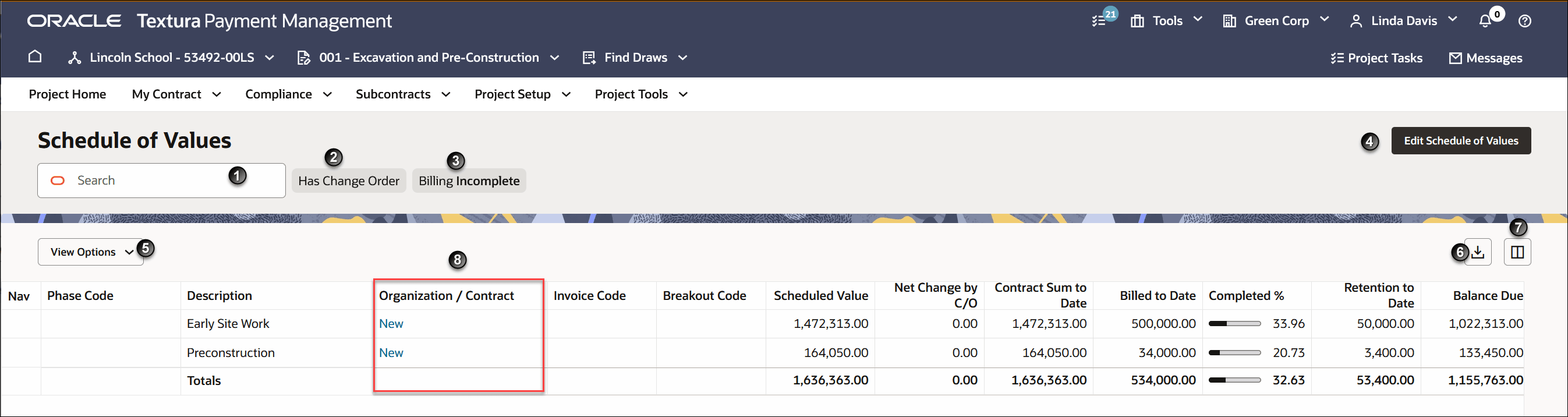
- Search Box: Enter text to narrow the list of line items in the Schedule of Values (SoV). You can search by phase code or line item description.
- Has Change Order: Filter the SoV table to only show line items with change orders. A change order either increases or decreases the original value of the line item.
- Billing Incomplete: Filter the SoV table to only show line items with a remaining balance.
- View Options: Select the drop-down and choose to expand or collapse all lines in the SoV.
- Edit Schedule of Values: Navigate to the Edit Schedule of Values page. You can use the Edit Schedule of Values page to add, remove, and adjust line items.
Note: You cannot delete contracted line items or change the contract value of your contract or a subcontract from the Edit Schedule of Values page. If you need to change your own contract value, your General Contractor needs to create a change order. If you need to adjust the contract value of one of your Sub-Tiers, you can create a subcontract change order.
- Print and Export: Opens a Print & Export drawer. From the drawer, you can either open a print preview of the Schedule of Values and then select a device to send the file to print, or you can export the Schedule of Values as a CSV file. When you export the Schedule of Values file, you can choose to include or exclude total lines.
Note: You can also use the print preview to save the SoV as a PDF.
- Columns: Opens a Columns drawer. From the drawer you can select the columns to show or hide. You can also search for a specific column or restore the default selection.
- Organization/Contract Column: Lists the Sub-Tier organization contracted for the line and links to the Contract Maintenance page for that contract. If the column lists New, it links to the Create Contract page so you can create a new subcontract.