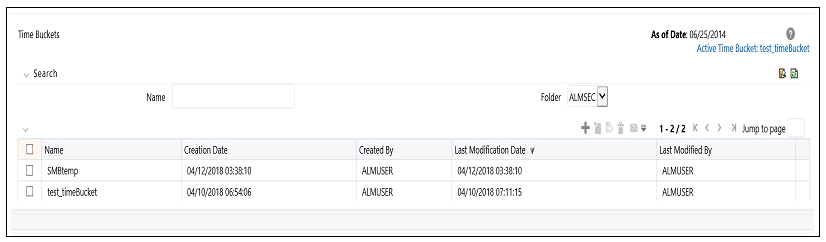
This module describes the procedure for working with and managing the Time Bucket rules.
Topics
· Overview of Time Bucket Rules
The Time Bucket rules allow users to create the time bucket definitions used for computing and outputting aggregated cash flows. The Time Bucket rules determine the granularity of cash flow output and can be set at any frequency through a combination of daily, monthly, and yearly buckets. Time Buckets can be defined for the following types of ALM output:
· Income Simulation
Income Simulation Buckets allow you to specify the time periods used for storing and reporting results. These bucket definitions set the modeling horizon for date-related business rule assumptions. When you change the number or frequency of the modeling buckets, existing business rules are affected.
Be cautious when changing Time Bucket definitions when known dependencies exist.
You can specify any combination of days, months, and years when setting up the buckets. Although, all Oracle ALM cash flows are generated daily, they are aggregated into defined income simulation buckets when results are stored. Reports access information from the income simulation buckets and let you aggregate buckets. For example, you can define monthly income simulation buckets but generate a quarterly income statement. On the other hand, you cannot generate a weekly balance sheet if all income simulation buckets are monthly.
If you want to use different configurations of income simulation buckets, such as all monthly or all quarterly, you should create a separate Time Bucket rule for each and use an appropriate naming convention to identify these characteristics. All date-related assumption rules should be defined and used in the context of a single set of Income Simulation buckets or a single Time Bucket rule.
Income Simulation Bucket definitions are referenced by all bucket based forecast business rules, including Forecast Rates, Forecast Balances, Pricing Margins and Maturity Mix rules, and also by ALM Deterministic Processes during ALM engine processing.
· Interest Rate GAP
Interest Rate GAP Buckets allow you to define Interest Rate (repricing) GAP buckets including a catch all bucket to move reprice gap output for Non Interest Rate Sensitive products. From this screen, you can also define Dynamic Start Dates (as of date is always the initial start date), which allows you to generate both static and dynamic GAP simulations.
With this Dynamic Start Date capability, users can also define forward start dates for computing dynamic market valuations. The Dynamic Start Date capability allows you to consider the amortization of existing business and any new business assumptions that are applicable between the current as of date and the future dated – Dynamic Start Date. You must set up Income Simulation Buckets before defining Interest Rate GAP Buckets.
Only Interest Rate GAP financial elements are impacted by the Interest Rate GAP bucket definitions. The Interest Rate GAP financial elements range from FE660 to FE700.
· Liquidity GAP
Liquidity GAP Buckets are similar to Interest Rate GAP buckets. The only difference is that Liquidity Bucket definitions impact only the Liquidity Runoff financial elements, which range from FE 1660 to 1717.
The procedure for working with and managing Time Bucket rules is similar to that of other Asset Liability Management business rules. It includes the following steps:
· Searching for Time Bucket rules. For more information, see the Searching for Rules section.
· Creating Time Bucket Rules, For more information, see the Creating Rules section.
· Viewing and Editing Time Bucket rules. For more information, see the Viewing and Editing Rules section.
· Copying Time Bucket rules. For more information, see the Copying Rules section.
· Deleting Time Bucket rules. For more information, see the Deleting Rules section.
You create Time Bucket rules to specify the time periods used for storing and reporting ALM results. To create a new Time Bucket rule, follow these steps:
1. Navigate to the Time Buckets Summary page.
Description of Time Bucket summary page as follows
2. Click Add to create a new Time Bucket rule.
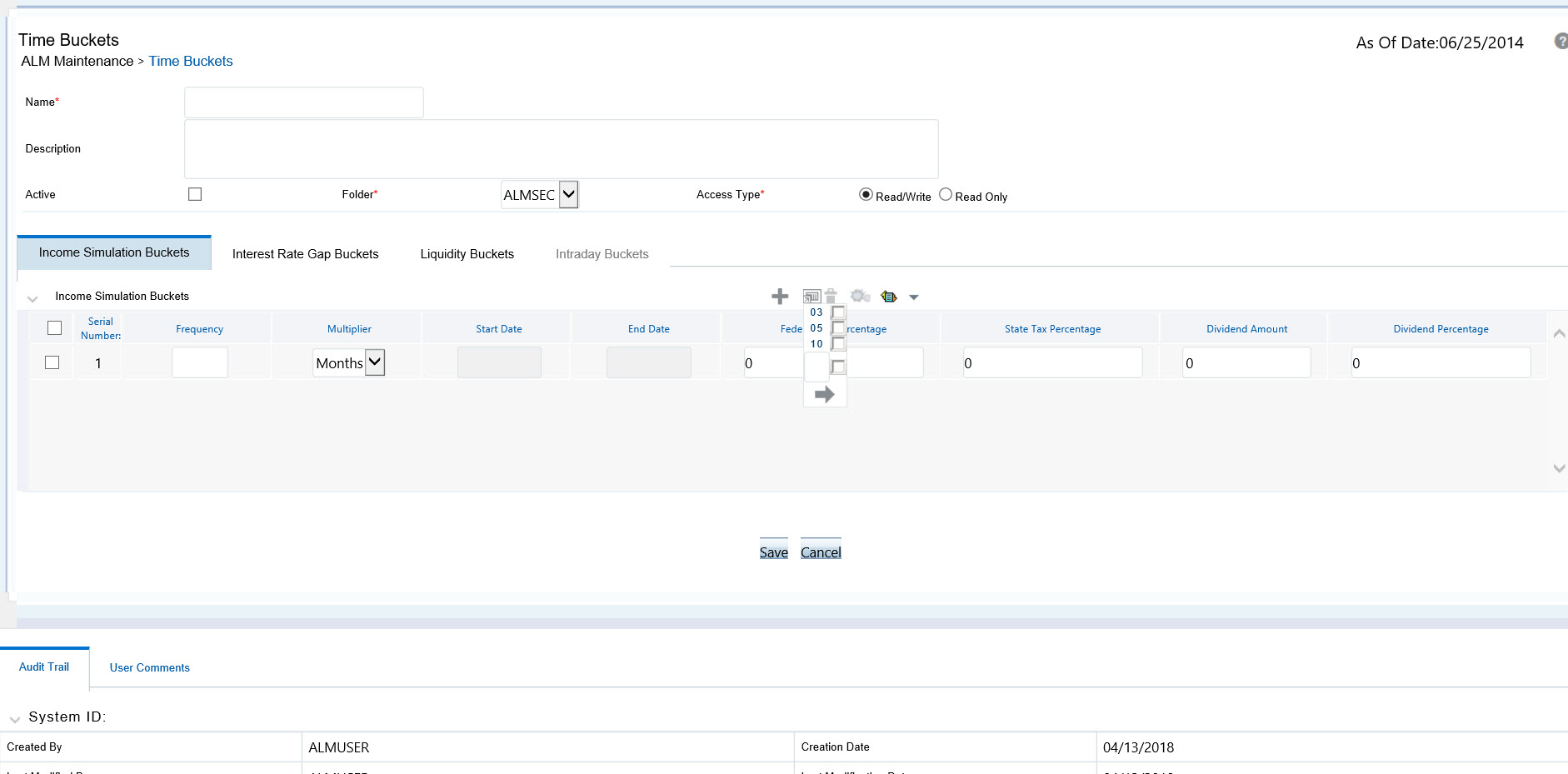
Description of Time Bucket page as follows
3. Enter the Name and Description of Time Bucket.
4. Select the Folder and Access Type.
5. Additional Steps:
All users must have an Active Time Bucket Rule at all times. There is a check box at the top of the page, above the Bucket tabs. If you wish to Activate a particular Time Bucket Rule, simply enable Activate check box and save the Rule. You will note the Active Time Bucket rule for your user appears on the Title bar in green text.
For more information, see Creating Rules.
6. Define the Time Bucket rule. For more information, see Defining Time Bucket Rules
The definition of a Time Bucket rule is part of the Create or Edit Time Buckets rule process. When you click Save in the Create Time Buckets rule process, the rule is saved and the Time Buckets Rule Summary page is displayed. However, Time Bucket assumptions may not have been defined at this point. You must define the Time Bucket assumptions before clicking Save.
In the Time Bucket Details screen, you have three tabs available for creating Time Bucket definitions.
· Income Simulation Buckets (required)
· Interest Rate GAP Buckets, including Non Interest Rate Sensitive Bucket (required only if Repricing Gap is selected during processing). For Non Interest Rate Sensitive Bucket, both Repricing Gap and Include Non Rate Sensitive Bucket are required selections.)
· Liquidity GAP Buckets (required only if Liquidity Gap is selected during processing)
Prerequisites
Performing basic steps for creating or editing a Time Bucket rule. For more information, see the Creating Time Bucket Rules
To define the Time Bucket rule, follow these steps:
1. In the Income Simulation tab, follow these steps:
Figure : Income Simulation Buckets

Description of Income Simulation Buckets as follows
a. Click Add Rows and enter the desired number of rows corresponding to the number of Income Simulation Buckets required to create.
You can select a pre-defined number of rows from the list. For example, 3, 5, 10, or you can enter the exact number of rows required to add. The maximum number of buckets you have under any tab is 240.
b. Under Frequency, enter a numeric value. For example 1. The Frequency column displays the duration of the multiplier. The frequency in conjunction with the multiplier displays the duration of the buckets. The frequency can be any number from 1 to 999.
c. Under Multiplier, select an appropriate value from the list. The Multiplier column includes Daily, Monthly, or Yearly options.
NOTE:
Limit the definition of Income Simulation buckets to the date range that is relevant to your reporting requirement. It is not necessary to create catch all buckets at the end of the series. When large buckets are created, for instance, 99 Years, this can result in the following error:
INSERT Oracle Error: ORA- 01426: numeric overflow
Driver
Function: drv_oci::Execute()
d. Continue adding frequencies and multipliers as needed.
After you fill in the frequencies and multipliers, the start and end dates are calculated automatically based on the As of Date, defined in your Application Preference settings. You may want to utilize the Data Input Helper to copy from a row where you have already defined the time bucket definition or apply a fixed value down the page. For more information, see the Data Input Helper section of Rate Management.
e. After defining time bucket frequencies, move across each row to input the appropriate Federal Tax Percentages and State Tax Percentages.
Tax percentages are used in ALM when processing with the Autobalancing is selected. Type 35.00 for 35%. The tax rate entered is interpreted as the tax rate for that bucket regardless of the frequency of the bucket. That is, 35% entered for a monthly bucket is applied as a 35% monthly rate to the taxable income forecast for that month.
f. Under Dividend Amount, type a value. Dividend amounts are used in HM when processing with the Autobalancing is selected. The values you enter here will be paid out as dividends for all rate scenarios.
g. Under Dividend Percentage, type a value. Dividend percentages are used during Autobalancing calculations. The dividend percentage is defined as a percent of the net income after tax that will be paid out as dividends for the period.
Total Dividends = Dividends Amount + (Dividends Percent x Net Income after Tax)
h. Select Save if you are finished.
2. Otherwise, navigate to the Interest Rate GAP Buckets tab.
After defining Income Simulation buckets, navigate to the Interest Rate GAP Buckets tab. This tab provides two important inputs. The first is the ability to define Interest Rate GAP Buckets and optionally add a Non Interest Rate Sensitive Bucket for Non Rate Sensitive products. The second capability allows you to define one or more Dynamic Start Dates. The following steps explain how to complete each of these setup tasks.
NOTE:
The Interest Rate GAP Bucket can be defined from Bucket count 1 till Bucket count 239 in all dynamic start dates. The last time series time bucket in all Dynamic Start Dates will default to 99 years as a catch all bucket. This is used to verify the total runoff for reporting requirements.
In the Interest Rate GAP Buckets tab, follow these steps:
Figure 3: Interest Rate GAP Buckets
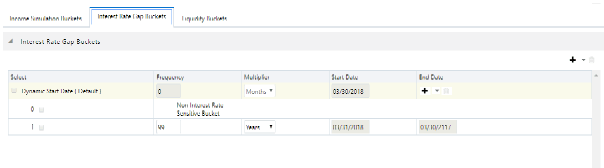
Description of Interest Rate GAP Buckets as follows
a. Click Add Rows corresponding to the Default Dynamic Start Date and enter the desired number of rows for your Interest Rate GAP Buckets.
NOTE:
The product dimension Attribute Interest Rate Sensitivity Category identifies products as Interest Rate sensitive or Non Interest Rate sensitive. Once a product is mapped as Non Interest Rate sensitive, you must enable Include Non Interest Rate Sensitive Bucket in Process Rules (see ALM Processing). This moves reprice gap output from Non Interest Rate Sensitive products into Non Interest Rate Sensitive Bucket
b. Follow steps a— d described above under Income Simulation Buckets, to complete the setup of your Interest Rate GAP Buckets and Non Interest Rate Sensitive Bucket for the default Dynamic Start Date.
c. If you would like to define additional – forward dated, Dynamic Start Dates, Click Add Dynamic Start Date to add one or more parent nodes to the bucket hierarchy.
d. For each additional Dynamic Start Date row, enter the Frequency and Multiplier to determine future start date(s).
e. Click Add Rows corresponding to each new Dynamic Start Date and repeat the Interest Rate GAP Bucket definition steps previously described to complete the setup.
3. After defining Interest Rate GAP Buckets, navigate to the Liquidity Buckets tab. This tab has the same structure as the Interest Rate GAP Buckets tab. It allows you to define the Liquidity GAP Buckets for the Default Dynamic Start Date and also allows you to add one or more additional Dynamic Start Dates. The use of Dynamic Start Dates will allow you to forecast your liquidity position as of some future point in time, considering all relevant assumptions, including amortization, prepayments, early withdrawals, and rollovers.
NOTE:
By default, the last time series time bucket in all Dynamic Start Dates will default to 99 years as a catch all bucket. This is used to verify the total runoff for reporting requirements.
In the Liquidity Buckets tab, follow these steps:
Figure 4: Liquidity Buckets
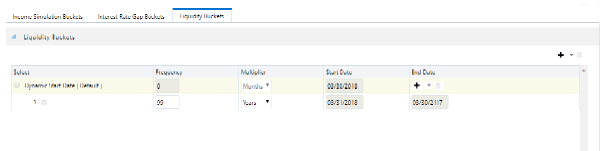
Description of Liquidity Buckets as follows
a. Click Add Rows corresponding to the Default Dynamic Start Date and input the desired number of rows for your Liquidity Buckets.
b. Follow steps b– d described under Income Simulation Buckets, to complete the setup of your Liquidity Buckets for the Default Dynamic Start Date.
c. If you would like to define additional – forward dated, Dynamic Start Dates, Click Add Dynamic Start Date to add one or more parent nodes to the bucket hierarchy.
d. If needed, enter the Frequency and Multiplier for the new Dynamic Start Date to determine the future start date.
e. Click Add Rows corresponding to the new Dynamic Start Date and repeat the Liquidity GAP Bucket definition steps previously described.
f. Click Save once you have completed the setup for all bucket types.
NOTE:
Each time you change the As of Date in your Application Preferences window, all Time Bucket Rule Buckets Start Date and Bucket End Date updated automatically.
Excel Import/Export functionality is used for adding/editing time bucket information. For more information, see the section Excel Import/Export