
When all the required assumptions are defined, ALM Processing performs calculation processes and generates a result set. There are four types of ALM processing rules, each to be described in detail later in this module.
· Static Deterministic
· Static Stochastic
· Dynamic Deterministic
· Dynamic Stochastic
Depending on what type of process you choose, the corresponding Process Rule guides you through the required inputs on the process flow screen.
This chapter covers the following topics:
· Creating an ALM Process Rule
ALM Processes allow you to perform the following tasks:
· Determine the data that you want to process (Product Hierarchy block).
· Submit to the ALM processing engine the financial element results you want to calculate: (Calculation Elements).
· Specify to the ALM processing engine the product characteristics, prepayments, discount methods and forecast assumptions to be used in the process (Rule Selection blocks).
· Specify the Forecast Rate Scenarios (for Deterministic processes) or Rate Index (for Stochastic processes) you want to include.
· Specify a process with only runoff (Static), or with new business included (Dynamic).
· Define the output dimension and what additional attributes you want updated at the instrument level (Output Preferences block).
· Enable the output of detailed cash flows or forecast interest rates for audit purposes (Audit Options block).
· Define the processing parameters for a reprocess on an existing run or an entire new process (Processing Parameters block).
· Formulate and execute the ALM processing request and generate results (ALM Process Summary Page).
|
Icon |
Description |
|---|---|
|
Add
|
Clicking on the Add control allows you to create a new ALM Process rule. The Add control is disabled if any rows in the grid have been selected. |
| View |
Selecting a single row out of the grid enables the View control. Clicking on the View control allows you to view the contents of a Process on a read-only basis. The View control is only enabled when a single Process rule has been selected. |
| Edit |
Selecting a single row out of the grid enables the Edit control. Clicking on the Edit control allows you to modify a previously saved Process rule. The Edit control is only enabled when a single Process rule has been selected. |
| Copy |
Selecting a single row out of the grid enables the Copy control. Clicking on the Copy control allows you to create a copy of an Process rule. The Copy control is only enabled when a single Process has been selected. |
| Check Dependencies |
To generate a report on the OFSAA rules that utilize a selected process, select a single process and click on the Check Dependencies control. The Check Dependencies control is only enabled when a single process has been selected. |
| Delete |
Selecting one or more rows out of the grid enables the Delete control. Clicking on the Delete control deletes the process rule(s) you have selected. |
| Execute |
Clicking on Execute button allows you to execute an existing process. After execution, the status of process will either change to Success or Fail. |
| Refresh |
Clicking on refresh button refreshes the Process Rule summary page. |
| BI Transformation |
Transformation ALM results button allows you to push the ALM Results from the ALM Processing area to the ALM BI Mart. It moves the ALM result data from ALM Processing Tables to ALM BI FACT Tables for Reporting. It transforms both Deterministic and Stochastic ALM results as well as other related information such as forecast rates and detailed cash flows, based on the type of process and processing options selected. Note, this option will be enabled only if user is mapped to ALM BI application. |
To define an ALM Process Rule, complete the following steps:
1. Determine the required process type: Static or Dynamic, Deterministic or Stochastic and choose the desired process from the menu bar.
Description of Access to ALM process as follows
2. From the Summary Page, click Add New.
3. The process will take you through a series of required steps to define the flow depending upon what type of process you selected. For each of the blue highlighted boxes in the process flow area, you are required to make a selection. The gray boxes are optional but will have an effect on the result set if defined
Deterministic processing generates output based on a set of user-defined forecast rate scenarios. The static process indicates that new business assumptions are not included in this flow.
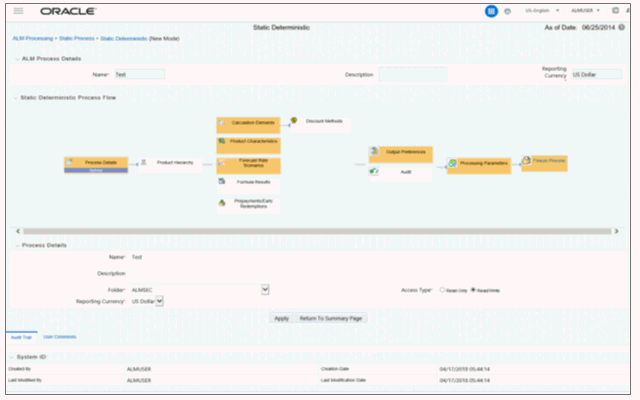
Description of Static Deterministic Process window as follows
4. Fill in the necessary details in the Process Details block:
§ Name
§ Folder and Reporting Currency from respective drop-down menus
§ Click Apply. The process will take you to the Product Hierarchy selection options.
5. In the Product Hierarchy block,
a. Select a Product Hierarchy and select nodes from the hierarchy corresponding to data you want to include in the process, OR
b. Alternatively, select the Source Selection button, and select the instrument tables corresponding to the data you want to include in the process.
c. Select a Filter (optional), to further constrain the data to be included in the process. Filters work as a secondary constraint, applied after the data set is determined based on Product Hierarchy member selection or Source Selection.
Do not use Default Product Member (value of -1) within a Product Hierarchy, for Processing. For example, if the process is running on Product Hierarchy of Common Chart of Account, do not use default chart of account member of -1.
o Data Element Filter
o Hierarchy Filter
o Group Filter
o Attribute Filter
NOTE:
Before using the product hierarchy approach for selecting data to include in your process, there is a procedure that must be run ("PRODUCT TO INSTRUMENT MAPPING"). This procedure can be executed from the Batch Scheduler – Run - interface.
The purpose of the Product to Instrument mapping procedure is to scan all instrument tables (FSI_D_xxx) and populate the mapping table ( FSI_M_PROD_INST_TABLE_MAP ) with a listing of the product dimension members that exist within each instrument table. When you select Products (parents or children) within an ALM or FTP process definition, the process refers to this mapping table to identify the instrument tables to include in the process.
It is recommended that you establish an internal process whereby this procedure is executed after every data load to ensure that mappings are up to date.
Related Topics: For more information on Product to Instrument mapping procedure, see Oracle Financial Services Analytical Applications Infrastructure User Guide.
d. Select Apply.
6. Rule Selection Blocks – The boxes in blue with the yellow highlight are required for the definition of the process.
a. In the Calculations Elements block, select either the Generated aggregated cash flow results or Stop at the Process cash flows option. By default, the Generated aggregated cash flow option is selected and required for most ALM results processing. The Stop at the Process cash flows option is only used when you do not require the aggregated results and wish to only compute detail cash flows in the FSI_O_PROCESS_CASH_FLOWS table. This is used by users who integrate with Liquidity Risk Management and need to create cash detailed flow output for a large number of instrument records. In this case, the aggregate output is not needed. The Stop at process cash flows option does not write aggregated results to the Result or Consolidated Master or Result or Consolidated Detail output tables.
b. Choose the calculation elements to include in the process run: "Market Value, YTM, Duration, DV01/PV01", "Repricing Gap", "Liquidity Gap", "Average Life", "Transfer Pricing" – if defined then select the Folder and Transfer Pricing Rule, TP Adjustments – if defined* then select the Folder and TP Adjustment Rule, Effective Interest Rate, Repricing Balances and Rates, Runoff components, Prepayment Runoff – if defined, Tease, Cap, Floor and Negative Amortization Details, Standard Financial Elements.
c. Include Non Rate Sensitive Bucket check-box gets enabled when ‘Repricing Gap’ is selected. A new Attribute of product dimension ‘Interest Rate Sensitivity Category’ is introduced to identify products as Interest Rate sensitive or Non Interest Rate sensitive. Once ‘Include Non Rate Sensitive Bucket’ is enabled, reprice gap output of Products which are mapped as Non Interest Rate sensitive, would move into Non Interest Rate Sensitive bucket. For more information on Non Interest Rate Sensitive Bucket, see Time Buckets
If ‘Include Non Rate Sensitive Bucket’ is not enabled, engine will ignore ‘Interest Rate Sensitivity Category’ product attribute, and would treat all products as Interest Rate Sensitive. Reprice Gap output would move into respective Reprice Gap buckets.
d. Select the Market Value, YTM, Duration, DV01/PV01 option if you want to measure the price sensitivity for small changes in the underlying interest rate curves (DV01/PV01). For this calculation, Market Value is also required.
e. Choose Embedded Option Decisioning. This is an optional selection. This is a drop-down list with the following values:
Cashflow to Maturity– This selection ignores the option on the instrument and treats it as a regular bond. This is the default behavior.
Cashflow to the first Expiry Date– This selection forces the option on the instrument to be exercised on the first applicable date. American options exercise the option on start date if option start date > as of date. Else, if as_of_date > option start date, the option is called in the 1st time bucket.
Rate Path Dependent – This selection, checks the exercisability of the option on the bond, as per the scenario defined.
f. The Calculate Option Market Value option is used to calculate the Market Valuation (MV) for certain embedded and stand-alone (bare) options. Supported embedded options are Calls, Puts, Caps (caplets) and Floors (floorlets). This option will be enabled only if Market Value, YTM, Duration, DV01/PV01 option is also selected.
For example,
When Calculate Option Market Value check-box is selected and RATE_CAP_LIFE has data filled (that is, holds a non-null value greater than 0), then Embedded CAP Option MV will be calculated.
When Calculate Option Market Value check box is selected and RATE_FLOOR_LIFE has data filled (that is, it is non-null value greater than 0 or it is less than RATE_CAP_LIFE and RATE_CAP_LIFE is greater than 0), then Embedded FLOOR Option MV will be calculated.
g. Click Apply.
h. If Market Value is chosen from step 1 above, the Discount Methods box will become highlighted blue and need to be defined (see Discount Methods, for rule set up). If no market value chosen, continue to step 5 below.
i. Select from the discount methods box the desired method (see Discount Methods, for set up) and click Apply.
j. From the Product Characteristics bar, select the desired definition and click Apply (see Product Characteristics, for rule definition).
k. Select the Forecast Rates rule you want applied to the process, and click Apply. (see Forecast Rate Scenarios , to set up rate scenarios). The flow will now take you to output preferences. Or, if you want to add a prepayment rule to the process, continue to step 7 below.
l. Click the Prepayments/Early Redemptions box and choose the defined prepayment rule (see Prepayment Rules ). This is an optional step.
7. Output Preferences options
a. Select the output dimension from the drop-down list (Options include: Product, Product/Currency, Organization/Product, Organization/Product/Currency).
b. Depending on the dimension chosen, you can Consolidate to Reporting Currency by checking the box if the dimension Product /Currency or Organization/Product/Currency was chosen.
c. If you have the ALMBI reporting product, you can select to export the results to the ALM BI Mart by clicking the box. You also have the option to update the Instrument Data Tables with financial measures by checking the box of the desired calculated item (Market Value, Macaulay Duration, Modified Duration, Convexity, Yield to Maturity, Average Life, DV01/PV01, Option Market Value, Structured Cashflow Attributes*). The DV01/PV01 and Option Market Value options will be enabled only if Market Value, YTM, Duration, DV01/PV01 option is selected in Calculation block. Select Apply Limit to BI option, if you want to use the defined repricing gap limit with ALM BI report. This is useful, if you want to view repricing gap report with a limit set as per your risk policy. Apply Limit to BI option will be enabled only if Move Results to ALMBI Mart option is active.
d. Click Apply after the page is defined. The process will take you to the Processing Parameters section. Or you can click the audit box for the following options: If no audit options are required, skip to #6, Processing Parameters.
* The Structured Cashflow Attributes option will be enabled only if you are mapped to Moody's structured cashflow functionality.
8. Audit Preferences (optional)
Known Issue
If you select FE in ALM process and data contains rate-tier instrument, then ALM process will fail.
§ Detailed Cash Flow:
Check the box to record the cash flows and repricing events occurring for the desired number of records processed. For each record, daily results are written to the FSI_O_PROCESS_CASH_FLOWS table. The data in this table uses the RESULT_SYS_ID, which identifies the Process used. Select from the options below:
Input the desired number of Records in the dialog box
Select all records to be output.
In the financial elements tab below, you have the option to select the FE's you want to output in the detail cash flows table. Highlight the items in the available section and move selection over to the selected section.
Click apply, or go to step 2 for Forecast rates output.
§ Tiered Balanced Cash Flows
Tiered Balanced Cash Flows option allows you to define the Tiered balance interest. The Tiered balance interest is useful when a different interest rate is paid/charged for parts of an account balance that fall within set amount ranges. Payment frequency, current payment and so on can will be defined at account level. Reprice frequency, next reprice date and so on can be defined at tier level.
Select this option when you want system to write detailed cash flows are rate tier level.
Select Forecast Rates to write forecast exchange, interest rates or economic indicator results to the following tables: FSI_EXCHANGE_RATES_AUDIT, FSI_INTEREST_RATES_AUDIT, and/or FSI_ECONOMIC_INDICATORS_AUDIT. For more information on the table structures, see the Oracle Financial Services Analytical Applications Data Model Data Dictionary.
Highlight items from the available code section for the desired forecast type (Interest Rate, Exchange Rate, or Economic Indicator) and move selection (or all) to the selected items box.
For consolidation of Formula Results output, ensure to select respective currencies in Audit section.
Click Apply and the screen will take you to Processing Parameters.
9. Processing Parameters:
a. The processing parameters allow you to run an entire process or re-process a portion of an existing run. From the drop-down list, select Entire Process or Selective Reprocess.
b. If Selective Reprocess is selected, you can click the box “Current Position Data” to reprocess that particular data set. With selective reprocessing you can run a subset of the process to replace invalid products and to add new products. With Selective Reprocess, the Reprocessing components are enabled to selected components for reprocessing. When the Process Rule is executed, the data in the result tables are not immediately deleted. The data for the selected subset is replaced, but the rest of the results remain intact.
c. Select Auto balancing accounts: If you selected Auto Balancing in the Output Preferences (section 4.4.) the Auto Balancing Accounts option is available for re-processing. Click the box to apply.
d. Select the desired product Hierarchy Filter from the drop-down list to indicate which products should be re-processed.
e. Click Apply and the screen will take you to Freeze Process section.
10. Freeze Process
a. Select Freeze to complete the process.
b. Select Reset to erase all selections made previously within the process definition flow.
c. Select Confirm.
11. Stop Holiday Calendar checkbox is provided with a calendar date picker. If checked, a calendar is enabled on which a date can be selected. Cash flows generated post this date will not apply the holiday calendar. On selecting the checkbox a warning message will pop up stating If Enabled, the outputs could have a combination of adjusted and unadjusted cashflows.
NOTE:
Holiday calendar is used to adjust the outputs on holiday events, which may increase processing time. If Users do not want to have adjusted output after a certain time point, say, when buckets become wider, then this field stops adjusting cashflows from that time point, reducing processing time. If user wants to have cash flow adjusted for entire processing period, then this field does not require any input.
Stochastic Processing differs from Deterministic Processing in that it generates Market Value and Value at Risk through Historical or Monte Carlo simulations. Rate scenarios are generated based on Random 1 month rates and a Term Structure model, which describe how the interest rate curve changes over time. Before instrument records are processed, balance and payment fields are first translated to the reporting currency, and then reported in the reporting currency.
NOTE:
Stochastic simulation is a single factor modeling of interest rates of Reporting Currency. Although the engine does convert Balances into Reporting Currency, there is no correlation of Risk factors of particular Currency’s Interest rates with Reporting Currency. Stochastic processing is not intended for Multi-currency processes.
For best results, run Stochastic calculation for a Single currency where Functional Currency = Reporting Currency.
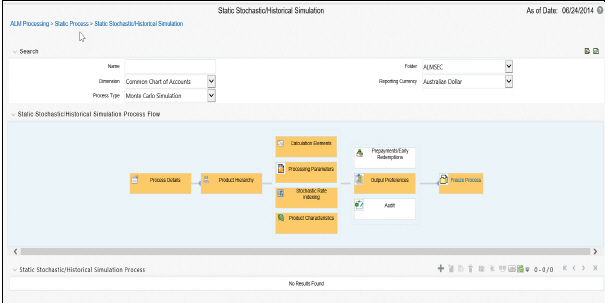
Description of Static Stochastic /Historical Simulation Process page as follows
1. Follow steps 1 and 2 from the Static Deterministic process defined above.
2. Calculation Elements
a. Select the calculation elements. There are two choices: VaR and Market Value
Value at Risk: Value at Risk measures the probability of changes in value of the current position data, occurring over specified time horizons, displayed in the interface as the At Risk period. The At-Risk period defines the time period over which changes in market value are calculated.
When the user selects the Value at Risk calculation option and subsequently runs the process, the software will in addition to calculating the current market value, calculate the change in market value for each rate path and rank these changes in market value for each product leaf and for the entire balance sheet. These results are stored in two tables: FSI_O_STOCH_VAR and FSI_O_STOCH_TOT_VAR.
Note: When Value at Risk is selected, market value is also written to the FSI_O_STOCH_MKT_VAL table.
Market Value: Market Value is calculated per rate scenario for each Product Leaf member. The result Market Value is the total Market Value over the number of rate paths per Product Leaf. The results are stored in FSI_O_STOCH_MKT_VAL.
b. Stop Holiday Calendar checkbox is provided with a calendar date picker. If checked, a calendar is enabled on which a date can be selected. Cash flows generated post this date will not apply the holiday calendar. On selecting the checkbox a warning message will pop up stating If Enabled, the outputs could have a combination of adjusted and unadjusted cashflows.
NOTE:
Holiday calendar is used to adjust the outputs on holiday events, which may increase processing time. If Users do not want to have adjusted output after a certain time point, say, when buckets become wider, then this field stops adjusting cashflows from that time point, reducing processing time. If user wants to have cash flow adjusted for entire processing period, then this field does not require any input.
c. Click Apply and the screen will take you to Processing Parameters.
3. Processing Parameters: Here you set the parameters for the stochastic process by selecting the term structure model, smoothing method, number of rate paths, Random number generation method, and seed value. Each is described in the following sections
There is a toggle that enables the user to choose between Monte Carlo Simulation and Historical Simulation, with the default selection being Monte Carlo Simulation.
If Historical Simulation is selected, only Smoothing Method and Number of Rate Paths is enabled for selection. If Monte Carlo Simulation is selected, then all the five parameters are enabled for selection.
a. Term Structure Method: four models to choose from: For more information on term structure models, see the Oracle Financial Services Analytical Applications Cash Flow Engine Reference Guide.
Merton—real interest rate model
Ho and Lee—no arbitrage model
Vasicek—real interest rate model
Extended Vasicek— no arbitrage model
b. Smoothing method: Smoothing is the drawing of a smooth, continuous line through observable market data points. Because there are an infinite number of these lines passing through a given set of points, additional criteria must be added to the smoothing process to achieve the desired term structure. The following methods are available:
Linear Interpolation – Linear interpolation uses linear yield curve smoothing. Linear yield curves are continuous but not smooth; at each knot point there is a kink in the yield curve. You may not want to use a linear yield curve with a model that assumes the existence of a continuous forward rate curve, due to the nonlinear and discontinuous knot points of a linear yield curve.
Cubic Spline of Yields – A cubic spline is a series of third degree polynomials that have the form
y = a + bx + cx2 + dx3
These polynomials are used to connect the dots formed by observable data. The polynomials are constrained so they fit together smoothly at each knot point (the observable data point.) This means that the slope and the rate of change in the slope with respect to time to maturity have to be equal for each polynomial at the knot point where they join. If this is not true, there is a kink in the yield curve and they are continuous but not differentiable.
Two more constraints make the cubic spline curve unique. The first restricts the zero-maturity yield to equal the 1-day interest rate. The second restricts the yield curve at the longest maturity to be either straight (y"=0) or flat (y'=0).
Quartic Spline: Quartic interpolation requires a minimum of 4 knot points. The quartic interpolation equation can be represented as
Y = a + b X1 + CX2 + d X3 + e X4
The end knot points satisfy equations for one curve and all intermediate points satisfy two curves. Hence in a scenario with minimum number of knot points, there will be 6 equations. For n number of knot points, the number of equations is 2n-2. If n is the number of points to be interpolated, the order of the matrix to be formed is 5*(n-1) x 5*(n-1). The matrix is formed according to the following logic:
The second derivative at the end points and the first derivative of the last point is Zero.
At the points other than the end points the value of the first derivatives, second derivatives and the third derivatives of the function are equal.
c. Number of paths – Specifies the number of simulations to execute. The valid range is from 1 to 2100. If the number of rate paths is not within the range of 1 to 2100, then an error message is displayed to the user.
However, this value is subject to the Maximum number of Rate Paths for Monte Carlo Processing entered in the Application Preference. You can enter a value that is less than or equal to value that entered in the Maximum number of Rate Paths for Monte Carlo Processing field in the Application Preference.
d. Random Number Generation Method: To run Monte Carlo simulations, you must specify the random number generator algorithm for the rate path generation.
Low Discrepancy Sequences: Also known as quasi-random sequences, are designed to prevent clustering of generated numbers; this results in achieving better accuracy than pseudo-random sequences when applied to numerical problems; integration in high dimensions, and so on
e. Pseudo Random Sequences: The traditional random numbers generated by most compilers. They are designed to do well on some statistical tests: low autocorrelation, high period before the sequence repeats itself.
f. Seed Value: Fixed or Variable. If fixed, maximum value of 999. Fixed seed selection results in the same set of random numbers being generated with each run. If you keep the fixed seed a constant value, you will be able to re-produce results from one run to another. The variable seed option allows the system to determine the seed value randomly with each run. This option will result in a different set of random numbers for each run and hence different results from each run. Note: Seed value selections apply to the Pseudo Random Sequences option only.
Once defined, click Apply and you will be taken to the Rate Index window.
4. Rate Index: Select the rate index as it was defined in the Stochastic Rate Indexing rule, (For additional information on the setup rules for rate indexing, see Stochastic Rate Indexing)
Click “Apply”. The screen will take you to Product Characteristics.
Product Characteristics: Select the desired product characteristics rule. (For more information on creating a product characteristic rule, see Product Characteristics)
Click “Apply” and the screen will take you to Output Preferences.
If you want to include a prepayment or early redemption rule in the process run, Click the Prepayments/Early Redemptions box and choose the defined prepayment rule (see Prepayment Rules). This is an optional step.
5. Output Preferences options
a. Select the output dimension from the drop-down list.
NOTE:
Only Product output dimension is supported for Stochastic/Historical Simulation processing.
a. If you have the ALMBI reporting product, you can select to export the results to the ALM BI Mart by clicking the box.
b. Click Apply. The screen will take you to the Freeze Process Or you can click the audit box for the following options: If no audit rule is selected, skip to #8, Freeze Process
6. Audit Preferences (optional)
NOTE:
Known Issue
If you select FE in ALM process and data contains rate-tier instrument, then ALM process will fail.
a. Detailed Cash Flow: Check the box to record the cash flows and repricing events occurring for the desired number of records processed. For each record, daily results are written to the FSI_O_PROCESS_CASH_FLOWS table. The data in this table uses the RESULT_SYS_ID, which identifies the Process used. Select from the option below:
Input the desired number of Records in the dialog box
b. When Monte Carlo Simulation is selected in the Processing Parameters, the One Month Rates is enabled for definition. One Month Rates defines rates to be written during the Monte Carlo simulation for auditing purposes.
Select this option to view the rate paths generated during the stochastic processing run. When selected, 360 monthly rates are output to the FSI_INTEREST_RATES_AUDIT table, for each rate path. Note: This process can be extremely time consuming and database space intensive when processing large numbers of rate paths
c. When Historical Simulation is selected in the Processing Parameters, the All Term Point Rates for 5 Rate Paths is enabled for definition. All Term Point Rates for 5 Rate Paths defines rates to be written during the Historical Simulation for auditing purposes.
Once clicked, a warning message is displayed as follows: “Selecting All Term Point Rates will result in large amount of data being written to the Forecast Rates Audit table. Are you sure you want to proceed?”
d. Tiered Balanced Cash Flows: Tiered Balanced Cash Flows option allows you to define the Tiered balance interest. The Tiered balance interest is useful when a different interest rate is paid/charged for parts of an account balance that fall within set amount ranges. Payment frequency, current payment and so on can will be defined at account level. Reprice frequency, next reprice date and so on can be defined at tier level.
Select this option when you want system to write detailed cash flows are rate tier level.
7. Freeze Process
a. Select Freeze to complete the process.
b. Select Reset to erase all selections made previously within the process definition flow.
c. Select Confirm.
Dynamic Deterministic processing generates output based on a set of user-defined forecast rate scenarios and includes new business assumption rules in the process flow.
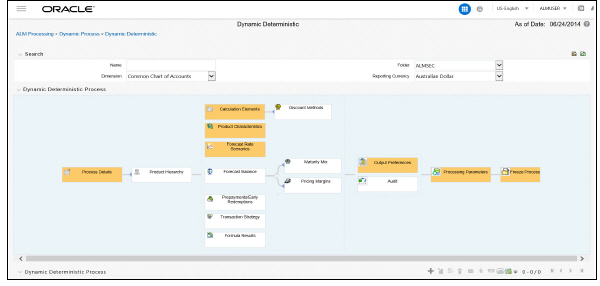
Description of Dynamic Deterministic process page as follows
1. Follow steps 1 and 2 from the Static Deterministic process defined above.
NOTE:
If a Hierarchy Filter or Attribute Filter is attached to a Dynamic Deterministic process, ensure that Filter is created on Product Dimension.
If attached Hierarchy Filter or Attribute Filter is created on any dimension, other than Product dimension (for example say it is created on Organization Unit dimension), new business output from Dynamic deterministic process is not populated. For these use case, to ensure new business output is populated, User can create Data Element Filter instead of Hierarchy Filter or Attribute Filter.
2. Rule Selection Blocks
a. Choose the calculation elements to include in the process run: "Market Value,YTM, Duration, DV01/PV01", "Repricing Gap", "Liquidity Gap", "Average Life", "Transfer Pricing" – if defined then select the Folder and Transfer Pricing Rule, TP Adjustments – if defined then select the Folder and TP Adjustment Rule, Effective Interest Rate, Repricing Balances and Rates, Runoff components, Prepayment Runoff – if defined, Tease, Cap, Floor and Negative Amortization Details, Standard Financial Elements.
Market Value can be calculated for the as-of-date and other dates in the future. These forward dates are defined in the Time Bucket Rule, and are shared with repricing and liquidity gap calculations. For more information on setting up dynamic start dates, see Time Buckets
Select the Market Value, YTM, Duration, DV01/PV01 option if you want to measure the price sensitivity for small changes in the underlying interest rate curves (DV01/PV01). For this calculation, Market Value is also required.
Gaps: Select Liquidity or Repricing Gap to generate dynamic gap results. To use this option, you must first define the related GAP buckets in your active Time Bucket rule. Gap profiles contain bucket-based runoff and reprice information. The information represents the balance sheet as of the dynamic gap date. A special set of financial elements is produced for both repricing gap and liquidity gap results.
NOTE:
Include Non Rate Sensitive Bucket check-box gets enabled when ‘Repricing Gap’ is selected. A new Attribute of product dimension ‘Interest Rate Sensitivity Category’ is introduced to identity products as Interest Rate sensitive or Non Interest Rate sensitive. Once ‘Include Non Rate Sensitive Bucket’ is enabled, reprice gap output of Products which are mapped as Non Interest Rate sensitive, would move into Non Interest Rate Sensitive bucket. For more information on Non Interest Rate Sensitive Bucket, see Time Buckets chapter.
If ‘Include Non Rate Sensitive Bucket’ is not enabled, engine will ignore ‘Interest Rate Sensitivity Category’ product attribute, and would treat all products as Interest Rate Sensitive. Reprice Gap output would move into respective Reprice Gap buckets.
Transfer Pricing: During processing, the model tracks transfer rates and transfer pricing charges/credits on individual transactions. This information is aggregated, per leaf member, as financial elements and written to the results tables. Examples of transfer pricing financial elements include:
Beginning transfer rate
Ending transfer rate
Average transfer rates
Transfer pricing charge/credit
b. Stop Holiday Calendar checkbox is provided with a calendar date picker. If checked, a calendar is enabled on which a date can be selected. Cash flows generated post this date will not apply the holiday calendar. On selecting the checkbox a warning message will pop up stating "If Enabled, the outputs could have a combination of adjusted and unadjusted cashflows".
Note: Holiday calendar is used to adjust the outputs on holiday events, which may increase processing time. If Users do not want to have adjusted output after a certain time point, say, when buckets become wider, then this field stops adjusting cashflows from that time point, reducing processing time. If user wants to have cash flow adjusted for entire processing period, then this field does not require any input.
c. The Calculate Option Market Value option is used to calculate the Market Valuation (MV) for certain embedded and stand-alone (bare) options. Supported embedded options are Calls, Puts, Caps (caplets) and Floors (floorlets). This option will be enabled only if Market Value, YTM, Duration, DV01/PV01 option is also selected.
For example,
When Calculate Option Market Value check-box is selected and RATE_CAP_LIFE has data filled (that is, holds a non-null value greater than 0), then Embedded CAP Option MV will be calculated.
When Calculate Option Market Value check box is selected and RATE_FLOOR_LIFE has data filled (that is, it is non-null value greater than 0 or it is less than RATE_CAP_LIFE and RATE_CAP_LIFE is greater than 0), then Embedded FLOOR Option MV will be calculated.
d. Click Apply.
e. If Market Value is chosen from step 1 above, the Discount Methods box will become highlighted blue and need to be defined (see Discount Methods, for rule set up). If no market value chosen, continue to step 5 below.
f. Select from the discount methods box the desired method (see Discount Methods, for set up) and click Apply. The screen will take you to Product characteristics rules box.
g. From the Product Characteristics bar, select the desired definition and click Apply (see Product Characteristics, for rule definition). The screen will take you to the Forecast Rates rules box.
h. Select the Forecast Rates rule you want applied to the process, and click Apply. (see Forecast Rate Scenarios, to set up rate scenarios). The flow will now take you to output preferences. Or, if you want to add a Forecast Balance, Prepayment, or Transaction strategy rule to the process, continue to step 7 below.
i. Forecast Balances: Click the Forecast Balance box and select from the defined forecast balance rules (For more information on setting up rules see Forecast Balance Rules). Click Apply.
The Maturity Mix and Pricing Margin rules will then become necessary to complete the forecast assumption selection process.
Maturity Mix: Select the desired Maturity Mix rule and click Apply. For more information on how to set up the Maturity Mix.
Pricing Margins: Select the desired Pricing Margin rule from the defined list and click Apply. The screen will take you to output preferences, or continue to step 8 below to include prepayment, or transaction rules.
j. Click the Prepayments/Early Redemptions box and choose the defined prepayment rule and click “Apply” (see Prepayment Rules . This is an optional step.
k. Click the Transaction strategy box and select the defined transaction strategies for inclusion in the process. Click “Apply” (Transaction Strategies for information on defining rules).
3. Output Preferences options
a. Select the output dimension from the drop-down list (Options include: Product, Product/Currency, Organization/Product, Organization/Product/Currency).
a. Depending on the dimension chosen, you can Consolidate to Reporting Currency by checking the box if the dimension Product /Currency or Organization/Product/Currency was chosen.
b. If you have the ALMBI reporting product, you can select to export the results to the ALM BI Mart by clicking the box.
c. If Product was chosen from the Dimension in step 1 above, you can select the Autobalancing feature by clicking on the box.
Use autobalancing to maintain a balanced balance sheet, and generate retained earnings, dividends and taxes. Product leaf members used during the autobalancing process must be defined within your Application Preferences, including:
Assets
Liabilities
Retained Earnings
Dividends
Federal Tax
State Tax
Accumulated Translation Balance
If you do not completely define the required autobalancing leaves in Application Preferences, an error message is generated during processing. For more information, see Application Preferences.
d. Click Apply after the page is defined. The process will take you to the Processing Parameters section. Or you can click the audit box for the following options: If no audit rule is selected, skip to #4, Processing Parameters.
NOTE:
* The Structured Cashflow Attributes option will be enabled only if you are mapped to Moody's structured cashflow library.
e. Click Apply after the page is defined. The process will take you to the Processing Parameters section.
Or
You can click the Audit box for the following options: If no audit rule is selected, skip to #4, Processing Parameters.
4. Audit Preferences (optional):
NOTE:
Known Issue
If you select FE in ALM process and data contains rate-tier instrument, then ALM process will fail.
§ Detailed Cash Flow:
For Dynamic process, both static and dynamic new business record are populated in FSI_O_PROCESS_CASH_FLOWS table.
Check the box to record the cash flows and repricing events occurring for the desired number of records from static instrument record and dynamic new business. If user want get output for a particular set of static record, set the record number high considering new business records created and output.
The number of new business records created depends on new business definition, and can range from few to many for a single product currency combination. For example, forecast balance method of Rollover with multiple Maturity Mix Terms, defined for many modeling time bucket, can create many number of new business records, whereas for forecast balance method of New Add with single Maturity Mix Term, defined for few modeling time bucket, will create few business records.
NOTE:
The functionality of audit of cash flows in Dynamic process is to validate and proof out small sets of record, and not intended to output entire set of record like static process.
The Financial Elements tab given in the Static Deterministic Process is not applicable to Dynamic Deterministic Process.
§ Tiered Balanced Cash Flows
Tiered Balanced Cash Flows option allows you to define the Tiered balance interest. The Tiered balance interest is useful when a different interest rate is paid/charged for parts of an account balance that fall within set amount ranges. Payment frequency, current payment and so on can will be defined at account level. Reprice frequency, next reprice date and so on can be defined at tier level.
Select this option when you want system to write detailed cash flows are rate tier level.
§ Forecast Rates:
Refer to step #5 Forecast Rates in Creating a Static Deterministic Process Rule.
5. Processing Parameters:
a. The processing parameters allow you to run an entire process or re-process a portion of an existing run. From the drop-down list, select Entire Process or Selective Reprocess.
b. If Selective Reprocess is selected, you can click the box “Current Position Data” to reprocess that particular data set. With Selective Reprocess, the Reprocessing components are enabled to selected components for reprocessing. When the Process Rule is executed, the data in the result tables are not immediately deleted. The data for the selected subset is replaced, but the rest of the results remain intact.
c. New Business/Transaction Strategies: Select to reprocess the new business and/or transaction strategies defined in the process flow.
d. Auto balancing accounts: If you selected Auto Balancing in the Output Preferences (section 3.4.) the Auto Balancing Accounts option is available for re-processing. Click the box to apply.
e. Click Apply and the screen will take you to Freeze Process section.
6. Freeze Process
a. Select Freeze to complete the process.
b. Select Reset to erase all selections made previously within the process definition flow.
c. Select Confirm.
Stochastic Processing differs from Deterministic Processing in that it generates Earnings, Market Value and Value at Risk by Historical or Monte Carlo simulations. Rates scenarios are generated based on a Term Structure model, which describes how the interest rate curve changes over time. Before instrument records are processed, balance and payment fields are first translated to the reporting currency, and then reported in the reporting currency.
NOTE:
Stochastic simulation is a single factor modeling of interest rates of Reporting Currency. Although the engine does convert Balances into Reporting Currency, there is no correlation of Risk factors of particular Currency’s Interest rates with Reporting Currency. Stochastic processing is not intended for Multi-currency processes.
For best results, run Stochastic calculation for a Single currency where Functional Currency = Reporting Currency.
1. Follow steps 1 and 2 from the Static Deterministic process defined above.
2. Calculation Elements
a. Select the calculation elements. There are three choices: EaR, VaR and Market Value
Earnings at Risk: Earnings at Risk uses the Historical or Monte Carlo rate generator to generate a series of rate paths which is applied to instrument records to produce earning forecasts. This option writes out two standard result sets: average leaf earnings and average total portfolio earnings. Average leaf earnings is written out to EAR_LEAF_AVG_xxx whereas average total portfolio earnings is written out to EAR_TOTAL_AVG_xxx with xxx denoting the system id number of the process.
Value at Risk: Value at Risk measures the probability of changes in value of the current position data, occurring over specified time horizons, displayed in the interface as the At Risk period. The At-Risk period defines the time period over which changes in market value are calculated.
When the user selects the Value at Risk calculation option in a process ID and subsequently runs that ID, the software will in addition to calculating the current market value, calculate the change in market value for each rate path and rank these changes in market value for each product leaf and for the entire balance sheet. These results are stored in two tables: FSI_O_STOCH_VAR and FSI_O_STOCH_TOT_VAR. Note: When Value at Risk is selected, market value is also written to the FSI_O_STOCH_MKT_VAL table.
Market Value: Market Value is calculated per rate scenario for each Product Leaf member. The result Market Value is the total Market Value over the number of rate paths per Product Leaf. The results are stored in FSI_O_STOCH_MKT_VAL.
b. "Stop holiday calendar" checkbox is provided with a calendar date picker. If checked, a calendar is enabled on which a date can be selected. Cash flows generated post this date will not apply the holiday calendar. On selecting the checkbox a warning message will pop up stating "If Enabled, the outputs could have a combination of adjusted and unadjusted cashflows".
NOTE:
Holiday calendar is used to adjust the outputs on holiday events, which may increase processing time. If Users do not want to have adjusted output after a certain time point, say, when buckets become wider, then this field stops adjusting cashflows from that time point, reducing processing time. If user wants to have cash flow adjusted for entire processing period, then this field does not require any input.
c. Click Apply and the screen will take you to Processing Parameters.
3. Processing Parameters: Here you set the parameters for the stochastic process by selecting the term structure model, smoothing method, number of rate paths, Random number generation method, and seed value. Each is described in the following sections:
There is a toggle that enables the user to choose between Monte Carlo Simulation and Historical Simulation, with the default selection being Monte Carlo Simulation.
If Historical Simulation is selected, only Smoothing Method and Number of Rate Paths is enabled for selection. If Monte Carlo Simulation is selected, then all the five parameters are enabled for selection.
a. Term Structure Method: four models to choose from: For more information on term structure models, see the Oracle Financial Services Analytical Applications Cash Flow Engine Reference Guide.
Merton—real interest rate model
Ho and Lee—no arbitrage model
Vasicek—real interest rate model
Extended Vasicek— no arbitrage model
b. Smoothing method: Smoothing is the drawing of a smooth, continuous line through observable market data points. Because there are an infinite number of these lines passing through a given set of points, additional criteria must be added to the smoothing process to achieve the desired term structure. The following methods are available:
Linear Interpolation – Linear interpolation uses linear yield curve smoothing. Linear yield curves are continuous but not smooth; at each knot point there is a kink in the yield curve. You may not want to use a linear yield curve with a model that assumes the existence of a continuous forward rate curve, due to the nonlinear and discontinuous knot points of a linear yield curve
Cubic Spline of Yields – A cubic spline is a series of third degree polynomials that have the form
y = a + bx + cx2 + dx3
These polynomials are used to connect the dots formed by observable data. The polynomials are constrained so they fit together smoothly at each knot point (the observable data point.) This means that the slope and the rate of change in the slope with respect to time to maturity have to be equal for each polynomial at the knot point where they join. If this is not true, there is a kink in the yield curve and they are continuous but not differentiable.
Two more constraints make the cubic spline curve unique. The first restricts the zero-maturity yield to equal the 1-day interest rate. The second restricts the yield curve at the longest maturity to be either straight (y"=0) or flat (y'=0).
Quartic Spline: Quartic interpolation requires a minimum of 4 knot points. The quartic interpolation equation can be represented as
Y = a + b X1 + CX2 + d X3 + e X4
The end knot points satisfy equations for one curve and all intermediate points satisfy two curves. Hence in a scenario with minimum number of knot points, there will be 6 equations. For n number of knot points, the number of equations is 2n-2. If n is the number of points to be interpolated, the order of the matrix to be formed is 5*(n-1) x 5*(n-1). The matrix is formed according to the following logic:
The second derivative at the end points and the first derivative of the last point is Zero.
At the points other than the end points the value of the first derivatives, second derivatives and the third derivatives of the function are equal.
c. Number of paths – Specifies the number of simulations to execute. The valid range is from 1 to 2100. The default is 200. If the number of rate paths is not within the range of 1 to 2100, then an error message is displayed to the user.
d. Random Number Generation Method: To run Monte Carlo simulations, you must specify the random number generator algorithm for the rate path generation.
Low Discrepancy Sequences: Also known as quasi-random sequences, are designed to prevent clustering of generated numbers; this results in achieving better accuracy than pseudo-random sequences when applied to numerical problems; integration in high dimensions, and so on.
Pseudo Random Sequences: The traditional random numbers generated by most compilers. They are designed to do well on some statistical tests: low autocorrelation, high period before the sequence repeats itself.
e. Seed Value: Fixed or Variable. If fixed, maximum value of 999. Fixed seed selection results in the same set of random numbers being generated with each run. If you keep the fixed seed a constant value, you will be able to re-produce results from one run to another. The variable seed option allows the system to determine the seed value randomly with each run. This option will result in a different set of random numbers for each run and hence different results from each run.
NOTE:
Seed value selections apply to the Pseudo Random Sequences option only.
f. Once defined, click Apply and you will be taken to the Forecast Balance screen.
4. Forecast Balances: Click the Forecast Balance box and select from the defined forecast balance rules. Click Apply.
§ Maturity Mix: Select the desired Maturity Mix rule and click “apply”. For more information on how to set up the Maturity Mix, see Forecast – Maturity Mix.
§ Pricing Margins: Select the desired Pricing Margin rule from the defined list and click “Apply”. The screen will take you to Rate Index (For more information on setup details, see Forecast - Pricing Margins).
5. Rate Index: Select the rate index as it was defined in the Stochastic Rate Indexing rule, (For additional information on the setup rules for rate indexing, see Stochastic Rate Indexing
Click Apply. The screen will take you to Product Characteristics.
6. Product Characteristics: Select the desired product characteristics rule. (For more information on creating a product characteristic rule,)
a. Click Apply and the screen will take you to Freeze Process.
b. If you want to include a prepayment/early redemption, transaction strategy, output preference, or audit rule in the process, click the desired rule and define accordingly. The four are noted briefly below.
Prepayments/Early Redemptions: click the box and choose the defined prepayment rule, Click Apply (See Prepayment Rules
Transaction Strategy: Click the box and select the defined transaction strategies for inclusion in the process. Click Apply (See Transaction Strategies)
Output Preferences options Refer to step #6 in Static Stochastic Process Rule.
Audit: Refer to Step #7 in Static Stochastic Process Rule.
7. Freeze Process
a. Select Freeze to complete the process.
b. Select Reset to erase all selections made previously within the process definition flow.
c. Select Confirm.
To run a Process ID, complete the following steps:
1. Choose Process/Run from the list under the process bar.
2. Click the run icon to execute the process.
3. A popup window will appear including the execution ID. Click OK.
4. When a process is running the status bar will show one of the following three values: success, failure and processing.
NOTE:
The process must be defined completely.
5. When the Status View Log appears, the run is complete.
6. Click the View Log status to ensure run was complete.
7. To view the error log, click the Task id number in the view log page.
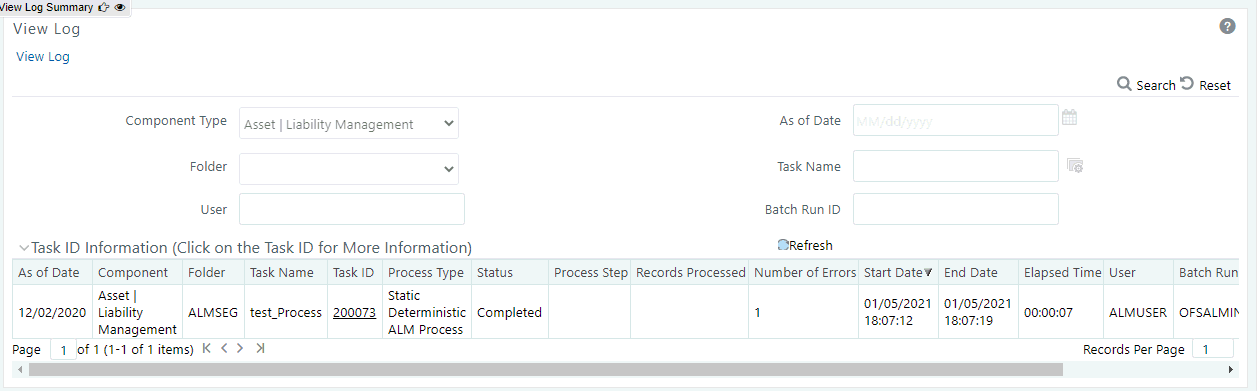
Description of View Log Summary as follows
To execute the process from OFSAAI ICC framework, create a new Batch with task as Asset Liability Management and specify the following parameters for the task:
· Datastore Type: Select appropriate datastore from list.
· Datastore Name: Select the appropriate name from the list.
· IP address: Select the IP address from the list
· Folder: Select the Folder
· Process Type: Select the type of ALM process. Dynamic Deterministic ALM Process, Dynamic Stochastic/Historical Simulation ALM Process, Static Deterministic ALM Process, or Static Stochastic/Historical Simulation ALM Process
· Process Name: Select the name of ALM process
· Optional Parameters: Define application ID as OFS_ALM. This is a mandatory parameter for process execution.