This section provides information about the Administration settings or application setup that need to be performed to use the OFSBCE application features.
Topics:
· Currency Conversion Settings
To add a Fiscal Period, follow these steps:
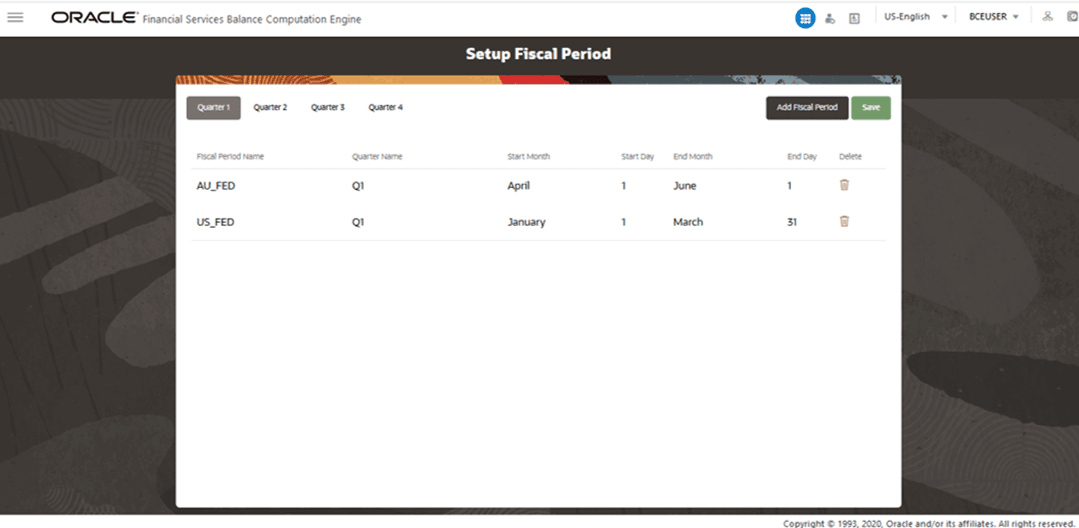
1. From OFSBCE Home, select Financial Services Balance Computation Engine, select Application Setup, and select Setup Fiscal Periods. The Setup Fiscal Period page is displayed. In the illustration, already created Fiscal Period details are displayed.
Figure 18: Setup Fiscal Period Page
2. There are four built-in fiscal year quarters. They are Quarter 1, Quarter 2, Quarter 3, and Quarter 4. Select the required Quarter to create a new Fiscal Period.
3. To create a new Fiscal Period, click Add Fiscal Period. A new row is added in the list with a new Fiscal Period Name. To edit the name, double-click the Fiscal Period Name value and modify.
4. To select the starting month for the Fiscal Period, double-click the Start Month value and select the required value from the list. By default, this field displays January.
5. To select the starting day of the selected Fiscal Period Start Month, double-click the Start Day value and select the required value from the list. Similarly, select the values for End Month and End Day for the selected Fiscal Period.
6. Click Save to save these details for the new fiscal period.
7. To delete
an existing Fiscal Period, click the associated
with it.
associated
with it.
NOTE:
The fiscal periods set up in the Setup Fiscal Period module are associated with Legal Entity or Organization Structure Dimension members. This attribute is sourced as a part of the Legal Entity or Organization Structure Dimension.
This section provides information about how to set the Reporting Currency and Unrealized Gain or Loss account for processes such as Currency Translation and Revaluation respectively.
To set the Reporting Currency and Unrealized Gain or Loss account for processes, follow these steps:
1. From OFSBCE Home, select Financial Services Balance Computation Engine, select Application Setup, and select Legal Entities.
2. The Legal Entity page is displayed.
§ Select the required Fiscal year.
§ Set the fiscal period to open for posting entries by disabling or closed for posting entries by enabling the Locked? option. An open posting period is when the selected posting period is set to open and the other posting periods stay closed.
§ Set the Reporting Currency to the required standard.
§ Select the required value for the Unrealized Gain Account and for the Unrealized Loss Account. Revaluation creates an automatically reversing entry for the difference between the original functional currency equivalent balance and the revalued functional currency equivalent balance in each fiscal period you revalue. As the transactions automatically reverse, the effect of revaluation is completely withdrawn in the fiscal period that follows the last fiscal period you specify for revaluation. Therefore, use the unrealized gain or loss to record the account transactions for the unrealized gains and unrealized losses in each fiscal period you revalue.
Figure 19: Legal Entity Page
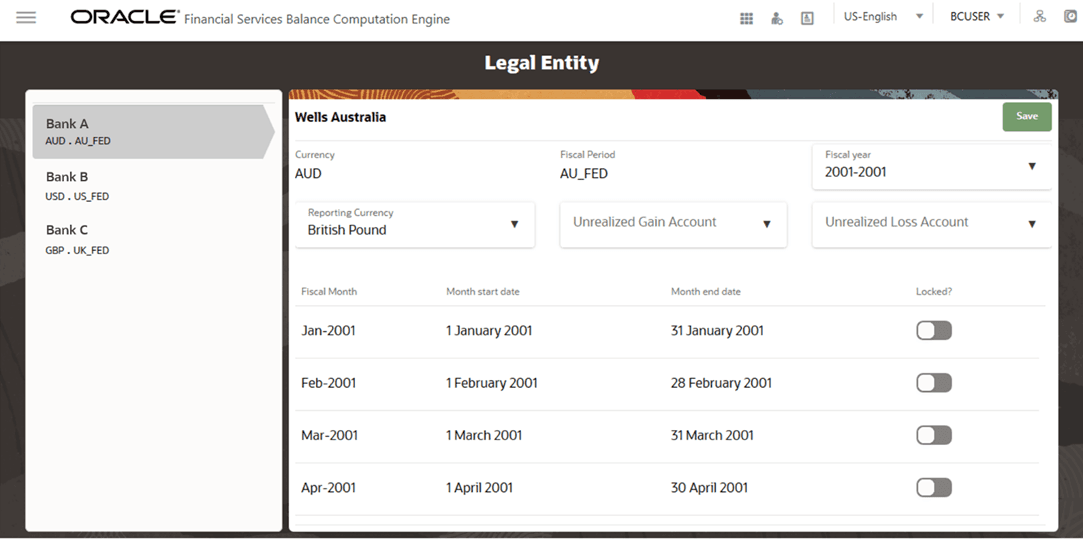
3. Click Save to save the Legal Entity settings. This Reporting Currency is used during the Execution process in PMF.
For more information about the Legal Entities, see the Legal Entity Consolidation section in the Oracle Financial Services Data Foundation Application Pack User Guide Release 8.1.1.0.0.
The Revaluation Process reads the following setup information during the process execution. To setup the Revaluation Settings, follow these steps:
1. From OFSBCE Home, select Financial Services Balance Computation Engine, select Application Setup, and select Revaluation. The Revaluation Settings page is displayed.
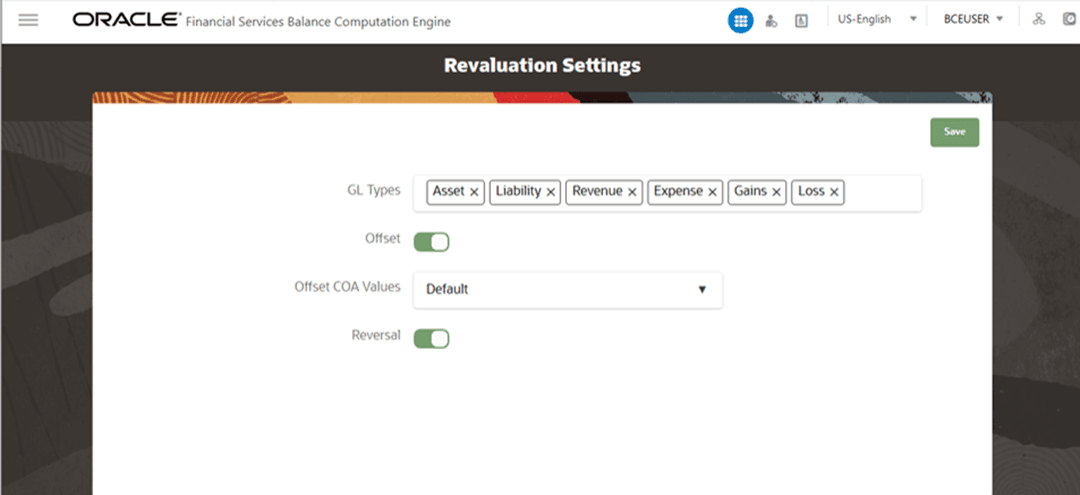
2. In the Revaluation Settings page, set the following values. These settings affect the design and execution part of the Revaluation Process in the PMF.
Figure 20: Revaluation Settings Page
Entity |
Description |
|---|---|
GL Types |
The General Ledger types of those journal entries, which must be considered during the Revaluation Process. |
Offset |
Select this option if you must generate the offset balances against the Revalution Adjustments for equivalents. |
Offset COA Values |
Order the Offset Chart of Account values either by the Default value or System value. System: Instrument gain is a part of the output of the offset entries. Every calculation is done at the Management Ledger Gain level including the instrument account. Then in the Revaluation process execution stage, for each account in the Management Ledger Period Balances, the offset balance is generated. Default: When the Offset COA Values are set to Default, the system generates the offset balances at the Legal Entity grain. |
Reversal |
Select this option if you want to revise the Revaluation for period balances by reversing the prior period adjustments and adding current period adjustments. |
3. Click Save to save the Revaluation settings.
Setup the currency conversion settings to assign the Rate Type to a GL Type, which is required during the Execution process in PMF.
To setup the currency conversion settings, follow these steps:
1. From OFSBCE Home, select Financial Services Balance Computation Engine, select Application Setup, and select Currency Conversion.The Currency Conversion Settings page is displayed.
2. Select the required value for each entity.
Figure 21: Currency Conversion Settings Page
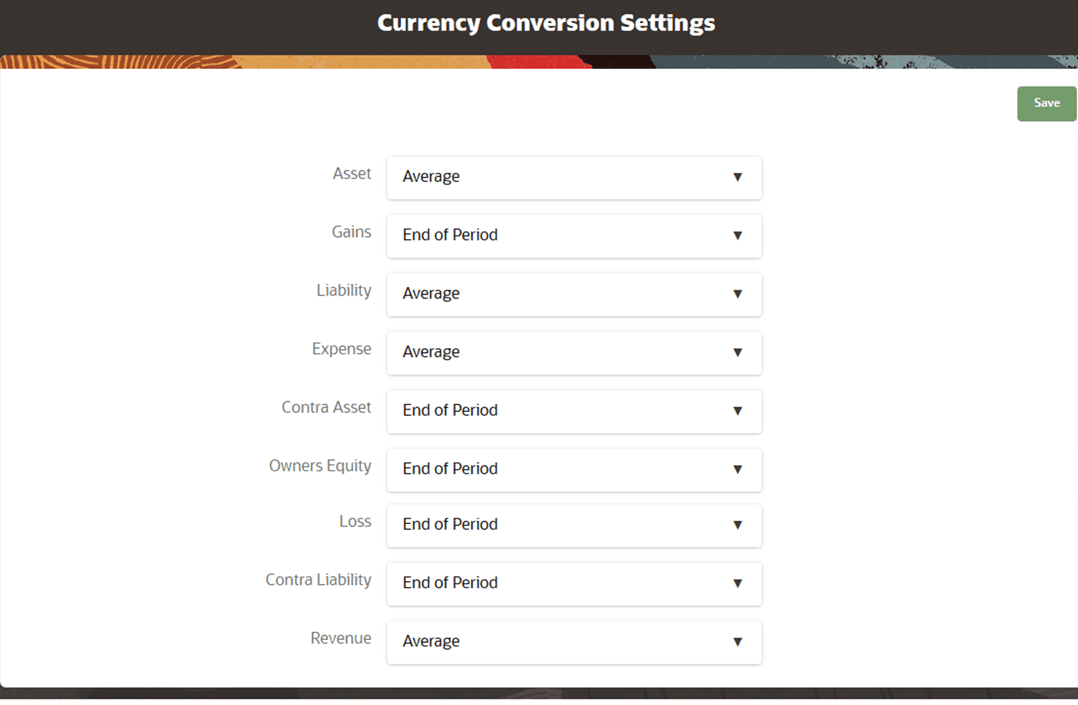
Select the End of Period, Daily or Average Rate Type for the following GL type entities:
§ Asset
§ Gains
§ Liability
§ Expense
§ Contra Asset
§ Owners Equity
§ Loss
§ Contra Liability
§ Revenue
3. Click Save to save the currency conversion settings.
The solution allows user-defined portfolios of instruments or customer accounts to be defined, specifying the scope of instrument-level accounting balance assessment, statistical balance derivation, and currency translation. Portfolios are defined through the user interface as a set of details by which the list of instruments can be filtered for inclusion or exclusion from instrument level balance processing.
You can use multiple dimensions in a rule. When you want to apply that rule for a specific number of member ports, the Portfolio allows you to group all the hierarchies or specific member codes into one custom definition. When you choose that Portfolio definition, that definition is used as a filter during the Execution process.
To define a filter or create a Portfolio Definition on a specific process on which you want to apply a rule using multiple dimensions and member codes, follow these steps (for illustration, Portfolio creation for the Currency Translation process is considered):
1. From OFSBCE Home, select Financial Services Balance Computation Engine, select Application Setup, and select Portfolio.
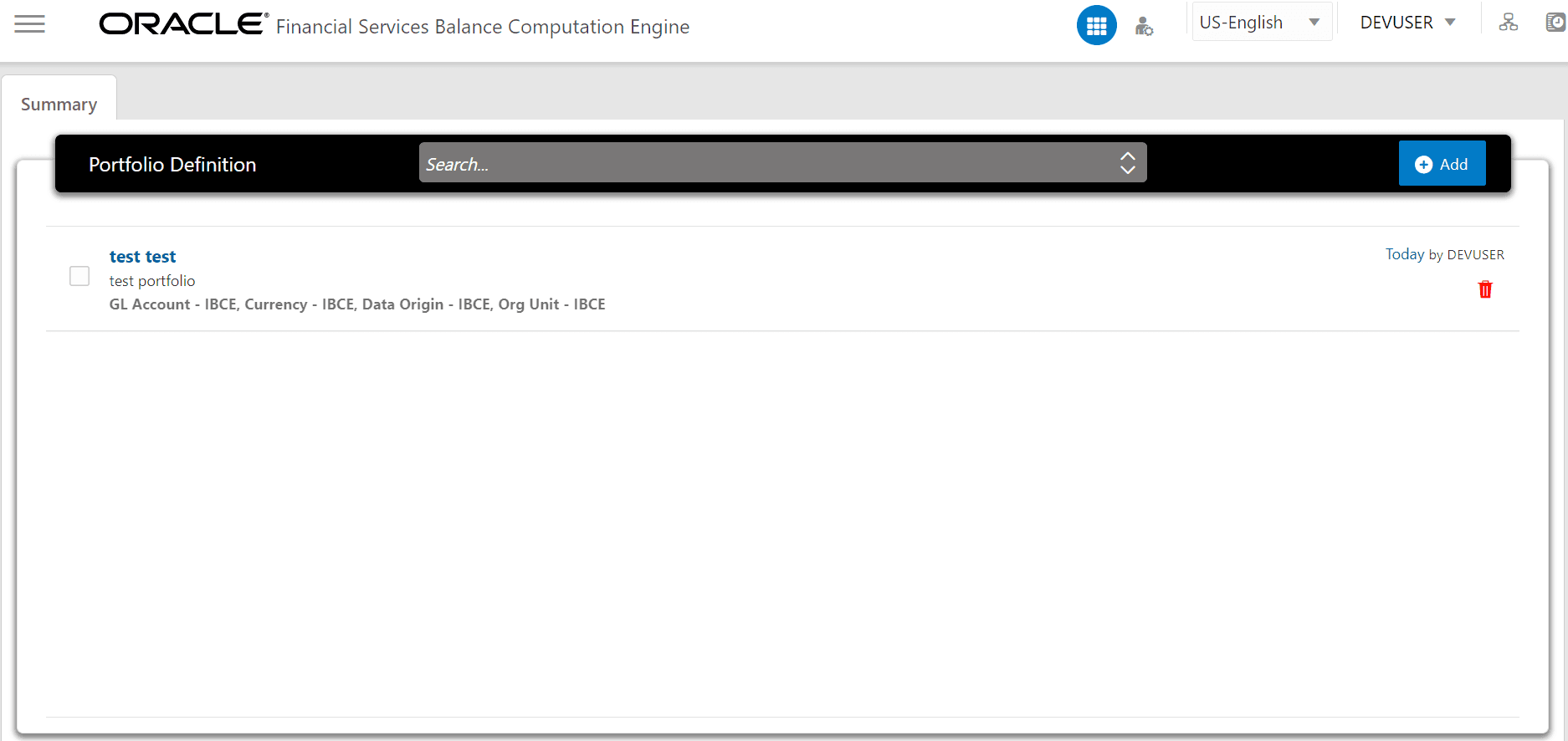
2. The Portfolio Definition page is displayed. This page consists of a Summary tab, the list of existing Portfolios, an option to delete any existing Portfolio, a Search field, and a Add Portfolio button. To create a Portfolio Definition, click Add.
Figure 22: Portfolio Definition Page
3. A New Portfolio Model tab opens.
Figure 23: New Portfolio Model Tab
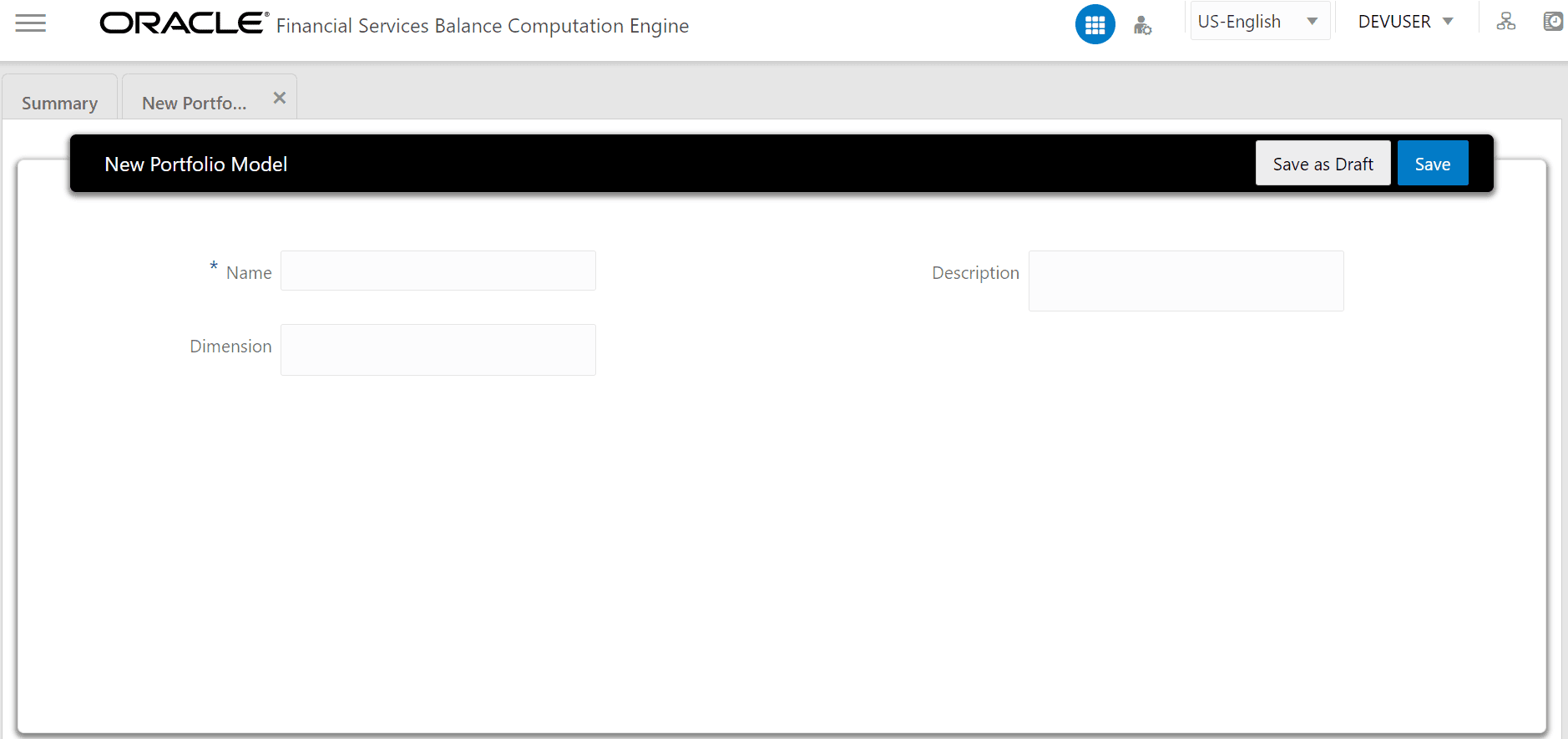
Field Name |
Description and instruction |
|---|---|
Name |
Enter a unique name for the Portfolio Definition. |
Description |
Enter the description or purpose for the Portfolio Definition. |
Dimension |
Select the specific dimensions that you want to use as filter during processing in the PMF page. |
NOTE:
The Legal Entity filter must not be selected while defining portfolios for a translation run. The parameters selected in a Balance Computation run are implicitly considered when a translation run is executed, as the Balance Computation's Run execution description is selected as a translation run parameter.
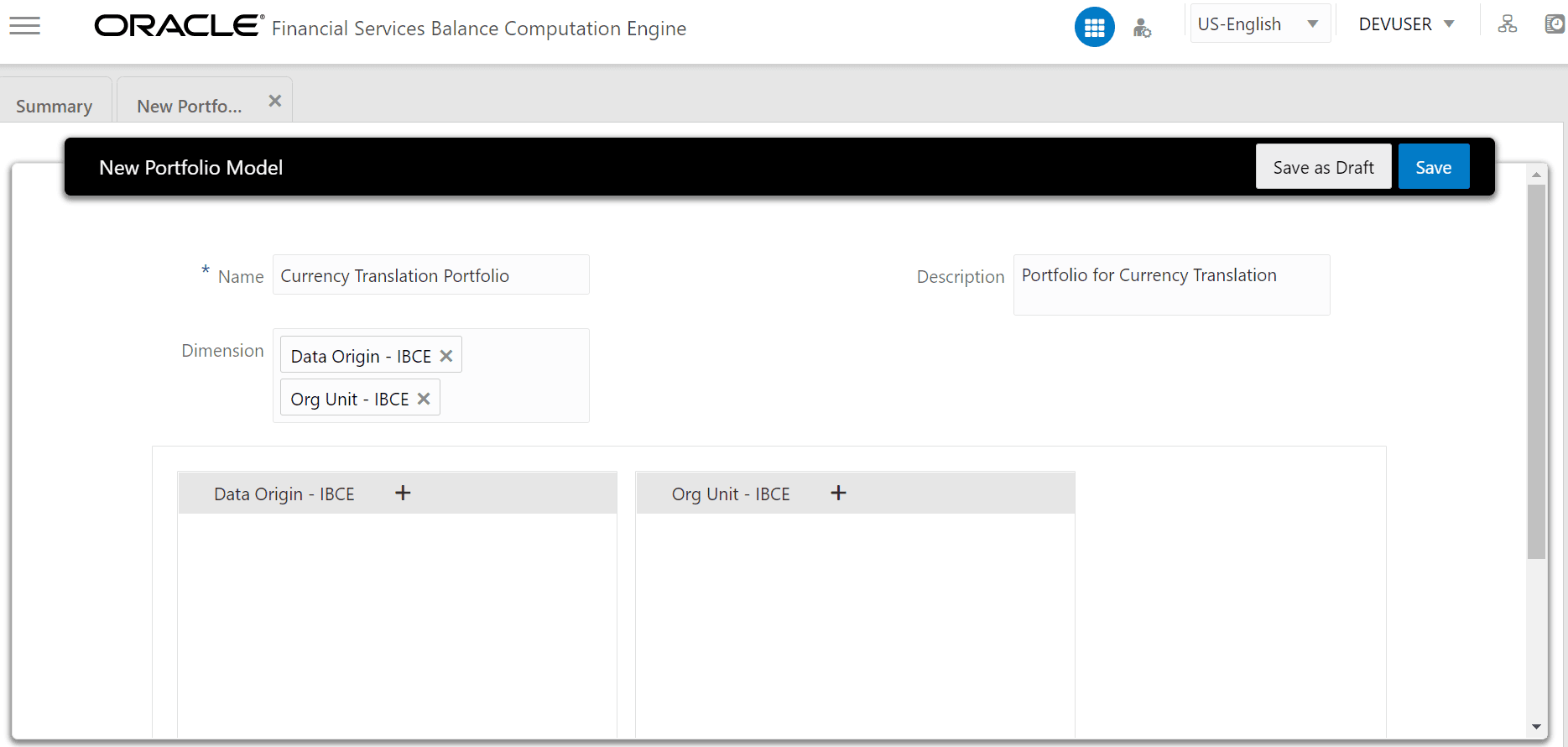
4. Enter or select the required values for each field. In the illustration, a Portfolio for Currency Translation is created.
Figure 24: Enter Values in the New Portfolio Model Tab
5. In this illustration, in the Data Origin – IBCE dimension list box, click + to add the required members. The Select members for Data Origin – IBCE page displays. In the Show Hierarchy tab, in the Available Values list, select the members required for the Portfolio during the PMF processing and move them to the Selected Values list. Click OK to exit the tab.
Figure 25: Select Members page for the Legal Entity Code
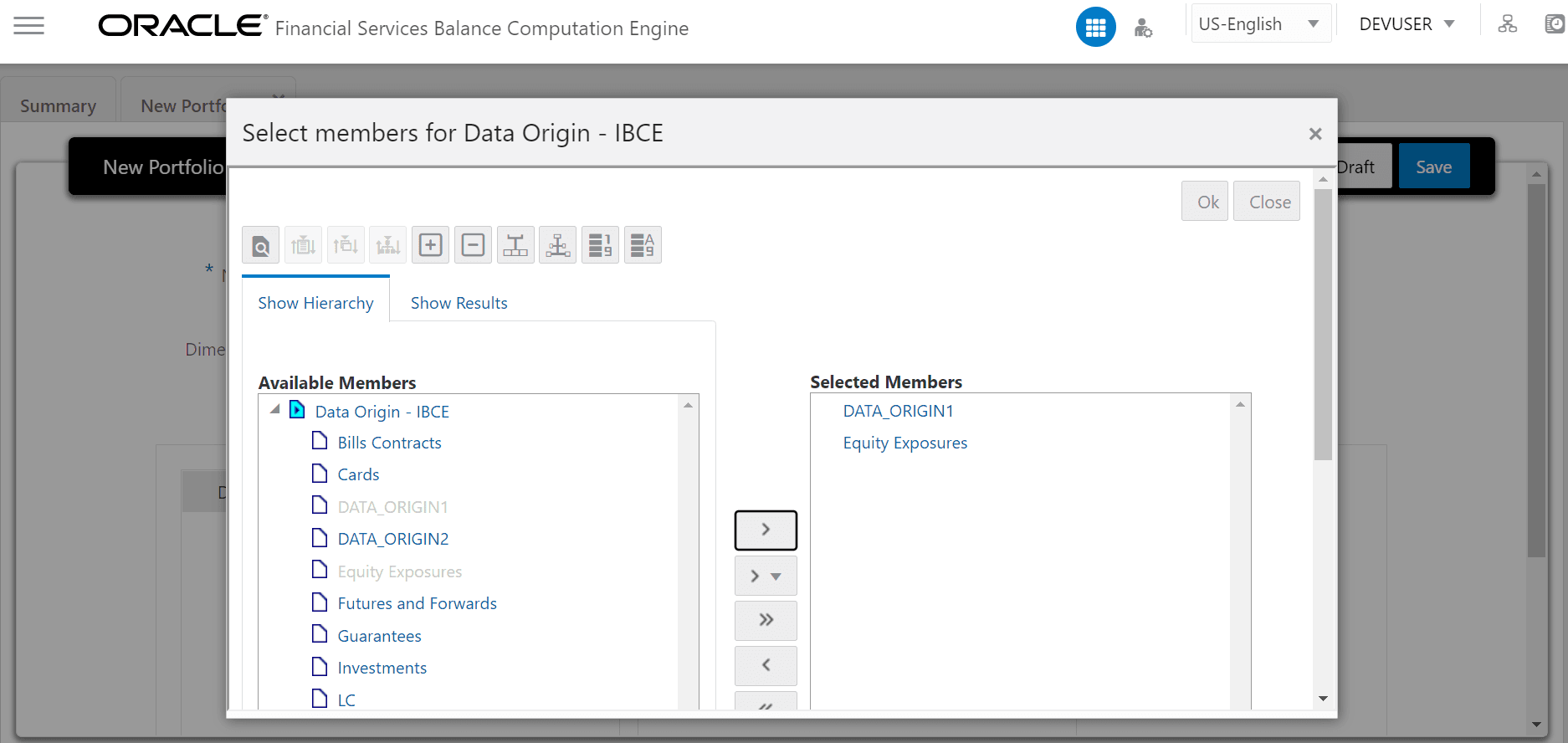
6. The selected members are listed in the selected dimension listbox. Repeat the previous step for all the selected Dimensions. In this illustration, the previous step is repeated for the Org Unit – IBCE dimension.
Figure 26: Selected Members for the Data Origin and Legal Entity Code - IBCE
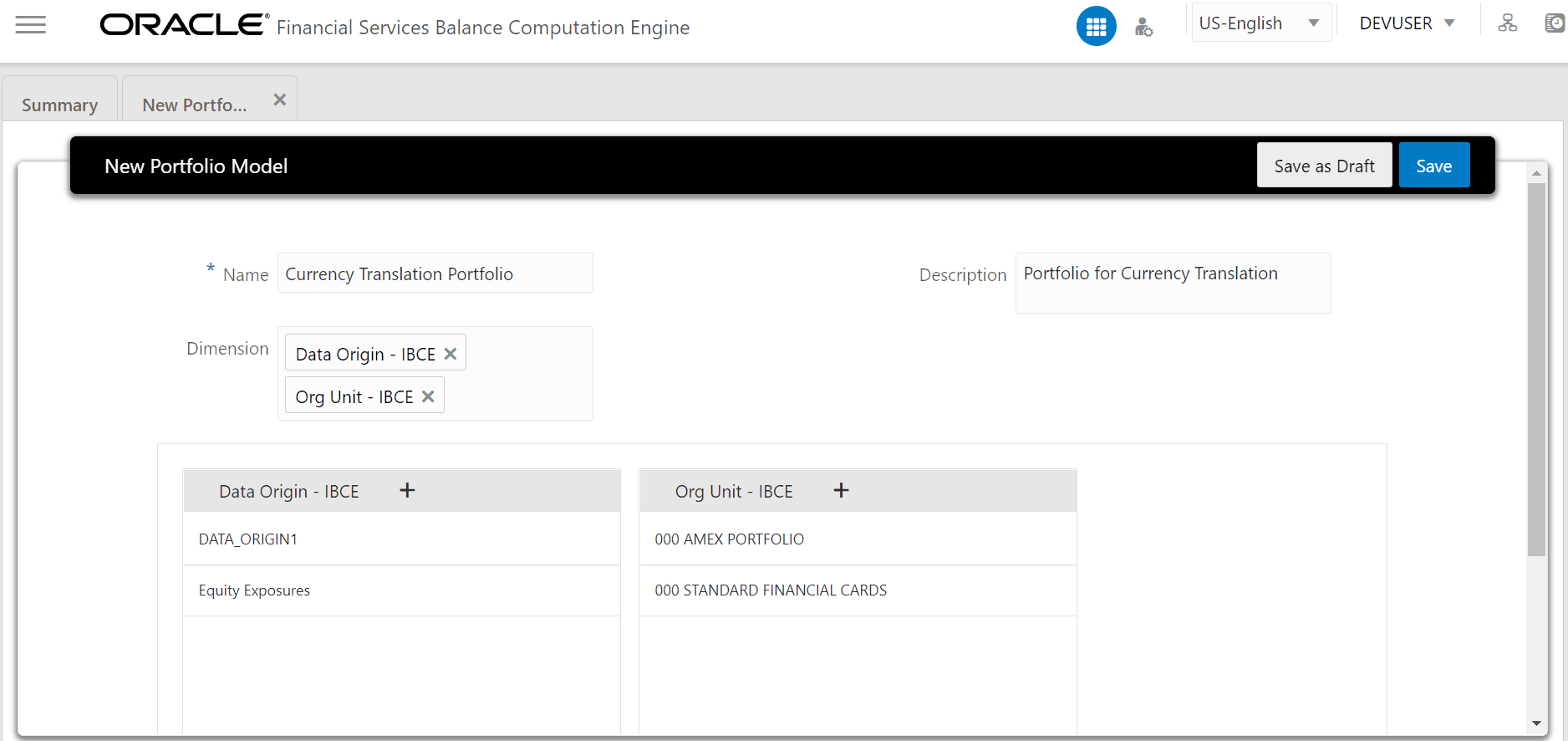
7. To save all the details, click Save. An acknowledgement message: Portfolio Saved Successfully is displayed.
8. The new Portfolio is listed in the Portfolio Definition Summary tab.
Figure 27: New Portfolio Listed in the Portfolio Definition Summary Tab
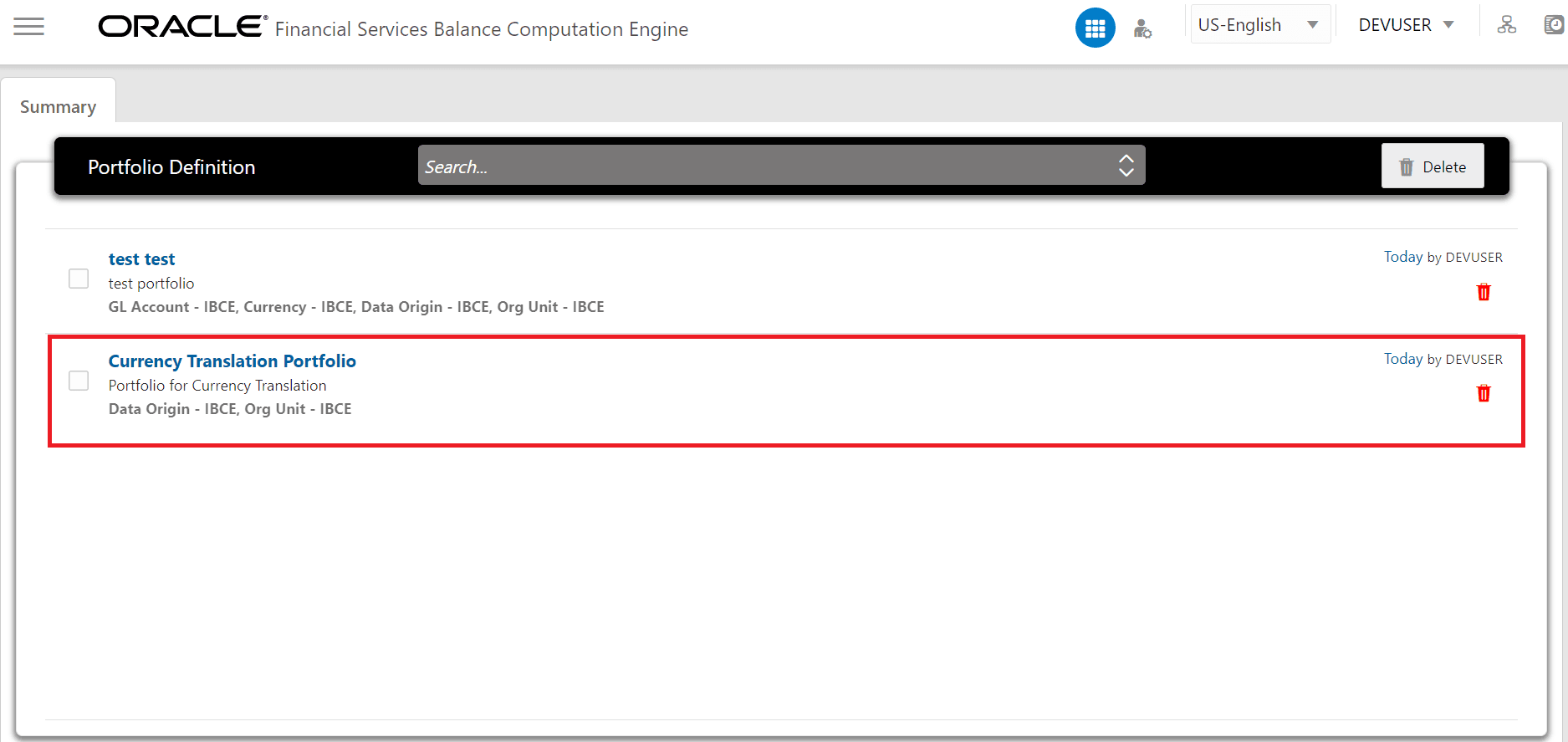
9. During the execution stage in the PMF page, when this Portfolio Definition is selected, the filter gets applied on the dataset with the members selected in this Portfolio section.