The revaluation process is used to adjust account balance figures of denominated currencies other than accounting currency. Revaluation adjustments represent the difference in the value of the balance due to changes in conversion rates between the date of the original journal entry and the revaluation date.
Topic:
This section provides information about the Revaluation Process in OFSBCE.
Topics:
· Create and Execute Revaluation Process
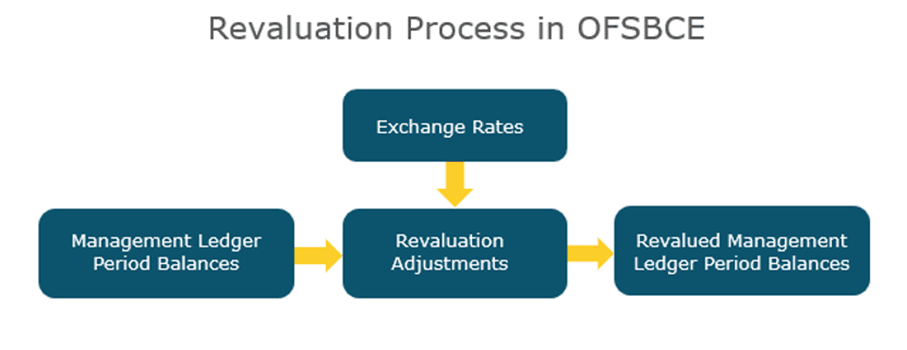
Figure 28: Revaluation Process Flow in OFSBCE
The main phases in the Revaluation process are depicted in the preceding illustration.
The Revaluation Process begins with the data present in the Management Ledger Period Balances. In the Revaluation Adjustments stage, the revaluation adjustments are performed against each period balance amount to calculate the adjustment amount. As a result, during the Revalued Management Ledger Period Balances stage, in the Period Balance table, the adjusted balances are recomputed and inserted in a new row with an incremented version.
Ensure you have completed the Revaluation admin settings. See the Revaluation Settings section for more information.
In the Revaluation Adjustments stage, to arrive at the revalued amount (N_REVALUED_AMOUNT values in the FSI_MGMT_LGR_REVAL_BALANCES table) before initiating the Revaluation execution process, complete the following tasks:
1. Load the FSI_EXCG_RATES table using the insert scripts.
2. For any balance you arrive at from the Period balance perspective, compare the current exchange rate (N_EXCHANGE_RATE) value in the FSI_EXCG_RATES table against the Period balance present corresponding to the exchange rate in the FSI_MGMT_LGR_REVAL_BALANCES table.
3. Apply the following formula:
§ For AST/LIAB (Assets or Liabilities) type, calculate the adjustment amount using the following formula:
Current Period YTD Balance x Revaluation Rate – Currency Period YTD Balance LCY
§ For REV/EXP (Revenue or Expenses) type, calculate the adjustment amount using the following formula:
(Current Period YTD Balance – Prior Period YTD Balance) x Revaluation Rate –
(Currency Period YTD Balance LCY – Prior Period YTD Balance LCY)
NOTE:
Revaluation is processed only for the Open fiscal periods.
In the Revaluation Adjustments stage, Offset GL Account is generated from the SETUP_MASTER table based on whether the entry corresponds to a Gain or Loss account. Then in the Revaluation process execution stage, for each account in the management ledger period balances, the offset balance is generated.
To create and execute the Revaluation process, follow these steps:
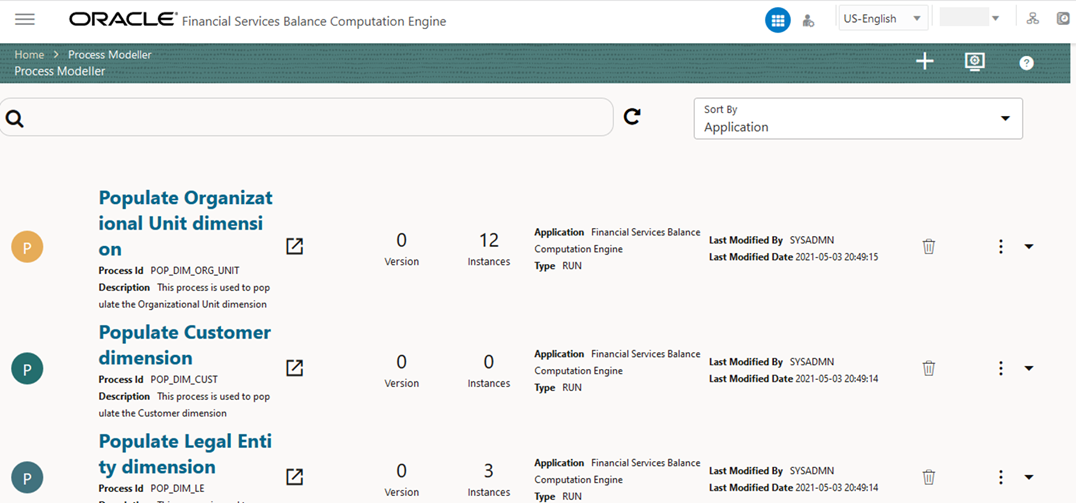
1. From OFSAA Home, select the Financial Services Balance Computation Engine, then select Orchestration, select Process Modeller. The Process Modeller page is displayed.
Figure 29: Navigate to the Process Modeller page
2. In the Process Modeller page, click .
.
3. The Process Details page is displayed.
Figure 30: Process Details page for the Revaluation process
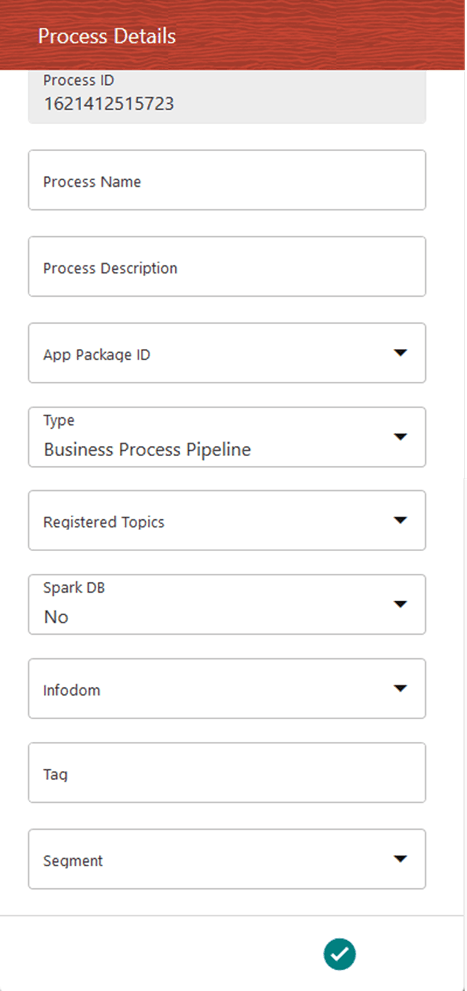
Enter or Select the required values for each field.
Field Name |
Description and instruction |
|---|---|
Process ID |
This value is automatically generated. |
Process Name |
Enter a unique and easily recognizable value in the Process Name field. |
Process Description |
Enter a unique and easily recognizable value in the Process Description field. |
App Package ID |
Select the required application package in which the process must be created from the drop-down list. |
Type |
Select the required process type from the Type drop-down list. The options are as follows: · Sub Run Process · Run Pipeline · Workflow Pipeline |
Registered Topics |
NOTE: This functionality is currently not applicable to OFSBCE. |
Spark DB |
Enable the Spark DB option if you are executing the Run for Hive metadata. |
Infodom |
Select the information domain from the Infodom drop-down list in which the Run Pipeline must be created. The list displays all the infodoms mapped to the applications configured in your OFSAA instance. |
Tag |
Enter the text that can be used as search keywords or helpful in defining a relationship between two or more pipelines. |
Segment |
Select the application segment. The options are as follows: · BCESEG: OFSBCE segment |
4. To save the details, click . The Process Flow canvas is displayed.
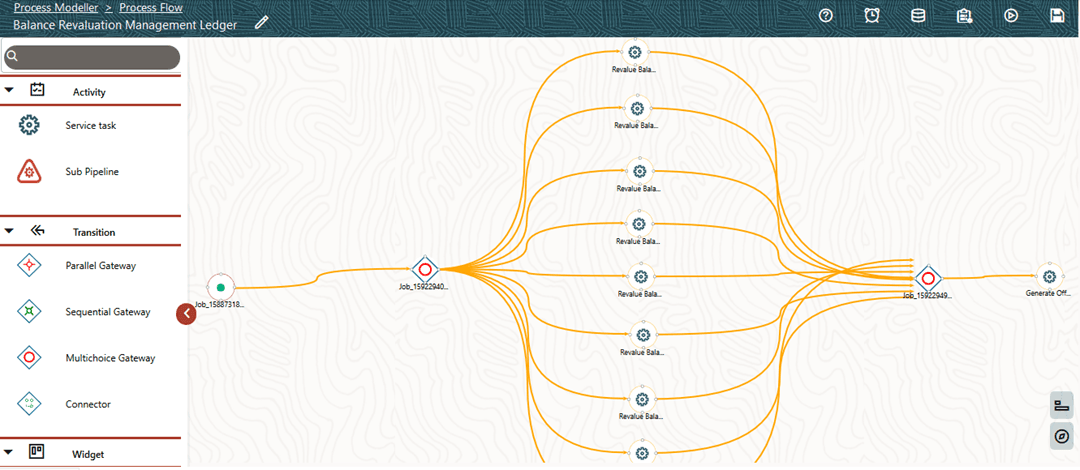
5. In the Process Flow canvas page, design a Revaluation Process flow Run pipeline. By default, START  from the toolbar appears. This Start activity indicates the beginning of the process. The Process Flow tab contains a floating toolbar and a drawing canvas. Use the drawing canvas to design the process flow with the Activity, Transition, and Widget components available in the toolbar. In the illustration, each Service Task represents GL type for Assets, Liabilities, Expenses, Revenue, Gains, Losses, Contra Asset, Contra Liability, and Owner’s Equity set in the Revaluation Settings section.
For more information, see the Service Tasks section in the Oracle Financial Services Analytical Applications Infrastructure Process Modelling Framework Orchestration Guide Release 8.1.1.0.0.
Figure 31: Creation of Balance Revaluation Management Ledger process flow
6. Click to save the Revaluation Process Flow.
7. The Revaluation Process is listed in the Process Modeller page. To select the Run parameters and execute the Run, follow these steps:
a. In the Process Modeller page, click  corresponding to the Revaluation Process Run Pipeline that needs to be executed.
Figure 32: Balance Revaluation Management Ledger process - Select Execute Run
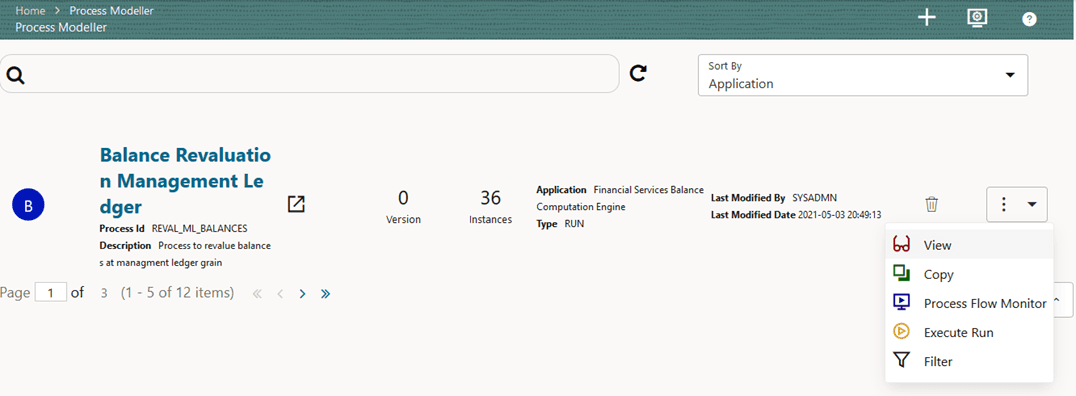
b. When you click Execute Run, the Execution page is displayed.
Figure 33: Balance Revaluation Management Ledger process - Execution Page Without Parameters
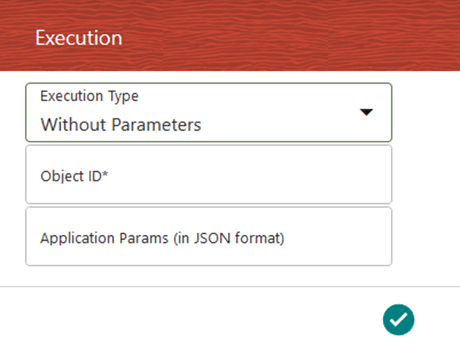
Enter and select the required details to execute the Run without parameters.
To execute with parameters, select With Parameters in the Execution Type list.
Figure 34: Balance Revaluation Management Ledger Process - Execution Page With Parameters

NOTE:
The values are fetched from the FSI_EXCG_RATES and SETUP_MASTER tables.
Select or enter the required values for each field as follows.
Field Name |
Description or Instruction |
|---|---|
FIC MIS Date |
Use the calendar icon |
Currency |
Use the icon |
Data Origin |
Use the |
Rate Type |
Select the Rate Type from the drop-down list. The options are as follows: · Average · Daily · End of Period |
8. To save the details and execute the Run, click. The Run execution begins.
NOTE:
The execution of the Run Pipeline is triggered using the selected FIC MIS DATE. The Run SKey is generated and inserted into the DIM_RUN table. For the Run SKey generated, the corresponding user-selected Run parameters are inserted into the RUN_EXE_PARAMETERS table.
NOTE:
See the Oracle Financial Services Analytical Applications Infrastructure Process Modelling Framework Orchestration Guide Release 8.1.1.0.0 for information about the following topics:
· To verify the Run Execution, see the Process Monitor section.
· To abort, resume, or rerun the Run Pipeline Process, see the Abort Run Pipeline, Resume Run Pipeline, and Re-run Run Pipeline sections respectively.
· To verify the execution logs, see the Viewing Activity Execution Logs and Viewing Execution Log for Widgets sections.
9. To verify the Run execution of the Balance Revaluation Management Ledger process, follow these steps:
a. To open the Process Monitor page, in the Process Modeller page, click or select Process Flow Monitor from the Process Modeller menu
 .
.
b. The Process Monitor page is displayed listing all the Run instances corresponding to the Balance Revaluation Management Ledger process. In the Process Monitor page, search by Process ID, or by the Process Name Balance Revaluation Management Ledger, and select the process instance for the required Run pipeline (process) that was executed.
Figure 35: Balance Revaluation Management Ledger Process – Process Monitor Page – Select Job ID
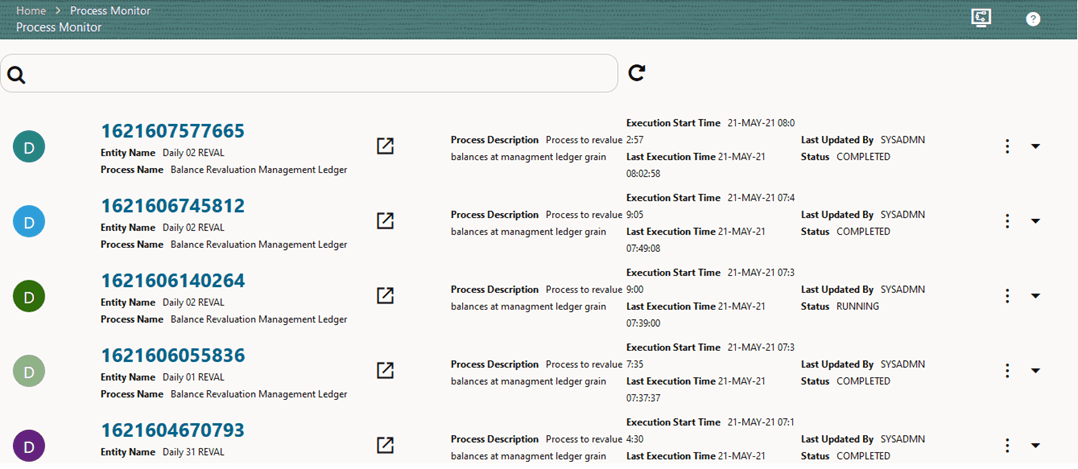
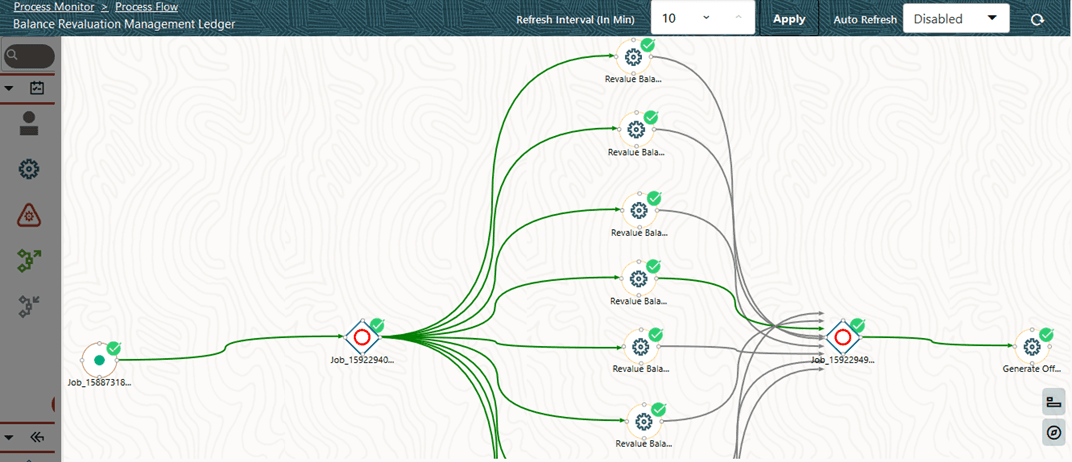
10. A status is displayed, which shows the execution status of the executed Run for the Balance Revaluation Management Ledger process. In this illustration, the Run for the Revaluation is successfully executed.
Figure 36: Balance Revaluation Management Ledger process – Run Execution status
For information about the complete functioning of the PMF, see the Oracle Financial Services Analytical Applications Infrastructure Process Modelling Framework Orchestration Guide Release 8.1.1.0.0.
You can also check the details of execution status in the Execution Summary page.

