Performing Position Management Tasks as an Administrator Using Fluid
This topic discusses prerequisites to using fluid Position Management and lists the pages that administrators can access from a single location in the PeopleSoft Fluid User Interface to perform position management-related transactions.
For general information about fluid pages in PeopleSoft HCM, see Understanding PeopleSoft Fluid User Interface Home Pages.
The following videos provide an overview of Fluid Position Management:
Image Highlights, PeopleSoft HCM Update Image 29: Fluid Position Management
|
Page Name |
Definition Name |
Usage |
|---|---|---|
|
HC_HR_POS_MANAGEMENT_FL (this is the cref for this tile) |
Access the Position Management dashboard where you can set up or view summaries of Position Management data. |
|
|
PT_LANDINGPAGE |
Access Position Management-related tiles and pages. |
In order to access and use the fluid Position Management pages, the following steps must be performed first:
Assign the Manage Positions Fluid (HCCPHRFL3100) permission list to the administrator role managing positions. This permission list grants users access to these pages and objects via the PeopleSoft Fluid User Interface:
Manage Position
Position View Details
Related Information
The guided processes menu: Grouplets, My Preferences, and My Personalizations
Enable Fluid Position Management on the Position Management Installation Page.
To allow administrators the ability to delete position data rows through the fluid Position Data component, assign the Position Delete Administrator role to the user.
Administrators delete positions using the Position Details Page
Synchronizing Position Management Data
PeopleSoft Position Management provides the Application Engine POS_SYN_FLU to synchronizes the data from your existing position management data to the new records using the effective sequence.
Note: To carry forward the customized data from your existing Position Management system, you need to add the custom fields and validations to the effective sequence component.
Use the Position Management tile to access the Position Management dashboard where you can set up or view summaries of Position Management data.
Navigation
The Position Management tile is delivered as part of the Workforce Administrator home page, but the location can change if you change the delivered home pages or if administrators personalize their home pages.
Image: Position Management Tile
This example illustrates the fields and controls on the Position Management tile.
Click the Position Management tile to access the Position Management Dashboard, where you can perform the task of creating, updating, or viewing summary information about positions.
Use the Position Management dashboard (PT_LANDINGPAGE) to access Position Management-related tiles and pages.
Navigation
Click the Position Management Tile, which is delivered as part of the Workforce Administrator home page, but the location can change if you change the delivered home pages or if administrators personalize their home pages.
Image: Position Management Dashboard
This example illustrates the Position Management dashboard.
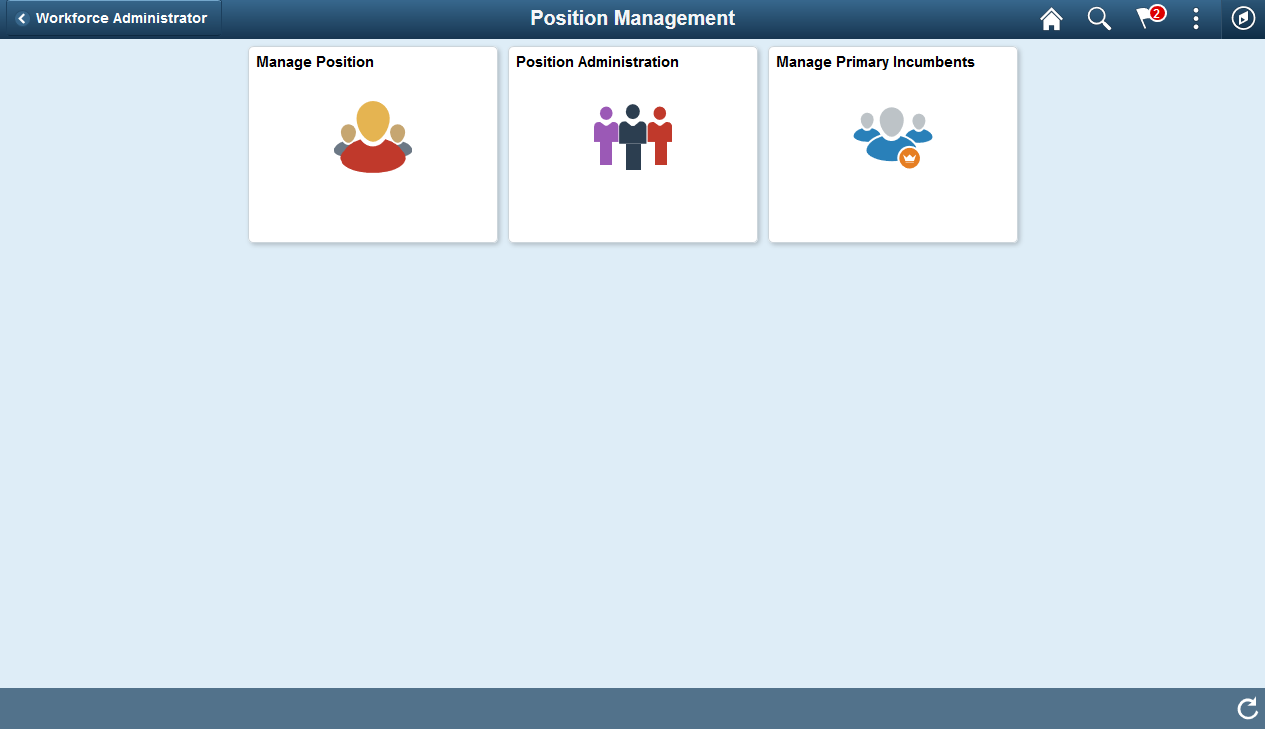
This Position Management dashboard enables administrators to access frequently-used Position Management components from one location.
The dashboard lists the components collected under these tiles:
|
Tile Name |
Usage |
|---|---|
|
Create and manage positions using the fluid pages. |
|
|
View current and historical summary information, including incumbent history using the following classic pages: |
|
|
Manage primary incumbent information for a position. |