1 Patching Your Oracle Private Cloud Appliance
This guide describes the patching process for your Oracle Private Cloud Appliance.
Patching is different from upgrading.
- Upgrading
-
Upgrades are delivered as ISO files and performed by using the Upgrader Tool. ISO releases include any patch updates that were delivered prior to the ISO release. For information about upgrading, see Upgrading Oracle Private Cloud Appliance in the Oracle Private Cloud Appliance Administration Guide for Release 2.4.4.
- Patching
-
Patches are available as RPM packages through dedicated channels on the Unbreakable Linux Network (ULN). Patching provides security updates, kernel changes, and bug fixes between larger ISO releases.
This chapter describes two ways to configure ULN access for the Private Cloud Appliance:
-
Through a local mirror server in your data center.
-
Direct access to ULN without going through a mirror.
To use patching, do the following:
-
Obtain a valid Customer Support Identifier (CSI).
Access to ULN requires a valid Customer Support Identifier (CSI). Your CSI is an identifier that is issued to you when you purchase Oracle Support for an Oracle product. If you do not already have one, get a valid CSI for Oracle Private Cloud Appliance 2.4.x engineered systems. You must provide a valid CSI that covers the support entitlement for each system that you register with ULN. For more information, see CSI Administration in Oracle Linux Unbreakable Linux Network User's Guide for Oracle Linux 6 and Oracle Linux 7.
-
Configure your environment to access channel updates. See Configuring Private Cloud Appliance Direct Access, Registering Your Oracle Private Cloud Appliance for ULN Updates, and Configuring a Mirror Server.
Configuring Private Cloud Appliance Direct Access
This procedure describes how to set up channels on the Private Cloud Appliance that are directly connected to ULN
repositories on linux.oracle.com.
-
(Optional) Set the proxy.
If your organization uses a proxy server as an intermediary for Internet access, specify the
proxysetting as described in Configuring the Use of a Proxy Server in the Oracle Linux documentation.Note:
For Private Cloud Appliance direct configurations, specify the
proxysetting in the/etc/sysconfig/rhn/up2datefile, not in the/etc/yum.conffile. -
Ensure that this appliance can access
linux.oracle.comon ports 80 and 443.See also the My Oracle Support document How to troubleshoot ULN connectivity (Doc ID 1958230.1).
-
Register the Private Cloud Appliance management node with ULN.
Follow the instructions in Registering Your Oracle Private Cloud Appliance for ULN Updates.
See also ULN Registration in the Oracle Linux documentation.
-
Subscribe the appliance to the following ULN channels for Oracle Private Cloud Appliance.
-
PCA 2.4.4.2 MN
pca2442_x86_64_mn -
PCA 2.4.4.2 CN
pca2442_x86_64_cn
-
Log in to the ULN site.
-
In the list of registered systems, find this Private Cloud Appliance.
-
Deselect all channels. Some channels are pre-selected by default.
-
Subscribe to the PCA channels listed above.
PCA 2.4.4.2 MN and PCA 2.4.4.2 CN are the only supported ULN channels for patching a Private Cloud Appliance. Any channels other than those will be deactivated during patching operations.
To add ULN channels from the command line, see the My Oracle Support document Oracle Linux: Managing ULN Channel Subscriptions via Command Line (Doc ID 1674425.1).
Use the following command to verify that the channels are visible on the management node:
# /usr/sbin/uln-channel --list
-
-
Create the ULN repositories on the appliance.
Run the following command on the master management node:
# /usr/sbin/pca-admin create uln-repo direct
Status: Success
This command checks whether a ULN repository is already configured by checking whether the file
/nfs/shared_storage/conf/uln.confexists. If this file does not already exist, this command creates theuln.conffile with entries that define the repository configuration as direct.When successful, the repositories are available for management node and compute node updates at the following location:
/nfs/shared_storage/yum/pca_patch_pca_versionFor example, repositories are configured at the following locations:
/nfs/shared_storage/yum/pca_patch_2.4.4.2/cn
/nfs/shared_storage/yum/pca_patch_2.4.4.2/mn
The entry for the ULN compute node repository is added to the
ovm.repofile in the/etc/yum.repos.ddirectory on the compute nodes and enabled.Use the following command to further verify that the repositories were created successfully:
# /usr/sbin/pca-admin show uln-repo
----------------------------------------
Repository Type Direct
Management Patch Repo Created Yes
Compute Patch Repo Created Yes
----------------------------------------

Status: Success
The value of Created is No if no RPM packages have been delivered to that repository yet.
The
ovca.logfile catalogs repository creation operations, including information such as the channels that were used to populate the repositories, the names of the management node and compute node repositories, and the full path to the ULN configuration file.The ULN configuration file shows the following:
# cat /nfs/shared_storage/conf/uln.conf
[uln]
repo_type = direct
cn_repo = False
mn_repo = False
The values of
cn_repoormn_repowill be True once the repositories are set up.The following information is available if the repository setup did not complete successfully:
-
The
show uln-repocommand shows the message "No patch repositories setup. Run create uln-repo to create repositories." -
The
ovca.logfile shows failure messages.
If the
create uln-repocommand completed successfully, any subsequent execution of thecreate uln-repocommand will fail with a message that a repository is already set up and showing the URI of the repository. -
-
Continue to Patching Management and Compute Nodes.
Registering Your Oracle Private Cloud Appliance for ULN Updates
This topic demonstrates how to register your Oracle Private Cloud Appliance for ULN patch updates.
Log in to the master management node.
Run the uln_register command. If the appliance is already registered with
ULN, the uln_register command will fail. You can run uln_register
-f to update the existing registration.
# /usr/sbin/uln_register
Follow the instructions on the screens.
As an alternative to clicking on elements with your mouse, you can use the Tab and Alt+Tab keyboard keys to navigate between elements, and press the space bar to toggle a selection.
To go to the next screen, click the Next button, press the F12 key, or tab to the Next button and press the Enter key.
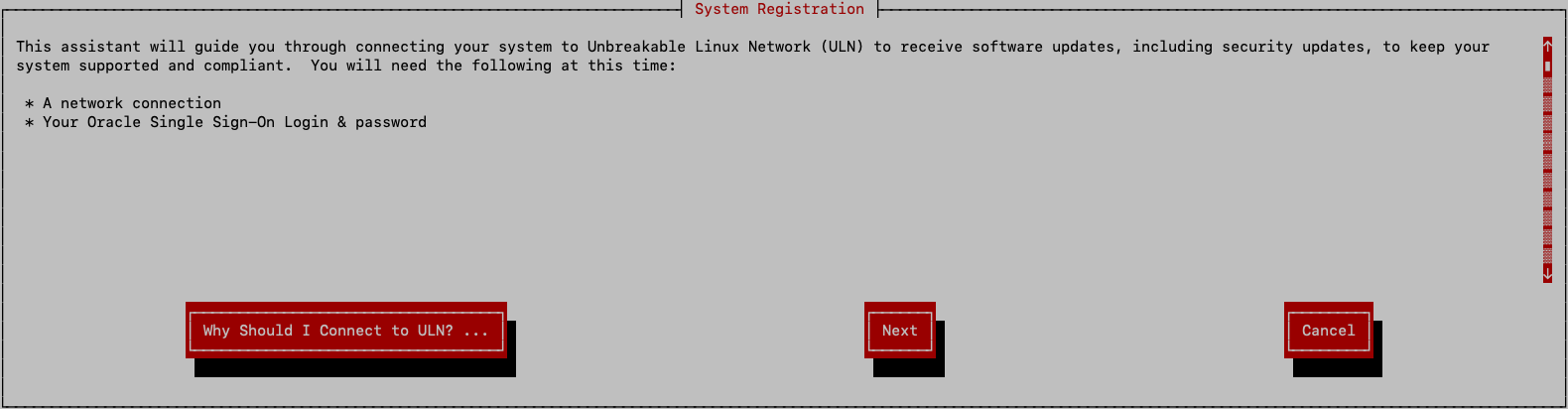
The first screen is the System Registration screen. After reading it, go to the next screen.
On the second screen, log in to your ULN account. After entering your user name, password, and CSI, go to the next screen.

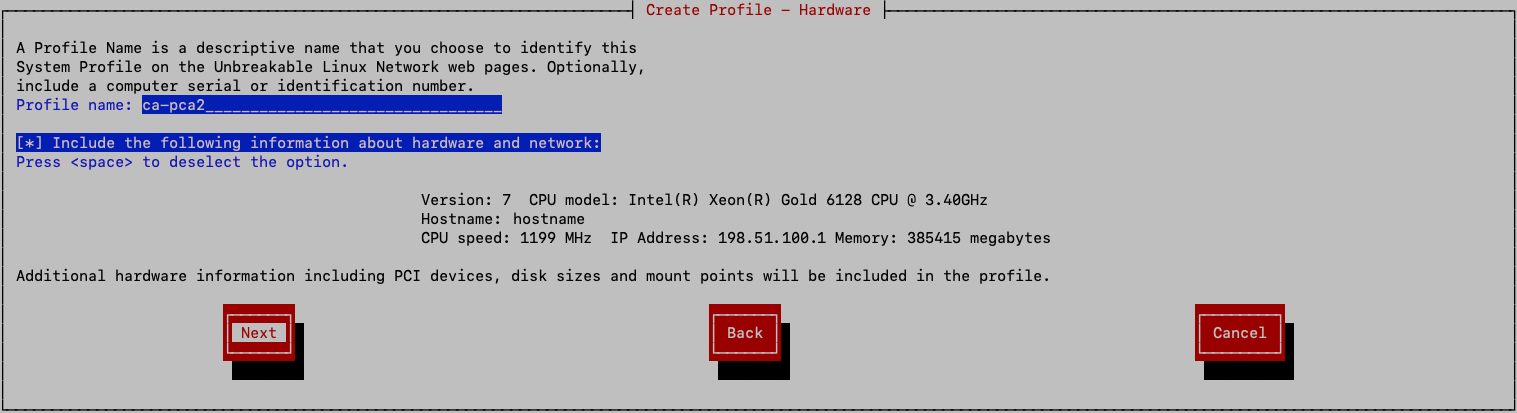
On the third screen, create the hardware profile for this appliance. Enter a descriptive name for the profile. The default profile name is the system host name.
Decide whether to include the information that the registration tool finds about the appliance. This information is shown on the screen. To exclude that information, select (highlight) the "Include the following information about hardware and network" field and then press the space bar to deselect that option. Go to the next screen.
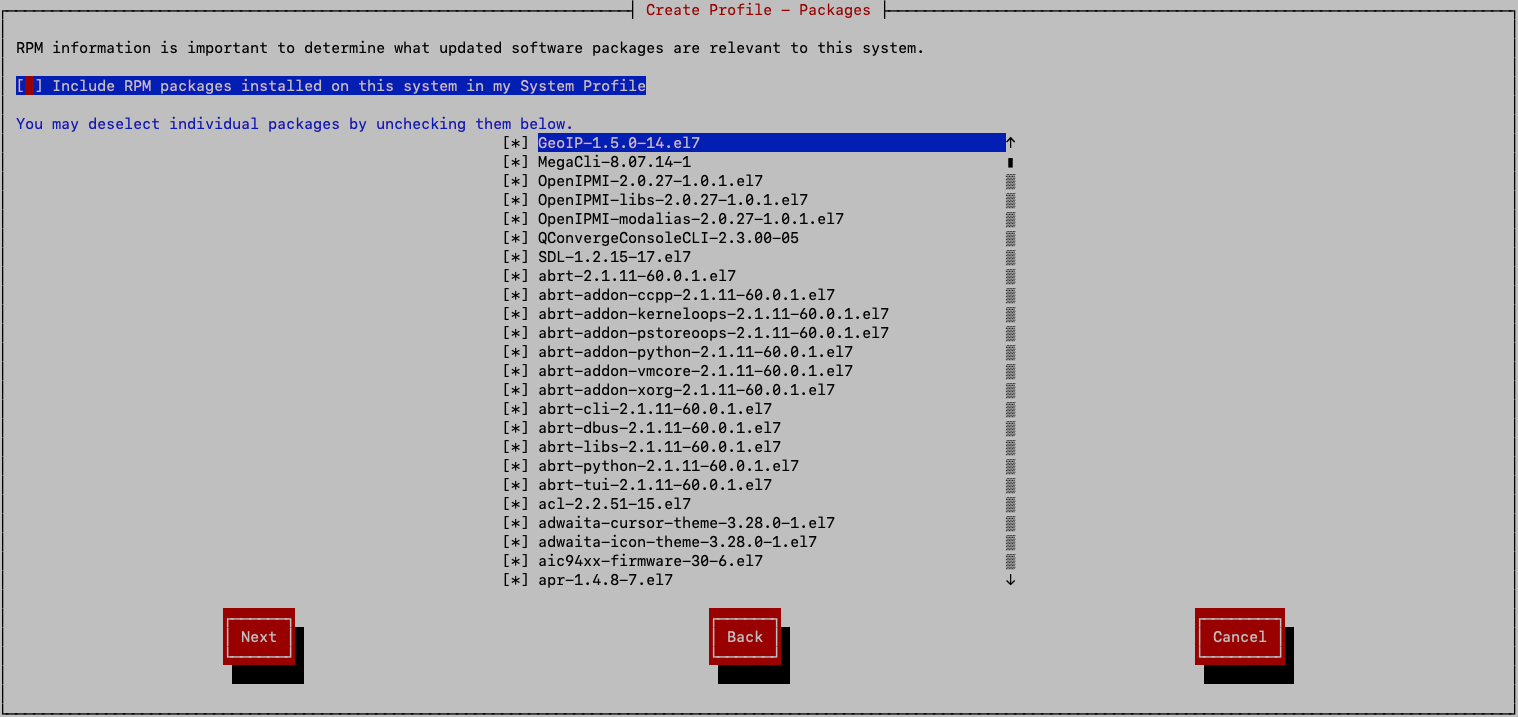
On the select packages screen, select (highlight) the "Include RPM packages installed on this system in my System Profile" field and then press the space bar to deselect that option. Go to the next screen.
On the next screen, confirm that you want to use the information from the previous screens to create the system profile for this appliance. To confirm, select Next to register the appliance with ULN and go to the next screen.

Rebootless kernel updates are not supported for channel updates. Select (highlight) the "Yes, I want to configure my system to access rebootless updates" field and then press the space bar to deselect that option. Click OK to go to the next screen.

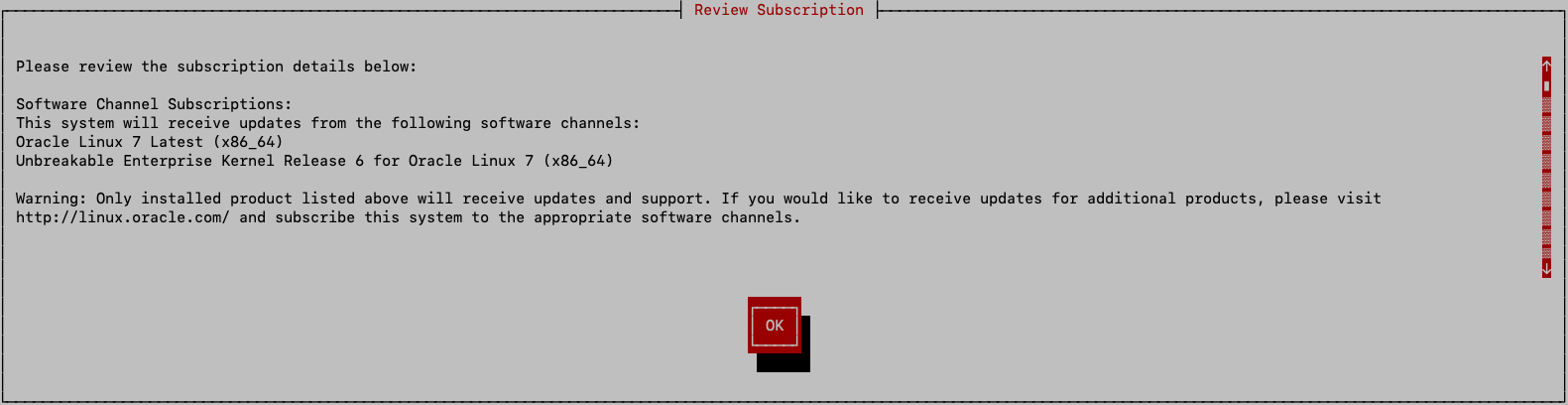
Read the Review Subscription screen, and click the OK button to finalize the registration and exit the ULN registration tool.
The file /etc/sysconfig/rhn/systemid is created, which contains the ULN
registration and configuration of the system.
The yum-rhn-plugin is enabled.
Return to Configuring Private Cloud Appliance Direct Access.
Configuring a Mirror Server
This procedure describes how to set up channels on a ULN mirror server.
-
(Optional) Set the proxy.
If your organization uses a proxy server as an intermediary for Internet access, specify the
proxysetting in the/etc/yum.conffile as described in Configuring the Use of a Proxy Server in the Oracle Linux documentation. -
Ensure the following:
-
This server can access
linux.oracle.comon ports 80 and 443.See also the My Oracle Support document How to troubleshoot ULN connectivity (Doc ID 1958230.1).
-
The Private Cloud Appliance to be patched can access this server.
-
-
Configure the ULN mirror.
See Creating and Using a Local ULN Mirror in the Oracle Linux documentation.
-
Subscribe the mirror server to the following ULN channels for Oracle Private Cloud Appliance.
-
PCA 2.4.4.2 MN
pca2442_x86_64_mn -
PCA 2.4.4.2 CN
pca2442_x86_64_cn
A mirror server can be subscribed to additional channels.
-
Use only these PCA channels to install Private Cloud Appliance patches. Updating the appliance using other channels and other methods is not supported.
-
Best practice is to isolate Private Cloud Appliance ULN channels from other ULN channels.
-
-
Create a local
yumULN mirror on this server.Follow the instructions in Prerequisites for the Local ULN Mirror in the Oracle Linux documentation to set up the channel mirror on a data center server that the Private Cloud Appliance can access.
-
Verify the repositories are configured on the mirror server.
# yum repolist
-
Connect to the repositories from the Private Cloud Appliance.
Run the following command from the master management node:
# /usr/sbin/pca-admin create uln-repo mirror mirror_uriThe format of
mirror_uriishttp://your_datacenter_uri/yum, as shown in the following example:# /usr/sbin/pca-admin create uln-repo mirror http://198.51.100.10/yum Status: Success
The ULN repository configuration file,
/nfs/shared_storage/conf/uln.conf, is constructed for access to the ULN mirror, and the repositories are pulled over and set up on the active management node. This configuration file is populated with the mirror repository URI (mirror_uri), withrepo_typeset to Mirror, and with values forcn_repoandmn_repoto indicate which repositories have been set up on the system.The
/nfs/shared_storage/conf/uln.repofile is created with the details required to pull the repositories from the mirror server for the ULN channels that are available.The repositories at
mirror_uriare pulled over and set up on the Private Cloud Appliance in the following location:/nfs/shared_storage/yum/pca_patch_pca_versionFor example, repositories are configured at the following locations:
/nfs/shared_storage/yum/pca_patch_2.4.4.2/cn
/nfs/shared_storage/yum/pca_patch_2.4.4.2/mn
The entry for the ULN compute node repository is added to the
ovm.repofile in the/etc/yum.repos.ddirectory on the compute nodes and enabled.Repositories that are defined in
/etc/yum/plugin.d/rhn.conf, as well as any that are enabled in other configuration files in/etc/yum.repos.d, are disabled. -
Verify that the repositories are configured on the Private Cloud Appliance.
Use the following command to verify that the repositories were created successfully:
# /usr/sbin/pca-admin show uln-repo
----------------------------------------
Repository Type Mirror
Mirror Location mirror_uri
Management Patch Repo Created Yes
Compute Patch Repo Created Yes
----------------------------------------

Status: Success
The preceding output shows that the repositories are successfully configured on the mirror server and mirrored on the appliance. The value of Created is No if no RPM packages have been delivered to that repository yet.
If repositories are not configured, the
show uln-repocommand shows the message "No patch repositories setup. Run create uln-repo to create repositories."The ULN configuration file shows the following:
# cat /nfs/shared_storage/conf/uln.conf
[uln]
repo_type = mirror
uln_mirror = mirror_uri
cn_repo = False
mn_repo = False
The values of
cn_repoormn_repowill be True once the repositories are set up.If the
create uln-repocommand completed successfully, any subsequent execution of thecreate uln-repocommand will fail with a message that a repository is already set up and showing the URI of the repository. -
If the repository setup completed successfully, continue to Patching Management and Compute Nodes.
Patching Management and Compute Nodes
After you have completed either Configuring Private Cloud Appliance Direct Access or Configuring a Mirror Server, you are ready to patch the appliance.
Run these commands from the master management node.
-
Verify that the repositories are configured.
# /usr/sbin/pca-admin show uln-repo
If repositories are not configured, the
show uln-repocommand shows the message "No patch repositories setup. Run create uln-repo to create repositories." See Configuring Private Cloud Appliance Direct Access or Configuring a Mirror Server. -
Update the ULN repositories.
-
If necessary, set the proxy as you did in Configuring Private Cloud Appliance Direct Access or Configuring a Mirror Server.
-
Update local ULN repositories.
# /usr/sbin/pca-admin update uln-repo
************************************************************
 WARNING !!! THIS IS A DESTRUCTIVE OPERATION.
************************************************************
Are you sure [y/N]:y

Status: Success
The management node and compute node ULN local repositories are updated with the latest packages available.
If any failure occurred, check the
ovca.logfile for messages. -
If a proxy is set, unset the proxy.
-
-
Verify that the rack is in a stable state for patching.
# /usr/sbin/pca_upgrader -V -t patch -c remote_mn_nameThe
pca_upgraderpre-checks complete and report the status of the rack on the command line and to the log file:pca_upgrader_date_time_remote_mn_name_verify_patch.log
-
Check whether a management node patch is available.
# /usr/sbin/pca-admin show uln-repo
...
Management Patch Repo Created Yes
This example shows that a management node patch is available. If the value of Created is No, no management node patch is available.
-
Patch the remote management node.
# /usr/sbin/pca_upgrader -U -t patch -c remote_mn_nameThe non-master management node is updated with the packages in the management ULN repository. The result is reported in the log file:
pca_upgrader_date_time_remote_mn_name_patch.log
The appliance fails over to the patched management node.
-
Verify that the appliance failed over to the patched management node.
The previously patched manager should now be the master. The
pca-check-mastercommand shows True for the patched management node and False for the unpatched management node. -
Patch the second (new remote) management node.
# /usr/sbin/pca_upgrader -U -t patch -c remote_mn_name -
Check whether a compute node patch is available.
# /usr/sbin/pca-admin show uln-repo
...
Compute Patch Repo Created Yes
This example shows that a compute node patch is available. If the value of Created is No, no compute node patch is available.
-
Patch the compute nodes.
# /usr/sbin/pca-admin update compute-node cn_nameThe compute node is updated with the packages in the compute ULN repository.
The compute node reboots to complete the patch.
Deleting ULN Channel Repositories
This procedure describes how to delete ULN channel repositories.
-
Verify that the repositories are configured.
# /usr/sbin/pca-admin show uln-repo
The preceding output should show a Repository Type of Direct or Mirror.
-
Delete the repositories.
# /usr/sbin/pca-admin delete uln-repo
************************************************************
 WARNING !!! THIS IS A DESTRUCTIVE OPERATION.
************************************************************
Are you sure [y/N]:y

Status: Success
Local repositories and repository configuration files are deleted.
-
The
/nfs/shared_storage/yum/pca_patchdirectory is deleted. -
All repositories are disabled.
-
The
/nfs/shared_storage/conf/uln.conffile is deleted. -
If a mirror server was being used, both of the following are deleted:
/nfs/shared_storage/conf/uln.repo
/nfs/shared_storage/conf/uln.repo.bak
-
If a direct configuration was used, the
/etc/yum/pluginconf.d/rhnplugin.conffile is restored to its original condition, and the backup of the original is deleted.
If any failure occurs, check the
ovca.logfile for messages. -
-
(Direct configuration only) For a Private Cloud Appliance to be fully removed from a ULN configuration, perform these additional steps:
-
Remove the system from the ULN site. If you no longer want this appliance to be subscribed, log into ULN and delete the system. See Removing a System From ULN.
-
Log into the appliance and remove
/nfs/shared_storage/conf/systemid.
-
-
Verify that the repositories are deleted.
# /usr/sbin/pca-admin show uln-repo
The following message is shown: "No patch repositories setup. Run create uln-repo to create repositories."