Delivered ELM Content for the PeopleSoft Landing Page
PeopleTools provides customers with the flexibility to design and configure landing pages that deliver personalized experiences aligned with specific business requirements and user roles.
Customers can leverage section templates to organize content into logical groups and create intuitive, user-friendly layouts that enhance navigation and overall usability. These templates are stored in the Fluid Section Templates folder and can be imported into a landing page or dashboard as needed. For detailed guidance on creating and importing section templates, see PeopleTools: Portal Technology: "Managing Section Templates and Sections".
This topic discusses the ELM content that is delivered for use within the sectionalized homepage (PeopleSoft Landing Page), which requires PeopleTools 8.62 or higher.
Important! ELM does not provide a sample landing page. Instead, it delivers specific tiles and a dedicated section that you can add to a landing page. To access ELM content on a landing page, you need to cluster your environment with another PeopleSoft application that has adopted the landing page, such as HCM.
For information on setting up the landing page, roles and landing page sections, see the product documentation for PeopleSoft HCM: Application Fundamentals, “(Fluid) Using My Home Landing Page”.
The landing page accesses a variety of transactions from one page to see and perform daily and ongoing tasks.
The landing page is made up of various functional groups called sections. Sections contain functional or administrative groupings of tiles that use security access to manage what tiles appear for a user within a section. This allows users, even those with multiple roles (for example: employee, manager, or administrator), the ability to access their daily work transactions from one page.
Note: Sections themselves do not have security; they inherit security from the tiles or CREFs displayed within the section. When a user does not have access to any tiles within a section, the section does not appear for the user.
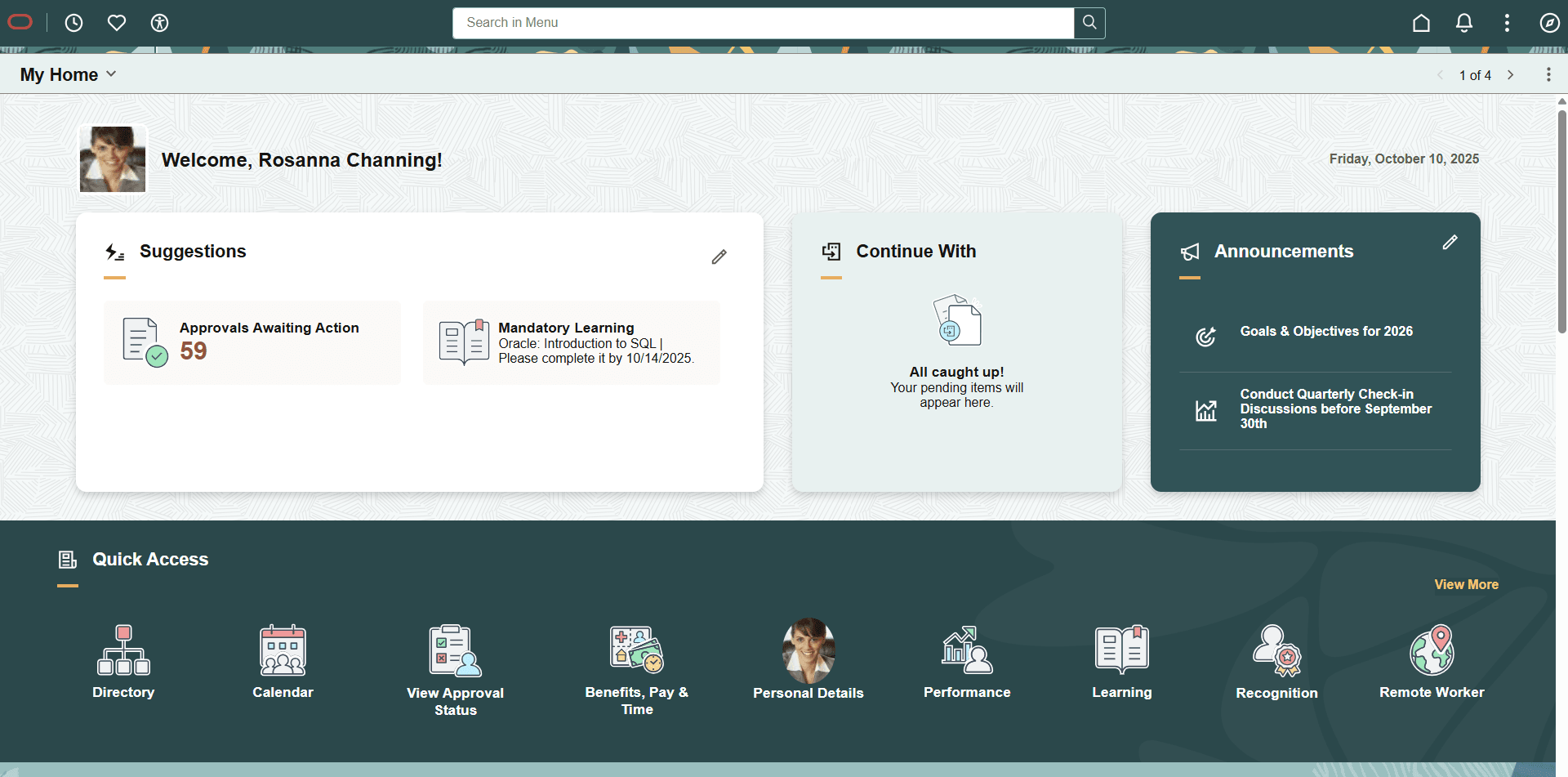
Tiles within a section can be static (content referenced-based tiles that are fixed and present on sections based on the permissions of the user) or can be dynamic (created as result of an event or action and go away when the user takes an action or dismisses the tile). For example, the Suggestions, Continue With, and Announcements sections contain dynamic tiles which prompt a user to do a task.
For additional information on Landing Page functionality, see PeopleTools: Portal Technology, "Developing Advanced Sectionalized Homepages and Dashboard".
For information on HCM-delivered sections, tiles, and dashboards, see the product documentation for PeopleSoft HCM: Application Fundamentals, “(Fluid) Using My Home Landing Page”.
The ELM landing page notifications are shown within these dynamic sections:
Suggestions
Continue With
Both Notification Composer and Notification Publisher provide notification functionality for the landing page.
This figure shows an example of an ELM notification for Mandatory Learning under the Suggestions section in a cluster environment with HCM and ELM.
To configure notifications to appear within these My Home sections, see Creating and Managing Notifications with Notification Composer and follow these steps:
Configure notification IDs to use the Homepage notification type.
Specify the section in which the notification should appear.
Add a tile image and other details, like target URL, and so forth.
Landing page notifications can be sent to recipients using Notification Composer or Notification Publisher. For more information, see Understanding Notification Tools for Landing Page Notifications.
Delivered ELM Notifications and Tiles for Suggestions Section
This table lists the ELM Homepage Notifications (EOHP_NOTIFY) delivered for the Suggestions section.
|
Notification |
Tile |
Additional Information |
|---|---|---|
|
LandingPageMandatoryLearning |
Mandatory Learning tile |
The tile appears when the manager or administrator enrolls the learner in a mandatory learning. The tile is dismissed when the learner starts the learning and the learning is in In Progress. The tile then appears on the Continue With section. |
|
LandingPageNonMandatoryLearning |
Upcoming Learning tile |
The tile appears when the manager or administrator enrolls the learner in a non mandatory learning. The tile is dismissed when the learner starts the learning and the learning is in In Progress. The tile then appears on the Continue With section. |
|
LandingPageProgramWarning |
Certification Warning tile |
The tile appears when a certification is in Warning status for the learner and the learner has to retake the certification. The tile is dismissed when the learner starts the certification and the certification is in In Progress. The tile then appears on the Continue With section. |
For HCM notifications that are delivered for the Suggestions section, see product documentation for PeopleSoft HCM: Application Fundamentals, “(Fluid) Using My Home Landing Page”, Understanding Delivered Notifications for My Home Landing Page.
Delivered ELM Notifications and Tiles for Continue With Section
This table lists the ELM Homepage Notifications delivered for the Continue With section.
|
Notification (Description) |
Tile |
Additional Information |
|---|---|---|
|
LandingPageContinueLearning |
Learning tile |
The tile appears when a learning has an In Progress status. The tile is dismissed when the learner completes the learning. |
For HCM notifications that are delivered for the Continue With section, see product documentation for PeopleSoft HCM: Application Fundamentals, “(Fluid) Using My Home Landing Page”, Understanding Delivered Notifications for My Home Landing Page.
Use the My Work section (EOHP_MYWORK_SCTN_LP template) to access tiles for common, every day work items for a manager, business analyst, or administrator.
Navigation:
The My Work section is part of the Landing Page Layout.
The My Work section consists of multiple tiles and sections and varies based on roles and permissions.
My Work: Sections
The My Work section displays additional subsections for managers and administrators.
ELM delivers the Instructor Actions section, as well as tiles in the Team and Human Resources sections:
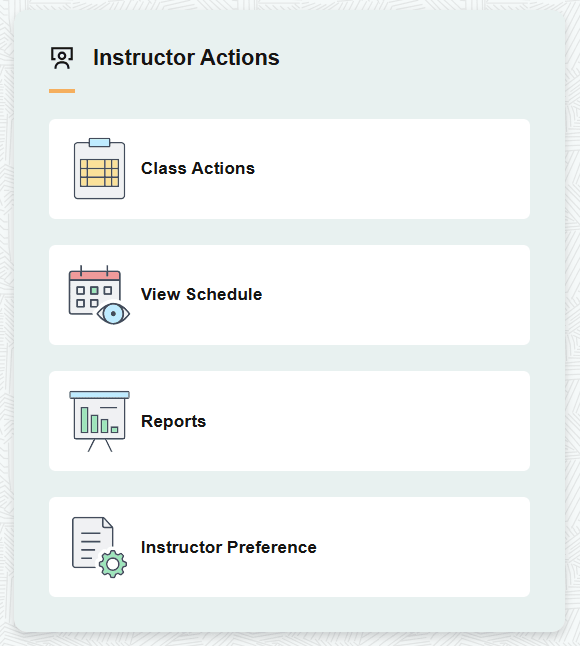
Instructor Actions (section template: LMHP_INSTRUCTOR_SCTN_LP)
As a Learning Instructor, use this section to access the following tiles:
Team
As a manager, use the Team Learning tile on the Team section to access the Manager Self Service dashboard for your team. See Using the PeopleSoft Fluid User Interface for Manager Self-Service
Human Resources
As a Learning Administrator, use the Learning Administration tile to access the Learning Administration dashboard. See Talent Administrator Home Page
This figure illustrates the ELM delivered Instructor Actions section under My Work on the landing page in a cluster environment with HCM and ELM.
For information on HCM-delivered tiles and sections, see the product documentation for PeopleSoft HCM: Application Fundamentals, “(Fluid) Using My Home Landing Page,” Working with My Home Landing Page Sections, My Home - My Work Section.