Creating an Environment
After creating topology and an environment template, use the Create Environment page (ECL_ENV_ADD_SCF) to create a new environment.
To create a new environment:
Specify basic information, such as environment template, Topology, database name, and database template.
Configure the required environment attributes and domain settings for the nodes defined in the environment template.
Note: Region and Availability Domains, Network Settings and Network Security sections are read-only.
The sections displayed depend upon the topology and database template you select. You can add multiple web server, application server and Process Scheduler server domains with custom configurations for nodes in the Domain Settings section.
Click Done to start environment provisioning.
Note: The system validates available resources before starting the provisioning process. See Validating Resources.
Select the Provision Task Status link to view the progress of the environment creation. See Viewing Provision Task Status. If a failure occurs, you can retry and resume the operation. See Retrying and Resuming Provisioning.
The default database operator id for each PeopleSoft Update Image instance is listed below:
For HCM, default database operator id is PS.
For FSCM, default database operator id is VP1.
For CRM, default database operator id is VP1.
For ELM, default database operator id is PS.
For IH, default database operator id is VP1.
For CS, default database operator id is PS.
Important! Before creating an environment in OCI, ensure that the template is updated with OCI-specific Infrastructure Settings such as region, compartment, VCN, and subnet settings.
When you use an existing DB System during PUM full tier provisioning, you must ensure that the database versions in the DB System and Application DPK are the same and that the same DB administrator password that was provided while creating the DB System is used.
Note: Deploying a PeopleSoft Update Image using the default PUM Full tier topology, which includes a PeopleSoft Client node, requires a Microsoft Windows platform image that is updated with the latest Windows updates and patches. If the Windows image is not on the latest updates and patches the provisioning of PeopleSoft Client will fail. Refer to the Cloud Manager installation tutorials on Oracle Help Center https://docs.oracle.com/en/applications/peoplesoft/cloud-manager/index.html.
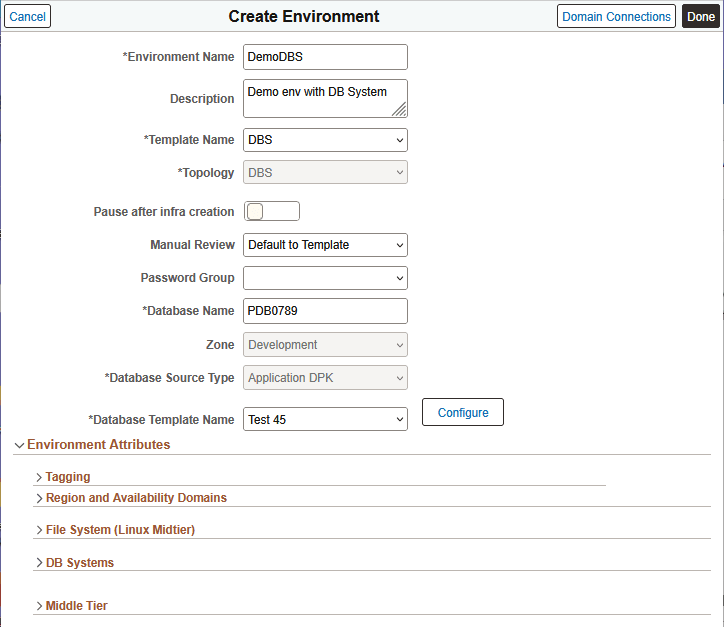
Click the Create Environment button on the Environments landing page and supply the required information.
This example illustrates the fields and controls on the Create Environment page. You can find definitions for the fields and controls later on this page.
|
Field or Control |
Description |
|---|---|
|
Environment Name |
Name of the environment that you want to create. It is a required field. Note: Length of environment name must not exceed 20 characters in OCI. |
|
Description |
Description for the environment that you want to create. |
|
Template Name (Required) |
Select an environment template and the zone. On selecting the template, zone options are automatically displayed. It is a required field. For details on templates, see the Creating a Template section under Environments Page. |
|
Topology (Required) |
Name of the default topology specified for the environment template. If the environment template contains more than one topology, you can select a different topology. The values for the database template and database source type associated with the topology will also be updated. |
|
Pause after infra creation |
Select Yes for the environment provisioning to pause after completion of the Infrastructure task. This provides the user the opportunity to do additional setup, actions, or operations on the newly created environment outside of Cloud Manager before proceeding with the PeopleSoft deployment. Note: When you are ready to proceed to the PeopleSoft deployment, select Deploy from the related actions menu for the environment. Select No (default) to continue provisioning the environment when the infrastructure layer is complete. |
|
Manual Review |
Select the global option to enable or disable all the manual reviews selected in the chosen template in all the instances. The default option is 'Default to Template' to use the Manual Review values in chosen environment template. See the later section Manually Reviewing Steps During Processing. |
|
Database Name (Required) |
Enter the name of the pluggable database (PDB) in the provisioned environment. If you did not set the database name in the environment template, Cloud Manager generates a default name based on the environment name during PUM provisioning. The default name of PDB gets generated using the following rules:
|
|
Zone |
Select the zone for the environment. If only one zone was defined on the environment template used for this environment, it will be displayed as read-only. |
|
Password Group |
Select the password group that contains the passwords that are already created as secret OCIDs in OCI Vault. The credentials are automatically filled, once you select a password group. If you do not select a Password Group, enter the passwords under Environment Attributes. See Password Groups. |
|
Database Source Type (Required) |
Display-only field showing database source type selected for the environment template. The allowed database source type depends upon the database node associated with the topology selected. The available types are Application DPK or Database Clone. |
|
Database Template Name (Required) |
Select a database template to use for environment provisioning. The database template is configured as part of environment template creation, and varies depending upon the database type. See the following tables for information about database templates. |
|
Configure |
Click to modify the selected Database Template. See the information following this table. Any changes made to the database template are temporary. They are used only when creating the environment and are not saved permanently. |
|
Domain Connections |
Click the button to configure connections between application server domains and web server domains using Domain Connections page. See the later section Configuring Domain Connections. |
Database Template for DB Systems
Click Configure to modify the selected database template. The Database Template page includes the following fields.
|
Field or Control |
Description |
|---|---|
|
Database Source Type |
The value is taken from the Database Source Type field on the parent page. This field is not editable. |
|
Database Template Name |
Display-only field showing the name of the selected database template. |
|
Database Source (Required) |
Select a DB Systems database to be cloned. |
|
PeopleTools Version |
Display-only field showing the PeopleTools release and patch for the selected database. |
|
Application Type |
Display-only field showing the PeopleSoft product application of the database source (CRM, CS, ELM, FSCM, HCM, or IH). |
|
Clone Type (Required) |
Select from these types under Database Details:
See Cloning an Environment With Database Running on DBS and Other Nodes on Compute |
|
DBS Name (Required) |
For Remote Clone Type, select a remote DB System to clone. |
The Application Deployment section of the Database Template page includes these items:
|
Field or Control |
Description |
|---|---|
|
Source (Required) |
For App Home, select the source from which to obtain the Application DPK.
|
|
Name |
If you select Source Object Storage, enter the path to the App Home directory. |
|
Path |
For Cust Home, provide a path relative to the server path /cm_psft_dpks to be used for application deployment. |
|
Script |
For Custom Script, select a script that has been uploaded to the Cloud Manager Repository. See Upload Custom Scripts Page. This custom script will run only once, in the first mid-tier Application Server VM associated with the environment. |
Database Template for Database Tier
Click Configure to modify the selected database template.
This table lists the fields and controls on the Database Template page for Database Tier.
|
Field or Control |
Description |
|---|---|
|
Database Source Type |
The only source type is Application DPK. This field is not editable. |
|
Database Template Name |
Display-only field showing the selected database template name. |
|
Database Source |
Choose an Application DPK from the Cloud Manager Repository. |
|
PeopleTools Version |
Display-only field showing the PeopleTools release and patch. |
|
Application Type |
Display-only field showing the PeopleSoft product application of the database source (CRM, CS, ELM, FSCM, HCM, or IH). |
Database Template for ADB Dedicated
Click Configure to modify the selected database template.
This table lists the fields and controls on the Database Template page for ADB Dedicated.
|
Field or Control |
Description |
|---|---|
|
Database Source Type |
The type is Database Clone. This field is not editable. |
|
Database Template Name |
Display-only field showing the name of the selected database template. |
|
Database Source (Required) |
Select an ADB Dedicated database to be cloned. |
|
PeopleTools Version |
Display-only field showing the PeopleTools release and patch for the selected database. |
|
Application Type |
Display-only field showing the PeopleSoft product application of the database source (CRM, CS, ELM, FSCM, HCM, or IH). |
|
Autonomous Container Database |
Under Database Details, select the Container Database associated with the ADB. |
The Application Deployment section of the Database Template page includes these items:
|
Field or Control |
Description |
|---|---|
|
Source (Required) |
For App Home, select the source from which to obtain the Application DPK.
|
|
Name |
For source File Server, provide the path relative to file server path /cm_psft_dpks/ to be used for app deployment. |
|
Path |
For Cust Home, provide a path relative to the server path /cm_psft_dpks to be used for the App Home deployment. |
|
Script |
For Custom Script, select a script that has been uploaded to the Cloud Manager Repository. See Upload Custom Scripts Page. This custom script will run only once, in the first mid-tier Application Server VM associated with the environment |
Database Template for ADB Shared
Click Configure to modify the selected database template.
This table lists the fields and controls on the Database Template page for ADB Shared.
|
Field or Control |
Description |
|---|---|
|
Database Source Type |
The type is Database Clone. This field is not editable. |
|
Database Template Name |
Display-only field showing the name of the selected database template. |
|
Database Source (Required) |
Select an ADB Shared database to be cloned. |
|
PeopleTools Version |
Display-only field showing the PeopleTools release and patch for the selected database. |
|
Application Type |
Display-only field showing the PeopleSoft product application of the database source (CRM, CS, ELM, FSCM, HCM, or IH). |
The Application Deployment section of the Database Template page includes these items:
|
Field or Control |
Description |
|---|---|
|
Source (Required) |
For App Home, select the source from which to obtain the Application DPK.
|
|
Name |
For source File Server, provide the path relative to file server path /cm_psft_dpks/ to be used for app deployment. |
|
Path |
For Cust Home, provide a path relative to the server path /cm_psft_dpks/ to be used for the App Home deployment. |
|
Script |
For Custom Script, select a script that has been uploaded to the Cloud Manager Repository. See Upload Custom Scripts Page. This custom script will run only once, in the first mid-tier Application Server VM associated with the environment |
Select a Database Template where the source is DB Systems.
The Environment Attributes sections are similar to those you see when creating the DB Systems environment template. See Configuring DB Systems Settings. The network sections are not editable.
If you do not specify a Password Group, you must supply user passwords in a Credentials section, which includes the following fields:
|
Field or Control |
Description |
|---|---|
|
Database Operator Id |
Default database operator ID. For HCM, CS, and ELM, the default is PS. For FSCM, IH, and CRM, the default is VP1. |
|
Database Operator Password |
Enter the password for the database operator ID. |
|
Database Access Id |
Access ID for the database. The default is SYSADM. |
|
Database Access Password |
Enter the password for Access ID. |
|
Database Administrator Password |
Enter the password for the database administrator (SYS and SYSTEM). |
|
Database Connect Id |
Connect ID for the database. The default is people. |
|
Database Connect Password |
Enter the password for Connect ID. |
|
Source TDE Keystore (Wallet) |
Enter the password for a TDE enabled database. |
Select a Database Template where the source is Database Tier.
The Environment Attributes sections are similar to those you see when creating the Database Tier environment template. See Configuring Database Tier. The network sections are not editable.
If you do not specify a Password Group, you must supply user passwords in a Credentials section, which includes the following fields:
|
Field or Control |
Description |
|---|---|
|
Database Operator Id |
Default database operator ID. For HCM, CS, and ELM, the default is PS. For FSCM, IH, and CRM, the default is VP1. |
|
Database Operator Password |
Enter the password for the database operator ID. |
|
Database Access Id |
Access ID for the database. The default is SYSADM. |
|
Database Access Password |
Enter the password for Access ID. |
|
Database Administrator Password |
Enter the password for the database administrator (SYS and SYSTEM). |
|
Database Connect Id |
Connect ID for the database. The default is people. |
|
Database Connect Password |
Enter the password for Connect ID. |
Select a Database Template where the source is PUM Fulltier.
The Environment Attributes sections are similar to those you see when creating the PUM Fulltier environment template. The network sections are not editable.
If you do not specify a Password Group, you must supply user passwords in a Credentials section, which includes the following fields:
|
Field or Control |
Description |
|---|---|
|
Database Operator Id |
Default database operator ID. For HCM, CS, and ELM, the default is PS. For FSCM, IH, and CRM, the default is VP1. |
|
Database Operator Password |
Enter the password for the database operator ID. |
|
Database Access Id |
Access ID for the database. The default is SYSADM. |
|
Database Access Password |
Enter the password for Access ID. |
|
Weblogic Administrator Username |
Administrator for Oracle WebLogic. The default is system. |
|
Weblogic Administrator Password |
Enter the password for the Weblogic Administrator. |
|
Database Administrator Password |
Enter the password for the database administrator (SYS and SYSTEM). |
|
Database Connect Id |
Connect ID for the database. The default is people. |
|
Database Connect Password |
Enter the password for Connect ID. |
|
Gateway Administrator Username |
Administrator for the Integration Broker Gateway. The default is administrator. |
|
Gateway Administrator Password |
Enter the password for the Gateway Administrator. |
|
Web Profile Password for user PTWEBSERVER |
Enter the web profile password. |
|
Gateway Keystore Password |
Enter the password. |
Select a Database Template where the source is ADB Dedicated.
The Environment Attributes sections are similar to those you see when creating the ADB Dedicated environment template. See Configuring ADB Dedicated. The network sections are not editable.
If you do not specify a Password Group, you must supply user passwords in a Credentials section, which includes the following fields:
|
Field or Control |
Description |
|---|---|
|
Database Operator Id |
Default database operator ID. For HCM, CS, and ELM, the default is PS. For FSCM, IH, and CRM, the default is VP1. |
|
Database Operator Password |
Enter the password for the database operator ID. |
|
Database Access Id |
Access ID for the database. The default is SYSADM. |
|
Database Access Password |
Enter the password for Access ID. |
|
Database Administrator Password |
Enter the password for the database administrator (SYS and SYSTEM). |
|
Database Connect Id |
Connect ID for the database. The default is people. |
|
Database Connect Password |
Enter the password for Connect ID. |
Select a Database Template where the source is ADB Dedicated.
The Environment Attributes sections are similar to those you see when creating the ADB Shared (Serverless) environment template. See Configuring ADB Shared. The network sections are not editable.
If you do not specify a Password Group, you must supply user passwords in a Credentials section, which includes the following fields:
|
Field or Control |
Description |
|---|---|
|
Database Operator Id |
Default database operator ID. For HCM, CS, and ELM, the default is PS. For FSCM, IH, and CRM, the default is VP1. |
|
Database Operator Password |
Enter the password for the database operator ID. |
|
Database Access Id |
Access ID for the database. The default is SYSADM. |
|
Database Access Password |
Enter the password for Access ID. |
|
Database Administrator Password |
Enter the password for the database administrator (SYS and SYSTEM). |
|
Database Connect Id |
Connect ID for the database. The default is people. |
|
Database Connect Password |
Enter the password for Connect ID. |
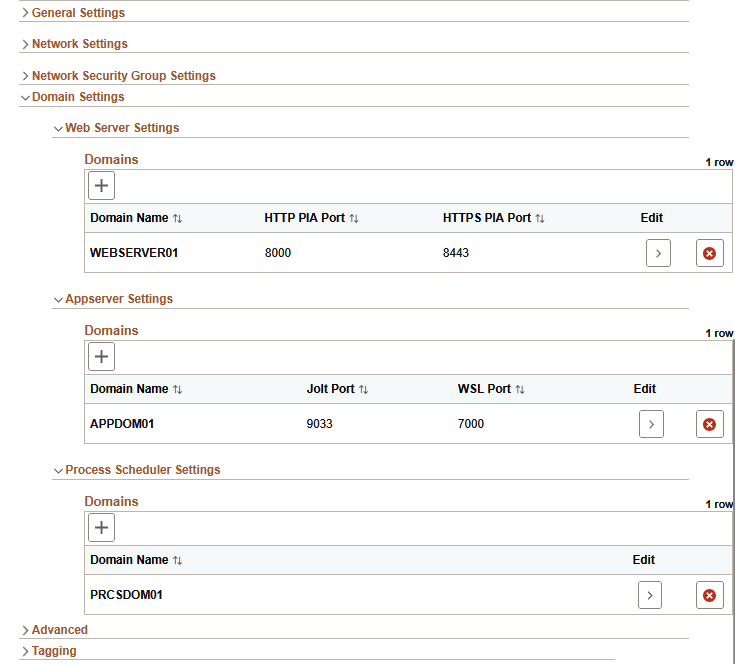
The Domain Settings grid-like structure enables you to customize attribute values at each domain level.
The sections shown depend upon the way the topology is set up. This example shows a middle tier that includes a web server, an application server, and a Process Scheduler server.
This example illustrates the expanded Domain Settings section under Custom Attributes.
|
Field or Control |
Description |
|---|---|
|
> (Edit) |
Click to edit the web server domain configurations |
|
+ (Add) |
Click to add a row for domain configuration. |
|
|
Click to delete a domain configuration row. |
 (Delete)
Web Server Domain Settings
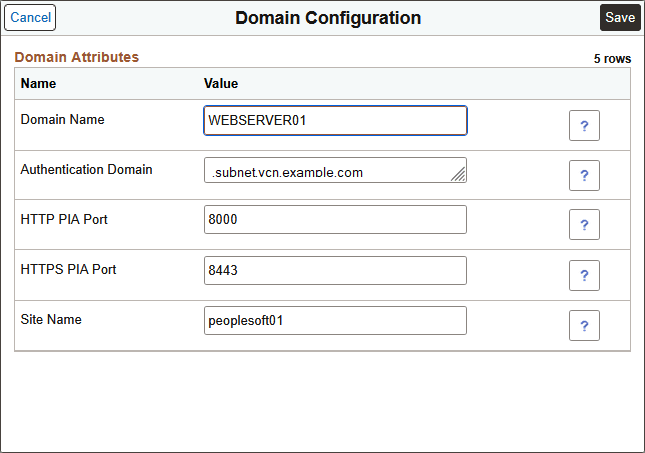
When you click Edit for Web Server Settings, the Domain Configuration page appears. Edit as needed and then click Save.
This example illustrates the Domain Configuration page for Web Server.
|
Field or Control |
Description |
|---|---|
|
Domain Name |
Enter a custom name for web server domain. |
|
Authentication Domain |
The domain in which the portal is running and across which the single sign-on authentication token is valid. Note: The PIA URL must be modified appropriately to access the environment if you have entered a custom authentication token domain value. |
|
HTTP PIA Port |
HTTP port for the web server domain. |
|
HTTPS PIA Port |
HTTPS port for the web server domain. |
|
Site Name |
Name of the site to be created with web server domain. |
Application Server Domain Settings
When you click Edit for Appserver Settings, the Domain Configuration page appears with the following attributes:
|
Field or Control |
Description |
|---|---|
|
Domain Name |
Enter a custom name for application server domain. |
|
Number of App Server Instances(PSAPPSRV services) |
Number of PSAPPSRV instances required. |
|
Number of Query Server Instances(PSQRYSRV services) |
Number of PSQRYSRV instances required. |
|
Number of SQL Access App Server(PSSAMSRV services) |
Number of PSSAMSRV instances required. |
|
Number of Jolt Listeners (Jolt Handler) |
Number of Jolt Listener per Domain. |
|
Jolt Port |
Jolt port for the app domain. |
|
WSL Port |
WSL port for the app domain. |
|
Enable IB |
Select Yes to enable IB in the App Domain. |
|
Number of PSBRKHND instances for IB |
Number of PSBRKHND instances for IB. |
|
Number of PSSUBHND instances for IB |
Number of PSSUBHND instances for IB. |
|
Number of PSPUBHND instances for IB |
Number of PSPUBHND instances for IB. |
Process Scheduler Domain Settings
When you click Edit for Process Scheduler Settings, the Domain Configuration page appears with the following attributes:
|
Field or Control |
Description |
|---|---|
|
Domain Name |
Accept the default or enter a custom domain name. |
|
Number of App Engine Server Instances(PSAESRV services) Per Domain |
Number of application engines required. |
|
Number of App Engine Server Instances(PSDSTSRV services) Per Domain |
Number of application servers required. |
|
Application Engine |
Number of application engine processes. |
|
XML Publisher |
Number of XML publishers. |
|
COBOL SQL |
Number of COBOL SQL processes. |
|
Optimization Engine |
Number of optimization engines. |
|
SQR Process |
Number of SQR processes. |
|
SQR Report |
Number of SQR reports. |
|
Max Api Aware |
Number of Max Api Aware. Indicates the total number of tasks that a Process Scheduler can initiate concurrently. |
Configure connections between application server domains and web server domains using the Domain Connections page.
To select the required configuration for an environment or node:
Click Domain Connections on the Create Environment page.
Select the application server domains to be connected with each web server node. Multiple Integration Broker-enabled application server domains can be connected to web servers.
This example illustrates the fields and controls on the Domain Connections page.
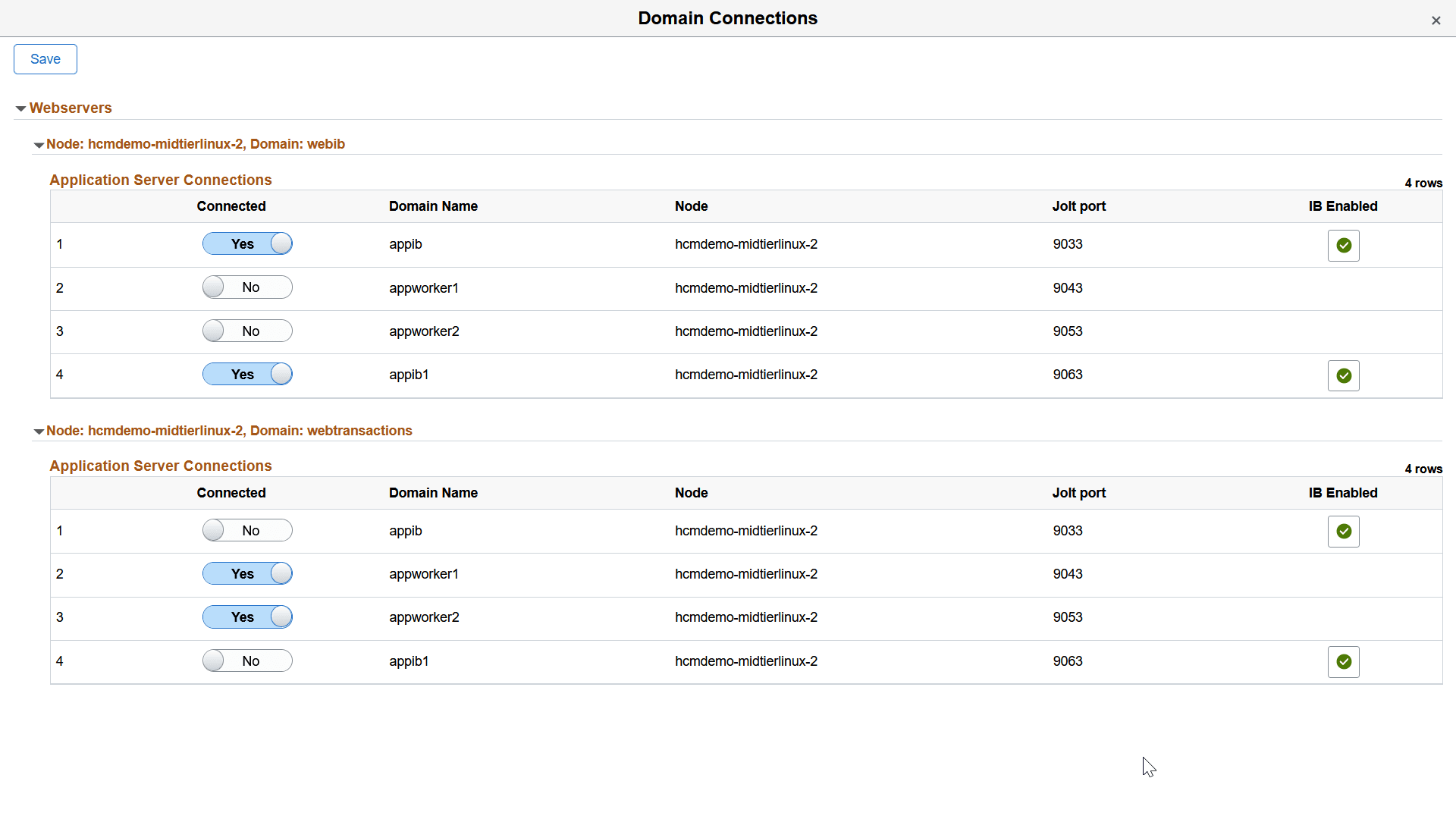
Field or Control
Description
Connected
Select Yes to choose the application server domains to be connected with each web server node.
Domain Name
Displays the domain associated with the application server.
Node
Displays the node containing application server domain.
Jolt port
Displays the Jolt port for the application server domain.
IB Enabled
Flagged rows represent the application server domains that are enabled for Integration Broker.
Click Save. The node is provisioned with the selected configuration.
Note: At least one application server domain must be connected to each web server.
You can also configure the local IB gateway for a newly created environment. See Configuring IB Gateway.
If the template contains multiple topologies, you can override default topology and attributes.
This example illustrates the Topology drop-down list on the Create Environment page.
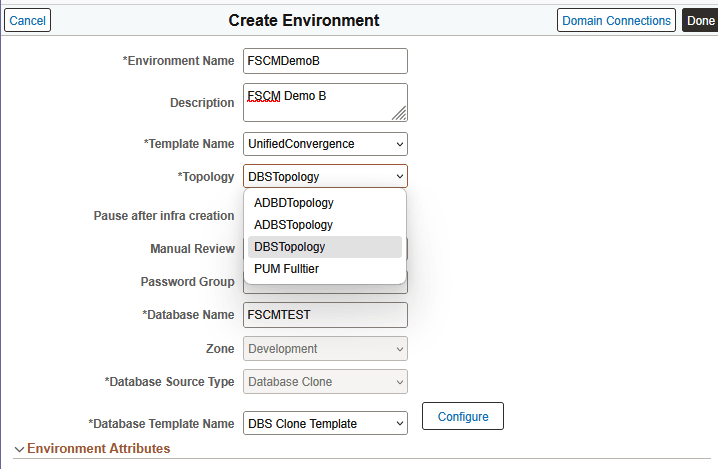
Custom attributes are displayed based on the selected topology nodes. If you select a Search Stack node, then you need to provide a couple of input parameters and passwords. Passwords for Search Stack nodes must be at least 9 characters long and contain a numeric and one uppercase letter. Special characters are not accepted.
Complete the environment provisioning as previously described.
Note: Ensure to tune the servers, database, and PeopleSoft system for optimum performance once the deployment is completed.
If you selected one of the Linux Images from Marketplace on the Cloud Manager Infrastructure Settings page, there is a license associated.
Linux images require a License acceptance once per compartment during provisioning. It is handled by Cloud Manager.
Multiple middle tiers in an environment can share PS_HOME, PS_APP_HOME and PS_CUST_HOME.
Note: Shared File System is only supported for Linux middle tier nodes. Windows middle tier is not supported.
User must first create a new File Storage Service (FSS) in the OCI. It is recommended that this new FSS be in the same availability domain (AD) where the middle tier of the environment is provisioned.
Important! You should not use the File Storage System that you created for the Cloud Manager repository as the file system for a middle tier node in a provisioned environment.
When creating the FSS, keep the following in mind:
All VMs in the subnet should have read/write access.
See the tutorial Plan the Virtual Cloud Network for PeopleSoft Cloud Manager (Optional).
File storage mount target (TCP ports 111, 2048, 2049, 2050; UDP ports 111 and 2048) is specific to FSS ports; this has to be opened in Linux middle tier VMs.
FSS export path requires full read/write access.
Network access (ports and security rules) must be configured to Mount Targets from the middle tier nodes.
Mount Target must be a minimum of 1024 GB.
This example illustrates the fields and controls on the Mount Target Details page.
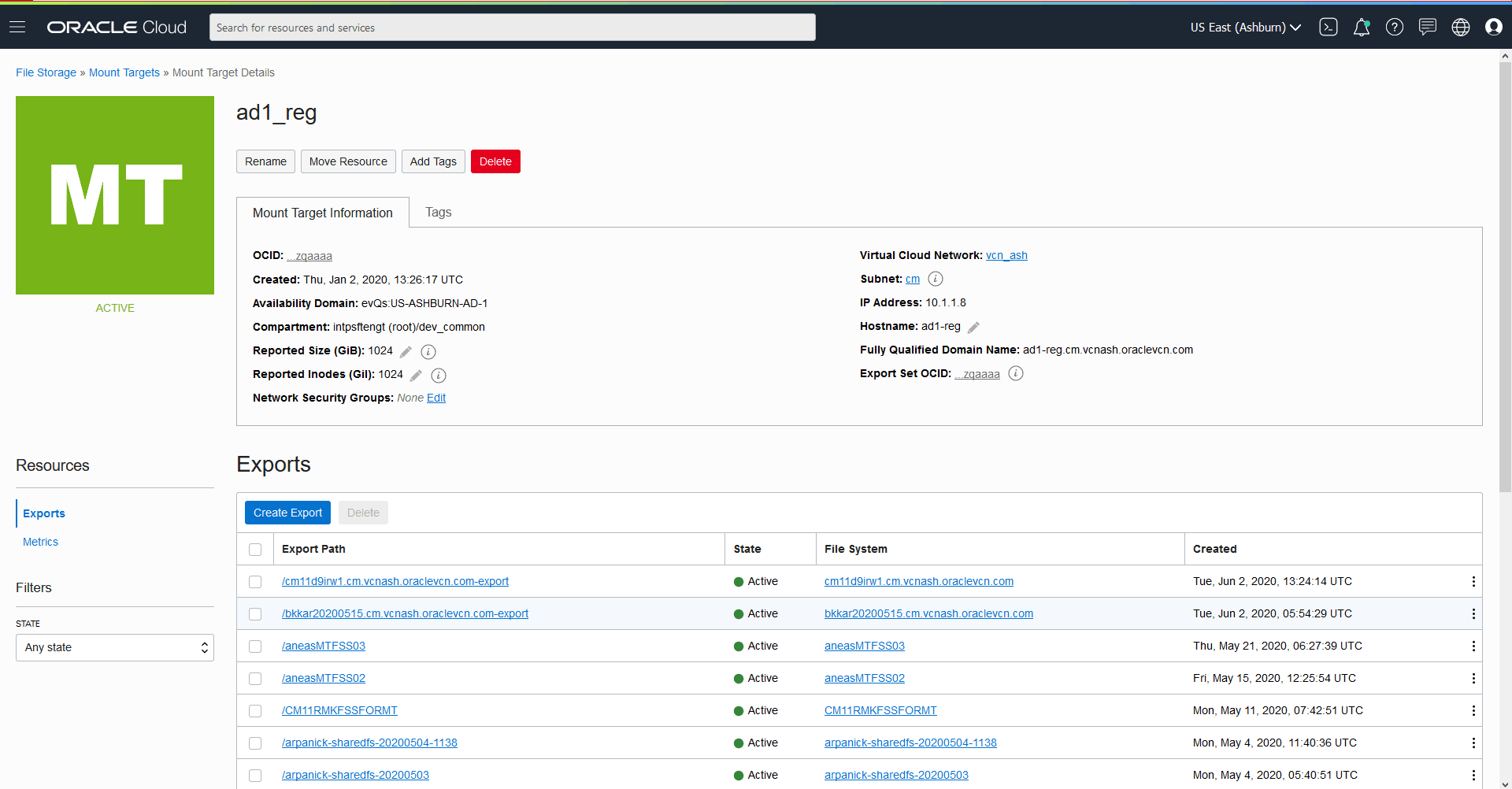
Once the environment is running, user can update the FSS export path read/write permission to the Linux middle tier.
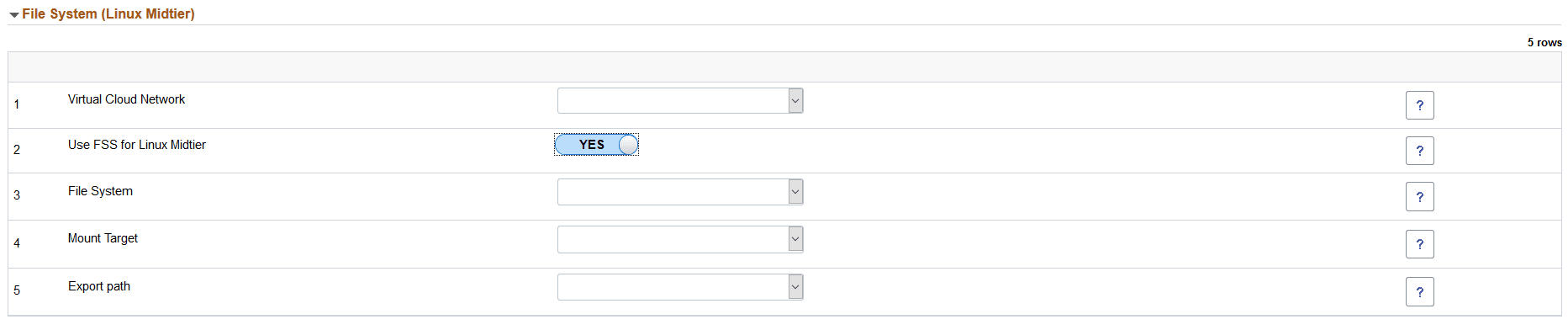
This example illustrates the fields and controls on the File System (Linux Midtier) section. You can find definitions for the fields and controls later on this page.
|
Field or Control |
Description |
|---|---|
|
Virtual Cloud Network |
Select the Virtual Cloud Network. |
|
Use FSS for Linux Midtier |
Select Yes to use FSS for Linux Midtier |
|
File System |
Select the File System from the available file systems in OCI. Important: When you tab off the field, a message is displayed warning about potential loss of data. You must ensure that the file system does not contain any critical data. |
|
Mount Target |
Select the Mount Target from the drop down list. |
|
Export path |
Select the Export path from the drop down list. |
Adding a New Middle Tier
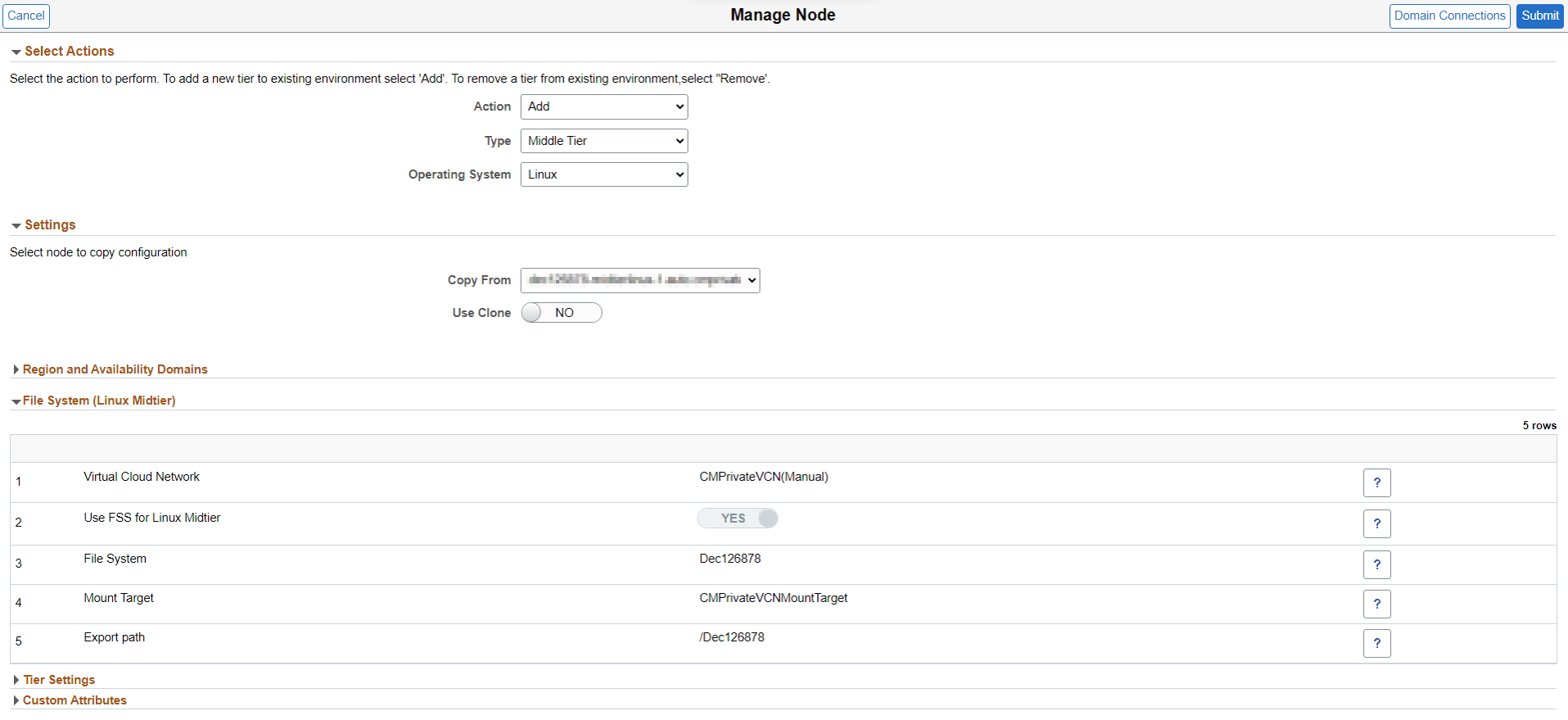
After creating an environment that includes a shared file system, use the Manage Node action to add a new middle tier that will share the same PS_HOME, PS_APP_HOME and PS_CUST_HOME.
See Managing Nodes
This example illustrates the fields and controls on the Manage Node page - Add Middle Tier with FSS.
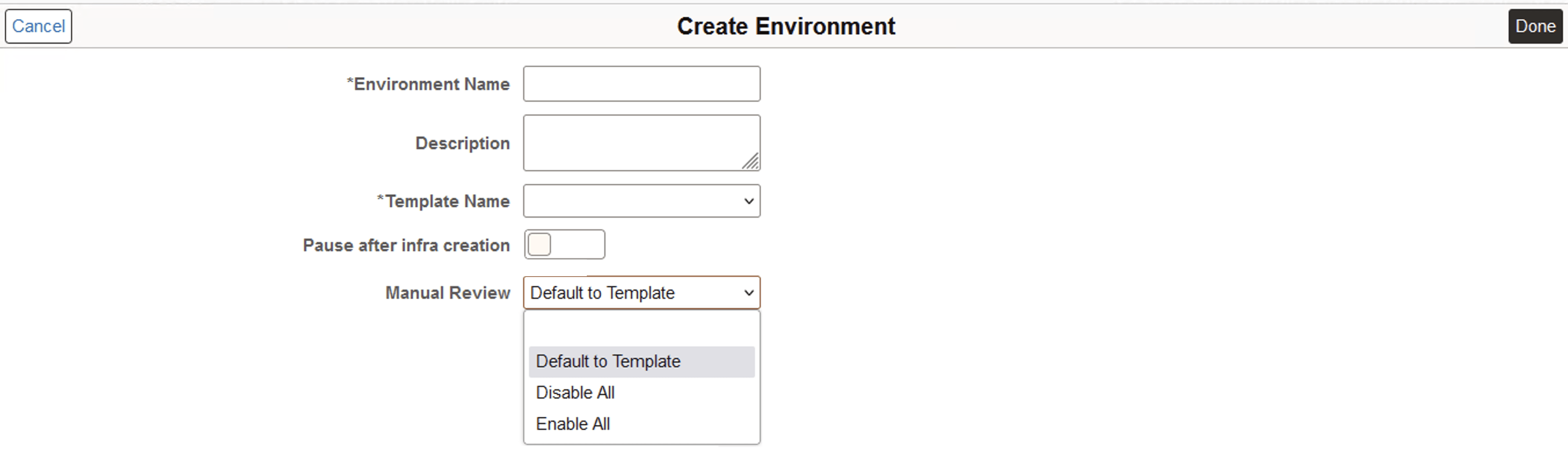
When you create an environment, you have the global option to enable all the manual reviews selected in the chosen template, or alternatively enable or disable all the manual review steps in the template.
If the status of an action step is "Manual Review", the Retry action is enabled in all the activities and action steps in that task. When you select Retry for any activity or action step, all the activities or action steps after that are run again.
By default, the option to go with the selection made during template creation is enabled. You can enable or disable all manual review steps using this field.
This example illustrates the fields and controls on the Create Environment page with Manual Review.
|
Field or Control |
Description |
|---|---|
|
Default to Template |
Select this option to use the Manual Review values in chosen environment template as the default value in environment provisioning. You can override this selection in individual instances. |
|
Disable All |
Select this option to disable Manual Review in all the instances. |
|
Enable All |
Select this option to enable Manual Review in all the instances. |
You can modify the selection for individual instances in General Settings. By default, the selection for Manual Review is disabled.
This example illustrates the fields and controls on the General Settings tab.
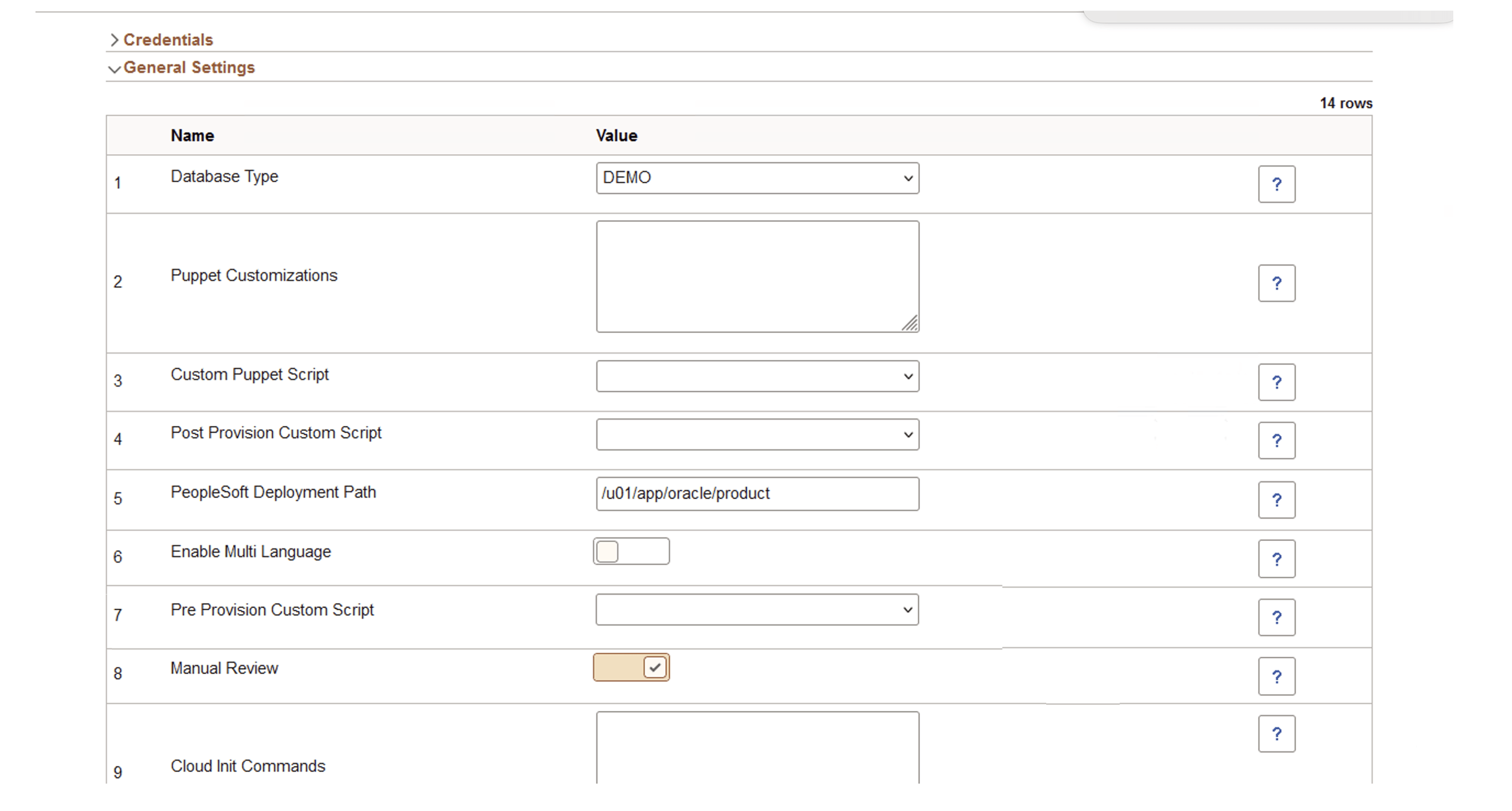
The environment tile shows the status as "Provisioning - Manual Review" when the manual review is in progress.
Manual reviewing of steps is currently available only during provisioning use cases and is not applicable for scaling up use cases. Manual Review is enabled for following environment types:
Full Tier
Middle Tier
Database Tier
Database Systems
Windows MT
Note: The Manual Review step is included for reviewing the processing of Customer DPK. This capability will be extended to other actions and activities during future releases of Cloud Manager.