Multicloud Resources
View Multicloud resources in the specified Multicloud subscription, Multicloud compartment, and partner cloud region, using Oracle Multicloud Hub. Details listed for each resource include name, state, resource type, and network anchor.
The API for this task is ListMulticloudResources.
-
Open the navigation menu and select Hybrid & Multicloud. Under Multicloud Hub, select Multicloud resources.
The Multicloud resources list page opens, with the mandatory filters set to the first identified Multicloud subscription ID, its first Multicloud compartment, and its first partner cloud region (ordered alphabetically). All Multicloud resources for these filters are displayed in a table.
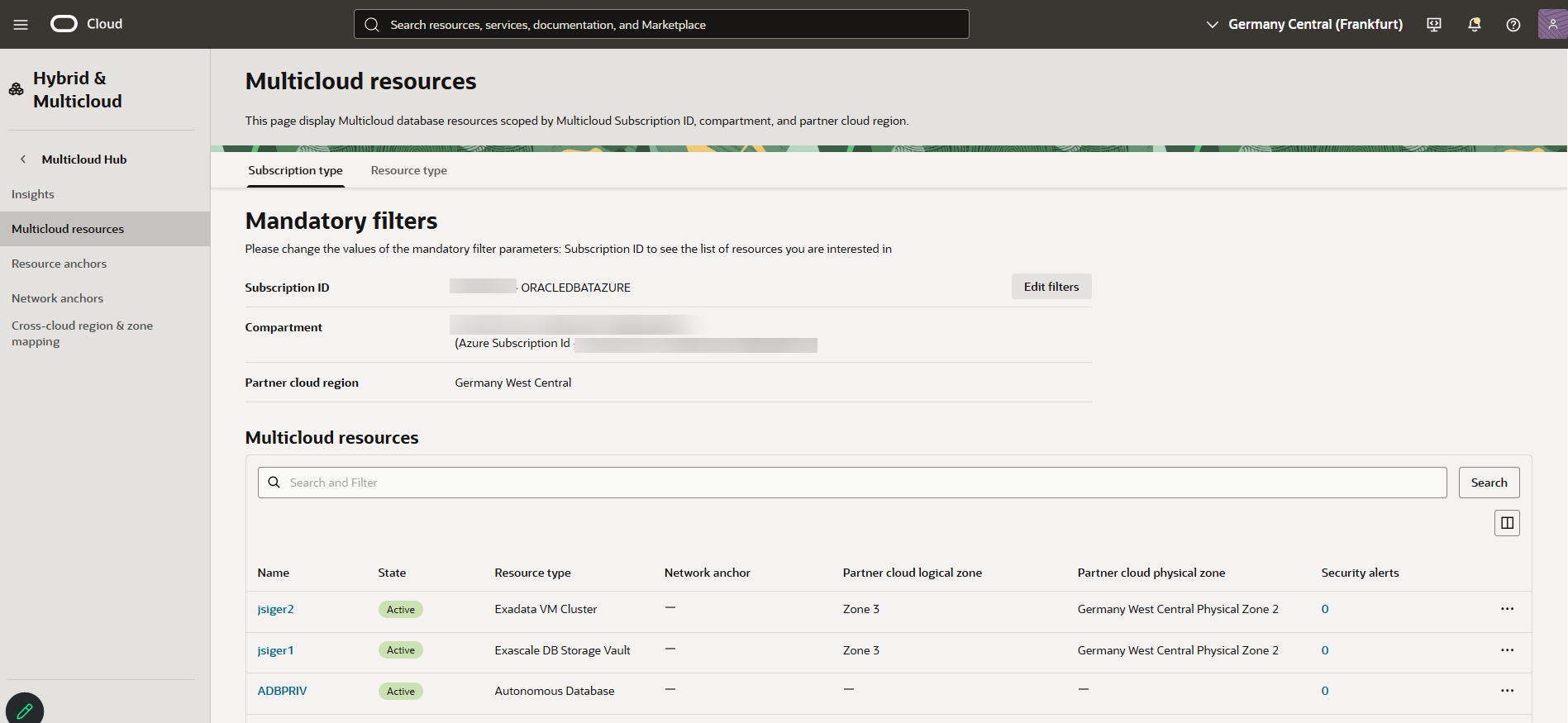
- (Optional)
To list resources by type, select Resource type.
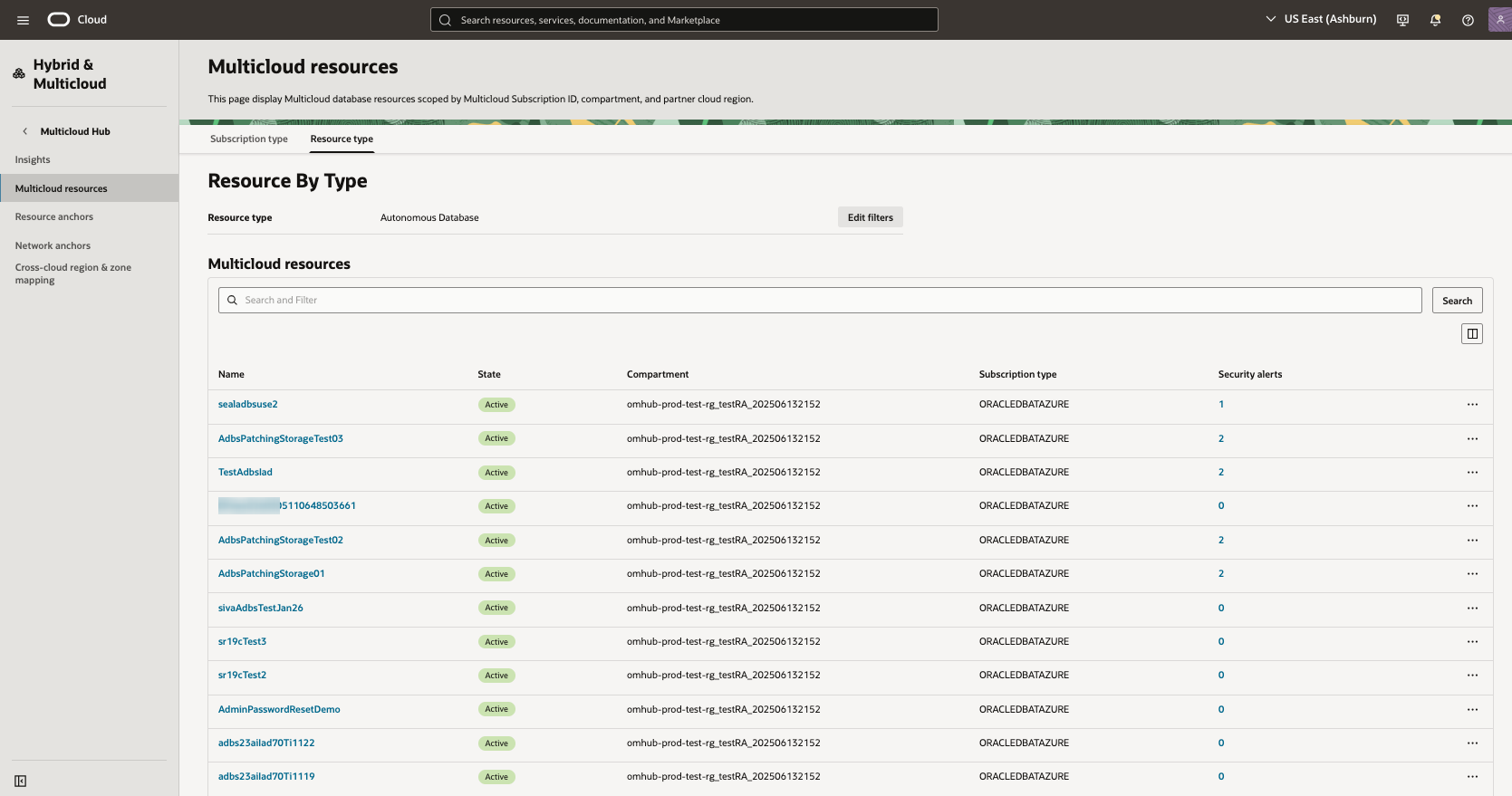
Filtering List Results
Use filters under Multicloud resources to limit the resources in the list.
From the Search and Filter box above the list table, select one or more filters and specify the values that you want to use to narrow the list. The filters correspond to the columns shown in the list table.
Change the order of the items in the list table by using the sort icons next to the column names.
For information about searching for resources and managing the columns in the list table, see Listing Resources.
Actions
In the list table, select the name of a resource to open its details page, where you can view its status and perform other tasks. You can also select the name of a resource's network anchor to view its details page.
To perform an action on a resource directly from the list table, select an available option from the in the row for that resource:
- View resource in partner cloud: Open the partner cloud's details page for the resource.
- View resource in OCI: Open the OCI details page for the resource.
- Analyze costs: View cost analysis for the resource.
- View security alerts: View Cloud Guard alerts for the resource.
- Copy resource OCID: Copy the OCID of the resource to the clipboard.
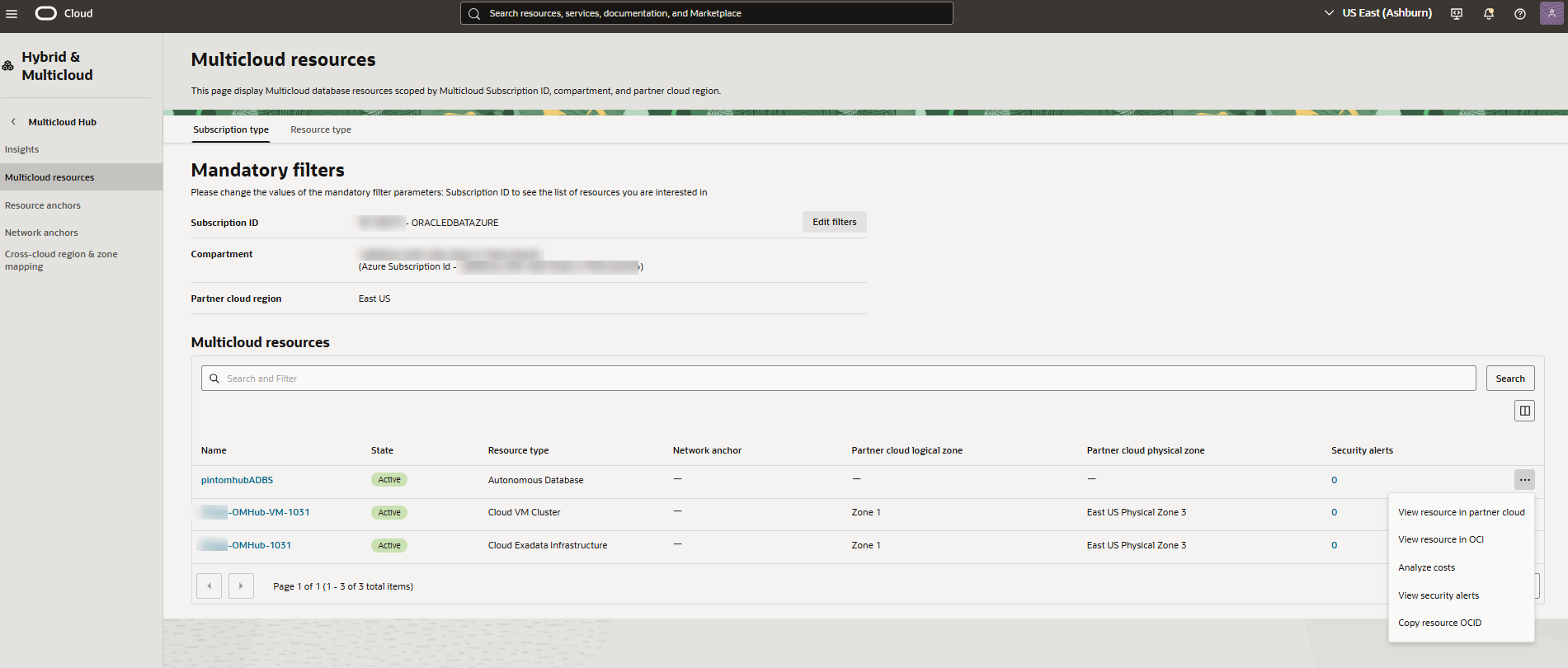
-
Open the navigation menu and select Hybrid & Multicloud. Under Multicloud Hub, select Multicloud resources.
Use the oci multicloud multicloud-resources multicloud-resource-collection list-multicloud-resources command and required parameters to list resources:
oci multicloud multicloud-resources multicloud-resource-collection list-multicloud-resources ... [OPTIONS]Example request for Microsoft Azure resources:
oci multicloud multicloud-resources multicloud-resource-collection list-multicloud-resources \
  --subscription-id <subscription_ocid> \
  --compartment-id <compartment_ocid> \
  --subscription-service-name ORACLEDBATAZURE
Example response for an Exadata Database VM Cluster resource and an Autonomous AI Database resource:
{
  "data": {
    "items": [
      {
        "compartment-id": "<compartment_ocid>",
        "compartment-name": "<compartment_name>",
        "csp-additional-properties": null,
        "csp-resource-id": "",
        "defined-tags": {
          "Oracle-Tags": {
            "CreatedBy": "<user_ocid>",
            "CreatedOn": "2025-10-31T19:03:57.197Z"
          }
        },
        "freeform-tags": null,
        "lifecycle-state": "ACTIVE",
        "network-anchor-id": "",
        "network-anchor-name": "",
        "resource-display-name": "example",
        "resource-id": "<resource_ocid>",
        "resource-type": "ExadbVmCluster",
        "system-tags": {
          "orcl-OracleDatabase@Azure": {
            "AzureAvailabilityZone": "Zone 2",
            "AzureLocation": "East US",
            "AzureResourceGroup": "example-resource-group",
            "AzureResourceName": "example-resource-name",
            "AzureResourceProviderNamespace": "Oracle.Database",
            "AzureResourceType": "exadbVmClusters",
            "AzureSubscriptionId": "<azure_subscription_id>",
            "MulticloudAzureRegion": "eastus",
            "SubscriptionId": "<subscription_ocid>"
          }
        },
        "time-created": "2025-10-31T19:04:01.715000+00:00",
        "time-updated": null,
        "vcn-id": "",
        "vcn-name": ""
      },
      {
        "compartment-id": "<compartment_ocid>",
        "compartment-name": "<compartment_name>",
        "csp-additional-properties": null,
        "csp-resource-id": "",
        "defined-tags": {
          "Oracle-Tags": {
            "CreatedBy": "<user_ocid>",
            "CreatedOn": "2025-08-12T14:19:37.498Z"
          }
        },
        "freeform-tags": null,
        "lifecycle-state": "ACTIVE",
        "network-anchor-id": "",
        "network-anchor-name": "",
        "resource-display-name": "testadbsReg",
        "resource-id": "<resource_ocid>",
        "resource-type": "AutonomousDatabase",
        "system-tags": {
          "orcl-OracleDatabase@Azure": {
            "AzureLocation": "East US",
            "AzureResourceGroup": "AdbsDemoRG",
            "AzureSubscriptionId": "<azure_subscription_id>",
            "MulticloudAzureRegion": "eastus",
            "MulticloudTenantId": "<tenancy_ocid>",
            "SubscriptionId": "<subscription_ocid>"
          }
        },
        "time-created": "2025-08-12T14:19:37.532000+00:00",
        "time-updated": null,
        "vcn-id": "",
        "vcn-name": ""
      }
    ]
  }
}
For a complete list of parameters and values for CLI commands, see the CLI Command Reference.
Getting Details for a Resource (OCI)
View the details for a Multicloud resource in the Console, using Multicloud Hub.
On the Multicloud resources list page, select the resource that you want to work with. If you need help finding the list page, see Multicloud Resources.
Multicloud Hub navigates to the corresponding service in the Console. The details page opens and displays information about the resource.
Getting Details for a Resource (Partner Cloud)
View the details for a Multicloud resource in the partner cloud, using Multicloud Hub in the Console.
- On the Multicloud resources list page, find the resource that you want to work with. If you need help finding the list page, see Multicloud Resources.
- From the , select View resource in partner cloud.