Default Start and Completion Dates on Work Requests Based on Priority and Type
Start and completion dates on mobile work requests can be automatically populated based on priority and request type. Default values improve consistency and reduce data entry during work request creation. The feature helps align newly submitted work requests with expected response windows and planning rules.
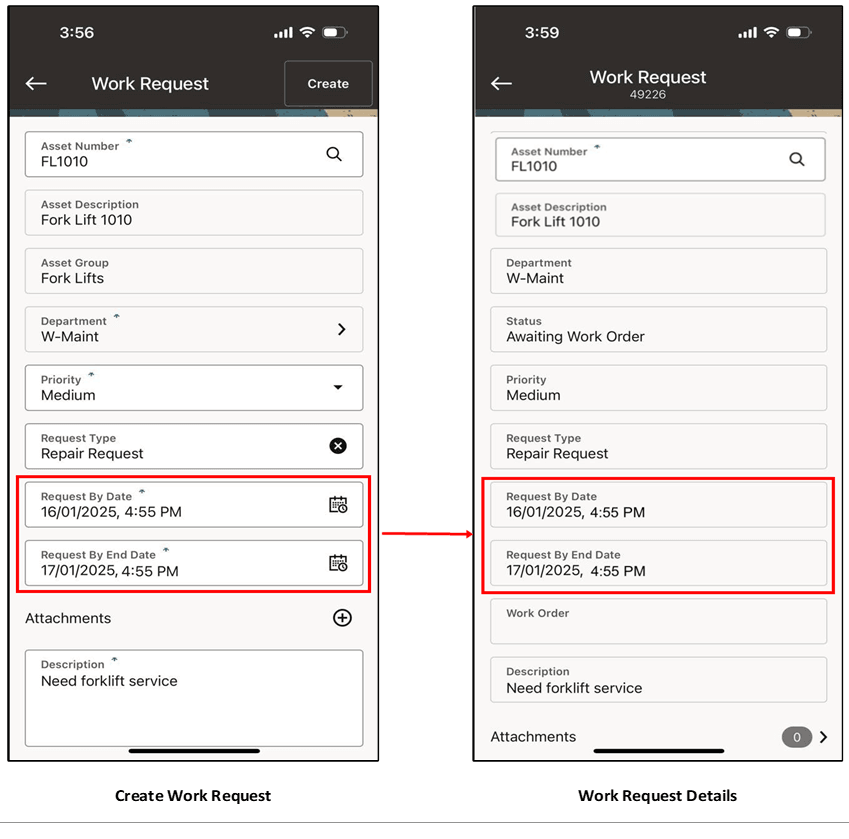
Default Start and Completion Dates
Steps to enable and configure
- Review work request priority and type setup, including the business rules used to determine target dates.
- Confirm that Mobile Maintenance users have the current setup through synchronization or refresh.
- Create a work request in the mobile app and choose the priority and request type.
- Verify that start and completion dates default as expected, then submit the request.
Tips and considerations
- Make default date rules transparent to supervisors and request reviewers.
- Allow users to adjust dates only where the maintenance process permits it.
- Test combinations of priority and request type that represent urgent, standard, and low-priority work.
Key resources
- My Oracle Support Document KB858915, Oracle Mobile Maintenance for Oracle E-Business Suite Release Notes
- Oracle E-Business Suite Mobile Apps Administrator's Guide
- Oracle Enterprise Asset Management Implementation Guide
- Setting Up (chapter)
- Oracle Enterprise Asset Management User's Guide