Kanban Dashboard
Use electronic Kanban capabilities in Inventory Management through the Kanban Dashboard. Oracle Electronic Kanban was previously available through a Discrete Manufacturing Execution System license and is now available as part of Inventory Management.
Kanban planners and inventory control supervisors can use the command center to gain insights about the current inventory health at various inventory locations known as points of use, material replenishment lead time, Kanban demand, and unmoved Kanban cards to manage inventory levels and control inventory cost.
The Kanban Dashboard provides a graphical view of Kanban cards and pull sequences, with insights into Inventory Health, Replenishment Lead Time, Kanban Demand, and Unmoved Cards. Clickable metrics, charts, and result tables let Kanban planners navigate quickly, drill into a pull sequence or Kanban card, and take action to resolve exceptions.
As a Kanban planner or an inventory control supervisor, you can use the Kanban Dashboard to:
- Review Kanban pull sequence metrics.
- Review Kanban card metrics.
- Track and monitor inventory health using the Inventory Health tab.
- Review inventory health of Kanban items periodically at various points of use in the organization and identify the pull sequences with low, normal, or excess stock.
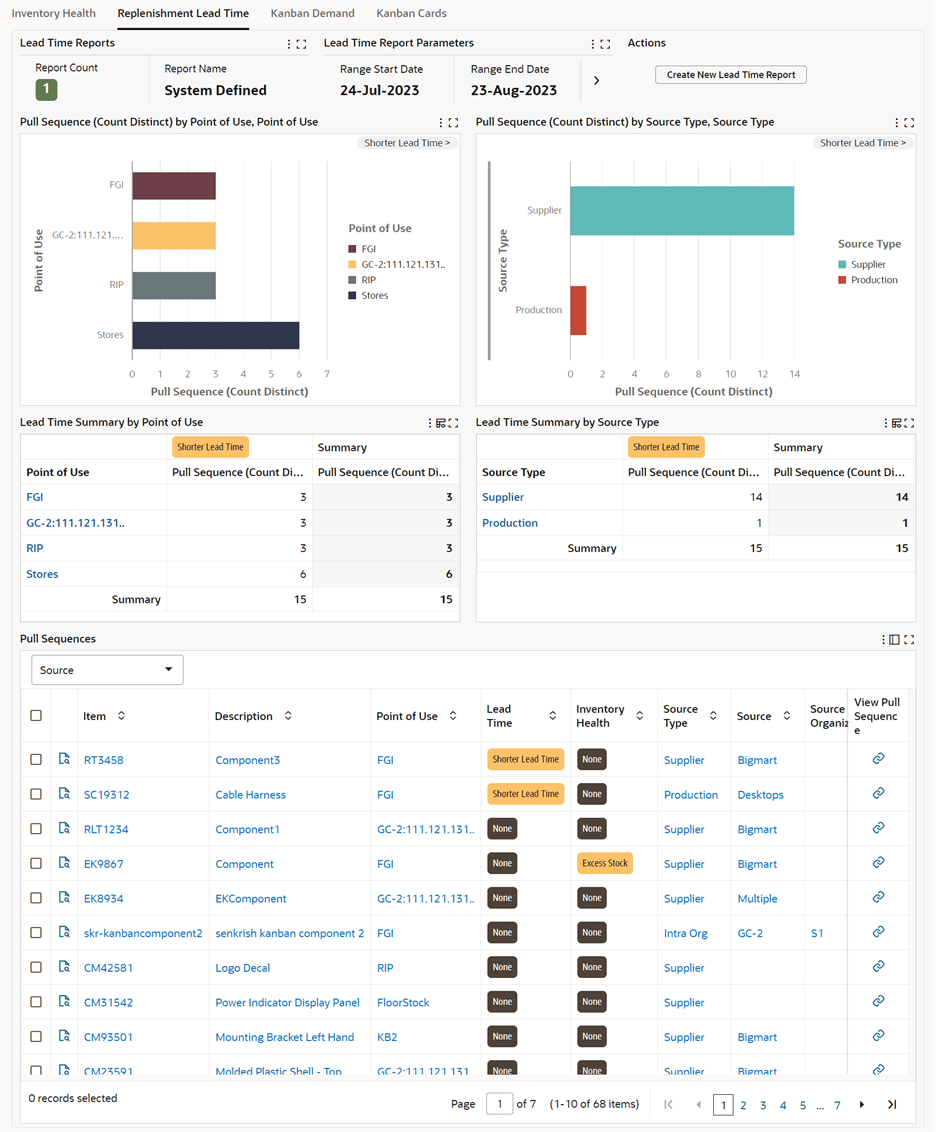
- View and monitor the replenishment lead time using the Replenishment Lead Time tab.
- Review replenishment lead time performance.
- Handle supply exception due to longer replenishment lead time situations.
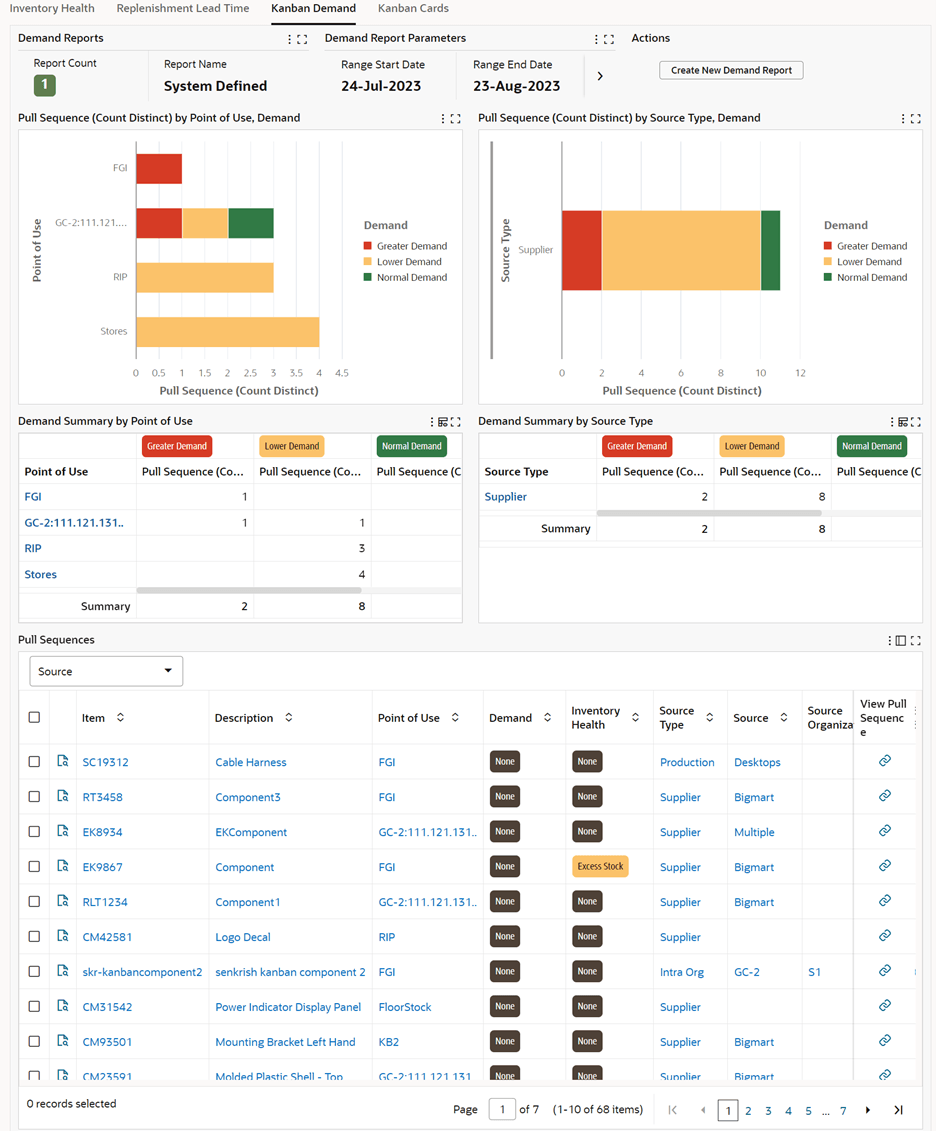
- Analyze demand requirements using the Kanban Demand tab.
- Monitor demand for pull sequences at various points of use in the organization
- Proactively identify potential future stockout situation due to changes in demand.
- Monitor unmoved cards using the Kanban Card tab.
- Find Kanban cards that have been in a particular supply status for an extended period.
- Take action to follow-up with supply source to ensure timely replenishments.
- View the Replenishment Chain network diagram and use the information to take necessary action.
- Navigate to other Electronic Kanban Oracle application pages.
Kanban Dashboard
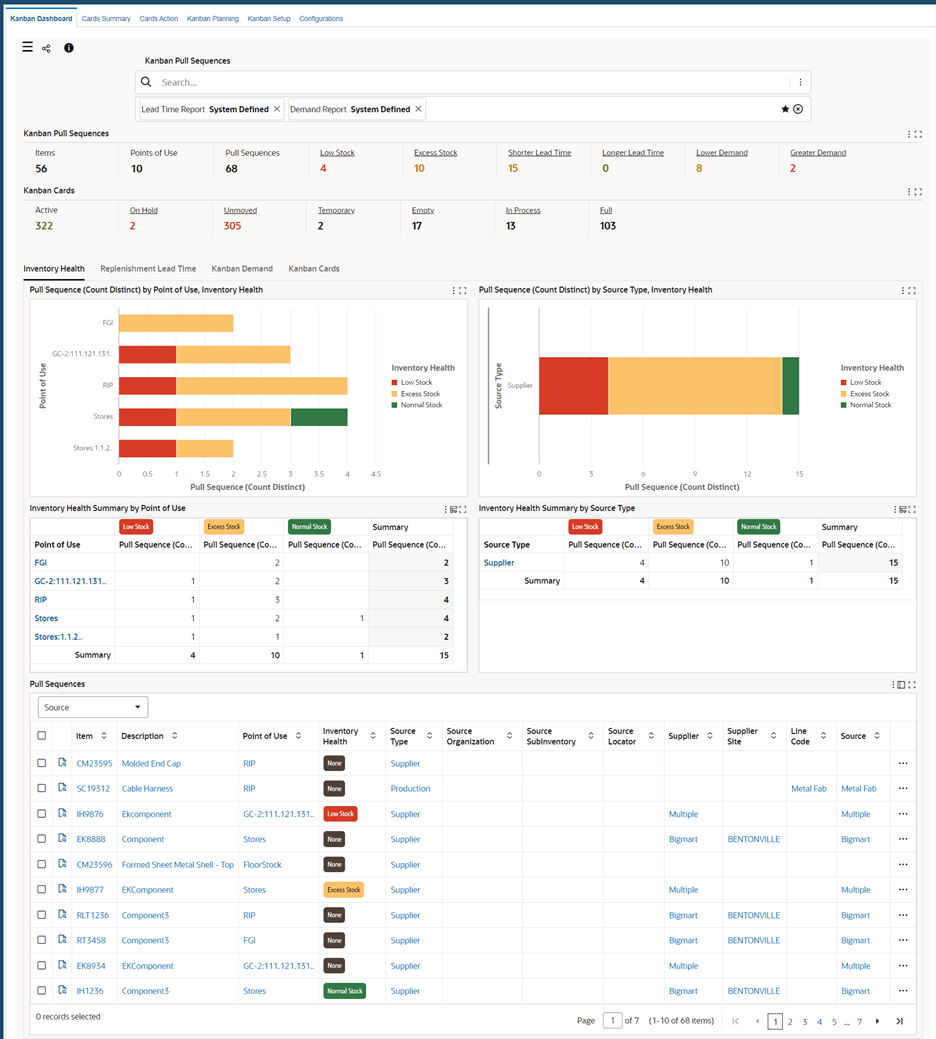
Inventory Health Tab 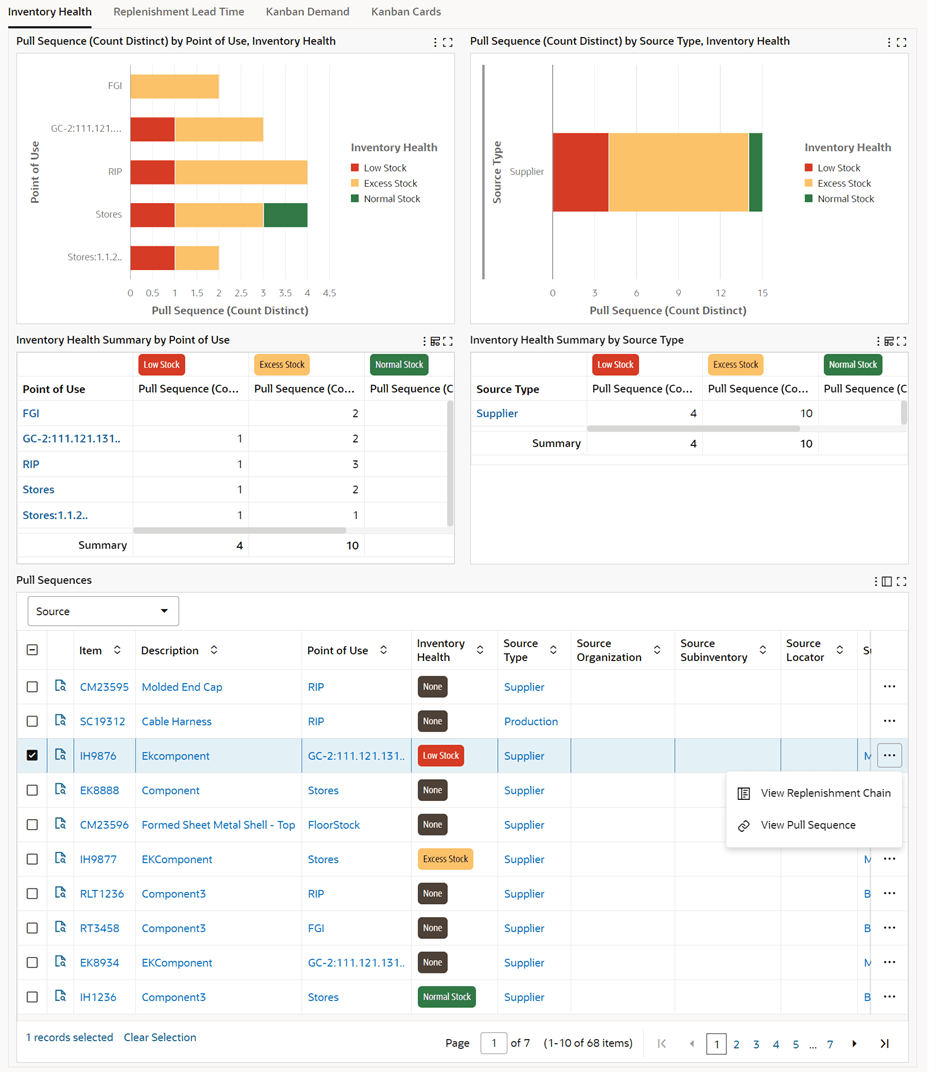
Replenishment Lead Time Tab
Kanban Demand Tab
Kanban Cards Tab 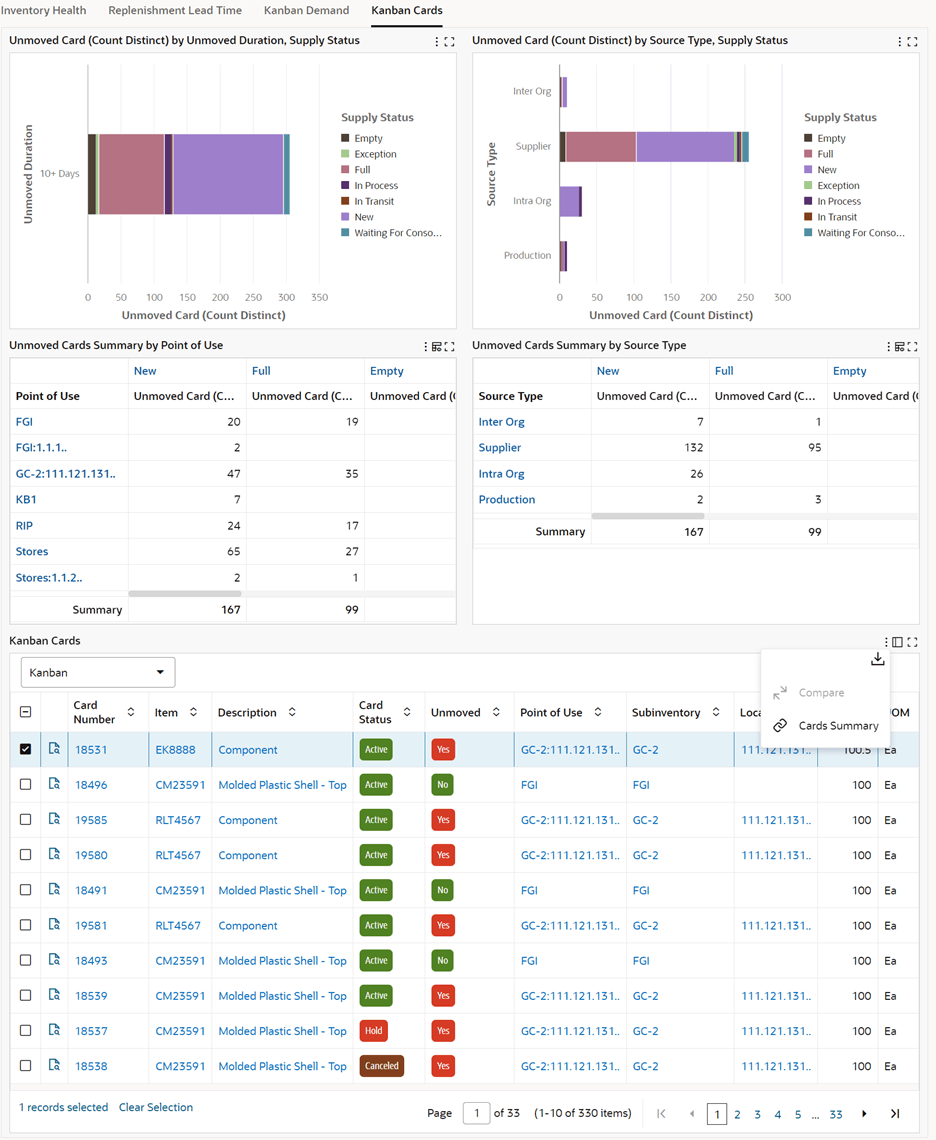
Steps to enable and configure
- Apply the Oracle Inventory Management Command Center update that delivers the Kanban Dashboard and confirm the required Oracle Enterprise Command Center Framework level is installed and enabled.
- To complete setup of the Kanban Dashboard:
- Set profile options
- Enable Electronic Kanban ECC access roles
- Load Electronic Kanban data
- Confirm electronic Kanban setup, pull sequences, Kanban cards, replenishment sources, and planner responsibilities for the inventory organizations in scope.
- Validate drilldown to pull sequences and Kanban cards and confirm the exception actions available to Kanban planners.
Tips and considerations
- Confirm that organization, subinventory, item, and responsibility security match the business audience for the dashboard before broad rollout.
- Use selected refinements and result-table drilldowns during testing so users can move from a summary metric to the transaction or setup page where action is taken.
- Use Inventory Health and Kanban Demand together to decide whether an exception is driven by current inventory or replenishment behavior.
- Include unmoved cards in operational review so inactive cards do not hide replenishment issues.
Key resources
Oracle Electronic Kanban User's Guide
Oracle Inventory User's Guide
Transfer of Information
R12.2.13 TOI: Implement and Use Inventory Management - Oracle Inventory Management Command Center - Electronic Kanban Dashboard