View Replenishment History for Item at Point of Use in Kanban Dashboard
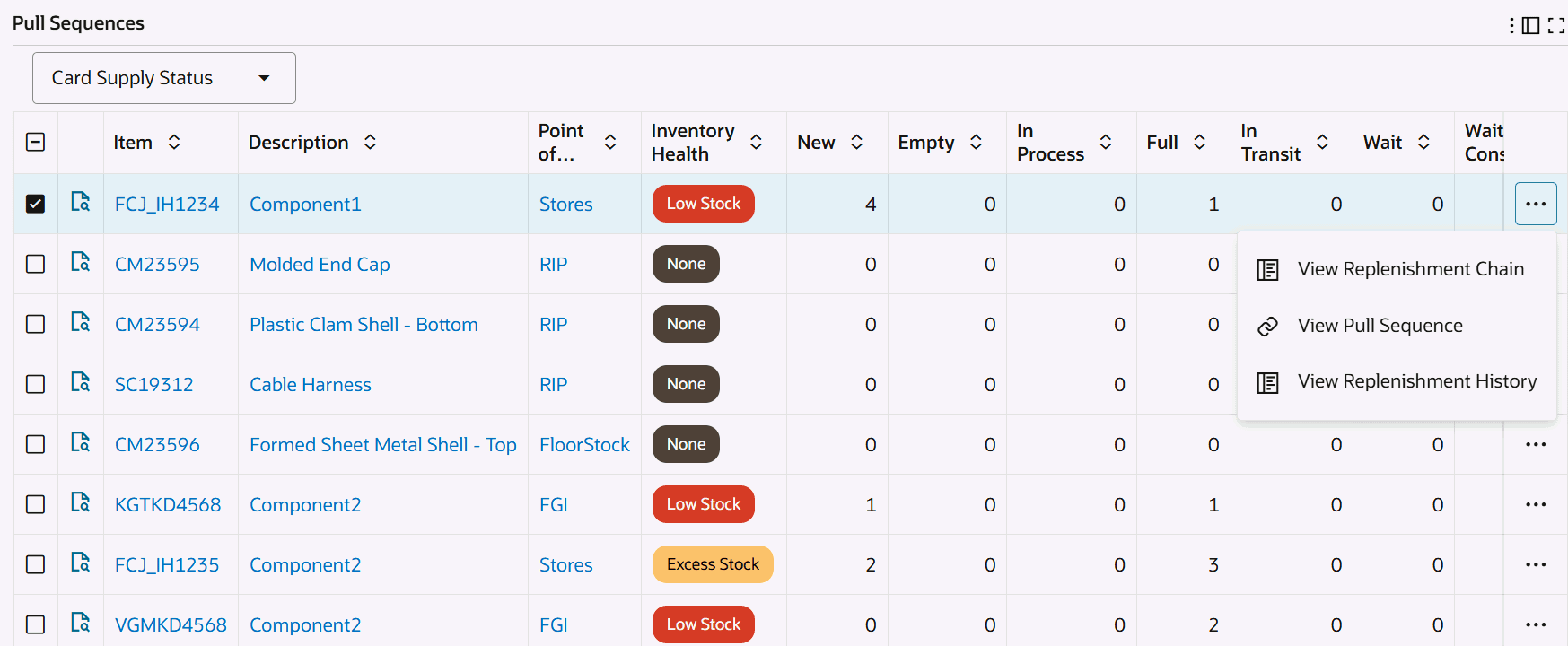
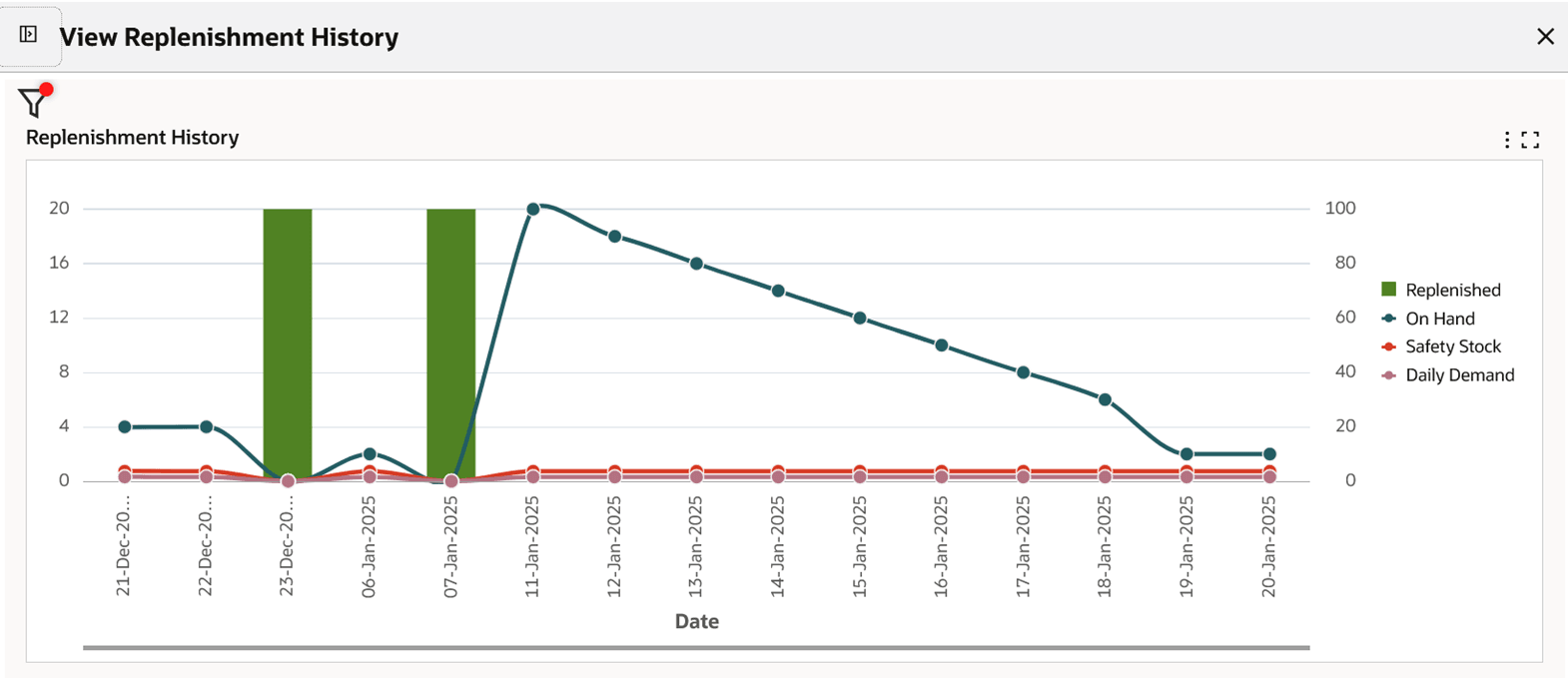
View replenishment history for an item at a point of use from the Inventory Health tab and Kanban Demand tab of the Kanban Dashboard. Users can visualize historical replenishment with on-hand balance, safety stock, and daily demand trend for the item and point of use.
This helps Kanban planners understand whether replenishment behavior aligns with consumption at the point of use. The historical view gives planners context for demand changes, safety stock effectiveness, and recurring replenishment patterns.
Inventory Health Tab – View Replenishment History
Kanban Demand Tab – View Replenishment History
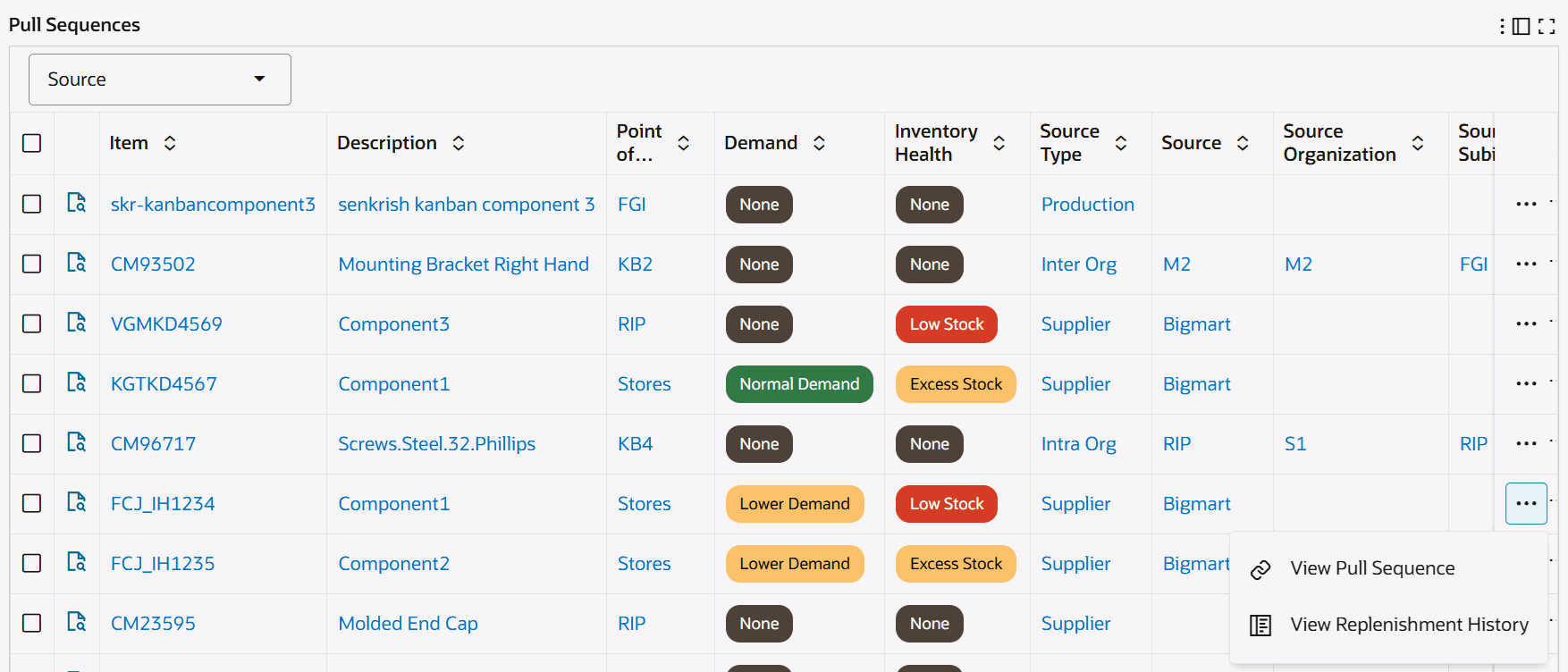
View Replenishment History: Click this action link to view the replenishment history for an item pull sequence in the View Replenishment History drawer. The chart aggregates the replenishments of all cards in the item pull sequence and displays data by day dimension. The chart shows replenishment history based on the range defined in the Demand Report. You can view replenishments for Kanban cards and temporary cards. The chart also plots on hand, safety stock, and daily demand using the predefined color indicators.
View Replenishment History
Steps to enable and configure
- Apply the Oracle Inventory Management Command Center update that delivers historical material consumption and replenishment in the Kanban Dashboard and confirm the required Oracle Enterprise Command Center Framework level is installed and enabled.
- Confirm that Kanban point-of-use, on-hand, safety stock, daily demand trend, and replenishment history data is available for the Kanban cards in scope.
- Validate the Inventory Health and Kanban Demand tabs for representative items and points of use.
- Schedule the Create Kanban Replenishment Snapshot program to run daily to display the line graphs for on hand, safety stock, and daily demand quantities. You must run the Create Kanban Replenishment Snapshot program before you run the Electronic Kanban ECC Data Load concurrent program.
Tips and considerations
- Confirm that organization, subinventory, item, and responsibility security match the business audience for the dashboard before broad rollout.
- Use selected refinements and result-table drilldowns during testing so users can move from a summary metric to the transaction or setup page where action is taken.
- Use the historical view before changing card size, safety stock, or replenishment setup.
- Review point-of-use trends across a meaningful history period so one unusual demand day does not drive the replenishment decision.
Key resources
Oracle Electronic Kanban User's Guide
Oracle Inventory User's Guide
Transfer of Information
R12.2.14+ TOI: Implement and Use Inventory Management - Oracle Inventory Management Command Center - Kanban Dashboard