Record Electronic Records and E-Signatures When Performing Batch Actions in Batch Status Dashboard
In the Batch Status Dashboard, you can now perform selected batch actions with Electronic Records and Electronic Signatures support. The following lists the Electronic Records and Electronic Signatures supported actions in the dashboard:
- Batch Release
- Batch Hold or Hold Release
- Batch Completion.
To use use e-records and e-signatures with batch actions in the Batch Status dashboard:
- In the Batch Status dashboard, select a pending batch for production, and from the Actions list, select Batch Quick Actions.
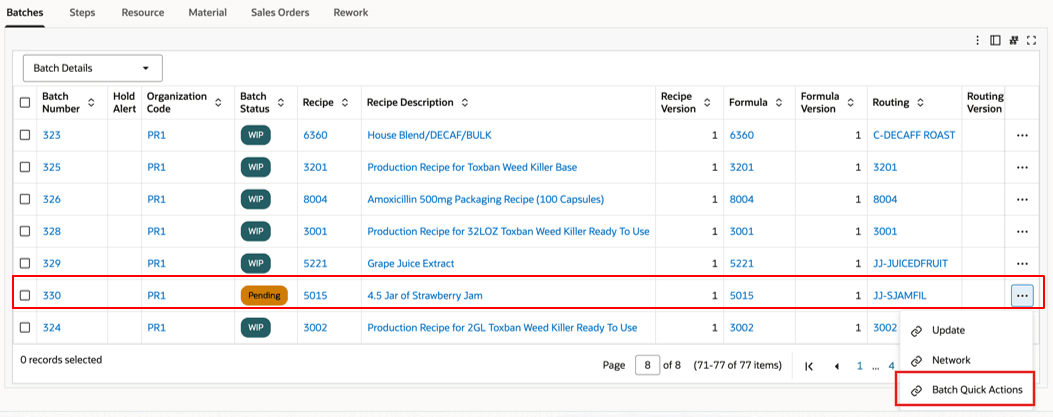
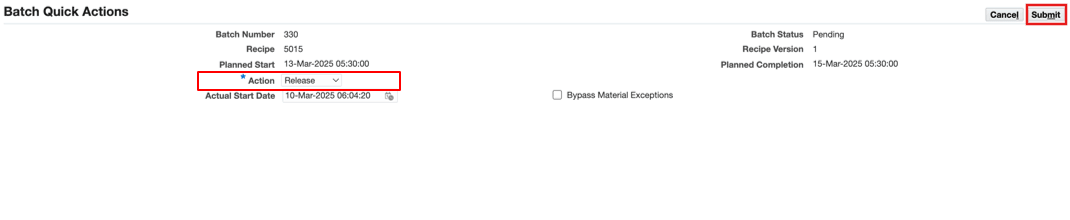
- In the Batch Quick Actions page's Action field, select the Release, Hold, or Completion action and then select Submit.
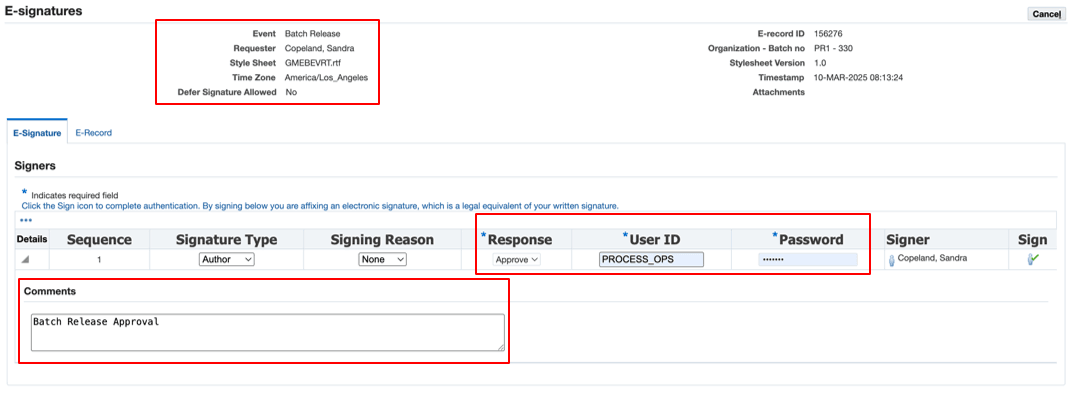
- In the ESignatures page, select the specific signer to begin the signoff process, select a value in the Response field, enter your user name and password, any comments, and then click Sign.
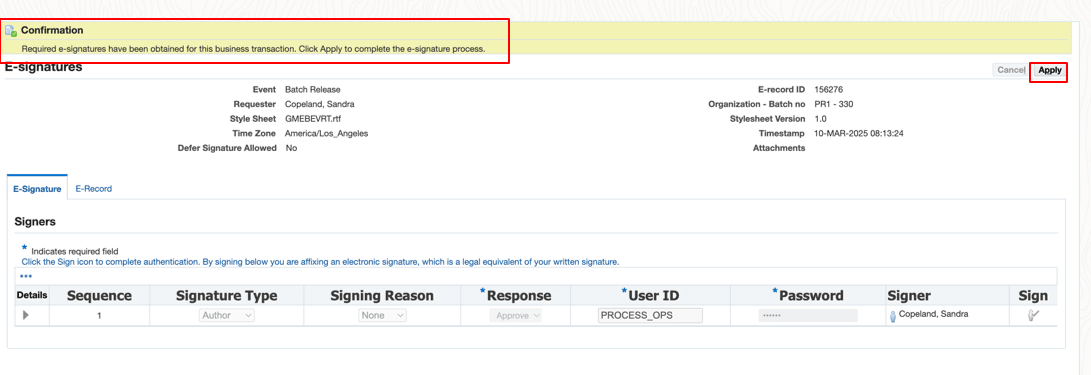
- On the Confirmation page, select Apply.
- Note that the Batch Release is approved and then click OK.
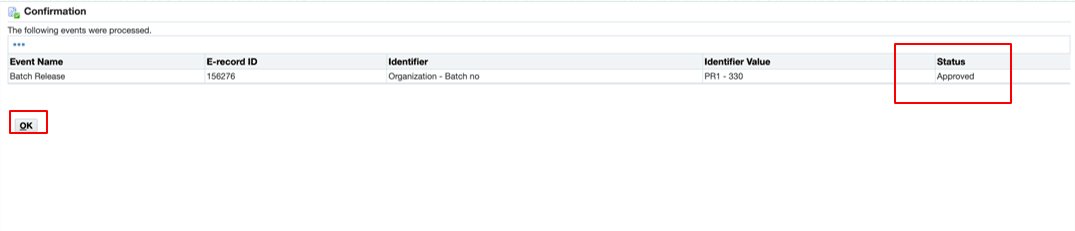
Prior to this release, batch actions from the Batch Status Dashboard were not Electronic Records and Electronic Signatures supported. This enhancement aligns dashboard quick actions with controlled electronic-record business processes.
Steps to enable and configure
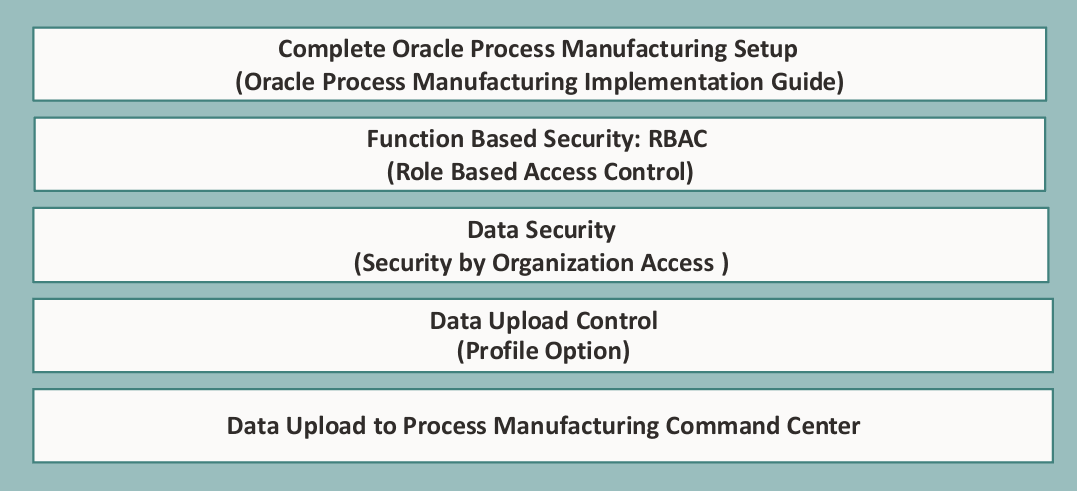
Ensure Oracle Enterprise Command Center Framework Release 12.2 V14 or later is available for this functionality and complete the setups to enable the Process Manufacturing Command Center.
Tips and considerations
- Use the Process Manufacturing Command Center's selected refinements and result-table drilldowns during testing to move from a metric to the transaction or setup page where you can take action for a batch.
- Use ERES-enabled quick batch actions for regulatory compliance.
Key resources
- Oracle Process Manufacturing Process Execution User's Guide
- Chapter: Oracle Process Manufacturing Command Center
- Topic: Batch Status Dashboard
- Chapter: Oracle Process Manufacturing Command Center
- Oracle ERecords Implementation Guide:
- Chapter: Implementing E-records
- Chapter: iSignatures
- Oracle E-Business Suite User's Guide
- Chapter: Enterprise Command Centers
- Topic: Overview of Oracle Enterprise Command Center
- Chapter: Enterprise Command Centers
- R12.2.14+ TOI: Implement and Use Process Manufacturing - Oracle Process Manufacturing Command Center