Track In-Flight Orders (IFO) in G-Invoicing Dashboard
This enhancement adds support for in-flight orders in the G-Invoicing Dashboard. Users can manage and review orders that are in the process of being fulfilled but are not yet complete.
Use the dashboard filters and search capabilities to locate and monitor specific in-flight orders more efficiently.
This feature:
- Improves visibility to IGT orders that are active, in progress, or not yet complete.
- Helps users identify order status, progress, and related performance or settlement activity.
G-Invoicing Dashboard now includes an option In-Flight Order Indicator, in the Orders tab, Funding Details attribute that identifies an order as an in-flight order.
In-Flight Order Indicator
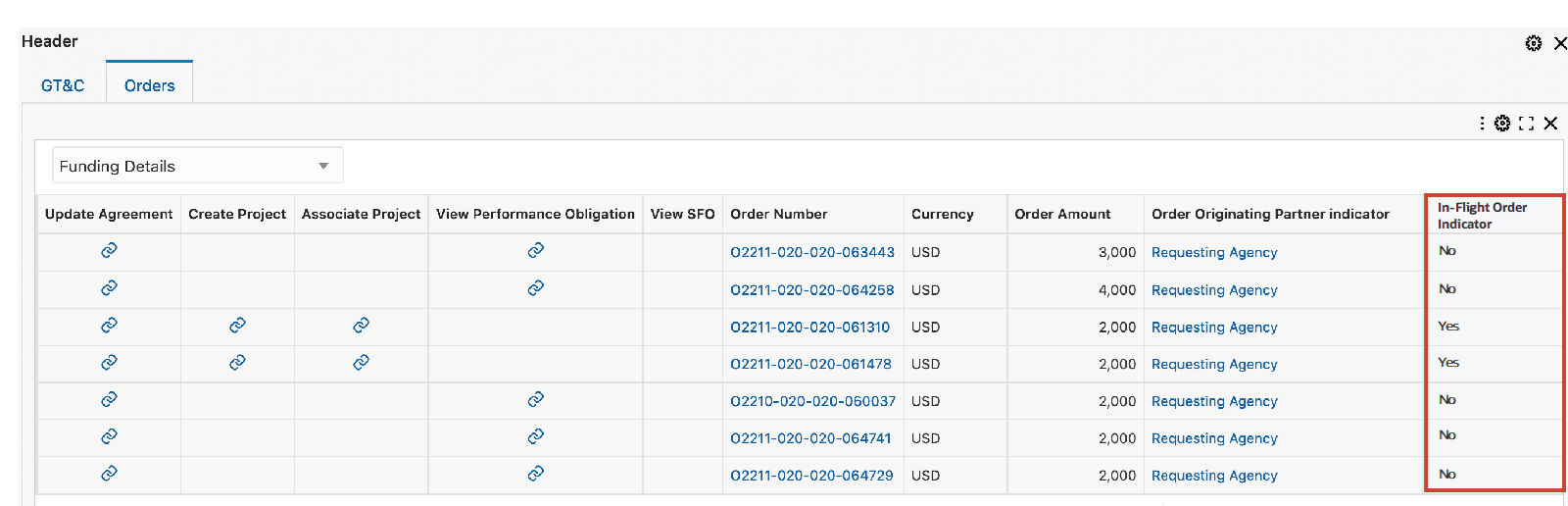
- In the G-Invoicing dashboard, from the Header region of the Orders tab, select the in-flight order initiated by the servicing agency to modify and click View SFO. On the Seller-Facilitated Order page, you can update the order, for example add an order line.
- After you save changes, you can return to the G-Invoicing Dashboard, and for the SFO, now select the View Performance Obligation link. Click Update andeEnter the top task number and the servicing TAS.
- For the order, you can perform the following actions as appropriate:
- Update Agreement
- Confirm Funds Availability
- Submit for Requesting Approval.
- After the order is approved and the status changes to open, the servicing agency can pull the approved IFO into Oracle EBS by running the Intragovernmental Orders Interface Program. Run the Projects G-Invoicing ECC Data Load concurrent program to refresh data in the G-Invoicing dashboard. The seller-facilitated in-flight order is pulled into the G-Invoicing dashboard.
Steps to enable and configure
- Apply the R12.2.13 Projects Command Center update and confirm Oracle Enterprise Command Center Framework Release 12.2 V11 or later is installed.
- Confirm G-Invoicing integration setup for in-flight order retrieval and processing.
- Grant dashboard access to users who monitor IFO status, order progress, performance, and settlement.
- Refresh G-Invoicing Dashboard data so in-flight order attributes, order status, line status, and schedule details are populated.
- Validate dashboard filters, order status, order progress, line and schedule details, and follow-up actions using representative in-flight orders.
Tips and considerations
- Use orders at different lifecycle points to confirm that dashboard status and progress values are meaningful.
- Review IFO examples with both Projects and G-Invoicing process owners because source status can change outside the dashboard.
- When expected orders are missing, verify integration status, data refresh timing, and agency/system ID setup.
Key resources
Oracle E-Business Suite G-Invoicing Process Guide
- Chapter: Using G-Invoicing: Servicing Agency
- Topics:
- In-Flight Orders
- Modifying Seller-Facilitated In-Flight Orders
- Chapter: Enterprise Command Center
- Topics:
- Projects Command Center Configuration
- G-Invoicing Dashboard