Filter Out Zero-Charge Lines in Order Submission Process
This feature provides greater control over which charge lines are sent to Order Management, allowing organizations to exclude lines with zero charges based on specific service activity setups, thereby streamlining financial transactions and reducing unnecessary processing.
Prior to this release, the system relied on a binary profile setting of Service: Post Zero Charges to OM with options Yes or No to either post all charges or exclude all zero charges, without the granularity to filter based on service activity configurations. Now, you can filter zero charge lines based on the service activity setup.
This feature improves precision in financial processing by ensuring that only relevant charge lines are submitted, helping reduce unnecessary clutter in Order Management and saving administrative effort. It supports efficient billing practices by allowing organizations to exclude zero-charge service activities that do not require invoicing while retaining other records for tracking and audit purposes, with consideration given to aligning service activity setups with organizational billing policies.
Feature Description
Service: Post Zero Charges to OM Profile Option
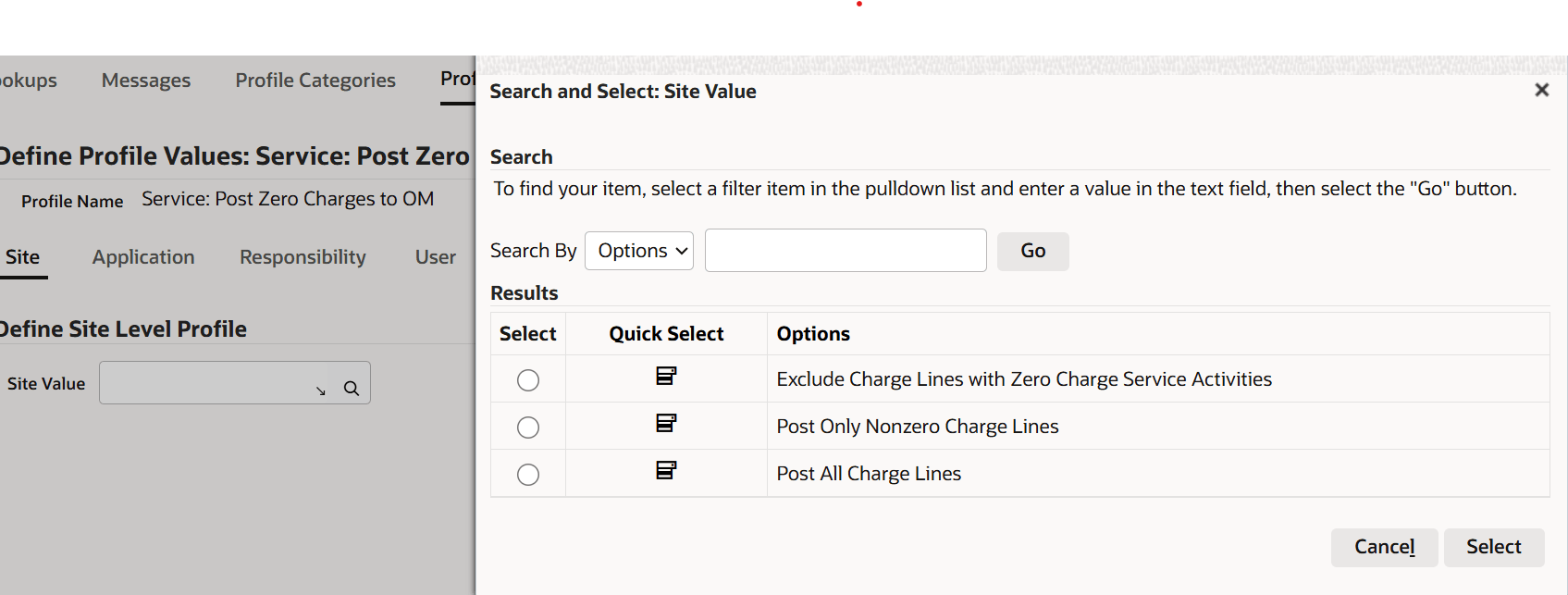
To configure this feature, the following changes are made to the Service: Post Zero Charges to OM profile option:
- A new "Exclude Charge Lines with Zero Charge Service Activities" value is added. This value is based on the service activity setup. This profile option value does not consider the charge line for submission for a service activity if only the Zero Charge check box is selected for the charge line. The charge net price must be zero because of price adjustment, contract discount, or overriding of the unit price.
- The existing values are renamed as follows.
- Yes to Post All Charge Lines
- No to Post Only Nonzero Charge Lines
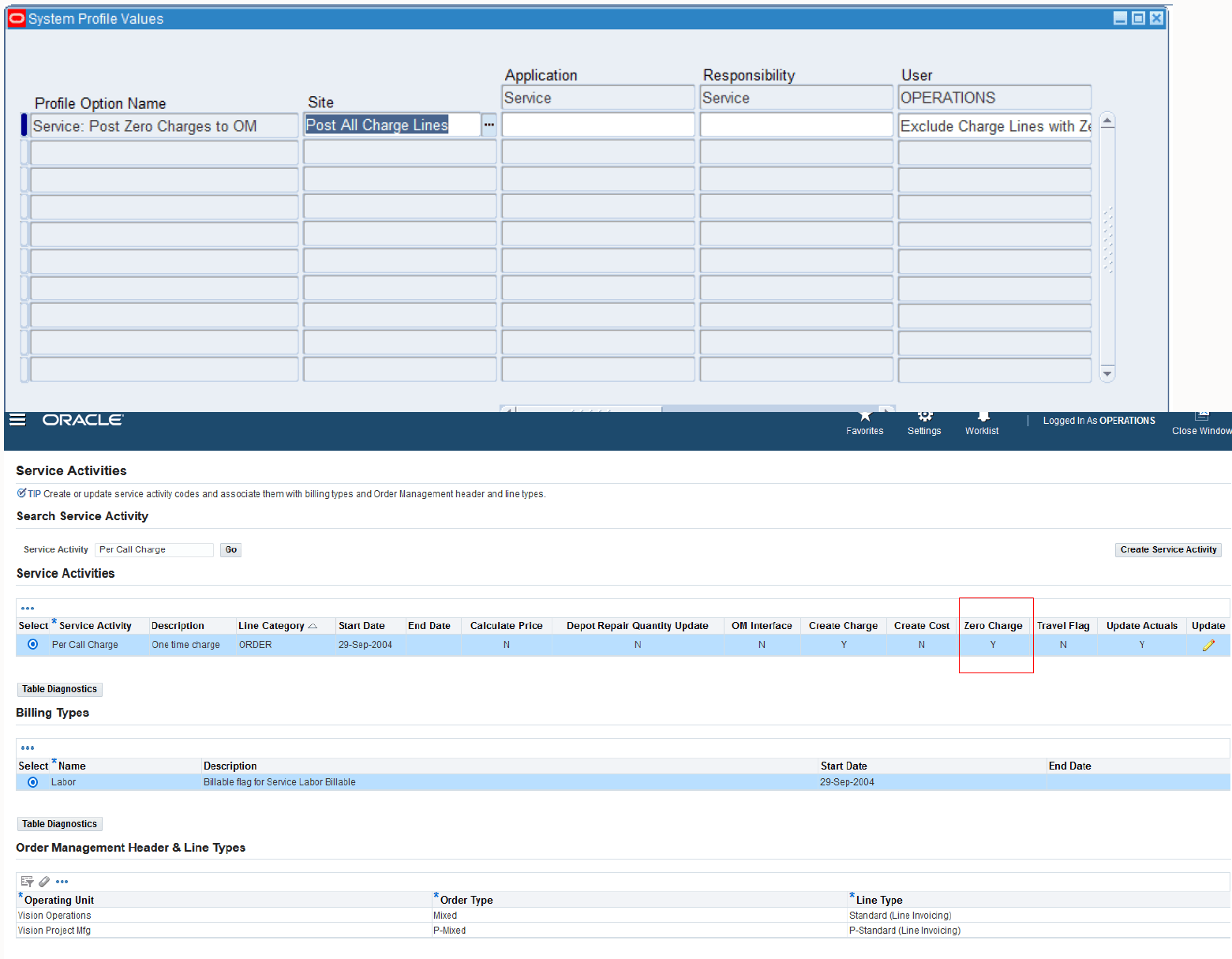
Example: Setting the Profile Option Value to Exclude Charge Lines with Zero Charge Service Activities
- Navigate to the Service Activities page from Setup > Charges.
- Query for the service activity Per Call Charge.
- Set the Zero Charge option to Yes for this service activity.
Zero Charge Set to Yes for the Service Activity
- Then, navigate to the Service Request window and create a Service Request.
- Go to the Charges tab and create the following charge lines:
- Create a charge line with Loaner as the service activity and item AS54888. In the Pricing tab, change Overriding Unit Price to 0 for this charge line.
- Create another charge line with the service activity “Per Call Charge” and item Labor. Because the Service Activity setup, net price is 0 and the Zero Charge checkbox is selected.
- Save and submit the charge lines.
Screenshot Showing Service Request Window with Charge Lines and Order Tab
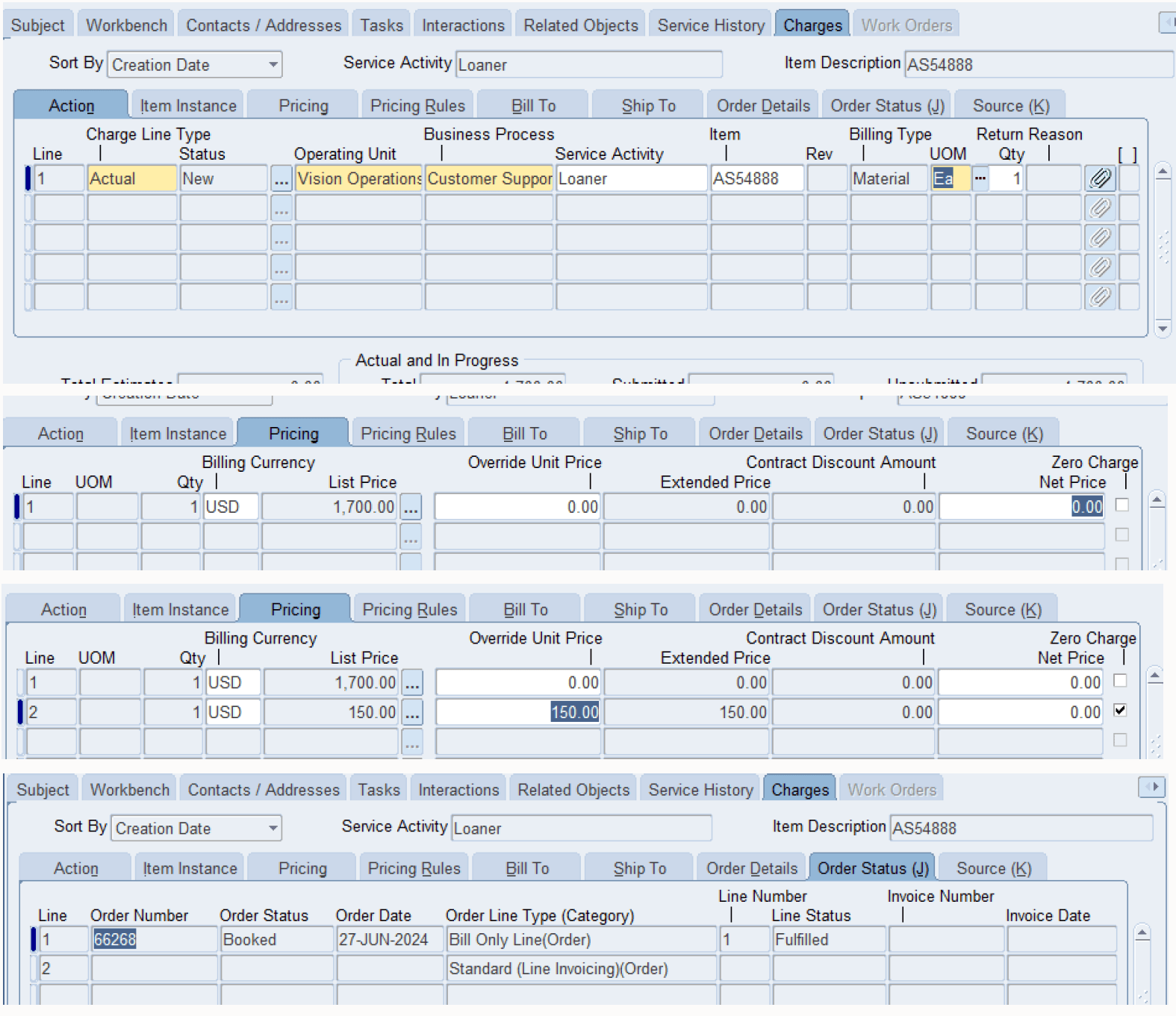
In the Order Status tab, you can see that the line with Loaner as the service activity and item AS54888 is submitted to Order Management. The line with the service activity “Per Call Charge” is not submitted to Order Management.
Steps to enable and configure
- Set the profile "Service: Post Zero Charges to OM" to "Exclude only Zero Charge Service Activities" to enable filtering of charge lines with zero charges based on the service activity setup.
- Access the Service Activity Code (SAC) setup page from Setup > Charges to configure specific service activities.
- Query and update the relevant service activity to set the zero charges flag to "Yes" if it should be excluded during order submission.
- Save the configuration to ensure that charge lines with zero charges for the specified service activities are not submitted to Order Management.
Tips and considerations
- Carefully review and configure the Service Activity Code setups to ensure that only the intended zero-charge lines are excluded from submission.
- Test the filtering logic in a non-production environment to confirm alignment with your financial and billing processes.
- Train staff on the updated profile settings and SAC configurations to ensure consistent application of this filtering capability across service operations.
- Monitor the order submission process post-implementation to verify that excluded zero-charge lines are handled as expected and do not impact downstream reporting.
Key resources
Oracle TeleService Implementation and User Guide
- Chapter: Implementing Charges
- Topic: Setting Up Charges Process Overview
- Chapter: Charges User Procedures in Forms Interface
- Topic: Creating a Charge Line
- Chapter: Charges User Procedures in HTML Interface
Topic: Creating a Charge Line
Transfer of Information
R12.2.14 TOI: Implement and Use TeleService