Changing WebLogic Administrator Password
Use the WebLogic Server Administration Console to change your password for the WebLogic administrator account that you use to manage your middleware servers.
Note:
To change your password for the WebLogic administrator account that you use to manage your Oracle Essbase server, see Change WebLogic Password.- Log in to the WebLogic Administration Console using WebLogic administrator
credentials. The URL is of the
format:
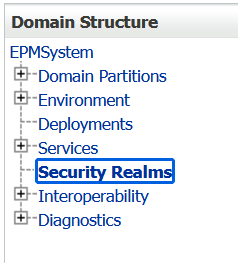
http://WebLogic_Admin_Host:WebLogic_Admin_Port/console - On the home page, in the Domain Structure portlet, click Security
Realms.
- Under Summary of Security Realms >
Realms, click the name
myrealm with Default Realm status
True.

- Under Settings for myrealm, click Users and Groups tab.
- Under Users, click the WebLogic administrator's user name.
- Under Settings for administrator_name, click Passwords tab.
- Enter your new password in the New Password and Confirm New Password fields.
- Click Save.
- Under Summary of Security Realms >
Realms, click the name
myrealm with Default Realm status
True.
- Stop the WebLogic Administration Server. To stop the WebLogic Administration Server,
open command prompt and run
stopWeblogic.cmdcommand from the following location:<MIDDLEWARE_HOME>/user_projects/domains/<your_domain>/bin - Stop all the Managed servers.
- Modify the
boot.propertiesfile for Administration Server:- Open
boot.propertiesfile from the following location:<MIDDLEWARE_HOME>/user_projects/domains/<your_domain>/servers/<AdminServer>/security - Remove the previous value (if any) and enter the value for new password in
clear text. For example:
username=epm_admin
password=*****
Note:
- Username is the name of the WebLogic administrator for the domain. The default user name is epm_admin.
- Password is the new password for the WebLogic administrator. You should change the default value in this file to the new password for your WebLogic Admininstration Server.
- Save and close the file.
- Open
- Start the WebLogic Administration Server. You may now log in to the WebLogic Server
Administration Console, and verify your new password. To start the WebLogic
Administration Server, open command prompt and run
startWeblogic.cmdcommand from the following location:<MIDDLEWARE_HOME>/user_projects/domains/<your_domain>/binNote:
Ensure that the WebLogic Administration Server remains running throughout Steps 7 and 8. - Repeat the following procedure for every managed server (for example,
FoundationServices0,Planning0, andProfitability0) on every server in the EPM deployment under the following location:<MIDDLEWARE_HOME>/user_projects/domains/<your_domain>/servers/<ManagedServer>/security- Modify the
boot.propertiesfile for the Managed Server:- Open
boot.propertiesfile from the following location:<MIDDLEWARE_HOME>/user_projects/domains/<your_domain>/servers/<ManagedServer>/security - Remove the previous value (if any) and enter the value for new
password in clear text. For example:
username=epm_admin
password=*****
- Open
- Save and close the file.
- Rename the LDAP (Lightweight Directory Access Protocol) directory from the
following location (only Managed
Servers):
<MIDDLEWARE_HOME>/user_projects/domains/<your_domain>/servers/<ManagedServer>/data/ldap
- Modify the
-
Update the EPM Registry with the new WebLogic Administrator password, then Restart the environment to apply the changes
- Start all the services and run the validation report to ensure that all the services are running successfully.
Updating the EPM Registry
To update the EPM Registry, perform the following steps:
-
Open a command prompt on the EPM server.
-
Run the following command to display the EPM Registry:
epmsys_registry view -
Locate the APP_SERVER component in the output and note its Component ID.
-
Update the encrypted adminPassword property by running the following command:
epmsys_registry updateencryptedproperty #<ComponentID>/@adminPassword <New_WebLogic_Password>Where:
-
<ComponentID>is the Component ID of the APP_SERVER component. -
<New_WebLogic_Password>is the new WebLogic Administrator password.
-
Restart the Environment
To Restart the Environment, perform the following steps:
-
Start the WebLogic Administration Server.
-
Start all Managed Servers.
-
Verify that all Oracle Enterprise Performance Management (EPM) services start successfully and that no authentication errors are reported during startup.
Validation
After completing the password rotation, perform the following validation checks:
-
Verify that you can successfully sign in to the WebLogic Administration Console using the new administrator password.
-
Verify that all Oracle Enterprise Performance Management (EPM) applications are accessible.
-
Verify that all Managed Servers are in the RUNNING state.
-
Review the WebLogic and EPM server logs for any authentication or startup errors.
-
Complete the ODI SUPERVISOR Password Rotation procedure to synchronize the ODI SUPERVISOR password with the new WebLogic Administrator password. This includes updating the WebLogic Credential Store and the Data Management ODI connection.
-
Run the standard post-password rotation validation report and confirm that all validation checks complete successfully.
Note: Updating only the WebLogic Administrator password is not sufficient. To ensure continued operation of FDMEE and ODI components, you must also update the ODI SUPERVISOR password, the corresponding WebLogic Credential Store entry (if applicable), and the Data Management ODI connection so that all credentials remain synchronized.
For more information, refer to the following links: