Accessing the JD Edwards EnterpriseOne Servers Using Their Public IP Addresses
This section shows you how to access the JD Edwards EnterpriseOne Servers using their public IP addresses.
Prerequisites
- The user interface for the Oracle Cloud Infrastructure Console is constantly evolving. For the most up-to-date descriptions and navigation, refer to Using the Console.
- You should have a fundamental understanding of the Oracle Cloud Infrastructure. It is highly recommended that you review the extensive collateral information, including training, at this site: Oracle Cloud Infrastructure
- You must have a subscription and an Administrator account to Oracle Cloud Infrastructure as described at this site: Getting Started with Oracle Cloud
- Successfully completed the Deployment of a Quick Start or an Advanced Deployment Plan using the JD Edwards One-Click Provisioning Console.
After the successful deployment of all the Servers according to the Orchestration created using the JD Edwards One-Click Provisioning Console, you can access these deployed JD Edwards EnterpriseOne Servers and Development Client Using their public IP addresses:
- Server Manager Console
- HTML Server
- AIS Server
- Deployment Server
Server Manager Console
After the Server Manager Console is started, you can access it using its public IP address using this syntax:
http://<Public IP Address for Server Manager>:8999/manage
For example:
http://111.11.11.111:8999/manage
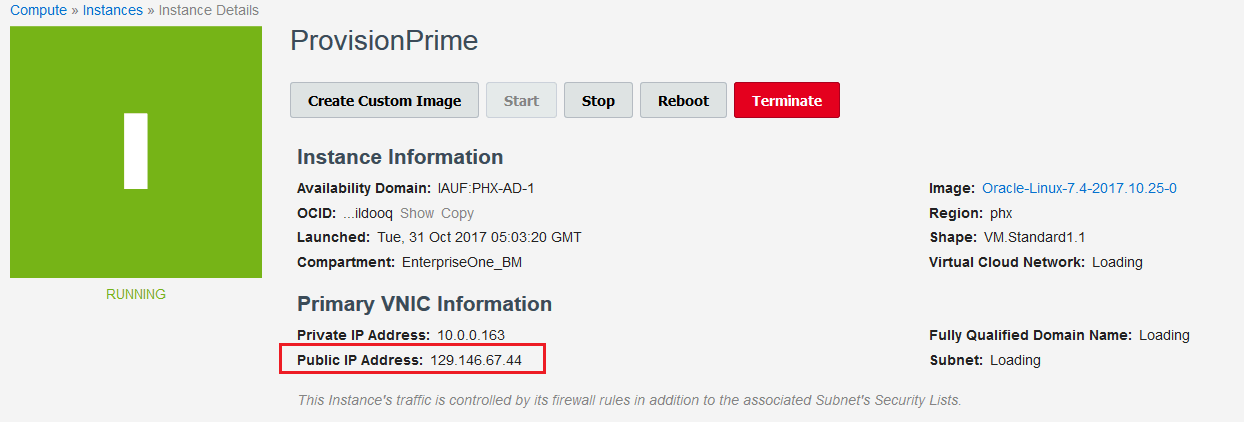
To acquire the public IP address assigned to the instance:
- Access Oracle Cloud Infrastructure and go to Compute, and select the instance menu.The system displays the list of instances.
- Click the host name of your provisioning server in the displayed list. For
example, click ProvisionPrime.

HTML Server
After your HTML Server is deployed, you can access it using its public IP address using this syntax:
https://<Public IP Address for HTML Server>:<port as defined in orchestration>/jde/E1Menu.maf
For example:
https://111.11.11.111:8001/jde/E1Menu.maf
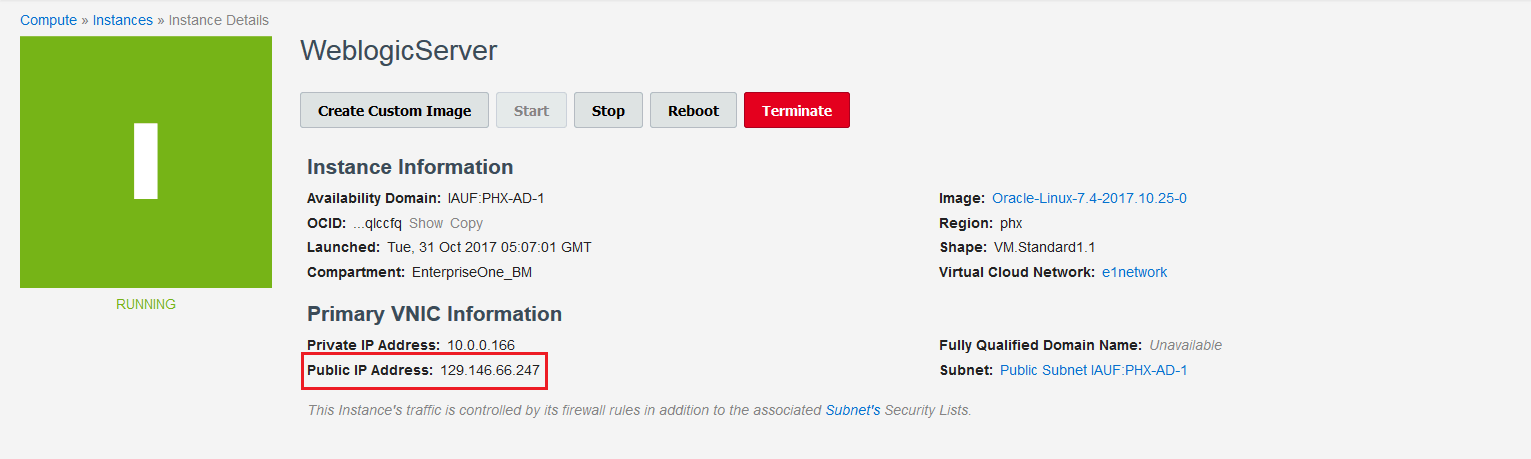
To acquire the public IP address assigned to the HTML instance:
- Access Oracle Cloud Infrastructure and go to Compute, and select the instance menu.The system displays the list of instances.
- Click the host name of your provisioning server in the displayed list. For
example, click WeblogicServer.

AIS Server
After your AIS Server is deployed, you can access it using its public IP address using this syntax:
https://<Public IP Address for AIS Server>:<port as defined in orchestration>/jderest/defaultconfig
For example:
https://111.11.11.111:8002/jderest/defaultconfig
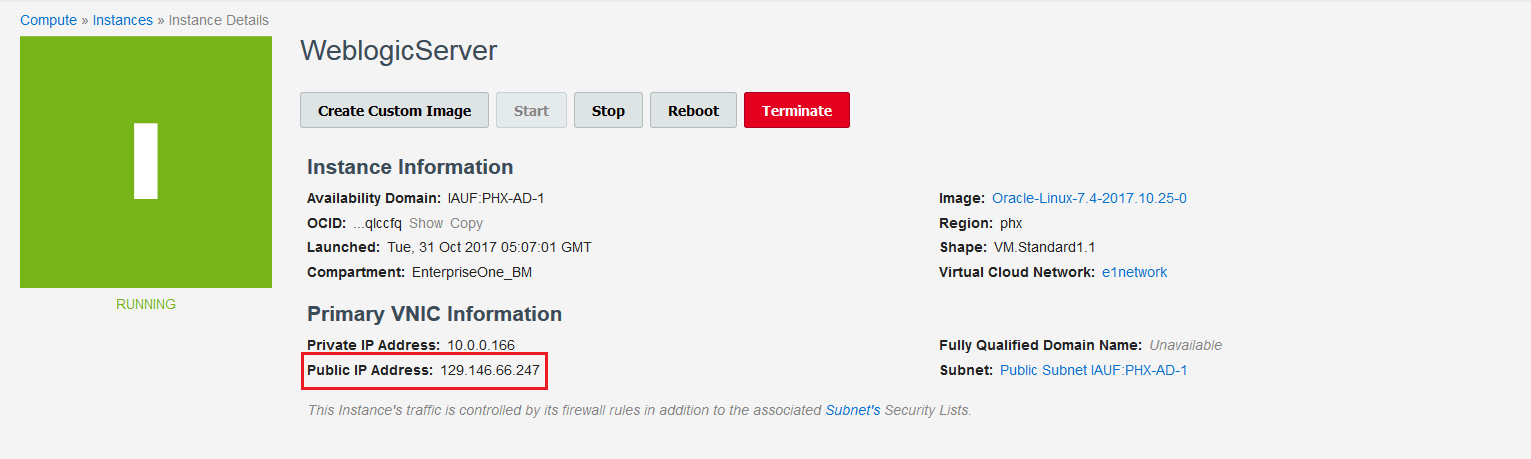
To acquire the public IP address assigned to the AIS instance:
- Access Oracle Cloud Infrastructure and go to Compute, and select the instance menu.The system displays the list of instances.
- Click the host name of your provisioning server in the displayed list. For
example, click WeblogicServer.

Deployment Server
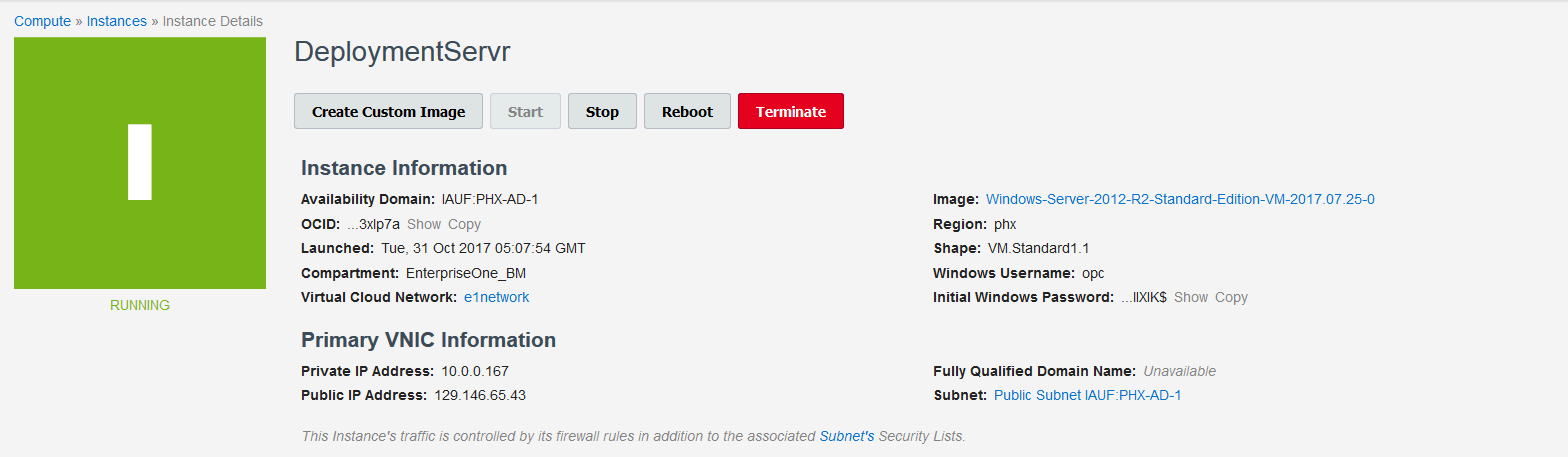
You can access your Deployment Server using Microsoft Windows Remote Desktop Protocol (RDP). To do so, you will need the public IP address of this instance.
To acquire the public IP address assigned to the Deployment server instance:
- Access Oracle Cloud Infrastructure and go to Compute, and select the instance menu.The system displays the list of instances.
- Click the host name of your provisioning server in the displayed list. For
example, click DeploymentServr.

The system now displays the details of the instance where you can find the public IP address of the instance.