Troubleshooting
This section shows you the list of troubleshooting topics and resolutions.
One-Click Provisioning Console Troubleshooting Tips
This section contains the following troubleshooting tips for the EnterpriseOne One-Click Provisioning Console:
- Accessing a Previously Saved Provisioning Console Configuration
- Console Administration
- Console Service Status
- Start the Console
- Stop the Console
- View the Console Logs
|
Symptom: |
You cannot access a previously created Quick Start Deployment Plan. |
|
Cause: |
After you created a Quick Start Deployment Plan (either complete or partial), you exited the browser used to connect to the One-Click Provisioning Console. |
|
Resolution: |
When you next access the Provisioning Console, you will be prompted to enter the same credentials that you entered for the first access to the console. Those credentials are the password for the Server Manager for JD Edwards EnterpriseOne. After the credentials are validated, you can access the previously saved configuration. |
Console Administration
The One-Click Provisioning Console process is configured as a system service in the One-Click Provisioning Server image. The configuration file (E1CloudConsole.service) is located in this directory:
/etc/systemd/system/E1CloudConsole.service
Console Service Status
Run following command in the shell to display the One-Click Provisioning Console service status:
$ sudo systemctl status E1CloudConsole
Start the Console
Run the following command in the shell to start the One-Click Provisioning Console service.
$ sudo systemctl start E1CloudConsole
Run the following command to verify the service status within same machine:
$ curl -kI https://localhost:3000
The response from the Curl command should be similar to this:
           [opc@multitest ~]$ curl -kI https://localhost:3000//</span>\\\\ HTTP/1.1 200 OK
           X-DNS-Prefetch-Control: off
           X-Content-Type-Options: nosniff
           X-Frame-Options: SAMEORIGIN
           Strict-Transport-Security: max-age=86400
           X-Download-Options: noopen
           X-XSS-Protection: 1; mode=block
           Accept-Ranges: bytes
           Cache-Control: public, max-age=0
           Last-Modified:
           ETag: W/"5862-156cad16600"
           Content-Type: text/html; charset=UTF-8
           Content-Length: 22626
           Date:
           Connection: keep-alive
Outside the machine, you can access the One-Click Provisioning Console application using the below URL:
https://<#PUBLIC_IP#>:3000/
Stop the Console
Run following command in the shell to stop the One-Click Provisioning Console service.
$ sudo systemctl stop E1CloudConsole
View the Console Logs
Run following command in the shell to view the logs for the One-Click Provisioning Console.
$ sudo journalctl -u E1CloudConsole
Press Page-Down to scroll through the logs.
Enter Shift + G to scroll to end of the log.
Enterprise Server Provisioning Fails - Communication Failure
|
Symptom: |
Provisioning fails to deploy the Enterprise Server with an error returned indicating a communication failure. |
|
Cause: |
A timeout may have occurred during communications between the One-Click Provisioning processes and the Oracle Cloud Infrastructure Services. |
|
Resolution: |
Restart the deployment of One-Click Provisioning. |
Enterprise Server Provisioning Fails - Health Check Fails
|
Symptom: |
Porttest remotely executes, but fails. |
|
Cause: |
Possibly a timing issue if the kernels are not starting up fast enough to execute a porttest successfully. |
|
Resolution: |
If host name command in the Enterprise Server returns the FQDN
then set the short hostname by using the following command:
Rerun the Deployment Server again. It should quickly skip to the Ent Health Check and pass the health check. |
HTML Server Intermittently Unavailable
|
Symptom: |
There is an intermittently occurring issue with the HTML server provisioned on the WebLogic Server going down and users not being able to access the EnterpriseOne HTML login page. Generally when this issue occurs, the below error is displayed in the WebLogic Server logs or in the HTML Server logs: java.lang.OutOfMemoryError: PermGen space |
|
Resolution: |
To bring up the EnterpriseOne HTML server when it goes down with the above error, try one of the following steps:
|
Server Manager Console Fails to View Log File and Download Log for Enterprise Server and HTML Server
|
Symptom: |
Server Manager Console Fails to View Log File and Download Log for Enterprise Server and HTML Server. |
|
Resolution: |
You should always use the HTTP protocol to access the Server Manager Console for normal operations. Although the Server Manager Console is also enabled for HTTPS/SSL protocol, such access is restricted for internal use as part of the REST/API functionality, and should not be used for normal operations. |
PDB on Compute Not Open
The Console checks to ensure the Pluggable Database (PDB) on the Oracle Cloud Infrastructure is open (set to READ WRITE) as you begin to provision it. If the PDB is not open, the Console scripts will issue commands to open it. However, if the PDB is still closed (not set to READ WRITE) when the deployment commences, the deployment will fail. Use the following procedure to determine if the PDB is open, and if not how to set it to open.
- Connect to the database using this command:
sqlplus '/as sysdba'; -
Verify the pluggable database JDEORCL is open using this command:
select OPEN_MODE from v$pdbs where NAME = 'JDEORCL'; -
If the OPEN_MODE is set to READ WRITE, then the PDB is ready to be provisioned by the JD Edwards EnterpriseOne One-Click Provisioning Server.
-
If the OPEN_MODE is not READ WRITE, then the PDB is not open. Open the PDB using this command:
alter pluggable database JDEORCL open;
Not Able to View and Download Server Manager Home Logs When Server Manager is SSL-Enabled
When Server Manager is SSL-enabled, the users may not be able to view and download the Server Manager Home logs. The root cause may be because the proper security certificates are not available. For instructions on how create and import security certificates, refer to these documents:
The JD Edwards EnterpriseOne HTML Server Login Fails
If the JD Edwards EnterpriseOne HTML Server login fails, run the port test on the JD Edwards EnterpriseOne Enterprise Server. If the port test fails, check the host entries in the /etc/hosts file. See Edit the /etc/hosts File for Connectivity section in this tutorial.
JAVA BSFN Fails in Web Server
If the host name command in the JAS Server returns the FQDN then set the short hostname by using the following command.
sudo hostnamectl set-hostname<short host name>
The JD Edwards Enterprise Server - Port Test Fails
If the port test fails on the JD Edwards EnterpriseOne Enterprise Server, check the host entries in the /etc/hosts file. See Edit the /etc/hosts File for Connectivity section in this tutorial.
Resolving Hostname Issues During Provisioning
If you encounter hostname issues during orchestration because the provisioning was run against machines with the long hostnames, FQDNs, or both, then use the following procedure to resolve the issue:
- On the operating system level, change the hostnames of all servers in the on-premises architecture to use a short hostname without the FQDN.
- On the database level, change all the hostnames in JDE tables to use short hostnames without using the FQDN.
- Ping all the machines with short hostnames and verify that the ping test is successful.
Health Checks Fail as Final Step in OCI Provisioning
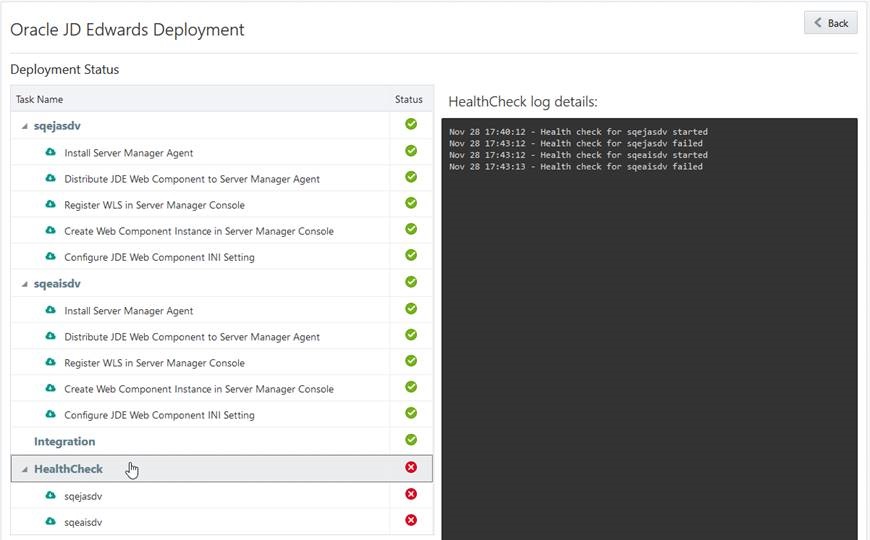
Security Server JdeSocket Or SocketException Errors When Logging In To EnterpriseOne
If a JD Edwards EnterpriseOne Server is deployed inside a firewall-protected network, you must enable predefined ports so that all NET server ports are allocated within the predefined port range.
Error ORA-00904: "NRUSER1": Invalid Identifier for Table F980051
The JAS log files displays the following error after you install EnterpriseOne using the JD Edwards One-Click Provisioning Console with Tools 9.2.2.4:
[SEVERE] - [JDBJ] SQLException occurred in the
                    SQLPhysicalConnection.select():Auto: | Table or View Name = F980051 - Data
                    Source[0] = System - 920 java.sql.SQLSyntaxErrorException: ORA-00904: "NRUSER1":
                    invalid identifier
[SEVERE] - [BASE]
                    com.jdedwards.database.base.JDBException: [SQL_EXCEPTION_OCCURRED] An SQL
                    exception occurred: ORA-00904: "NRUSER1": invalid identifier .
                    java.sql.SQLSyntaxErrorException: ORA-00904: "NRUSER1": invalid
                    identifier
[SEVERE] - [BASE]
                    com.jdedwards.database.base.JDBException: [SQL_EXCEPTION_OCCURRED] An SQL
                    exception occurred: ORA-00904: "NRUSER1": invalid identifier .
                    com.jdedwards.database.base.JDBException: [SQL_EXCEPTION_OCCURRED] An SQL
                    exception occurred: ORA-00904: "NRUSER1": invalid
                    identifier
Cause:
The delivered image for One-Click Provisioning has incorrect OCM mappings for the F980051 table. The OCM for this table is pointing to the System - 920 database data source where the structure of the table is not consistent with the table specs.
Solution:
- Check both the System and the Server Map data source OCM mappings and change the
OCM mappings as shown in the following list:
Use the following correct OCM mappings for F98005* tables:
- F980051 (Bell Status) mapped to Control Tables - <Environment>
- F980052 (Notification Execution History) mapped to Control Tables - <Environment>
- F980053 (Subscription Metadata) mapped to Control Tables - <Environment>
- F980054 (Notification Queue) mapped to System - 920
- F980055 (Notifications Constants) mapped to System - 920
- F980056 (Notifications Offline Repository) mapped to System - 920
- F980057 (Notifications Offline Repository Archive) mapped to System – 920
-
Restart the Enterprise service.
Error in Server Manager Console Enterprise Server Process Detail Graph
|
Symptom: |
Unable to display the results of the selected monitor. The monitor is no longer available for viewing. |
|
Cause: |
The monitors were registered for each of the Enterprise Server instances but the Server manager Console did not identify these monitors, and hence caused an issue related to the graphs. |
| Resolution: | Verify monitors.xml located in the path \SCFMC\targets\home\ , and check if the entries are recorded for all the required monitors. If the graphs are not visible for a particular monitor even if the monitor's entry is recorded in the monitors.xml file, then restart the Server Manager Console. |
Orchestrating JD Edwards EnterpriseOne Servers Returns IPV6 Is Not Disabled
Use this procedure if One-Click Provisioning returns this message for any Linux server that you are provisioning:
- IPV6 Is Not Disabled
- Ensure that /etc/sysctl.conf file contains below list of
entries:
net.ipv6.conf.default.disable_ipv6 =
                                    1
net.ipv6.conf.all.disable_ipv6 = 1 -
If the above settings do not exist, you must update the
/etc/sysctl.conffile to include the above settings.Important: A mandatory reboot is necessary in order for the settings to take affect. and reboot the machine. -
Verify the output of below command to ensure there is no entry for the string "inet6"
sudo ifconfig | grep inet6 -
If the string "inet6" continues to occur in the output of the above command output, verify your settings and ensure that the machine has been rebooted.
- Ensure that /etc/sysctl.conf file contains below list of
entries: