Accessing the OpenTofu Staging Server Through the Virtual Network Computer (VNC) Viewer
This section shows you how to access the OpenTofu staging server using a virtual network computer (VNC) viewer. This method of connection is required to perform subsequent tasks in this Learning Path.
Prerequisite
You must have run the Linux commands to install and set up the VNC server by following the steps described in the previous section "Running Linux Commands to Set Up the OpenTofu Staging Server" of this Learning Path.
Accessing the OpenTofu Staging Server Through the Virtual Network Computing (VNC) Viewer
To use the JD Edwards EnterpriseOne Infrastructure Provisioning Console, you must be able to access the OpenTofu staging server using the VNC server that you previously installed. In this Learning Path, the VNC server that was installed is the open source application TigerVNC. In this case, you must use TigerVNC Viewer to connect to that server on the OpenTofu staging server.
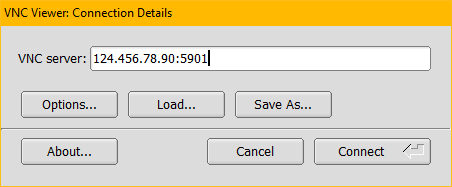
- Start the TigerVNC Viewer to connect to the VNC server. For example, for
TigerVNC, the following dialog box is displayed:
 Note:
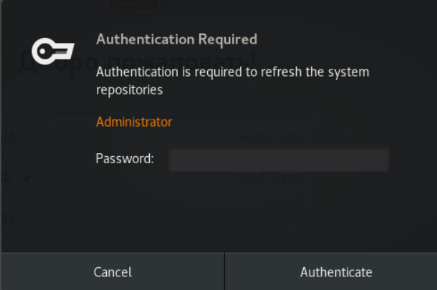
Note:If the system displays the following pop-up message, click the Cancel button to proceed.
-
Enter the IP address and port of your OpenTofu staging server.
Click the Connect button.
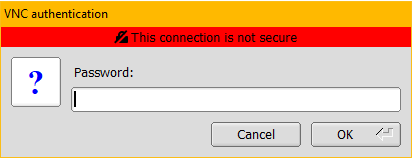
-
On the VNC authentication dialog box, enter the VNC server password that you created in the section "Performing First-Time Configuration of the OpenTofu Staging Server".
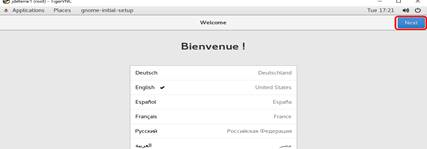
Note: After you are connected to the console, the first time you connect to the VNC, you will see GNOME prompts that you must answer before using the servers. These prompts are described in steps 5 through 10 below. - In the Welcome section, select the preferred language and click the Next
button. In the following example, English is selected.
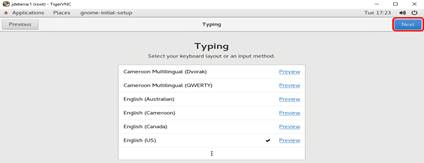
In the Typing section, select the keyboard layout that you want to use as the input method and click the Next button.
In the following example, English (US) is selected.
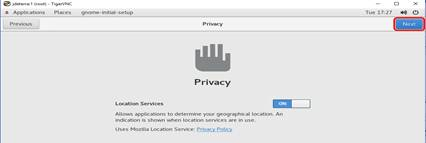
In the Privacy section, enable the Location Services option and click the Next button.
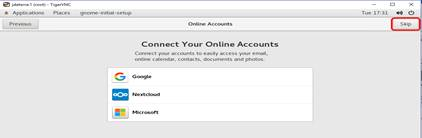
In the Online Accounts section, because for this use you do not need to import Online Accounts, click the Skip button.
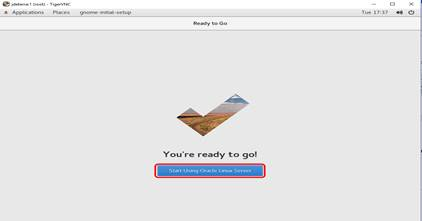
In the Ready to Go section, click the Start Using Oracle Linux Server button to complete the GNOME initial setup.
In the section Getting Started—GNOME Help, click the X icon to close the window.
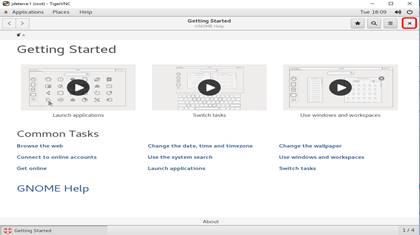
At this point, you are connected to the VNC server on the OpenTofu staging machine.