Deleting Communications
This section provides an overview of communication deletion and discusses how to:
-
Delete individual communications.
-
Delete communications in batch.
Understanding Communication Deletion
The Delete Communications batch component enables you to define high-level parameters for removing communications from the system. For example, the institution might want to purge old communication records that are no longer required, or might need to correct a communications assignment made in error. You can delete entire categories, or further define the parameters by letter code or specific date ranges. Population Selection functionality enables you to target specific subsets of IDs within your deletion parameters. Security is enforced at the category level based on the user's 3C Group security. To delete communications individually, use the Communication Summary component for people or the Org Communication Summary component for organizations.
Pages Used to Delete Communications
| Page Name | Definition Name | Navigation | Usage |
|---|---|---|---|
|
Communication Summary |
COMM_SUMMARY |
|
Search for and review a summary of communications to or from an individual. |
|
Delete Communications |
SCC_DEL_COMMUNICTN |
|
Define processing parameters to run the Delete Communications process. |
Deleting Individual Communications
Access the Communication Summary page ().
The system displays all communications accessible through individual 3C Group setup. To delete a communication, click the trash can button beside the row. Warning and confirmation messages appear. The system deletes the record when you save the page.
When you delete a communication, any enclosures associated with the communication are also removed. These enclosures share the same sequence number; since they considered subordinate, they do not have a trash can icon beside them and cannot be separately deleted here.
Note:
Deleting a communication from a person does not remove it from any related recipients; to delete a communication from a related recipient, search for their record and remove it manually. Also, when you delete a communication, all related comments and checklist items remain.
Related Topics
Deleting Communications in Batch
Access the Delete Communications page ().
This example illustrates the fields and controls on the Delete Communications page. You can find definitions for the fields and controls later on this page.
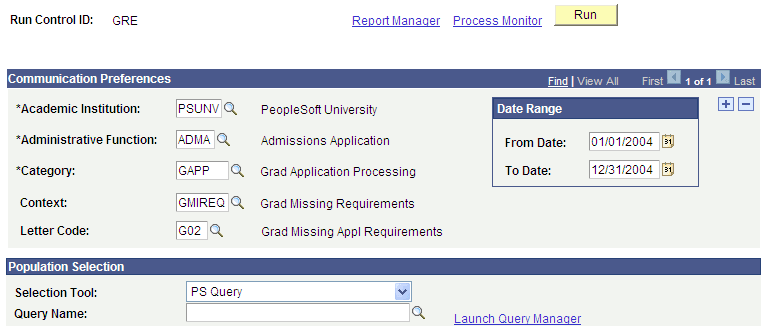
Select one or more parameters to narrow the set of communication records to be deleted. The Academic Institution, Administrative Function, and Category fields are required; all other parameter selections are optional. To define a subset of specific IDs for which you want to delete communications, use the Population Selection group box.
This page allows for up to three rows of communication preferences. This limit has been applied to constrain the complexity of, and processing time needed for, the resulting SQL statement executed by the deletion process. Only the communication preferences are subject to this requirement. Note that the Population Selection parameter of the run control is only set once and is applied to all communication preference rows.
| Field or Control | Description |
|---|---|
|
Administrative Function |
Select an administrative function. The values available here are defined on the Administrative Function Table. |
|
Category |
Select a category of communications. The values available here are defined by 3C group security. |
|
Context |
Select a communications context. The values here are those valid under the Category selected. |
|
Letter Code |
Select a specific communication letter code. The values here are those valid under the Category and Context selected. |
|
From Date and To Date |
These fields are optional; however if used, both date fields must be completed and the From Date value must precede the To Date value. |
Use the Population Selection group box to define a set of IDs, select a PS Query or define an external file. Queries available for selection have the 3C Delete Bind Record "SCC_3CDEL_BND" included in the query. IDs returned by the Population Selection process apply to all Communication Preference rows in the component.
After you specify the parameters, you can run the SCC_3CDELETE Application Engine process by clicking the Run button. When you click the Run button, the system searches for all communications matching the parameters specified on this page and deletes them. Only the target communications are deleted and any related checklists and comments remain, while maintaining the relationships between the relevant 3C tables.
Note:
A user’s 3C group must have the Inquiry Indicator selected to be able to see anything associated with it and so delete it.