Entering Process Parameters
Access the Process Parameters page ().
This example illustrates the fields and controls on the Process Parameters page. You can find definitions for the fields and controls later on this page.
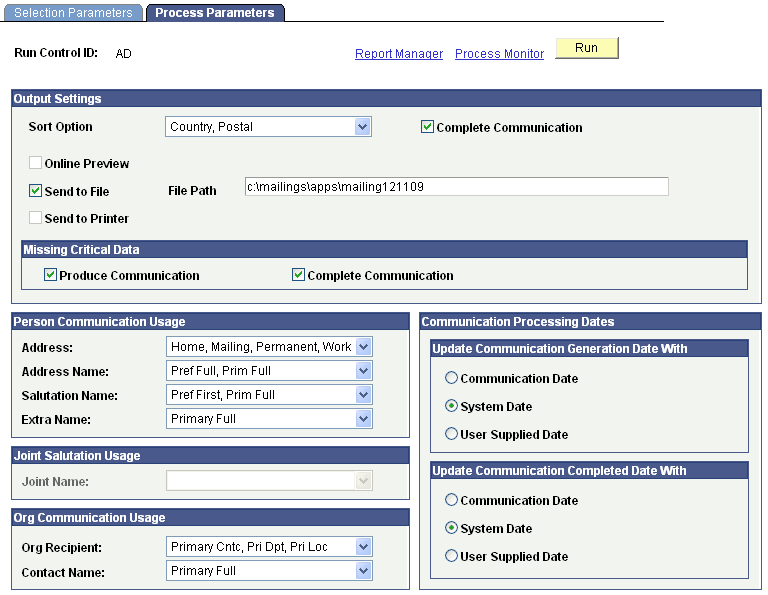
Output Settings
| Field or Control | Description |
|---|---|
|
Sort Option |
Enter how to sort the generated outputs. Available options are: All Alphabetically by ID Type to sort organization envelopes and labels first, alphabetically by the organization description and then by the first letter of each recipient's name, contact, department, or location name depending on how the output is addressed, and then sort individual envelopes and labels alphabetically by each recipient's last name/first name. Country, Postal to sort by each recipient's postal or zip code. Use this sort option to streamline mass mailings sent through the postal service. This is the default value. Country, Postal by ID Type to sort organization envelopes and labels first, by each recipient's country and postal address, and then sort individual envelopes and labels by each recipient's country and postal address. If a process instance number is entered, this field is unavailable. The process uses the sort option from the generated communication. |
|
Complete Communication |
Select to have the Envelope and Label Generation process mark the communication Completed for each processed ID. When selected, the Envelope and Label Generation process updates the ID's communication record (Person Communication or Organization Communication page) by marking the communication Completed and displaying the View Generated Communication link. Use the link to retrieve and view the envelope output (the label output is the same as the envelope output). Selecting this check box is especially useful for hardcopy letter codes that you want to consider completed after the envelopes or the labels are generated. If a process instance is entered, the check box is cleared and unavailable for change. Note: If you need to reset communications that have been marked Completed by the Communication Generation process or the Envelope and Label Generation process, use the Reset Communication process. |
|
Online Preview |
Select to preview the data, in envelope and label format based on the template in the specified report, online in PeopleSoft Report Manager. When selected, the system sends a sample of all related outputs to PeopleSoft Report Manager with corresponding links for you to click to preview each output. For example if you used the QA_CSXTRENV_GEN report to generate the envelopes, the system displays a QA_CSXTRENV GEN Extract Envelopes link in Report Manager. Click the link to open the .pdf file that contains the data in envelope format, for all of the processed IDs. If you used the QA_CSXTRLBL_GEN report to generate the labels, the system displays a QA_CSXTRLBL GEN Extract Label Definition link in Report Manager. Click the link to open the .pdf file that contains the data in label format, for all of the processed IDs. Note: Previews do not cause communications to be marked Complete and no information is entered in the Person or Organization Communication Management components for the communication. When generating envelopes and labels for multiple IDs, the online preview functionality extracts data for previews of only the first 10 IDs and their enclosures and recipients. |
|
Send to File and File Path |
Select to send the data, in envelope and label format based on the template in the specified report, to the destination file that you specify. Use the file to review the data before printing or use the file to send to a third-party such as a mailing service. Note: When Send to File is selected, the file format is always .pdf regardless of the format type defined in the Report Definition used for generating the labels or envelopes. |
|
Send to Printer, Envelope Printer, and Label Printer |
Select to send the data, in envelope and label format, directly to the printer that you specify. |
Missing Critical Data, Person Communication Usage, Joint Salutation Usage, Org Communication Usage and Communication Processing Dates
If a process instance number is entered, fields in these group boxes are unavailable. The process uses the settings from the generated communication. Otherwise fields in these group boxes are the same as described for the Process Parameters page in the Communication Generation component.
Note:
While the Salutation Name field is most useful for generating a letter or email communication, you can also use the field to extract the name of an ID to create nametag labels. Your template might say: Hello my name is <salutation name> and your label printer might be set to print pages of name tags. As with addresses, you can list salutation name types in a preferred search-and-use order.