Step 5: Setting Up Components for Delegated Access
To enable a Campus Solutions component for delegated access:
-
Determine which components should be enabled for delegated access.
Evaluate your self-service components and identify the ones you would like a proxy to look at or be able to update on behalf of the delegator (for example, the delegator can be a student).
-
Determine if a proxy version of these components should be created. If so, these proxy components should be used in the subsequent steps.
The delivered Campus Solutions self-service components are intended to be used by the person who owns the data. For example. the self-service page where a user can enter email addresses displays: “Enter your email addresses below”. If a proxy accesses this page, the text might be confusing because it is not the proxy’s email addresses that should be entered, but the delegator’s email addresses. In this case you may want to consider creating a “proxy” version of this self-service component. The same is true if you want to hide some information. For example, it might make sense to display some information to a student, but maybe not to a proxy.
-
Create a menu (DA Menu) for each of the components you would like to delegate to a proxy. A menu can include one or more components related to a specific transaction.
The menu you create is used to override the original component search record, and also to make the security to delegate more granular. Each menu can later be added to a single permission list.
You can create one menu for one component. For example, delivered with your system is a sample delegated transaction called Emergency Contacts. It only contains the emergency contacts self-service component called SS_CC_EMERG_CNTCT. This component is added to a new menu named SCC_DA_SS_EMRCNCT.
You can also create one menu for multiple components. For example, delivered with your system is a sample delegated transaction called Update Contact Information. It contains the email address self-service component (SS_CC_EMAIL_ADDR), the phone self-service component (SS_CC_PERS_PHONE) and the addresses self-service component (SS_CC_ADDRESSES). These components were added to a new menu named SCC_DA_SS_ADDRESS.
-
Create a menu search record override.
If you make a delivered Campus Solutions self-service component available for Delegated Access, the search record must be overridden. In fact, the component search record only returns the EMPLID for the person that is signed into your system (again, Campus Solutions self-service components display the information of the person that is logged in your system). When a proxy accesses one of these components, the search record should return the list of delegators that granted access to the component and for which the delegation status is Access Granted (not Revoked).
Delivered with your system is a search record called SCC_DA_SRCH_VW. This search record should be added to the menus you created for the components that you want to delegate. This search record overrides the component search record.
This example illustrates using SCC_DA_SRCH_VW to override the search record for SCC_DA_SS_ADDRESS menu. You can find definitions for the fields and controls later on this page.
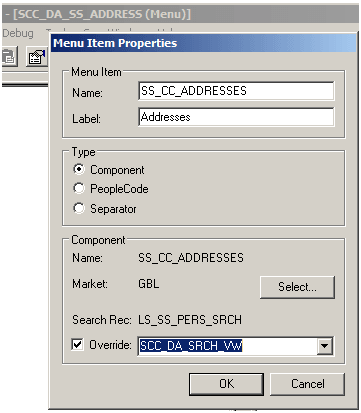
When a proxy accesses one of the components that have been delegated, only the delegator names are returned. For example, Joe, Jane, and Jack are siblings attending the same school. Joe and Jane granted their mother Mary Smith access to their Emergency Contacts data. Jack granted his mother access to a different component. When the mother accepts the terms and conditions for each of her three kids, her user ID is tied to Joe, Jane and Jack’s EMPLIDs. When she navigates to the Emergency Contacts component (through the DA Menus), she sees a search record that returns only the names of her kids who granted her access to the component: Joe and Jane. Jack’s name is not listed because he did not grant his mother access to that component. Because we are using a DA Menu, if Mary was also a student at the institution, she wouldn’t see her own Emergency Contacts data from that navigation. To see her own data she must navigate to the regular Self Service, Campus Personal Information, Emergency Contacts component.
Note:
The search record SCC_DA_SRCH_VW returns only the delegator’s name. The system does not return the EMPLIDs to avoid giving unnecessary information to the proxy. If you created a proxy version of a student self-service component, the search record SCC_DA_SRCH_VW can be added directly to the component you created.
For information on how to create a menu, see PeopleTools: Application Designer Developer's Guide.
-
Create a content reference to access the menu through the portal navigation.
To create content references, go to .
Each of the DA menu and component combinations that you created ust be added to its own content reference. For example, the SCC_DA_SS_ADDRESS menu (along with its three components) was added to the “Update Address”, “Update Email Address” and “Update Phone” content references. The following table represents the sample components delivered with your system and how they were added into a specific content reference.
Content Reference Name Content Reference Label Menu Name Component Name HC_SCC_DA_ADDRESS_UPDATE
Update Address
SCC_DA_SS_ADDRESS
SS_CC_ADDRESSES
HC_SCC_DA_EMAIL_UPDATE
Update Email Address
SCC_DA_SS_ADDRESS
SS_CC_EMAIL_ADDR
HC_SCC_DA_PHONE_UPDATE
Update Phone
SCC_DA_SS_ADDRESS
SS_CC_PERS_PHONE
HC_SCC_DA_ADDR_VIEW
View Address
SCC_DA_ADDR_VW
SS_CC_ADDRESSES
HC_SCC_DA_EMAIL_VIEW
View Email Addresses
SCC_DA_ADDR_VW
SS_CC_EMAIL_ADDR
HC_SCC_DA_VIEW_PHONE
View Phone
SCC_DA_ADDR_VW
SS_CC_PERS_PHONE
HC_SCC_DA_HOLDS
Holds
SCC_DA_SS_HOLDS
SS_CC_HOLDS
HC_SC_DA_TODO
To Do List
SCC_DA_SS_TO_DO
SS_CC_TODOS
HC_SCC_DA_EMRG_CNTCT
Emergency Contact
SCC_DA_SS_EMRCNCT
SS_CC_EMERG_CNTCT
It is recommended that for each content reference you create for Delegated Access, you should add it to the Self Service, Shared Information Center portal folder. This becomes the navigation the proxy uses to see all of the components that were delegated. This also limits the number of places a proxy needs to navigate to access somebody else’s data.
This illustrates an Example of Content References in the Share Information Center Portal.
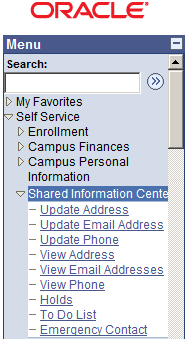
This table shows an existing student self-service component, Emergency Contacts.
Component Component Search Record Menu Menu Search Record Override Portal folder Content Reference SS_CC_EMERG_CNTCT
LS_SS_PERS_SRCH
CC_PORTFOLIO
N. A.
Self Service, Campus Personal Information
Emergency Contacts
This table shows how the student self-service component, Emergency Contacts, is enabled for delegated access
Component Component Search Record Menu Menu Search Record Override Portal folder Content Reference SS_CC_EMERG_CNTCT
LS_SS_PERS_SRCH
SCC_DA_SS_EMRCNCT
SCC_DA_SRCH_VW
Self Service, Shared Information Center
Emergency Contacts
For more information, see PeopleTools: Portal Technology.