Setting Up Institution Information
Access the Institution Information page ().
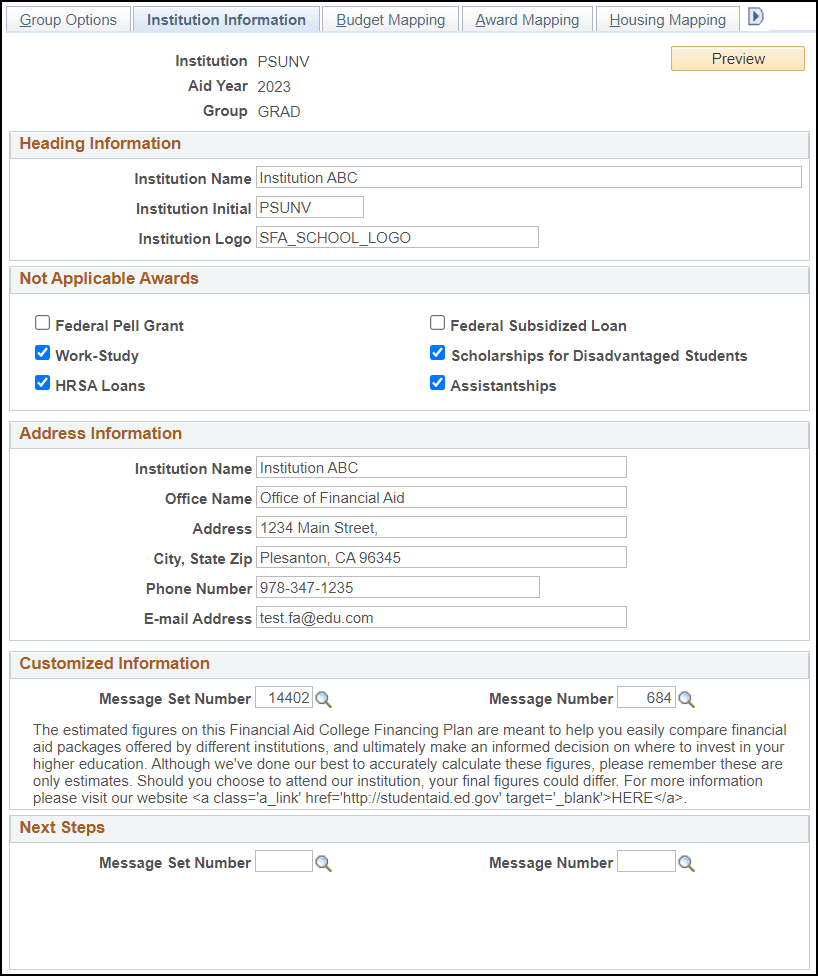
This example illustrates the fields and controls on the Institution Information page. You can find definitions for the fields and controls later on this page.
| Field or Control | Description |
|---|---|
|
Preview |
Click this button to verify the display of your institutions data and template color selection only. Student specific fields display generic values. Every setup value on this page is pulled in during Preview. Note: You may need modify data elements if they extend beyond their designated line. |
Header Information
| Field or Control | Description |
|---|---|
|
Institution Name |
Enter the name of the Institution as you want it to appear in the header of the College Financing Plan. |
|
Institution Initial |
Enter a short descriptor for the institution (for example, PSUNV). This data is displayed in the header and Median Borrowing sections of the College Financing Plan. |
|
Institution Logo |
Enter the object name of your institution's logo. The logo you want to use must be imported into your database as an image file measuring approximately 65 by 65 pixels. You may need to consult your technical staff on making the object available for this setup. |
Not Applicable Awards
Select the award groups for which you wish to display “N/A”. ED states that you cannot remove award groups from appearing on the College Financing Plan, but can display N/A for certain award groups when necessary.
For example, you may use these options if the population to which you are assigning the College Financing Plan isn't eligible for this type of award, or if your school doesn't participate in this particular award program. Displaying “N/A” instead of “$0” may help avoid confusion.
Note:
If you choose to display “N/A” for an award group, you may want to explain why the awards are not available in the Customized Information Message.
Institutional Metrics
Note:
This region isn’t applicable to AY 2021 and later.
Enter the values provided by ED on the Institution Metric Data spreadsheet. The values entered here control how the data and graphs are rendered within the Institutional Metrics section on the right side of the Shopping Sheet.
| Field or Control | Description |
|---|---|
|
Institution Group |
Enter the Institution Group value as provided by ED. The value entered here determines what message is displayed in the Graduation Rate section on the Shopping Sheet. Valid values are:
|
|
Cohort Year |
Enter your Cohort Year value as provided by ED. This value is used in the message of the Graduation Rate section when a -2, -3 or -4 Graduation Rate is indicated. |
|
No Graduation Rate Data |
Select this check box if your Institution Graduation Rate value provided by ED is blank. Note: Do not select this check box if your Graduation Rate is zero (0). Zero is a valid value and should be entered in the Graduation Rate field. If this check box is selected:
|
|
Graduation Rate |
Enter your Graduation Rate value as provided by ED. ED has also issued four valid negative values (-2, -3, -4, and -5). If a negative value is entered here:
|
|
Graduation Rate Level |
Select the correct Graduation Rate Level based on the values provided by ED. |
|
Collection Year |
This field is only available if the Graduation Rate is -5. Enter your Collection Year value as provided by ED. This value is used in the message of the Graduation Rate section when a -5 graduation rate is indicated. |
|
No Loan Default Data |
Select this check box if your Institution Loan Default Rate value provided by ED is blank. Do not select this check box if your Loan Default Rate is zero (0). Zero is a valid value and should be entered in the Institution Loan Default Rate field. If this check box is selected:
Note: No Loan Default Data, Institution Loan Default Rate, and Institution Loan Default Rate are only applicable to 2016–2017 and prior Aid Years. |
|
Institution Loan Default Rate |
Enter your Institution Loan Default Rate value as provided by ED. |
|
National Loan Default Rate |
Enter the National Loan Default Rate value as provided by ED. |
|
No Repayment Rate Data |
Select this check box if your Institution Repayment Rate value provided by ED is blank. Do not select this check box if your Repayment Rate is zero (0). Zero is a valid value and should be entered in the Institution Repayment Rate field. If this check box is selected:
Note: The No Repayment Rate Data, Institution Repayment Rate, and National Repayment Rate are only applicable to the 2017–2018 Air Year and forward. |
|
Institution Repayment Rate |
Enter your Institution Repayment Rate value as provided by ED. |
|
National Repayment Rate |
Enter your National Repayment Rate value as provided by ED. |
|
No Median Borrowing Data |
Select this check box if your Average Borrowed Amount value provided by ED is blank. If this check box is selected:
|
|
Average Borrowed Amount |
Enter your Average Borrowed Amount value as provided by ED. |
|
Average Monthly Payment |
Enter your Average Monthly Payment value as provided by ED. ED provides a value with 2 decimal places, but has indicated that rounding to the nearest whole dollar is acceptable. |
Address Information
Enter your institution's address and contact information.
Note:
The fields in this section allow for large entries which can distort the appearance of the College Financing Plan. Click the Preview button at the top of the page to ensure your school's data displays correctly.
Customized Information
Use the Message Catalog to create custom messages to display.
Customized Information appears under the heading “Customized Information” on the CFP output. For AY2020 and earlier, the default message uses Message Set Number 14402 and Message Number 410. For AY 2021 and later, it’s Message Set Number 14402 and Message Number 684.
For AY 2021 and later, the institution name is taken from the Institution Initial field, so the heading reads “Customized Information from <Institution Name>” on the CFP output.
The default message includes an example of how you can include links in your custom message to lead students to additional information.
Customized Message 2 appears under the heading “Next steps.” Oracle doesn’t provide any default message.
If you don’t use a Message Set Number/Message Number, this section doesn’t print any text when the College Financing Plan is generated.
See PeopleTools: System and Server Administration, Using PeopleTools Utilities, Using Administration Utilities, Message Catalog.
Next Steps
Use the Message Catalog to create custom messages to display.
Next Steps appears under the heading “Next steps.” Oracle doesn’t provide any default message.
If you don’t use a Message Set Number/Message Number, this section doesn’t print any text when the College Financing Plan is generated.
See PeopleTools: System and Server Administration, Using PeopleTools Utilities, Using Administration Utilities, Message Catalog.