Creating a New Application
Steps:
-
The applicant signs in to access the institution's Admissions Application home page. The system invokes the web service operations SCC_USERREG_AUTHENTICATE when the applicant signs into the system and SAD_GETAPPLS when the applicant reaches the Admissions Application home page.
Because this is the first time the applicant is visiting the institution’s Application Home page, the web service operation SAD_GETAPPLS will not return any application data.
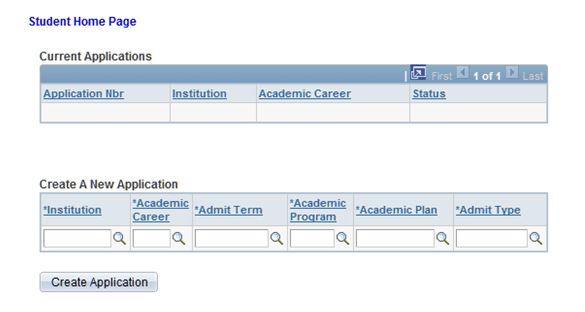
SOLA includes a sample Application Home page (SAD_OLA_HOME) ().
This example illustrates the fields and controls on the Application Home page.
-
The applicant selects the institution, academic career, admit term, academic program, academic plan, and admit type he or she wishes to apply for.
-
The applicant clicks the Create Application button. This invokes the SAD_CREATEAPPL web service operation.
-
Because this is the first interaction with the institution (from an admissions perspective), the web service operation SAD_CREATEAPPL minimally creates row(s) in both the constituent record (SCC_STG_NAMES) and the academic program stack (SAD_APL_DAT_STG, SAD_APL_PLN_STG, SAD_APL_PRG_STG, and SAD_APP_CSQ_STG).
-
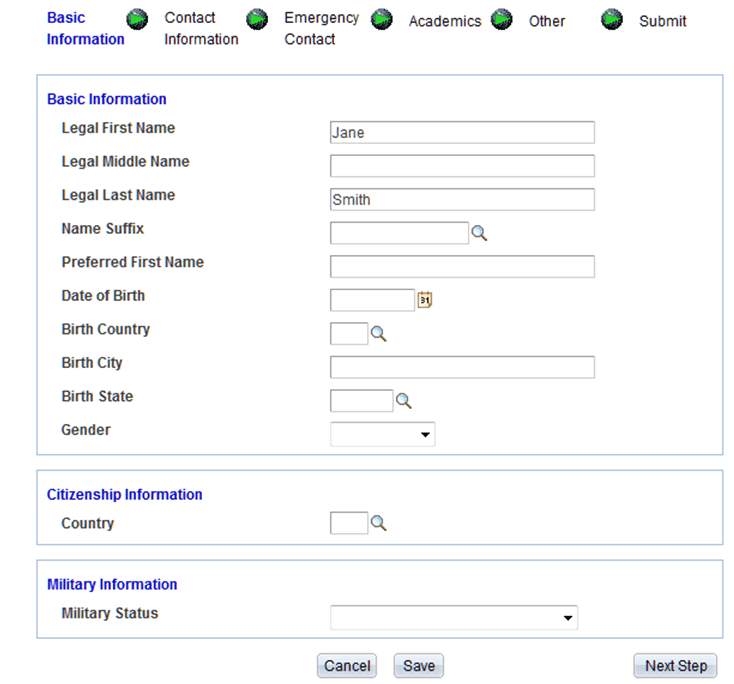
When the applicant clicks the Create Application button, the system displays the first of six pages that the applicant uses to fill out the application. At this point, the applicant can fill out the application and submit the application. When the Submit button is clicked, the system invokes the SAD_SUBMITAPPL service operation.
This is an example of one of the six pages for application data entry.
-
Instead of entering data in all the six pages at one time, the applicant can fill out the application over several sessions. To do this, the applicant can click the Save button and the application data is saved to the staging tables. When the Save button is clicked, the system invokes the SAD_SAVEAPPL service operation.
-
If the applicant elects to cancel the application process, a warning message appears to confirm the cancellation. The applicant can either continue to cancel the application and nothing will be saved and the applicant returns returned to the Application Home page. Else, the applicant can go back to the page where he or she clicked the Cancel button and continue with the application.
-
When SAD_SAVEAPPL or SAD_SUBMITAPPL is invoked by the applicant's actions, the system captures all the data that has been entered and saves it to the appropriate staging tables.