SAD_SAVEAPPL
This service operation enables the user to save an admissions application to the Campus Solutions system (for later submission). The service operation initially posts the application to the admissions staging tables. Applications in the staging tables may at some point of time become eligible to be posted to the admissions production tables.
| Save Application Service Operation Description and Features | Details |
|---|---|
|
Description |
The Save Application service operation call results in the given admissions application being saved to the Campus Solutions system. The application may be partially complete when the online application user decides to use a Save option that triggers a call to this service operation. The service operation saves the application using an Update Via Replacement approach; in other words, the SAD_SAVEAPPL operation deletes any pre-existing application (based on a unique key) for the applicant and then saves the new (or current) version of the application. When saving an application, the operation assigns an application number (ADM_APPL_NBR) to the application for tracking. The application must pass through validation checks before it gets saved. The service operation validates all aspects of the application data including data entered and translate values selected by the user on the online application, and custom business validation rules that the institution has incorporated into the online application. The service operation saves the valid applications to the admissions staging tables. If the constituent (person) who initiated the application save process is known (for example, the constituent has an EMPLID), then the constituent portion of the application is immediately eligible to be posted to the person production tables. Otherwise, the constituent data remains in the staging tables until addressed by an administrator. In any case, the application data itself is saved to the staging tables and is not posted to admissions production tables until a later submit occurs. Applications may include attachments. The online application must encode the attachment in Base64 format before passing the attachment to Campus Solutions. |
|
Users |
|
|
Processing |
The service operation performs the following steps:
|
|
Output |
After completing the processing steps, the service operation:
|
|
Error Conditions |
The following conditions result in a service error:
|
Input Message: SAD_SAVEAPPL_REQ
This image shows the input parameters that the SAD_SAVEAPPL service operation receives from an online application.
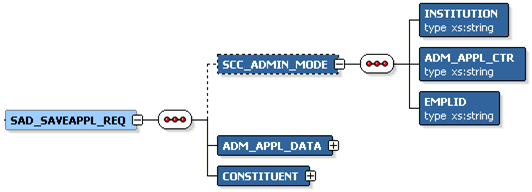
Note that the SAD_SAVEAPPL_REQ schema includes the Application entity (ADM_APPL_DATA) and Constituent entity XSD schemas.
Required data that the online application must supply to the service operation in Non-administrator (Applicant) mode:
-
ADM_APPL_DATA
-
CONSTITUENT
Required data that the online application must supply to the service operation in Administrator mode:
-
Institution
-
Admission Application Center
-
ADM_APPL_DATA
-
CONSTITUENT
The following is an example of the SAD_SAVEAPPL_REQ message that the SAD_SAVEAPPL service operation receives from an online application:
<?xml version="1.0"?>
<SAD_SAVEAPPL_REQ>
  <ADM_APPL_DATA>
   <!-- Application data shape -->
  </ADM_APPL_DATA>
  <CONSTITUENT>
   <!-- Constituent data shape -->
  </CONSTITUENT>
</SAD_SAVEAPPL_REQ>
Output Message: SAD_SAVEAPPL_RESP
When the Integration Broker receives the SAD_SAVEAPPL_REQ message, it responds with the SAD_SAVEAPPL_RESP message.
This image shows the output parameters that the SAD_SAVEAPPL service operation passes to the online application.

The following is an example of the SAD_SAVEAPPL_RESP message that the SAD_CREATEAPPL service operation transmits to the online application:
<?xml version="1.0"?>
<SAD_SAVEAPPL_RESP>
  <ADM_APPL_NBR>00023456</ADM_APPL_NBR>
</SAD_SAVEAPPL_RESP>
Fault Message: SAD_FAULT_RESP
Refer to the SAD_FAULT_RESP message example in the SAD_CREATEAPPL section.