Step 5: Configure Routings
Procedure:
-
Access the Services page ().
-
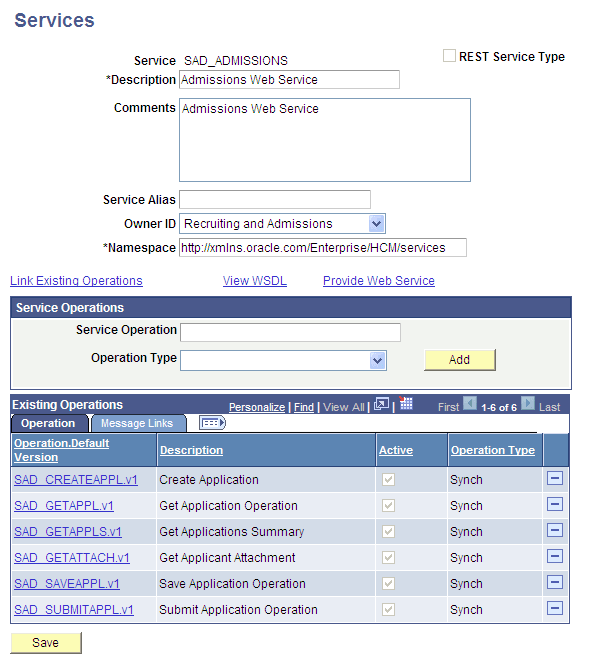
Generate Any to Local and Local to Local routings for the following six web service operations of the SAD_ADMISSIONS web service:
-
SAD_CREATEAPPL.v1
-
SAD_GETAPPL.v1
-
SAD_GETAPPLS.v1
-
SAD_GETATTACH.v1
-
SAD_SAVEAPPL.v1
-
SAD_SUBMITAPPL.v1
This example illustrates the six service operations of SAD_ADMISSIONS service.
-
To generate these routings and verify that the operation status is Active:
-
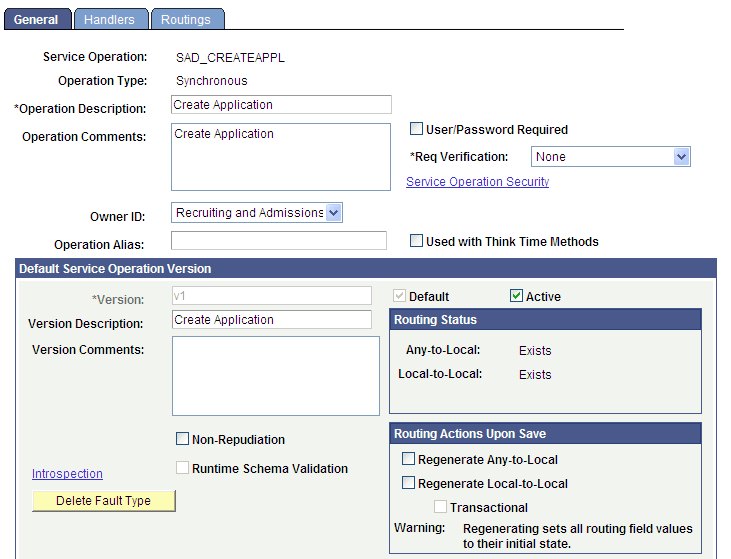
For each operation, on the General page select both the Generate Any to Local check box and the Generate Local to Local check box.
-
Make sure that the service operation is Active. If the status is not active, select the Active check box.
-
Save your changes. When you save, the system updates the routing status to Exists for both routing actions:
This example illustrates the fields and controls on the General page after save (1 of 2).
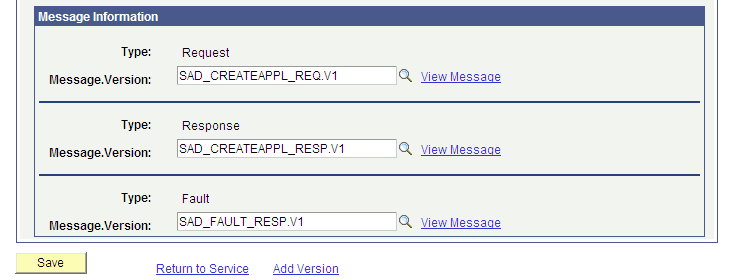
This example illustrates the fields and controls on the General page after save (2 of 2).
-
Click the Return to Service link.
-
Repeat the steps 1 through 4 for the remaining operations.
For new user registration also you must perform the same steps:
-
Access the Services page ().
-
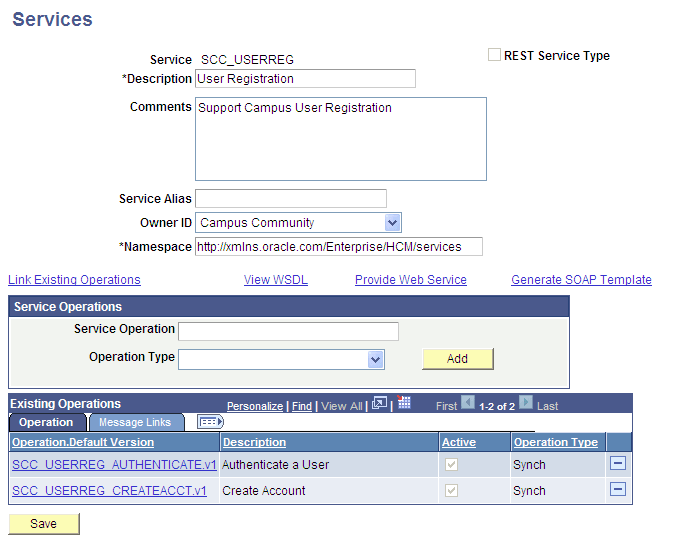
Generate Any to Local and Local to Local routings for the following two web service operations of the SCC_USERREG web service:
-
SCC_USERREG_AUTHENTICATE.v1
-
SCC_USERREG_CREATEACCT.v1
This example illustrates the two service operations of SCC_USERREG service.
-
-
Repeat the preceding steps for generating routings and ensuring that the status is Active.