Setting Up Receipt Messages
To set up receipt messages, use the Receipt Print Messages component (MESSAGES).
This section discusses:
Pages Used to Set Up Receipt Messages
| Page Name | Definition Name | Navigation | Usage |
|---|---|---|---|
|
Cashier Office Messages |
CSH_MSG_BD |
|
Create receipt messages linked to cashiering offices. |
|
Target Messages |
CSH_MSG_TG |
|
Create receipt messages linked to target keys. |
|
Tender Messages |
CSH_MSG_TN |
|
Create receipt messages linked to tender keys. |
Creating Receipt Messages Linked to Cashiering Offices
Access the Cashier Office Messages page ().
This example illustrates the fields and controls on the Cashier Office Messages page. You can find definitions for the fields and controls later on this page.
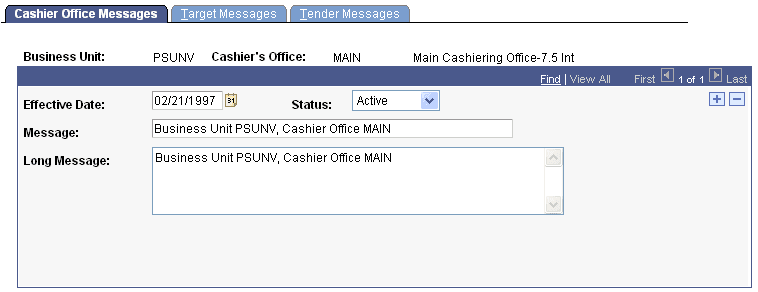
| Field or Control | Description |
|---|---|
|
Message |
Enter the message that you want to appear on all receipts printed by this cashier office. |
|
Long Message |
Enter an optional, more detailed message. |
Creating Receipt Messages Linked to Target Keys
Access the Target Messages page ().
This example illustrates the fields and controls on the Target Messages page. You can find definitions for the fields and controls later on this page.
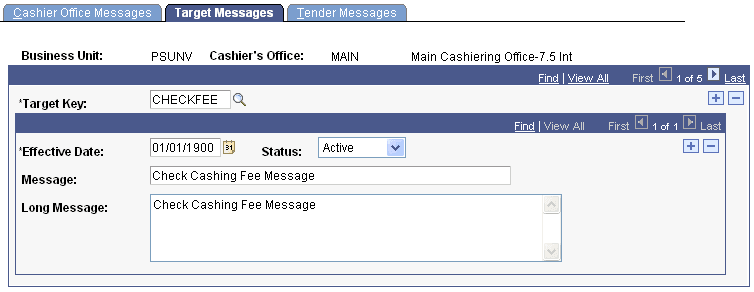
| Field or Control | Description |
|---|---|
|
Target Key |
Enter the target key to which you want to link the message. |
|
Message |
Enter a message to appear on all receipts associated with the target key. |
|
Long Message |
Enter an optional, more detailed message. |
Creating Receipt Messages Linked to Tender Keys
Access the Tender Messages page ().
This example illustrates the fields and controls on the Tender Messages page. You can find definitions for the fields and controls later on this page.
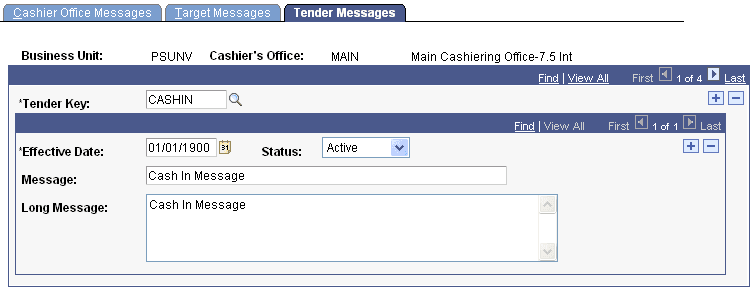
| Field or Control | Description |
|---|---|
|
Tender Key |
Enter the tender key to which you want to link the message. |
|
Message |
Enter a message to appear on all receipts associated with the tender key. |
|
Long Message |
Enter an optional, more detailed message. |