Setting Up Tax Authorities and Tax Codes
To set up tax authorities and tax codes, use the Tax Authorities component (TAX_AUTHORITY) and the Tax Codes component (TAX_CODE_VAT).
This section provides an overview of tax authorities and tax codes and discusses:
Understanding Tax Authorities and Tax Codes
Your institution may be under the jurisdiction of one or more tax authorities that require you to charge taxes for certain transactions. To process tax charges, you must define one or more tax authority codes.
Tax codes are used to link taxes to charge item types. Each tax code must include at least one tax authority, but can include more than one if your institution is subject to more than one taxing authority. For example, you may need to charge students both state and local sales taxes for books. By setting up a tax code that combines the two authorities, you can charge both taxes.
Pages Used to Set Up Tax Authorities and Tax Codes
| Page Name | Definition Name | Navigation | Usage |
|---|---|---|---|
|
Tax Authority |
TAX_AUTHORITY |
|
Define tax authorities. |
|
Tax Authorities - Rebate |
TAX_AUTHORITY_PSB |
|
Specify VAT rebates for tax authorities. |
|
Tax Authorities - Summary |
TAX_AUTHORITY_VAT |
|
Review tax authority parameters. |
|
Tax Codes |
TAX_CODE_VAT |
|
Define tax codes using one or more tax authorities. |
Defining Tax Authorities
Access the Tax Authority page ().
This example illustrates the fields and controls on the Tax Authority page. You can find definitions for the fields and controls later on this page.
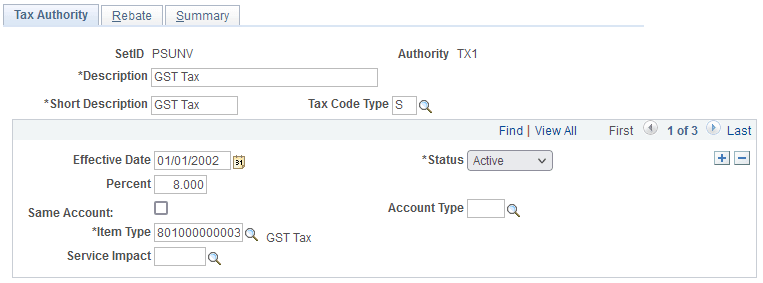
| Field or Control | Description |
|---|---|
|
Tax Code Type |
Select a tax code type of S (sales tax) or V (value added tax). |
|
Percent |
Set the default percentage of tax that the authority assesses. |
|
Same Account and Account Type |
Select the Same Account check box if you want the tax assessed to appear in the same account as its associated charge. If you clear the check box, you can select a different account type in the Account Type field. Warning! For accuracy in payment shuffling, Oracle recommends not selecting Same Account and to identify an account type that's unique for taxes. If the tax fee can be waived, the Tax Waiver account type should be the same value as the Tax Authority account type. |
|
Item Type |
Select the item type that you have defined for transactions from this tax authority. |
|
Service Impact |
Select the service impact that exempts customers from this taxation. |
Specifying VAT Rebates for Tax Authorities
Access the Tax Authorities - Rebate page ().
This example illustrates the fields and controls on the Tax Authorities - Rebate page. You can find definitions for the fields and controls later on this page.
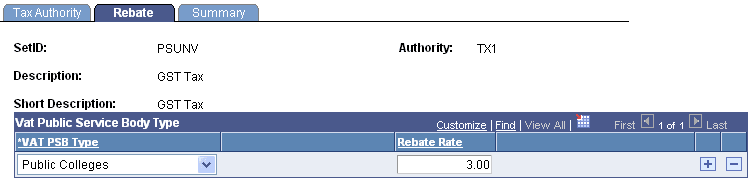
| Field or Control | Description |
|---|---|
|
VAT PSB Type (value added tax public service body type) and Rebate Rate |
If applicable, select the value added tax public service body type and enter a rebate rate. |
Defining Tax Codes
Access the Tax Codes page ().
This example illustrates the fields and controls on the Tax Codes page. You can find definitions for the fields and controls later on this page.
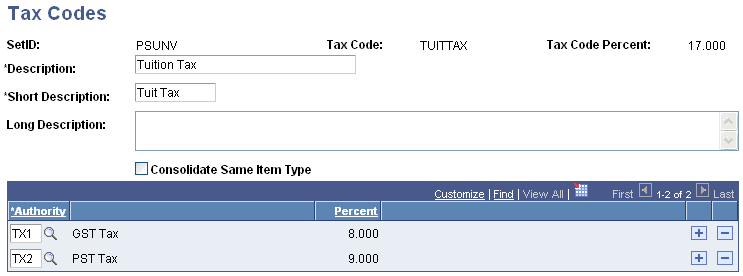
| Field or Control | Description |
|---|---|
|
Consolidate Same Item Type |
If you are creating a code that combines two or more different tax authorities, you can select this check box to consolidate the tax transactions that make up the code into the same item type during posting. Otherwise, the system creates each transaction on an account as individual entries. |
|
Authority |
Select the tax authority that you want to attach to the tax code. |
|
Percentage |
The default percentage appears to the right of each authority that you add. |