Define Allocation Step - Output Options Page
Use the Define Allocation Step - Output Options page (ALLOC_OUT_JRL_OPTN) to define journal options if the target or offset record is journals, or define the Table Output Option if the target or offset record is table.
Navigation:
This example illustrates the fields and controls on the Define Allocation Step - Output Options page. You can find definitions for the fields and controls later on this page.
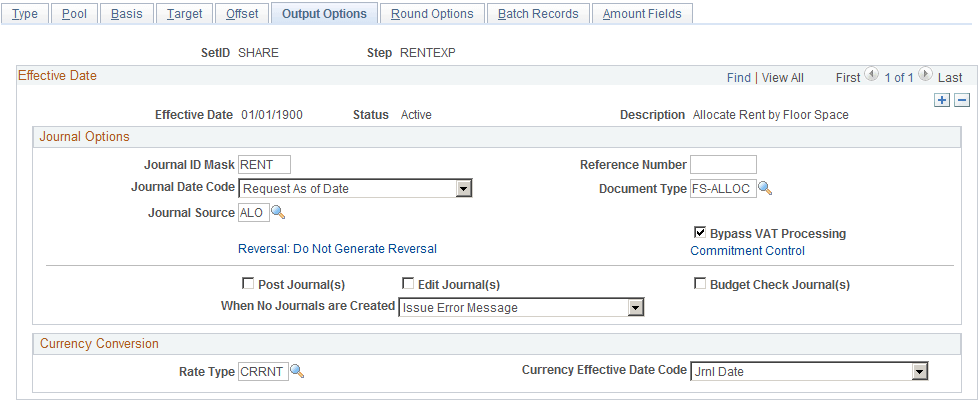
Journal Options
| Field or Control | Description |
|---|---|
|
Journal ID Mask |
If the target or offset is a journal that is on the Allocations Target or Allocations Offset pages, you must define the journal options. The Journal ID Mask field enables you to specify a prefix for naming allocation journals. A 10-character alphanumeric ID identifies journals. The system automatically appends the prefix that you specify to the journal IDs. For example, if you specify the Journal ID Mask to be ALLOC, the allocation journal IDs might be ALLOC00001, ALLOC00002, and so on. Alternatively, the value NEXT causes the system to assign the next available journal ID number automatically. Reserve a unique mask value for allocations to ensure that no other process creates the same journal ID. When Reversal option is specified, the system appends one of the alpha characters between A to Z to the Journal ID Mask depending on the accounting period (1 to 26) of the Allocation Journal in the same sequence. The system will use A-Z in repeating cycle when the accounting period is greater than 26. For example, when Reversal option is specified, Journal ID Mask is ALC, and the accounting period is 5, the allocation journal IDs will be ALC00E0001, ALC00E0002, etc, and can go up to ALC00E9999. The maximum journal sequence length is 9999. However, it could be less if the length of allocation Journal ID Mask is 6. So when Reversal option is specified and if the Journal ID Mask is XXXXXX, then allocation Journal ID Mask generated by the system after appending the alpha character for accounting period will have length 7. Hence, the maximum journal sequence length would be 999. So it is recommended for the users to restrict the size of the mask up to 5 characters, if they need 4 digits(9999 instead of 999) for Journal ID generation. |
|
Journal Date Code |
You can assign a value based on the following options, all of which are adjusted to the prior working day if the next day is in the next period:
Note: You must use either the Beginning of the Period or End of the Period journal date options if you use multiple-period time spans for the target. |
|
Source |
Enter the journal source. Unless you specify otherwise, the journal source moves by default to ALO (allocations). |
|
Reversal |
Click to access the Journal Entry Reversal page. You can set up a reversing entry for the current allocation by selecting the applicable option, which then appears in the link. Options are:
|
|
Reference Number |
Enables you to refer each journal back to a document, person, invoice, date, or any other piece of information that is helpful to you when you track the source of the transaction. |
|
Document Type |
If you run the PeopleSoft Allocations process for a business unit for which you enable document sequencing, you must select a document type. If you do not select a document type, you receive an error. If some of the business units require document sequencing, you assign a document type to the allocation rules regardless of whether you enable document sequencing for that business unit. If you do not enable document sequencing for any of the business units, the Document Type field is unavailable. |
|
Bypass VAT Processing (bypass value added tax processing) |
Click if you want the allocations process to skip VAT processing. Even if Bypass VAT Processing is not selected, the journals that are created through allocations and edited do not create VAT rows for VAT applicable accounts. The VAT process processes VAT accounts that are created by the allocation process. However, to prevent double counting, the VAT process does not create VAT lines for VAT applicable accounts that are created from allocations. |
|
Post Journal (s) |
Click to post the journals. If you select this option, the system automatically selects the Edit Journal(s) and Budget Check Journal(s) check boxes. You can deselect the Budget Check Journal(s) check box if you want to run the Budget Processor later to update the commitment control ledgers. |
|
Edit Journal (s) |
Select to edit the journals that the PeopleSoft Allocations process creates so that you do not have to edit them later in a separate process. You select this option when you want to edit journals without posting them. Typically, you select this option in a multiple-step allocation process where the pool amount for the next step comes from the target of the previous step. If journals are not posted, the ledger is not updated. The next multiple step then draws erroneous data from the ledger. If you select this option, the PeopleSoft Allocations process calls the Journal Edit process (GL_JEDIT) first to edit the journals. If the journals fail in the Journal Edit process, the system does not post them to the ledger and the PeopleSoft Allocations process issues this error message: "Allocation step … is complete with journal created but not posted." Journals can fail the Journal Edit process for many reasons, including invalid ChartFields, balancing by ChartField, or ChartField combination edit. After you determine the cause of the problem, you might have to change the allocation step definition to avoid it. |
|
Budget Check Journal (s) |
Select this check box to run the Budget Processor to budget check journals for the commitment control ledgers. This option is available only if you enable the commitment control option. If you select this option, the system automatically selects Edit Journal. You must edit journals before you budget check them. |
|
When No Journals are Created |
Specify what you want the PeopleSoft Allocations process to do:
|
Commitment Control
Click the Commitment Control link to access the Commitment Control page.
In the Commitment Control Amount Type field, select from the following options:
| Field or Control | Description |
|---|---|
|
Actuals and Recognized |
Select for the actual amount of the expenditure or the recognized revenue transaction. |
|
Encumbrance |
Select if the journal is not an actuals transaction. Instead, it records the amount that you authorize to be spent. This usually occurs when you create a contract or a purchase order. |
|
Pre-Encumbrance |
Select if the journal is not an actual transaction. Instead, it records the amount that you expect to expend. This usually occurs when you create a requisition. |
|
Collected Revenue |
Select if the journal records the collected amount from a prior revenue transaction. |
|
Actuals, Recognize and Collect |
Select if the journal records both recognize and collect amounts on the revenue estimate budget ledger. |
|
Planned |
Select if the journal records the amount that you plan to spend. This amount is only an estimate; it is not yet an actual transaction. |
Bypassing or Overriding Budget Checking
Click the Commitment Control link to access the Commitment Control page.
| Field or Control | Description |
|---|---|
|
Bypass Budget Checking |
You can select this option to temporarily allow the journal to bypass budget checking. This field is active only if you enabled Commitment Control. |
|
Override |
If selected, journal entries are allowed to pass budget checking if they exceed their budgeted amount. This field displays the override user ID and override date. |
Budget Entry Type
The following options apply to commitment control budget journals:
| Field or Control | Description |
|---|---|
|
Original |
Select to indicate an original budget journal entry. Used to record adopted or approved budgets. |
|
Adjustment |
Select to indicate an adjustment to an original budget. |
Parent Budget Options
Automatic generation of parent budget impacts revolves around the originating journal. The originating journal is a child level budget, budget adjustment, or transfer budget journal, entered manually or by journal import or allocations, on which parent or multiple parent budget level impacts are generated.
The automatic generation of parent budgets is discussed in the Commitment Control documentation regarding posting of budgets.
Table Output Option
| Field or Control | Description |
|---|---|
|
Table Output Option |
If the target or offset record that you select is Any Table on the Allocation Target or Allocation Offset pages, the Table Output Option field becomes available and you can select Replace Existing Amount or Update Existing Amount. |
Currency Conversion
The currency conversion fields are used by the PeopleSoft Allocations process to convert the base currency amount of the target and offset. The process converts the base currency if the base currency of the target and offset is different from the base currency of the pool. When allocating to a table, the business unit of the target and offset must be a General Ledger business unit; otherwise, the process does not convert the base currency amount.
| Field or Control | Description |
|---|---|
|
Rate Type |
Specify the currency conversion exchange rate type. The process converts the base currency only if the base currency of the target and offset is different from the base currency of the pool. When allocating to a journal, if the base currency of the target and offset is same as the base currency of the pool, Allocation calculates rates as per the ratio of summarized pool base amount and summarized pool transaction amount. If the user requires to recalculate rates as per rate type entered on Allocation step – Output Options page, then allocation journals should be edited in batch with Recalc Exchange Rates check box selected. When allocating to a journal, if the rate type is blank, the process uses the rate type from the primary ledger of the target and offset ledger group. When allocating to a table, if the rate type is blank, the process does not convert the base currency amount. |
|
Currency Effective Date Code |
Select one of the following for the allocation:
|