Define Allocation Step - Pool Page
Use the Define Allocation Step - Pool page (ALLOC_POOL) to define the allocation pool: pool record, selection criteria, and selection method.
You can define the pool from ledger balances, any table, or a fixed amount.
Navigation:
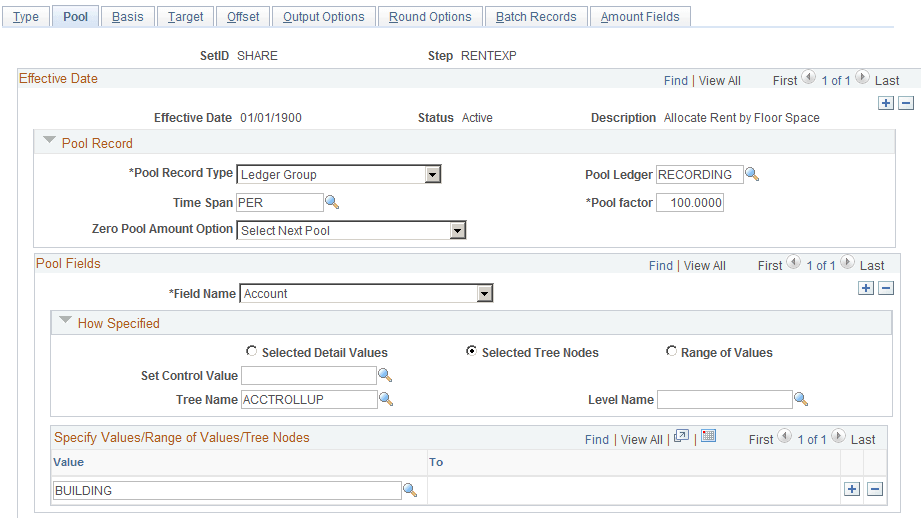
This example illustrates the fields and controls on the Define Allocation Step - Pool page. You can find definitions for the fields and controls later on this page.
| Field or Control | Description |
|---|---|
|
Pool Record Type |
Specify one of the following:
|
|
Pool factor |
Enter a percentage to apply to the pool amount. This option provides the flexibility to allocate a percentage of the pool amount. You can also allocate more than 100 percent of the pool amount. |
|
Time Span |
Select to specify a period that is relative to the current period: the fiscal year and accounting period that are to be used to retrieve pool records. Enter a single or multiple period time span to determine the accounting periods that are used for the pool. Relative time spans, such as PER (current period activity), retrieve amounts that are relative to the as of date that you specify on the Allocation Request page. You are not required to specify a value in the Time Span field; if you do, the system retrieves only the pool amounts for the specified fiscal year and accounting periods. If you leave this field blank, the system retrieves all the pool amounts for all fiscal years and accounting periods. If you specify Any Table for the pool record, and the pool record does not have both FISCAL_YEAR and ACCOUNTING_PERIOD fields, you cannot specify a time span value here. If you specify Ledger Group for the Pool Record Type field, the system determines the fiscal year and accounting period by using the calendar that is defined for the ledger group on the Ledgers for a Unit - Definition page. If you specify Any Table for the Pool Record Type , the system determines the fiscal year and accounting period by using the calendar that is defined on the Time Spans page. If you specify a multiple period time span, the system adds together the pool amounts for all periods to get one single pool amount, regardless of the values that you enter in the Basis Time Span, Target Time Span, Basis Span Opt, and Target Span Opt fields. You cannot split pool amounts across periods to match basis or target periods. Note: The PeopleSoft Allocations process excludes period 999. |
|
Zero Pool Amount Option |
Select one of the following options to tell the system how to proceed when the amount of the pool record retrieved is zero:
Before the allocation process selects pool records, it groups them based on how the target and offset fields are specified. The process uses the zero pool amount option logic only if the total amounts of the group of pool records totals zero. If some individual pool amounts are zero but the total amount of the group of the pool records is not zero, the system process this group of pool records. |
|
Field Name |
Enter, within the Pool Fields group box, the field name that the PeopleSoft Allocations process uses in selecting only certain pool rows from the pool record. If the pool record type is a ledger group, the pool record name is the ledger record name that is defined in the ledger template for the ledger group. The Field Name prompt table lists all fields that are in the pool record. If no pool rows are selected based on the time span and selection criteria that you specify in the Pool Fields group box, the PeopleSoft Allocations process skips this step unless you specify Calc No Rows as Zero in the Zero Pool Amount Option field. You receive the message, "No record row exists for the pool," and if this is a multiple step group, the system continues processing the next step in the group. In the How Specified group box that follows, specify the appropriate option or select a combination of the three methods that are described to determine how values are to be provided for the field name that you select. If you do not explicitly specify the BUSINESS_UNIT field value, the system uses the business unit that is specified on the Allocation Request page to select pool rows. Note: Use trees whenever possible to reduce future maintenance when the ChartField values change. |
|
Selected Detail Values |
Select to activate the first Specify Values/Range of Values/Tree Nodes edit box so that you can list individual pool field values, such as specific departments or accounts. |
|
Selected Tree Nodes |
Select to activate the tree information fields for you to specify a tree from which to select nodes. The Level Name field is optional and is used to limit the prompting to the selected level. Use the Set Control Value field to select trees that are not keyed by SetID. For example, some Project Costing trees are keyed by business unit. The system uses the value to identify which trees are available in the Tree Name field. |
|
Range of Values |
Select to activate the Specify Values/Range of Values/Tree Nodes edit box for you to enter the beginning and ending pool field values. If you leave the fromValue field blank, the system selects all pool field values that are less than or equal to the To field value. You cannot leave the To field blank because the blank value is always the smallest value. You can insert multiple ranges of values. |
|
Include/Exclude |
This option is visible when selecting to enter a Range of Values. Select Exclude Specified Values to specify a range of values that you wish to exclude from the pool. Select Include Specified Values to specify a range of values that you wish to include in the pool. |
|
Exceptions |
Click the link in the Exceptions column to access the Pool Exceptions page. Define exceptions to the associated range of included or excluded values on this page. This link displays the number of exceptions that you have defined for a given range of values. |
Pool Exceptions Page
The ability to define exceptions to included or excluded ranges of values provides the ability to refine selection criteria while reducing the need for multiple rows or steps.
Use the Pool Exceptions page (ALLOC_POOLX) to enter pool exceptions for ranges of values.
Navigation:
Select the Exceptions link on the Define Allocations Step - Range of Values option, provide the range values and click the link in the Exceptions column on the Define Allocation Step - Pool page).
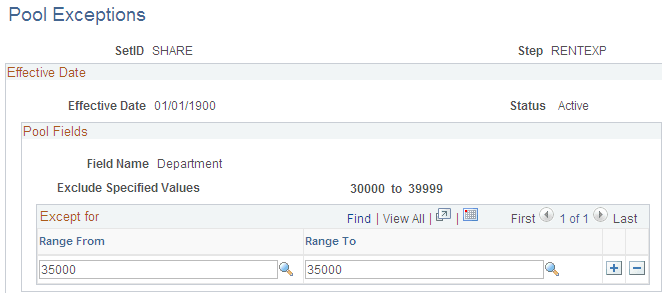
This example illustrates the fields and controls on the Pool Exceptions page. You can find definitions for the fields and controls later on this page.
| Field or Control | Description |
|---|---|
|
Range From and Range To |
Enter the range of values that are exceptions to the associated range of either included values or excluded values. If you selected the Include Specified Values field for the Include/Exclude option on the Pool page, the exceptions that you define on this page are exceptions to the included range that you entered. If you selected the Exclude Specified Values field for the Include/Exclude option on the Pool page, the exceptions that you define on this page are exceptions to the excluded range that you entered. |