My Home - Continue With Section
Use the Continue With section (EOHP_CONTINUEWITH_SCTN_LP) to access transactions that you have started but not completed, saved for later, or are in draft status. These transactions are easy to identify in this section so you can quickly resume your work.
Navigation:
The Continue With section appears on a My Home landing page when a user signs in.
This example illustrates the fields and controls on the Continue With section.
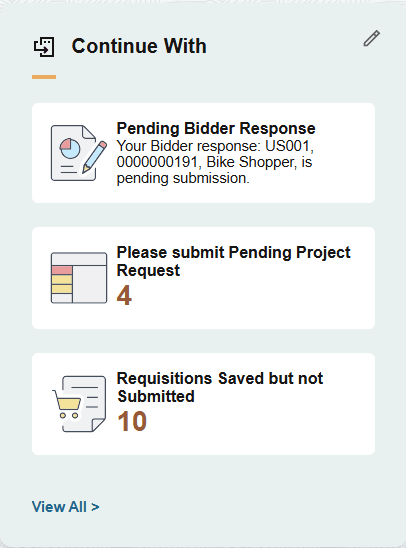
Tiles that appear in this section:
-
Are dynamic notification tiles.
-
May come from starting tasks that appeared in the Suggestions tile or from starting other transactions that you did not complete.
When the number of tiles exceed those that fit in the section tile, the section displays the View All link. The number of tiles that appear in the section is controlled by CSS styles for the section template and the device's form factor.
When all tasks are submitted or completed, the section displays the text "All caught up!".
Note:
Notifications displayed in this section do not require separate security for the tiles.
Delivered FSCM Notifications and Tiles for the Continue With Section
This table lists the delivered FSCM notifications and tiles that can be added to the Continue With section of the My Home Landing page.
| Product and Tile Name, Description | Usage | Notification ID, Index Name, and Access |
|---|---|---|
|
Strategic Sourcing - Pending Bidder Response |
Select the tile to access the View All Continue With page, which displays "Save For Later" transactions made on behalf of bidder responses. You can either dismiss the transaction or access the PeopleSoft Strategic Sourcing: Create Bidder Response Page, where you can edit and submit the bid. Note: This applies only to transactions saved for later from the employee portal. |
Notification ID - SSBidderResponseHomePageEntry Index Name - EOHP_NOTIFICATIONS User who created the bidder response. |
|
eProcurement - Requisitions Saved but not Submitted |
Select the tile to access the PeopleSoft eProcurement: My Requisitions Page to complete requisitions that have been started but not yet submitted. To refresh the item count on this tile, run the ePro Homepage Notify Refresh (PV_RUN_HPGCW) process on the Schedule Process Requests page. For more information about the Schedule Process Requests page, refer Scheduling Process Requests topic in the PeopleTools documentation. |
Notification ID - ReqPendingReqHomePageEntry Index Name - EOHP_NOTIFICATIONS User who created the requisition. |
|
Expenses - Pending Expense Reports |
Select the tile to access the PeopleSoft Expenses: My Expense Reports Page - Not Submitted. Note: Transactions display after Schedule Notification process is run for users. |
Publish Notification ID -Pending Expense Reports Index Name - HCSC_AN User who updated the pending expense report last. |
|
Expenses - Pending Travel Authorizations |
Select the tile to access the Travel Authorization - Pending Authorizations page. See PeopleSoft Expenses: Creating Travel Authorizations Using PeopleSoft Fluid. Note: Transactions display after Schedule Notification process is run for users. |
Publish Notification ID -Pending Travel Authorizations Index Name - HCSC_AN User who updated the pending travel authorization last. |
|
General Ledger - Complete Journals. Manage journals that are saved as incomplete. |
Select the tile to access the View All Page for Suggestions, Continue With, or Announcements. For any row, select the right arrow to access the page from which the journal was originated. |
Notification ID - GL_MYHOME_CONT_JRNL_INCOMPLETE Index Name - EOHP_NOTIFICATIONS User who entered the journal. |
|
General Ledger - Complete Financial Structure Request Review financial structure requests that have a New status but are not submitted for review. |
Select the tile to access the View All Page for Suggestions, Continue With, or Announcements. For any row, select the right arrow to access the Financial Structure Request Page. |
Notification ID - GL_MYHOME_CONT_FSR_INCOMPLETE Index Name - EOHP_NOTIFICATIONS User who created the FSR. |
|
Payables - Incomplete Vouchers Manage Vouchers that are saved as Incomplete. |
Select to access the PeopleSoft Payables: Voucher - Summary Page. |
Notification ID - VchrIncompleteHomepage Index Name - EOHP_NOTIFICATIONS User who entered the voucher. |
|
Payables - Payment Request Manage Payment Requests that have not been submitted for approval. |
Select to access the PeopleSoft Payables: Payment Request Center Page. |
Notification ID - PymtReqSubmitHomepage Index Name - EOHP_NOTIFICATIONS User who entered the payment request. |
|
Project Costing - Pending Project Requests Manage Project Requests that have not been submitted for approval. |
Select to access the PeopleSoft Project Costing: View Project Request Page |
Notification ID - PCProjectRequestHomePageEntry Index Name - EOHP_NOTIFICATIONS User who entered the project request. |
|
Receivables - Deposits Not Posted |
Select to view
all deposits not posted. Click |
Notification ID - DepositsNotPosted Index Name - EOHP_NOTIFICATIONS User who entered the deposit. |
 icon on the transaction row to view the