My Home - Suggestions Section
Use the Suggestions section (EOHP_SUGGESTEDACTIONS_SCTN_LP) to access system-identified tasks and processes that are sent via a notification event.
Navigation:
The Suggestions section appears on a My Home landing page when a user signs in.
This example illustrates the fields and controls on the Suggestions section.
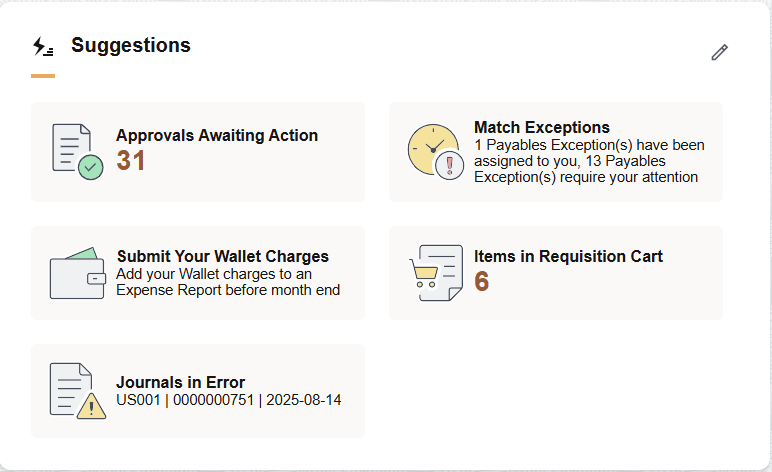
Use this section to view and access task reminders that you need to complete or address. When the number of tiles exceed those that fit in the section, the section displays a View All link. The number of tiles that can appear in the section is controlled by CSS styles for the section template and the form factor for the device.
When there are no outstanding suggestions and you are not an approver, the section displays the text "All caught up!".
Delivered FSCM Notifications and Tiles for the Suggestions Section
This table lists the delivered FSCM notifications and tiles that can be added to the Suggestions section of the My Home Landing page. The image, text, description, and target URL are defined in the Notification Composer.
For more information, see the Enterprise Components: Creating and Managing Notifications with Notification Composer.
| Product and Tile Name, Description | Usage | Notification ID, Index Name, and Access |
|---|---|---|
|
Approvals Awaiting Action This tile is derived from Approvals and displays the number of pending approvals requiring your attention. |
Select to access the Pending Approvals Page. |
Permission List - EOAW1000 or EOAW2200 |
|
Billing - Billing Worksheets Pending Approval Manage and approve temporary invoices that originate from Contracts. Only contracts that are not pre-approved appear. |
Select the tile to access the View All Billing Worksheets Pending Approval page. For any row, select the right arrow to access the PeopleSoft Billing: Update Billing Worksheet - Worksheet Headers Page. |
Notification ID - BillingWorksheet Index Name - EOHP_NOTIFICATIONS Role - Billing Specialist |
|
eProcurement - Items in Cart |
Select the tile to access the Create Requisition page, which displays the persistent cart. You can pick up where you left off with the requisition creation process. For more information about Requisition Cart, refer to the PeopleSoft eProcurement: Create Requisition: Browse Catalogs Page. To refresh the item count on this tile, run the ePro Homepage Persistent Cart (PV_RUN_HPGSA) process on the Schedule Process Requests page. For more information about the Schedule Process Requests page, refer Scheduling Process Requests topic in the PeopleTools documentation. |
Notification ID - ReqSuggestedActionHomePageEntry Index Name - EOHP_NOTIFICATIONS All users that have items in their cart. |
|
Expenses - Submit Your Wallet Charges |
Select the tile to access the PeopleSoft Expenses: Wallet Entry Page. Note: Transactions display after Schedule Notification process is run for users. |
Publish Notification ID -Pending Wallet Expenses Index Name - HCSC_ANN All users with outstanding wallet changes. |
|
General Ledger - Journals in Error Manage journals that fail the edit process and have an error status. |
Select the tile to access the View All Page for Suggestions, Continue With, or Announcements. For any row, select the right arrow to access the page from which the journal originated. |
Notification ID -GL_MYHOME_SUG_JRNL_ERROR Index Name - EOHP_NOTIFICATIONS All users who have journals that are in error. |
|
General Ledger - Review Financial Structure Request Review, submit for approval, or cancel financial structure requests that are routed to you. |
Select the tile to access the View All Page for Suggestions, Continue With, or Announcements. For any row, select the right arrow to access the following page based on your role:
|
Notification ID - GL_MYHOME_SUG_FSR_RVW Index Name - EOHP_NOTIFICATIONS Role - FSR Reviewer |
|
Payables - Match Exceptions |
Select to access the PeopleSoft Payables: Match Exception Collaboration Summary Page. |
Notification ID - MatchExceptsHomepage Index Name - EOHP_NOTIFICATIONS Users based on Match Exception Group setup. |
|
Payables - Scheduled Payments on Hold |
Select to view
all scheduled payments on hold. Click |
Notification ID - PymtonHoldHomepage Index Name - EOHP_NOTIFICATIONS Users who placed the payment on hold. |
|
Receivables - Item in Dispute |
Select to view
all items in dispute. Click Note: Transactions display after Schedule Notification process is run for users. |
Notification ID - ItemsinDispute Index Name - EOHP_NOTIFICATIONS User who placed the item in dispute. |
|
Treasury - Payments Awaiting Dispatch |
Select to access the PeopleSoft Financial Gateway: Payment Dispatch Page. |
Notification ID - PmtAwaitDispatchHomepage Index Name - EOHP_NOTIFICATIONS Notification User List - FG_PYMNTDISPATCH_USER |
|
Treasury - Financial Gateway Payments on Hold |
Select to view
all Financial Gateway payments on hold. Click |
Notification ID - PmtFlaggedHoldHomepage Index Name - EOHP_NOTIFICATIONS Notification User List - FG_PYMNTHOLD_USERS |
 icon on the transaction row to view the
  icon on the transaction row to view the