Pending Journal Generator Page
Use the Pending Journal Generator page (AM_WC_JGEN_TRANS) to review pending Journal Generator transactions and run the Journal Generator process for selected assets. Transaction data is organized by business unit.
Navigation:
This example illustrates the fields and controls on the Pending Journal Generator page. You can find definitions for the fields and controls later on this page.
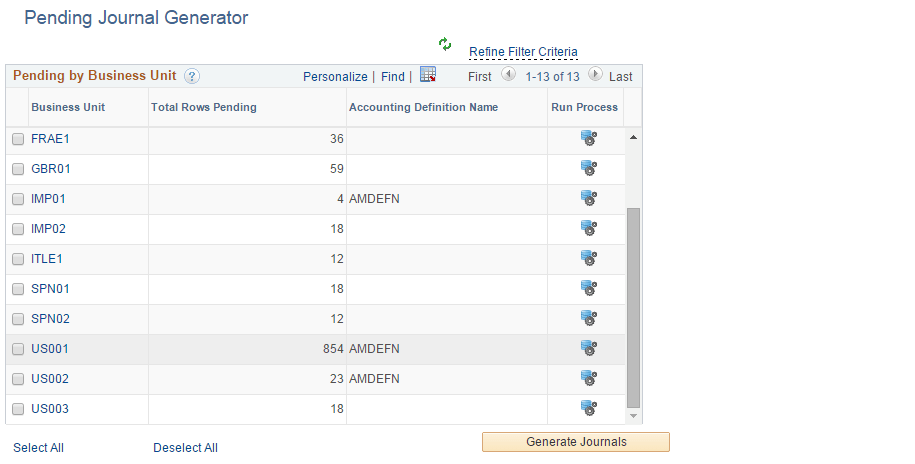
This example illustrates the fields and controls on the Pending Journal Generator page. You can find definitions for the fields and controls later on this page.
| Field or Control | Description |
|---|---|
|
Business Unit |
Displays business units that have pending journal generator transactions. Select a business unit to run the Journal Generator process (FS_JGEN) against it using the Generate Journals button. The FS_JGEN process creates GL journals from Asset Management accounting entries. Click a Business Unit link to display related transaction details in the Pending Transaction Details group box. |
|
Total Rows Pending |
Displays the total number of pending rows for a business unit. |
|
Accounting Definition Name |
Displays the accounting definition name associated with the business unit. You provided this value using the Accounting Definition Name field on the Interface Options page. |
|
Run Process |
Click the icon to run the Journal Generator process (FS_JGEN) for the corresponding business unit in the row. The FS_JGEN process creates GL journals from Asset Management accounting entries. |
|
Generate Journals |
Click to run the Journal Generator process (FS_JGEN) for one or more business units or asset IDs that you select on the page. |
Pending Transaction Details
| Field or Control | Description |
|---|---|
|
Selection(check box) |
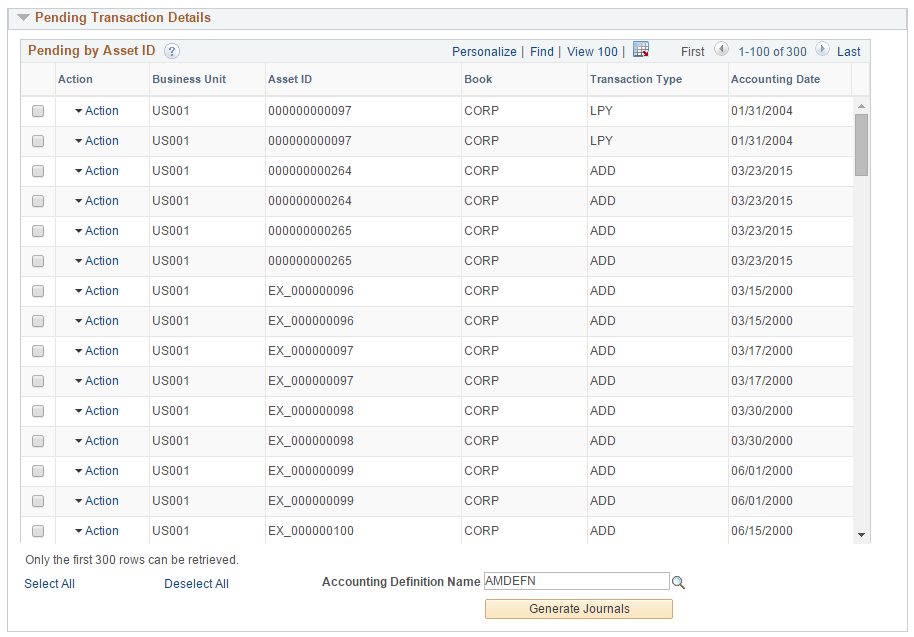
Select asset IDs that you want to process using the Generate Journals button (runs the Journal Generator process, FS_JGEN). The system will automatically select corresponding Asset IDs that share the same value. Once you run this process for an asset ID, you will not be able to select it again for future processing. |
|
Action |
Click the action link associated with an asset ID to open the following pages:
You must perform each action individually in the Action column by drilling into the action from this list. |
|
Business Unit |
Displays the business unit associated with the asset ID |
|
Asset ID |
Displays the asset ID associated with a selected business unit. |
|
Book |
Displays the book associated with a selected business unit and asset ID. |
|
Transaction Type |
Displays the transaction type associated with a selected business unit and asset ID. |
|
Accounting Date |
Displays the accounting date associated with a selected business unit and asset ID. |
|
Accounting Definition Name |
Enter a value for the accounting definition name. This field identifies which accounting entry definition the system should use when it creates the journal header and lines. Note: You cannot run the Journal Generator process (FS_JGEN) without a value for this field. |