Setting Up VAT for Treasury Management
Pages Used to Set Up VAT for Treasury Management
| Page Name | Definition Name | Usage |
|---|---|---|
|
TRV_BU_UNIT_OPT_TR |
Define specific VAT processing options for a Treasury business unit. The Treasury VAT Options link is enabled only if the General Ledger business unit representing the Treasury business unit is linked to a VAT Entity. |
|
|
VAT Defaults Setup Page (for Treasury business units) |
VAT_DEFAULTS_DTL |
Specify default VAT options for a Treasury business unit. The VAT Defaults link on the Treasury Options page is enabled only if the General Ledger business unit representing the Treasury business unit is linked to a VAT entity. See the Treasury Options Page. |
|
VAT Defaults Setup Page (for banks) |
VAT_DEFAULTS_DTL |
Specify VAT default options at the bank level. See PeopleSoft Banks Setup and Processing: Defining Bank Information and the PeopleSoft Banks Setup and Processing: Bank Information Page. |
|
Bank Branch Information Page |
BANK_BRNCHPNL |
Set up the bank branch and define VAT registration options. See PeopleSoft Banks Setup and Processing: Defining Bank Information and the PeopleSoft Banks Setup and Processing: Bank Branch Information Page. |
|
VAT Defaults Setup Page (for bank branches) |
VAT_DEFAULTS_DTL |
Specify default VAT information for a bank branch. See PeopleSoft Banks Setup and Processing: Defining Bank Information and the PeopleSoft Banks Setup and Processing: Bank Branch Information Page. |
|
Accounting Templates Page |
TRA_TMPL_DETL |
Define general accounting template and template line information, including VAT template line information. See Establishing Accounting Templates and Accounting Templates Page. |
|
VAT Defaults Setup Page (for accounting templates) |
VAT_DEFAULTS_DTL |
Define VAT default processing options for a Treasury Management accounting template. The Treasury VAT Defaults link is enabled only for BSP and Fee source type accounting templates. See Establishing Accounting Templates and Accounting Templates Page. |
Understanding Setting Up VAT for Treasury Management
Although the Treasury VAT Options and VAT Defaults links display on the Treasury VAT setup pages (the VAT Defaults link on the Bank Information, Bank Branch Information, and Accounting Template pages; both links on the Treasury Options page), you can access the Treasury VAT Options and VAT Defaults pages only when the selected business unit is VAT-enabled.
Use Treasury VAT setup pages to:
-
Define Treasury business unit VAT processing defaults.
-
Define bank VAT processing defaults.
-
Define bank branch VAT processing defaults.
-
Define Treasury accounting template VAT processing defaults.
Prerequisites
Before specifying Treasury Management VAT options for a treasury management business unit, you must enable VAT for that business unit. A treasury management business unit is VAT-enabled after you link the general ledger business unit representing the treasury business unit to a VAT Entity.
Treasury - VAT Options Page
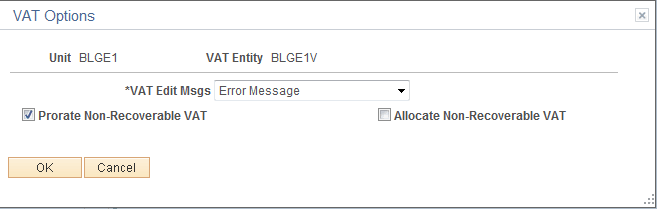
Use the Treasury - VAT Options page (TRV_BU_UNIT_OPT_TR) to define specific VAT processing options for a Treasury business unit.
Navigation:
Click Treasury VAT Options on the Treasury Options page.
This example illustrates the fields and controls on the Treasury - VAT Options page. You can find definitions for the fields and controls later on this page.
| Field or Control | Description |
|---|---|
|
VAT Edit Msgs (VAT edit messages) |
VAT edit messages are used to indicate if VAT tolerance messages are errors, warnings, or not displayed. This is a business unit-only default and applies directly to a transaction.
|
|
Prorate Non-Recoverable VAT |
Select this check box to record non-recoverable VAT amounts to an expense account. |
|
Allocate Non-Recoverable VAT |
Select this check box to allocate non-recoverable VAT using ChartField Inheritance logic. |
Note:
You can select either to allocate or prorate nonrecoverable VAT transactions, but you cannot select both check boxes.