Using the Fluid User Interface for Contracts
This topic discusses how to navigate through the Contracts application using the PeopleSoft Fluid User Interface.
Customer Contracts Home page
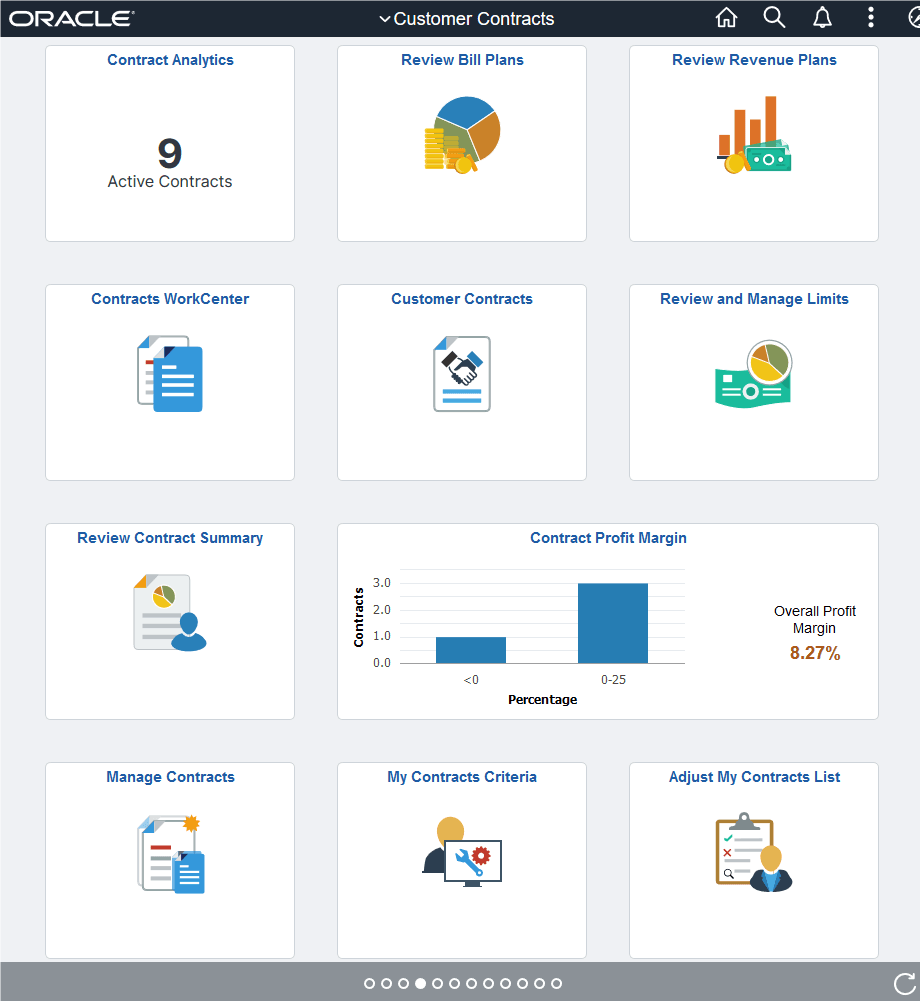
Use the Customer Contracts home page to access various contracts component pages. Users can perform a variety of tasks including general contract management, contract billing, and contract revenue recognition.
Navigation:
This example illustrates the fields and controls on the Customer Contracts Home page.
Customer Contracts
Use the Customer Contracts tile to access the frequently used pages and pagelets providing a central area for users to access key components within the Contracts application.
Navigation:
This example illustrates the fields and controls on the Contracts Navigation Collection Page.
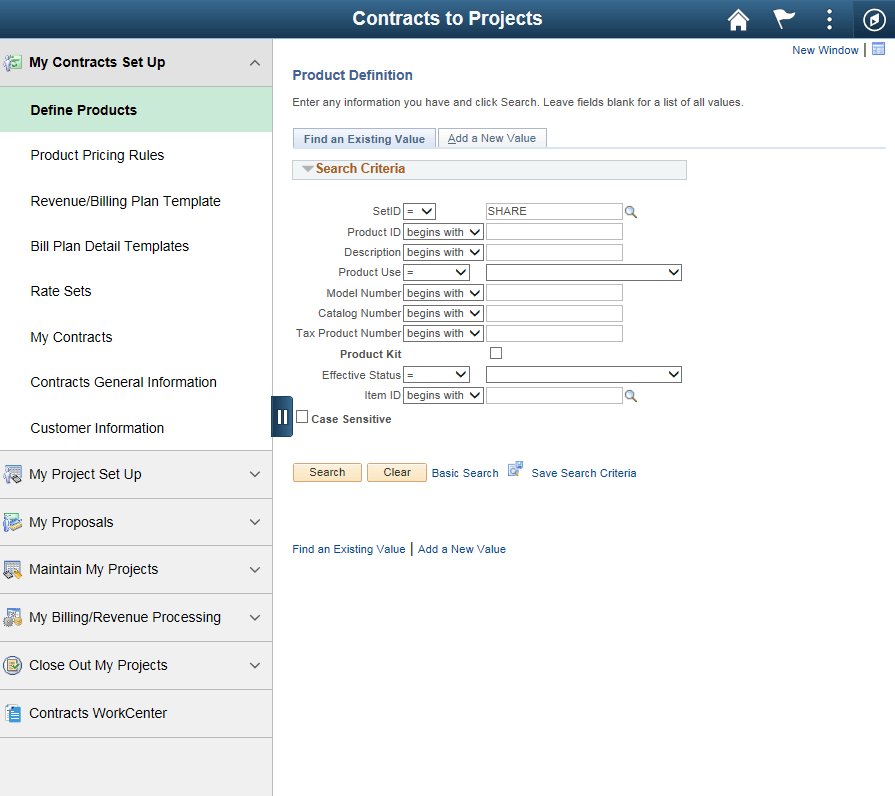
This navigation collection enables users to access frequently-used contracts components from a single location. The left panel of this page lists all the collected components in the following categories:
-
My Contracts Set Up
-
My Project Set Up
-
My Proposals
-
Maintain My Projects
-
My Billing/Revenue Processing
-
Close Out My Projects
-
Contracts WorkCenter
The right panel displays the component details that is selected on the left panel.
My Preferences - Customer Contracts Page
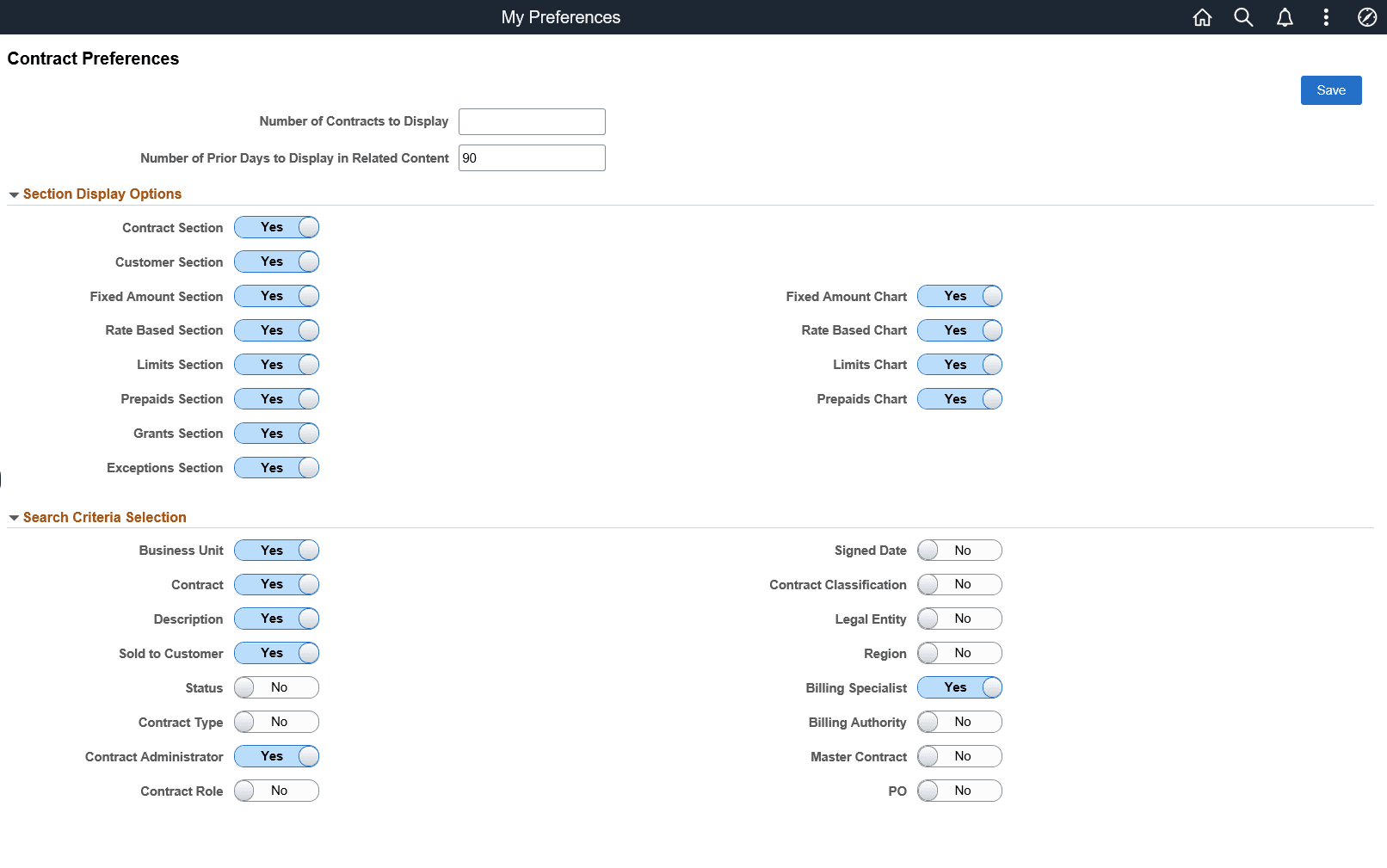
Use the My Preferences - Customer Contracts page (PTGP_USER_PERS_FL) to configure information that is displayed on the Manage Contracts page.
Number of contracts to display is used to limit the number of contracts displayed on the Manage Contracts component and can remain blank. The Number of Prior Days entered is the basis for 'recent information' included for vouchers, expenses and other related content.
Navigation:
This example illustrates the fields and controls on the My Preferences - Customer Contracts page. You can find definitions for the fields and controls later on this page.
| Field or Control | Description |
|---|---|
|
Number of Contracts to Display |
Enter the maximum number of contracts to display on the Manage Contracts page. This field is optional. |
|
Number of Prior Days to Display in Related Content |
Enter the number of prior days based on which data will be displayed in the Related Information section. |
|
Section Display Options |
Display of various sections can be configured to be hidden or visible to the users. |
|
Search Criteria Selection |
Select fields to be included as Search Criteria. |
Pages Used to Manage Contracts
| Page Name | Definition Name | Usage |
|---|---|---|
|
CA_MNGCONT_FL |
View information pertaining to your contracts. |
|
|
CA_MYCON_DEF_FL |
Define criteria to automatically populate contracts in the My Contracts list. |
|
|
CA_MYCON_FL |
Make changes to the My Contracts list. |
|
|
RUN_CA_MYCON |
Execute a scheduled process to populate the My Contracts List for users based on their specific criteria. |
Manage Contracts Page
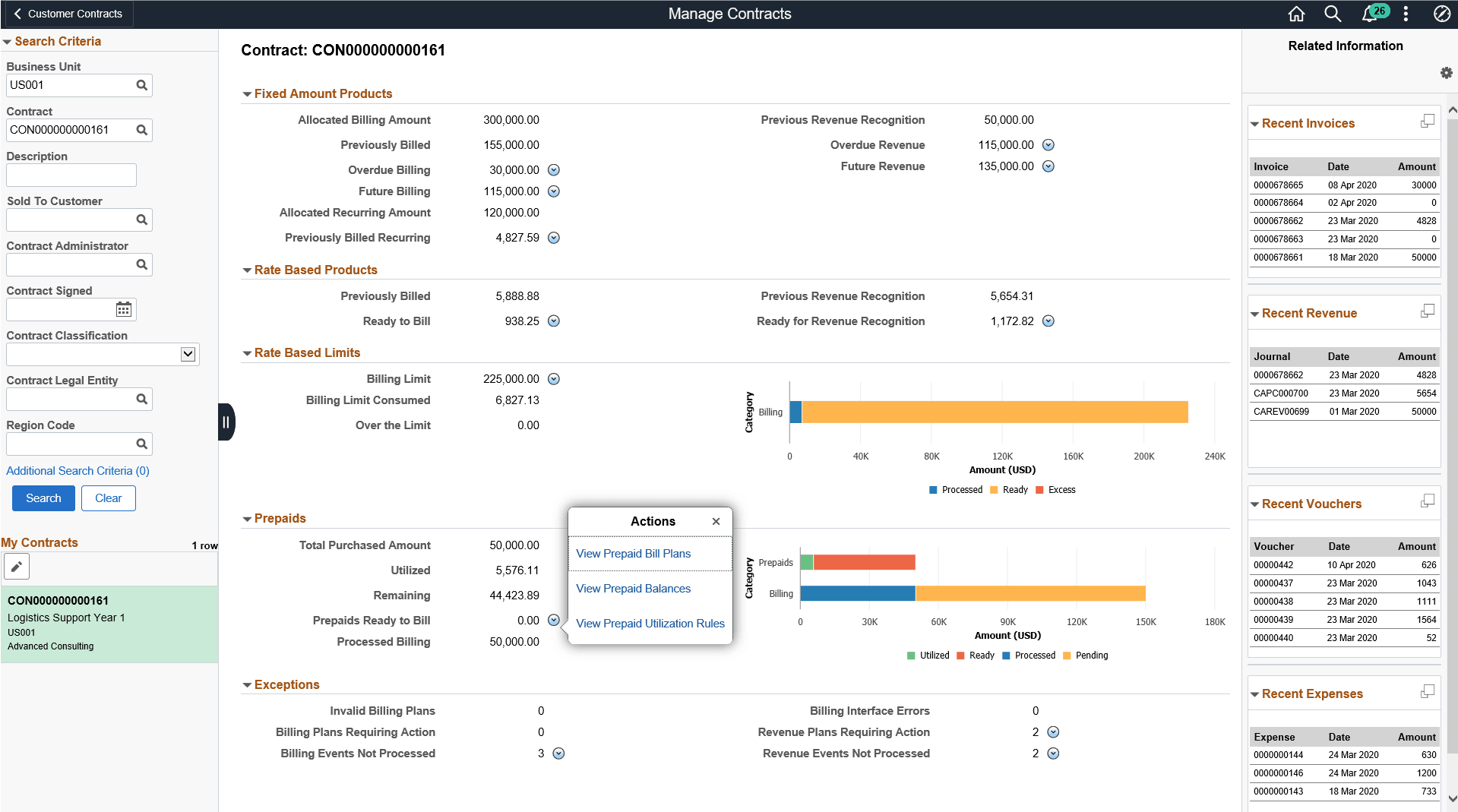
Use the Manage Contracts page (CA_MNGCONT_FL) to view information pertaining to your contracts. This page functions based on the preferences set on the My Preferences — Customer Contracts page. Only after configuring preferences and selecting a contract, data will be displayed on the page.
Navigation:
This example illustrates the fields and controls on the Manage Contracts page. You can find definitions for the fields and controls later on this page.
| Field or Control | Description |
|---|---|
|
Search Criteria |
Select criteria to view corresponding contracts. Search Criteria displayed is based on the criteria selected on the My Preferences — Customer Contracts page. |
|
Additional Search Criteria |
Click to set additional search criteria for the contracts to be displayed. Number of additional search criteria defined will be displayed alongside the link. Four additional search criteria given are:
|
|
My Contracts |
Displays contracts from the My Contracts list matching the search criteria. You can click on any contract to view all its details. No contracts will be displayed if none match the search criteria. My Contracts list has to be set up to activate this feature. |
|
|
Click the Edit icon to access the Adjust My Contracts List page. Here you can add or delete contracts from My Contracts list. This icon is available only if the My Contracts list is defined. |
|
Contract |
The center of the page displays details for the contract selected. For some sections a visual representation of the data is also provided. User can configure to hide the visual representation on the My Preferences page. |
|
|
Related Actions are provided for certain fields. Depending on the related action selected, corresponding page will open in a new window where users can take necessary action. Some related actions open corresponding fluid pages where users can quickly make changes while other actions open content in classic plus. |
|
Related Information |
This section provides an overview of related information for the four categories. The number of 'recent' transactions displayed is based on the number of days selected on the My Preferences page. The four related information categories provided are:
|
|
|
Click the icon to view detailed related information in a modal window. |


My Contracts Criteria Page
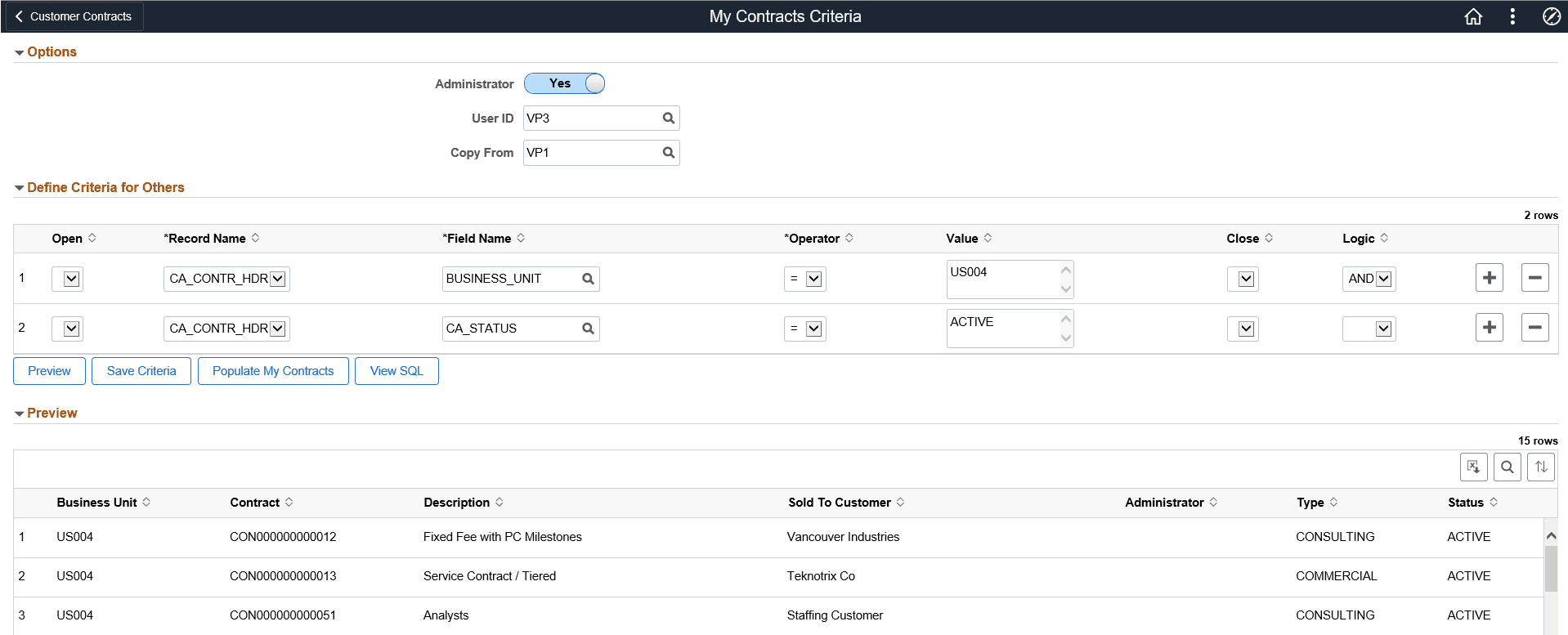
Use the My Contracts Criteria page (CA_MYCON_DEF_FL) to define criteria used to automatically populate contracts in the My Contracts list. Administrator has additional privilege to define criteria for other users.
Navigation:
This example illustrates the fields and controls on the My Contracts Criteria page. You can find definitions for the fields and controls later on this page.
| Field or Control | Description |
|---|---|
|
Options |
This section should be made available to Administrators only. You can use the Page and Field Configurator tool to limit access to this selection for non-administrators. |
|
Administrator |
Select Yes for administrator. |
|
User ID |
Select the User ID whose criteria is being updated. |
|
Copy From |
Select the User ID to use as the source of the copy. |
|
Define My Criteria |
This section lists fields used as criteria to populate the My Contracts list. |
|
Open |
Select open parenthesis to separate the defined criteria. This field is optional. |
|
Record Name |
Select from the given record names:
|
|
Field Name |
Select appropriate field name. |
|
Operator |
Select suitable operator depending on the requirement of the criteria. |
|
Value |
Enter suitable value to compare based on the chosen Operator. |
|
Close |
Select close parenthesis when required. |
|
Logic |
Select 'AND' or 'OR'. If nothing is selected, 'AND' is the default. This is applicable while defining multiple criteria. |
|
Preview |
Click to view a preview of the list of contracts that match the defined criteria. |
|
Save Criteria |
Click to save the defined criteria. The criteria saved here will be used by the Populate My Contracts process to update the My Contracts list. |
|
Populate My Contracts |
Click to populate the contracts matching the criteria to the My Contracts list. |
|
View SQL |
Click to view the SQL created for the criteria entered on the page. |
|
Preview |
In this section, users can see a preview of the list of populated contracts that match the defined criteria. |
Adjust My Contracts List Page
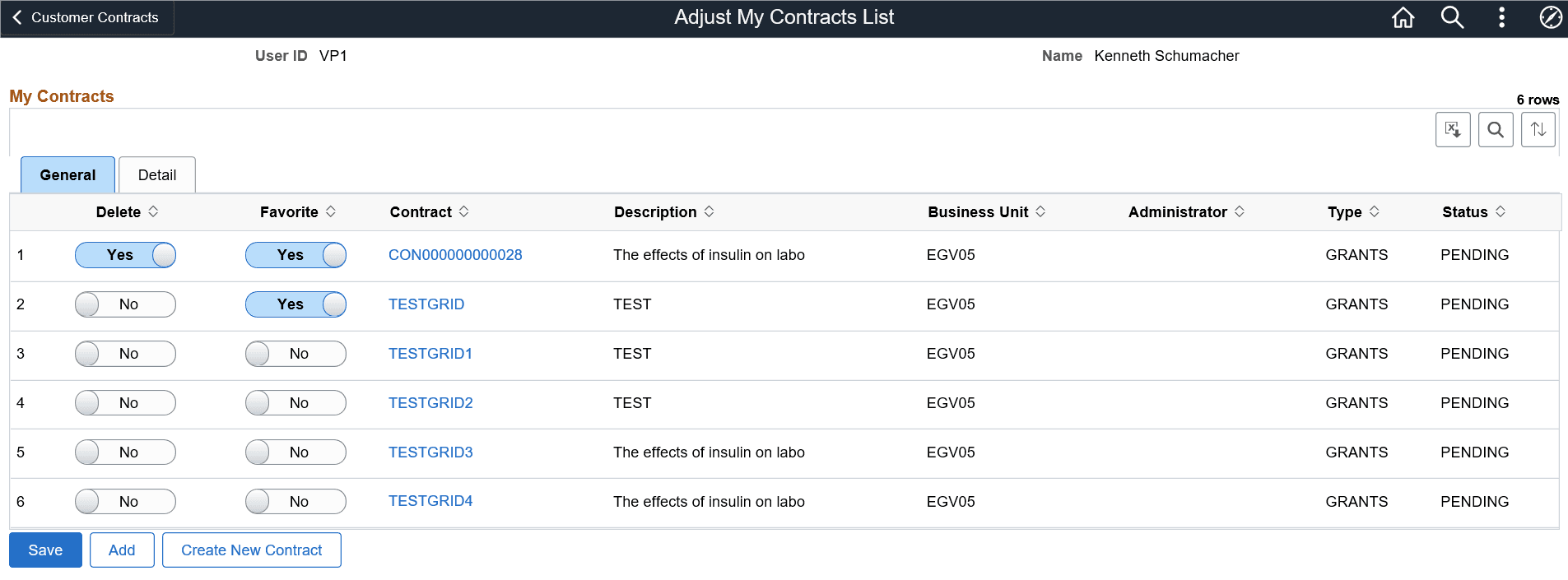
Use the Adjust My Contracts List page (CA_MYCON_FL) to make changes to the My Contracts list. Contracts can be added to the list or deleted from the list to adjust the My Contracts list.
Navigation:
This example illustrates the fields and controls on the Adjust My Contracts List page. You can find definitions for the fields and controls later on this page.
| Field or Control | Description |
|---|---|
|
Delete |
Select Yes to delete the contract from the My Contracts list. By default the value for this field will be No. |
|
Favorite |
Select Yes to mark a contract as Favorite, so that it will appear at the top of the list on the Manage Contracts page. |
|
Detail |
The detail tab displays additional information for all the contracts such as Total Billing and Total Revenue. |
|
Save |
Click Save to delete any contracts that are marked for deletion from the My Contracts list. Contracts manually deleted from the My Contracts list will not be reloaded by the Populate My Contracts process, even if they meet the criteria defined on the My Contracts Criteria page. To include a previously deleted contract in the My Contracts list, you must add it back manually. Any contracts added to My Contracts list from this page are preserved when the Populate My Contracts process is executed, even though they do not meet the criteria defined on the My Contracts Criteria page. |
|
Add |
Click to add contracts to the My Contracts list. Contracts are added based on the selected BU. |
|
Create New Contract |
Click to create new contract. This will open the customer contracts component in a new window in classic plus. |
Populate My Contracts Page
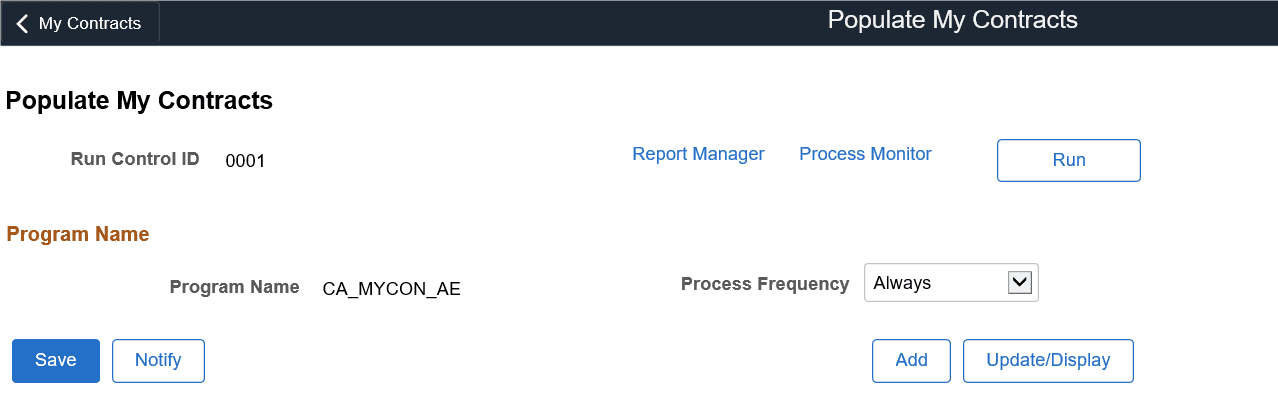
Use the Populate My Contracts page (RUN_CA_MYCON) to execute the Populate My Contracts process (CA_MYCON_AE) through a regularly scheduled batch process. This process updates the My Contracts list for each user for whom the criteria is defined on the My Contracts Criteria page. The existing My Contracts list is refreshed after running the process. However, any manual additions or deletions from the list are preserved. Oracle recommends scheduling the process to run on a regular basis to ensure new contracts are added to the My Contracts list programmatically.
Navigation:
This example illustrates the fields and controls on the Populate My Contracts page.