Contact Us Page (LFF)
Use the Contact Us page to view biller phone contact information when provided by the biller.
Create and review messages initiated in Fluid eBill Payment about your account. Billers send messages and responses to Fluid eBill Payment users using PeopleSoft Receivables conversation pages.
Navigation:
-
Select the Contact Us tile on My Homepage in the customer portal.
-
Open the Message Center through the Invoice Summary, Invoices, and Payment History pages.
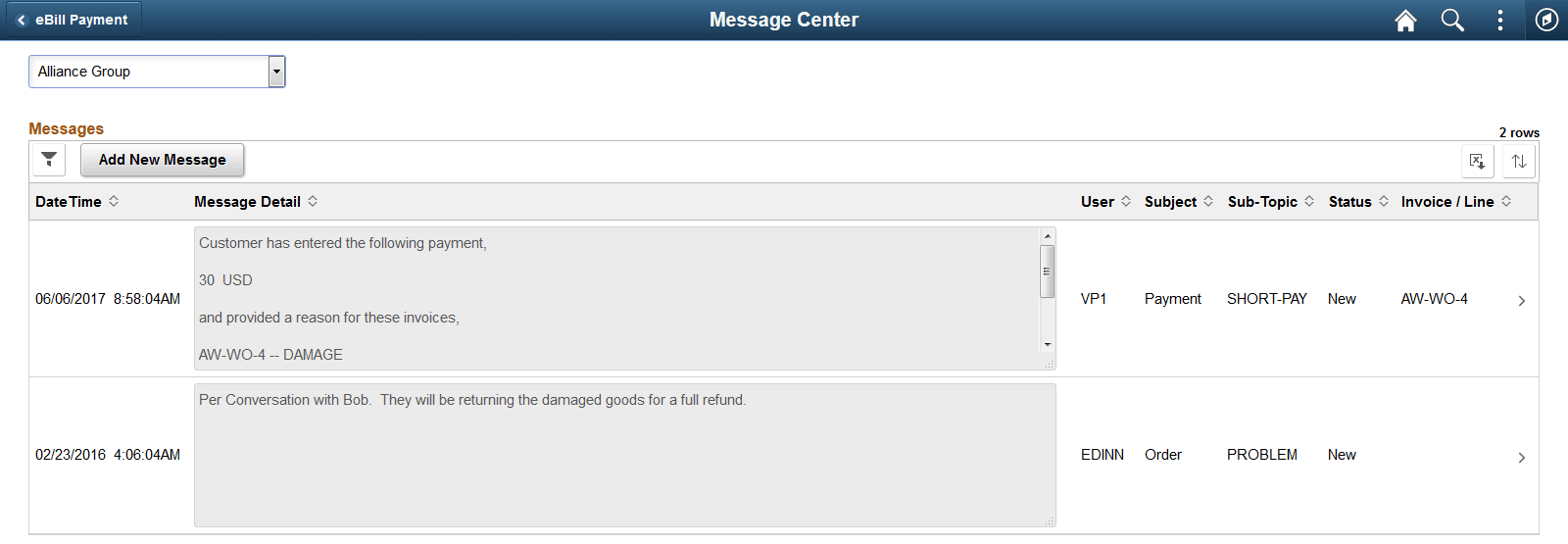
This example illustrates the fields and controls on the Contact Us page (LFF). You can find definitions for the fields and controls later on this page.
Call
If enabled by the biller, the biller contact information is displayed. This section is not shown if the biller has not set up the call options on the Fluid eBill Payment installation pages.
Messages
The date range of the messages displayed in the grid depends on the dates determined by the biller for the Fluid eBill Payment application and additional filtering performed by the user.
| Field or Control | Description |
|---|---|
|
|
Select the Filter Items button to open the Filter page, where you can narrow the results you see on the Messages grid, as you would using a search page. When filters are in use, the filter button appears green. |
|
Add New Message |
Click to open the Add New Message page, where you can initiate a conversation. |
|
Unread Message icon (dot) |
Indicates that this message or a response to this message has not been read. This icon disappears once messages or responses have been read. A message has an unread status and appears in the count on the tile if the user has not yet viewed:
|
|
DateTime |
Displays the date and time the message was sent. |
|
Message Detail |
Displays the body of the message. |
|
User |
Displays the user who created the message. |
|
Subject and Sub-Topic |
Displays the subject and subtopic of the conversation. |
|
Status |
Displays the message status. |
|
Invoice / Line |
Displays the invoice ID and line when the message references one invoice or line. When a message references more than one invoice or line, *** Multiple Invoices *** is displayed. |
|
|
Select the Multiple Invoices button when present to open the Invoices page (EB_CONTACT_INV_SCF), where invoices referenced in the message are listed. |

