Payment Results Page
The Payment Results page appears after submitting a payment in the Payment Cart. Depending on the payment type, this page displays an authorization code for credit card payments or a transaction ID when provided by third-party processing,
Use the Payment Results page (EB_PYMNT_RESULT_FL) to view payment results.
Navigation:
Click the Submit button on the Review and Submit page.
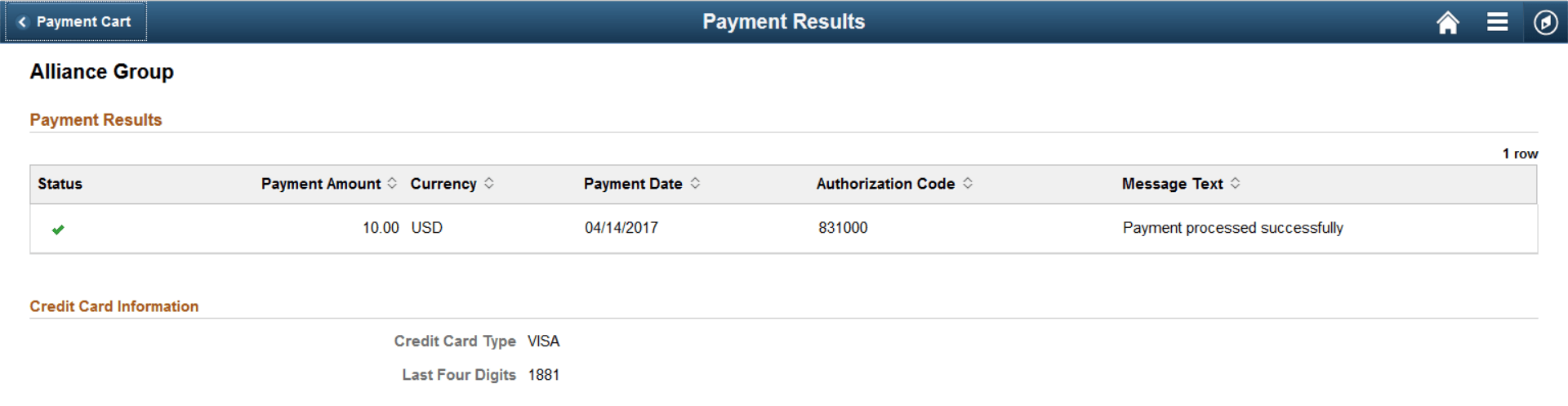
This example illustrates the fields and controls on the Payment Results page for a credit card payment, on the large form factor design. You can find definitions for the fields and controls later on this page.
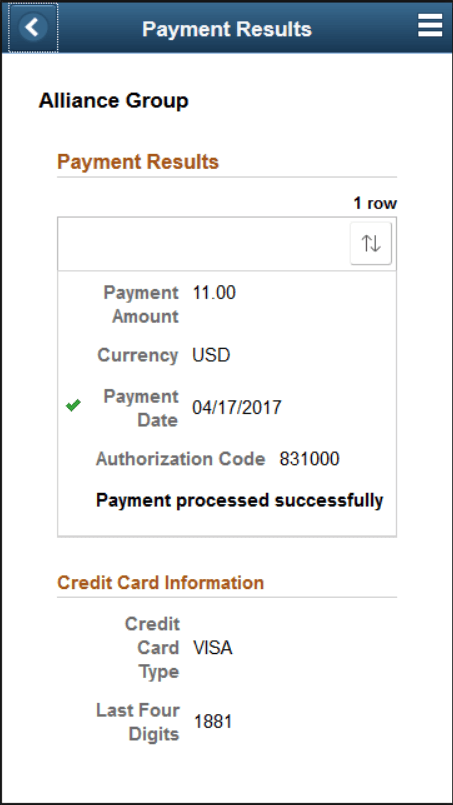
This example illustrates the fields and controls on the Payment Results page for a credit card payment, as displayed on a smartphone. You can find definitions for the fields and controls later on this page.
| Field or Control | Description |
|---|---|
|
Status is |
Indicates a successful status with a check mark icon or error status with an exclamation mark icon. |
|
Authorization Code |
Displays an authorization code returned by the third-party payment gateway. Make a record of this code for billing inquiries. |
|
Message Text |
Displays a statement generated by the third-party payment processor that the payment was processed successfully or an error occurred. |
|
Correct Payment Errors |
Appears when an error occurs after submitting a payment. Click this button to add the invoice with the error to the Payment Cart, replacing existing invoices in the cart. You can then resubmit the payment to resolve the issue. For a persistent issue, contact the biller. See Using the Message Center. |
 (success) or
  (error)
To go back to the Fluid eBill Payment homepage, select Home in the Action List menu.