Maintaining Procurement Options
Procurement options control a variety of requisition, purchase order, receiving, and procurement card information.
This section discusses how to assign catalogs to a purchasing business unit and set up return to supplier instructions.
Pages Used to Maintain Procurement Options
| Page Name | Definition Name | Usage |
|---|---|---|
|
PV_REQ_BU_CAT |
Assign catalogs to a PeopleSoft Purchasing business unit. Limit the items that are available to a user by restricting the user to an item catalog. You can also restrict user access to items by attaching item catalogs to the requester on the Requester's Setup page. |
|
|
Purchasing Kit Definition Page |
PURCH_KIT_TBL |
Set up item purchasing kits for requisitions. |
|
PV_RTV_ADMIN |
Set up return to vendor instructions. |
Assign Catalogs to Business Unit Page
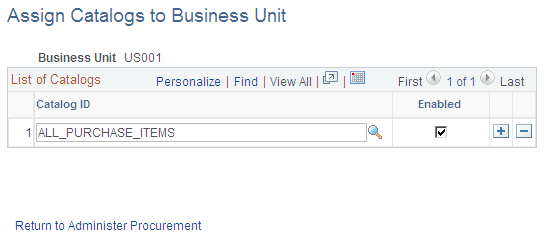
Use the Assign Catalogs to Business Unit page (PV_REQ_BU_CAT) to assign catalogs to a PeopleSoft Purchasing business unit.
Limit the items that are available to a user by restricting the user to an item catalog. You can also restrict user access to items by attaching item catalogs to the requester on the Requester's Setup page.
Navigation:
This example illustrates the fields and controls on the Assign Catalogs to Business Unit page. You can find definitions for the fields and controls later on this page.
| Field or Control | Description |
|---|---|
|
Business Unit |
Enter a business unit to which you are assigning catalogs. Any user who enters PeopleSoft eProcurement requisitions using this business unit can select only the items in the catalogs that appear in the Catalog ID field. |
|
Catalog ID |
Enter item catalogs. |
|
Enabled |
Select to indicate that the item catalog is available to requesters that are associated with this business unit. |
Note:
To enable the entries on this page, enter Y in the BU Catalog Control (business unit catalog control) field on the eProcurement Installation Options page. If you are using role-based catalog security, this field will be hidden.
Setup Instructions for Return to Vendor Page
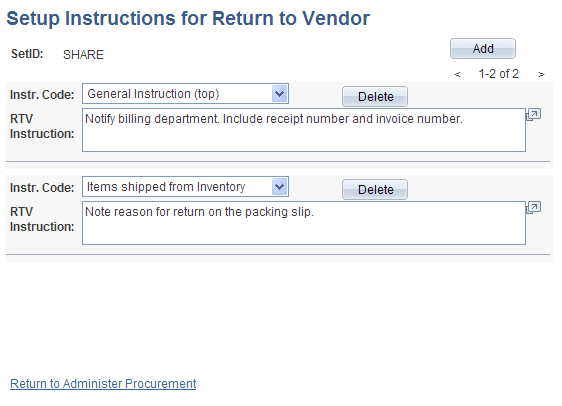
Use the Setup Instructions for Return to Vendor page (PV_RTV_ADMIN) to set up RTV instructions.
This example illustrates the fields and controls on the Setup Instructions for Return to Vendor page. You can find definitions for the fields and controls later on this page.
| Field or Control | Description |
|---|---|
|
Instr. Code (instruction code) |
Select how you want instructions to appear on the Return to Supplier page. Values are: General Instructions (top): At the top of the page under the first heading. Return Qty Shipped to Supplier (return quantity shipped to supplier): Below the shipment and supplier information heading if the return to vendor status is Shipped. Saved confirmation page text: When you click the Save button on the Return to Supplier page. Ship Qty instruction (ship quantity instruction [bottom]): Below the shipment and supplier information heading, if the return to supplier status is Open. |
|
RTV Instruction (return to vendor instruction) |
Enter the instruction details for the instruction that you selected in the Inst. Code field. |